Submitting a Ticket on the Customer Help Portal
Submitting a ticket
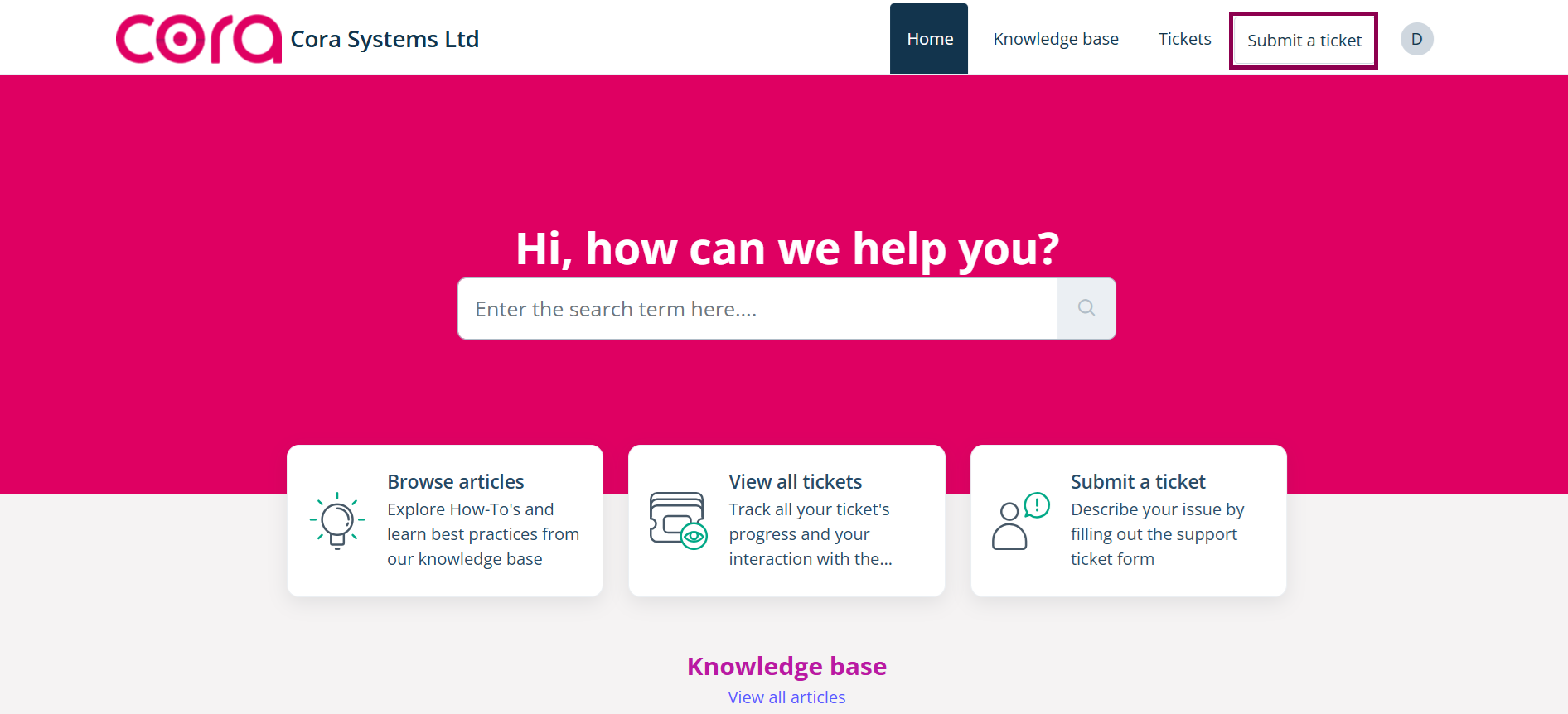
- To submit a ticket, go to the top right-hand corner of the panel and select "Submit a ticket".
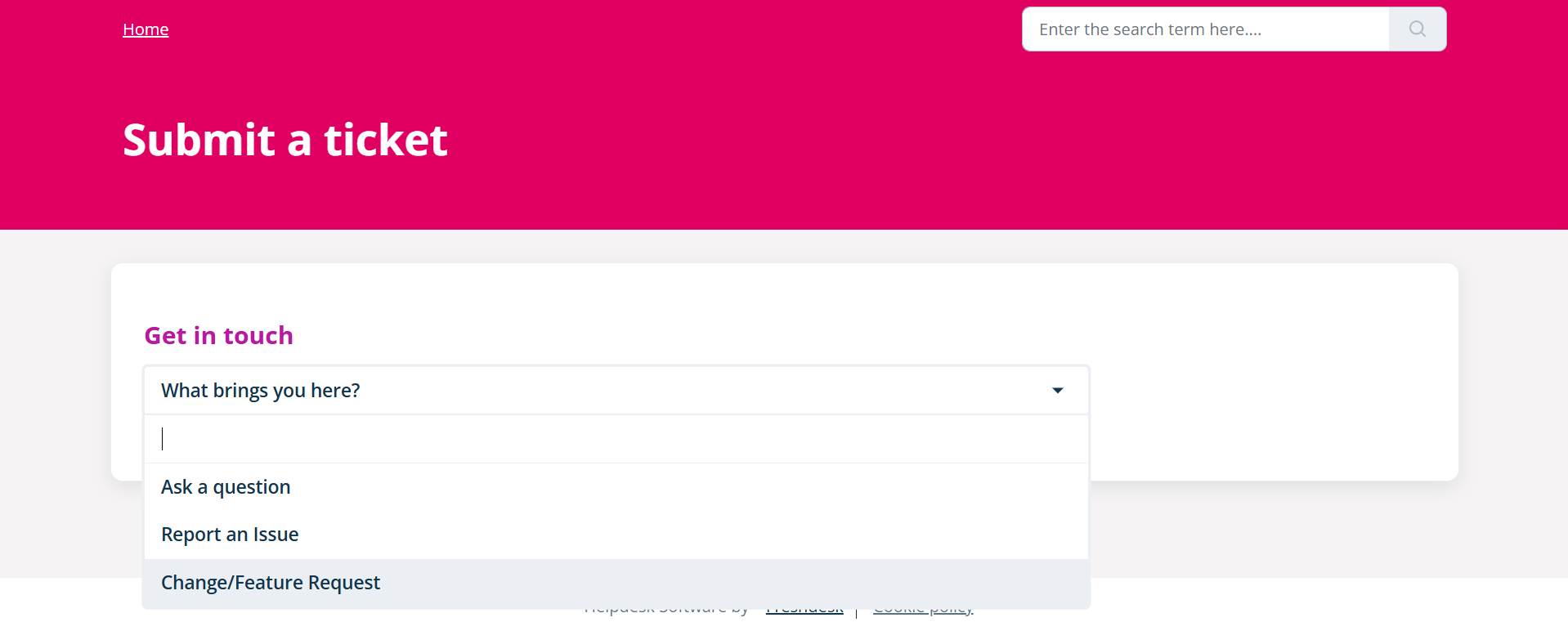
Select the relevant Ticket Type from the "What brings you here?" dropdown menu.
- Several fields will appear based on your selection. Some fields are mandatory, marked with an asterisk (*). Your email address will be automatically populated if you are logged in.
- There may be a recaptcha security challenge to be completed to prevent automated attacks.
- We provide the ability to record your screen directly from within your browser, removing the need for any third-party software or concerns around file size upload limits.
- While optional, we strongly recommend attaching a screen recording wherever possible — particularly with a voiceover — as this greatly assists the support team in fully understanding your query, issue, or request.
- Providing a recording reduces the need for follow-up information-gathering responses and can have a significant impact on the overall time taken to resolve your ticket.
- Once the ticket has been successfully submitted, a support representative will review your ticket and communicate with you until the issue is resolved and the ticket is closed.
Ask a Question
- Email Address (required) Enter the email address associated with your Cora account.
- Subject (required) Provide a short, clear title that summarises the Query (e.g. "How can users be planned on Tasks?").
- Screen Recording (optional but strongly recommended) Click "Record my screen" to capture any relevant background or information related to your query.
- Description (required) Provide a detailed summary of the query in the text editor.
Report an Issue
- Email Address (required) Enter the email address associated with your Cora account.
- Subject (required) Provide a short, clear title that summarises the issue (e.g. "Tasks tab returns an error when saving").
- Screen Recording (optional but strongly recommended) Click "Record my screen" to capture what is happening.
- Description (required) Provide a detailed summary of the issue in the text editor.
- Severity (dropdown) Select the technical severity of the issue. Cora Customer Suport team will update based on SLA if left blank or incorrect to ensure alignment.
- Environment (required — dropdown) Select the environment where the issue occurred (e.g. Live/Production, UAT, Development) if all, please select Production .
- Site URL (required) Enter the full URL of your Cora site (e.g.
https://yourorg.corasystems.com/YourOrg_Prod). - Screen that issue happened on (required) Enter the name or path of the screen where the issue occurred (e.g. "Project Dashboard > Tasks Tab").
- What is the issue that occurred? (required) Describe exactly what went wrong (e.g. "Clicking Save on a task produces a 500 error and the task is not saved").
- Actions leading up to the issue Describe what you were doing immediately before the issue occurred.
- Acceptance Criteria – What did you expect to happen? (required) Describe the expected outcome (e.g. "The task should save and a confirmation message should display").
- Steps to Reproduce (required) List the exact steps needed to reproduce the issue, for example:
Navigate to the Projects screen
Open an existing project
Click on the Tasks tab
Edit a task and click Save
Observe the error message
- Business Severity (dropdown) Select the business-level severity of the issue you are reporting.
- Business Impact (required — dropdown) Select how broadly the issue is affecting your organisation.
- Business Severity Justification Provide context to support your severity selection (e.g. "This is preventing 15 users from completing their weekly reporting").
- External Reference Number If applicable, this allows you to enter your internal systems reference number (e.g. an ID related to your internal helpdesk/servicedesk such as ServiceNow, JIRA, etc.).
- Recording/Series of screenshots have been attached? (required — checkbox) Check this box to confirm you have attached a screen recording or a series of screenshots via the Attachment link below.
Change/Feature/Script Request
- Email Address (required) Enter the email address associated with your Cora account.
- Title (required) Provide a short, clear title that summarises the request (e.g. "Remove weekends from Timesheet view").
- Screen Recording (optional but strongly recommended) Click "Record my screen" to capture any relevant background or information related to your request.
- Description of request (required) Provide a detailed summary of the issue in the text editor.
- Business Value (required — dropdown) Select the relevant importance of this change for your business (e.g. Critical - Low).
- External Reference Number If applicable, this allows you to enter your internal systems reference number (e.g. an ID related to your internal helpdesk/servicedesk such as ServiceNow, JIRA, etc.).
Was this article helpful?
That’s Great!
Thank you for your feedback
Sorry! We couldn't be helpful
Thank you for your feedback
Feedback sent
We appreciate your effort and will try to fix the article