Release build No. | TBC |
|---|---|
Reviewer | Noelle Patterson |
Last Updated | |
Module | Rate Matrix |
Audience | PPM / System administrators, project managers |
Guide Type | Administrator guide |
Related Modules / Areas | Project costing, Cost Book, workflow, API |
Status | REVIEW |
How It Works — End to End
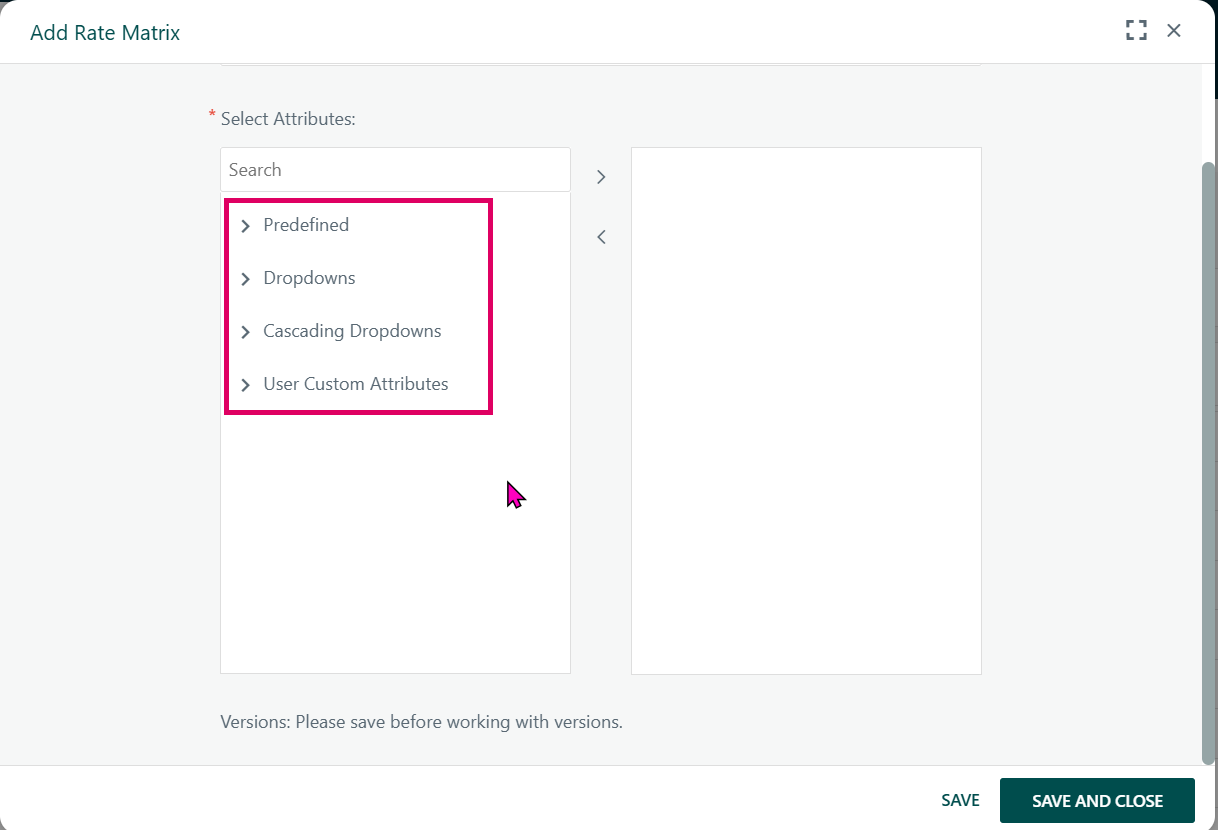
Configuration (Admin layer): An administrator defines one or more Rate Matrix Descriptions — each is a named template that specifies which attributes (dimensions) will be used for matching. Attributes can be predefined system fields (Project Type, Parent Project Type, Skill, Facility, Currency, Named User) or user-defined dropdown lists or cascading hierarchical dropdowns, or even user custom attributes.
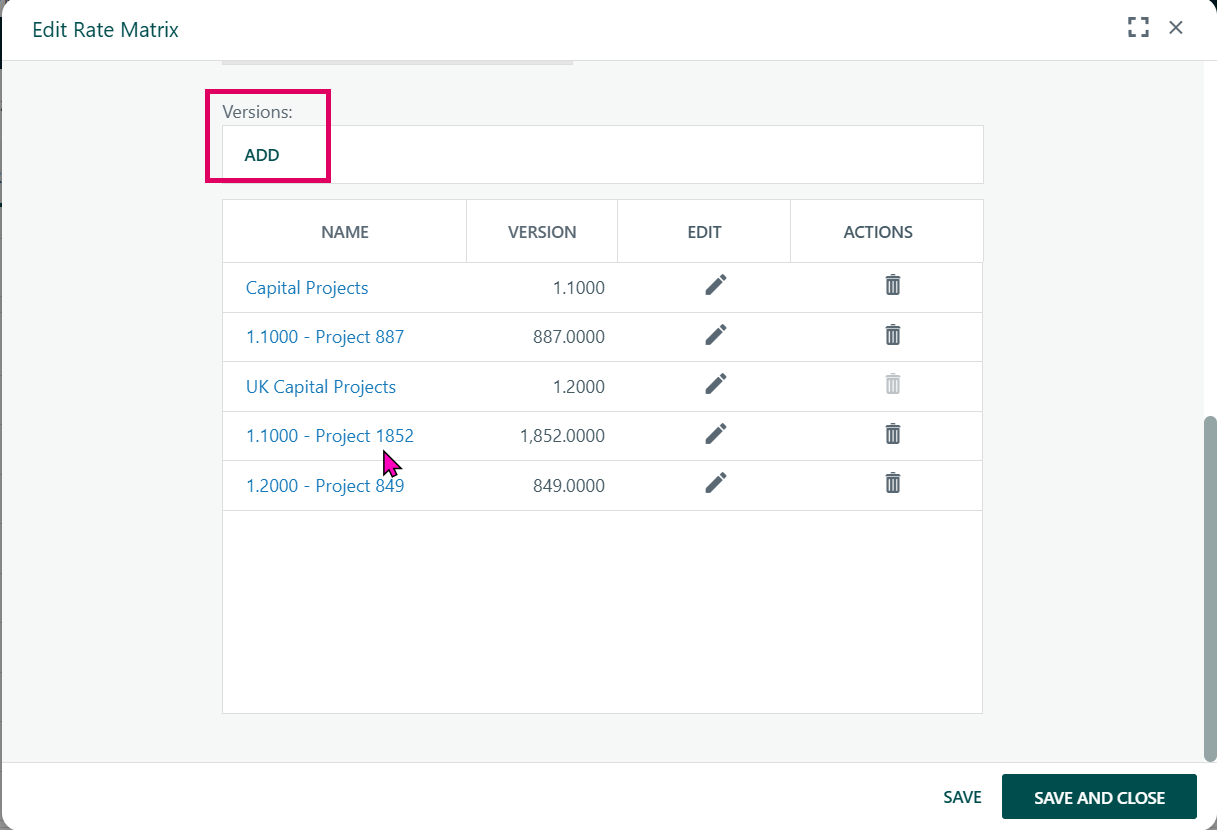
Versioning: Under each Description, the admin creates one or more numbered Versions. Each version holds the actual rate table (the grid of attribute combinations and their associated cost/charge-out values). Versions are date-controlled — each rate entry specifies a From Date and a To Date, allowing rates to change over time. A version can also be project-specific (a "Project Rate Matrix Version"), copied from a global version and then customised for a single project.
- Project Assignment: A project manager (or admin) assigns a Rate Matrix Description and a specific Version to a project via the project's Rate Matrix properties tab. Optionally, a project-level override date can be set (used for burden cost calculations). Versions can be propagated automatically to sub-projects in a hierarchy.
- Rate Lookup at Task Level: When a resource (skill, user, material, facility) is added to a task, Cora PPM performs a multi-dimensional lookup: it evaluates the resource's attributes against the active rate matrix version to find the matching Matrix Category row. This lookup is performed by stored procedures (
RateMatrix_GetMatrixCategoryIdByParams, etc.) and honours wildcard attribute matching (controlled by theRateMatrixWildcardfeature toggle). - Cost Calculation: Once the matching Matrix Category is identified, the system retrieves the rate entry valid for the task's date range. It multiplies the rate (Cost and ChargeOutCost) by the planned hours/units, using the task's S-curve (distribution curve) and calendar. Results are split by fiscal period and stored per-resource. Both an internal cost and a charge-out cost (what would be billed to a client) are calculated independently.
- Cost Option: A site-level setting controls whether user/resource costs are derived from the Rate Matrix in addition to skill costs (
Skill and User Costs) or only skill costs are rate-matrix-driven (Skill Costs Only). - Rate Adjustments: A global Rate Adjustment configuration allows administrators to define a minimum and maximum flat amount adjustment that can be applied on top of the matrix rate — selectively for Skills, Named Users, or both. Individual task resources can carry their own stored
RateAdjustmentvalue within this permitted range. - Burden Costs (Advanced): When enabled, an additional Burden Cost layer applies overhead multipliers on top of the base cost. Burden rules are defined with date ranges, effective date windows, overhead codes, account codes, and subcategory filters. Burden rate values specify percentage multipliers by overhead rate and rate type (flat, percentage). This creates fully loaded cost figures for government and defence-style cost accounting.
- Manual Charge-Out Rates: When enabled at site level and then at project level, individual resources (skills, users, materials, facilities) can have a manually entered charge-out rate that overrides the Rate Matrix charge-out cost. This is controlled by a site-level toggle and a project-level flag specifying which resource types are eligible.
- Recalculation Engine: Because rates change over time (new versions, updated overhead codes, rate adjustments), a scheduled background job (
Job_RateMatrixRecalc) processes a "dirty" flag queue. Projects are marked dirty when their rate matrix version changes; the job processes each dirty project in parallel — recalculating costs for all skills, users, materials, and facilities — and triggers re-profiling of distribution curves via a Statusing API. - Workflow Integration: Rate Matrix version assignments can be automated via Workflow steps, allowing a workflow to assign a specific Rate Matrix (Description + Version + custom detail attributes) to a project as part of an approval or lifecycle process.
- API Access: A full REST API (
/RateMatrixand/RateMatrixConfiguration) exposes rate matrix descriptions, versions, version details by resource type, burden rules, burden costs, and rate adjustment settings. The API also supports bulk insertion of new rate matrix entries with comprehensive validation (date overlap, attribute validation, duplicate detection). - Import: Rate Matrix data can be bulk-imported (direct and indirect file formats) via the API, with a staging import table (
RateMatrixImport) for validation before final processing.
Where to Find Rate Matrix Features
Admin Configuration:
Navigate to Admin → Configuration → Rate Matrix (
/Admin/Configuration_Rate_Matrix.aspx). This is the central admin page with multiple tabs:- Rate Matrix list — create, view, and delete Rate Matrix Descriptions
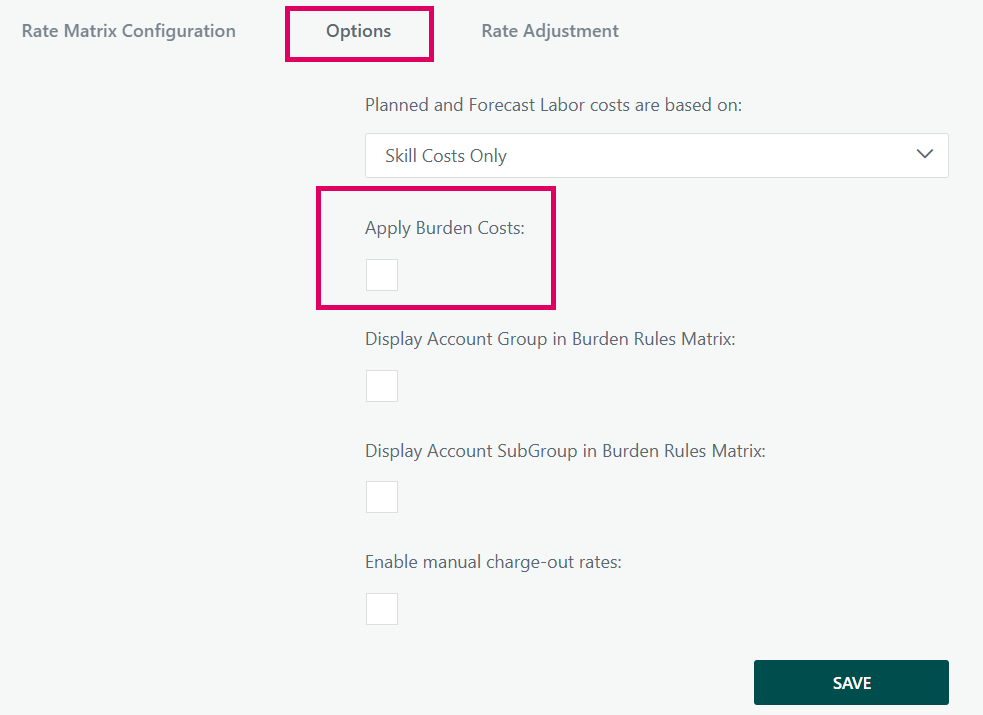
- Cost Options — choose whether labor costs are based on Skill + Resource rates or Skill rates only
- Rate Adjustment — set global min/max adjustment and which resource types adjustments apply to
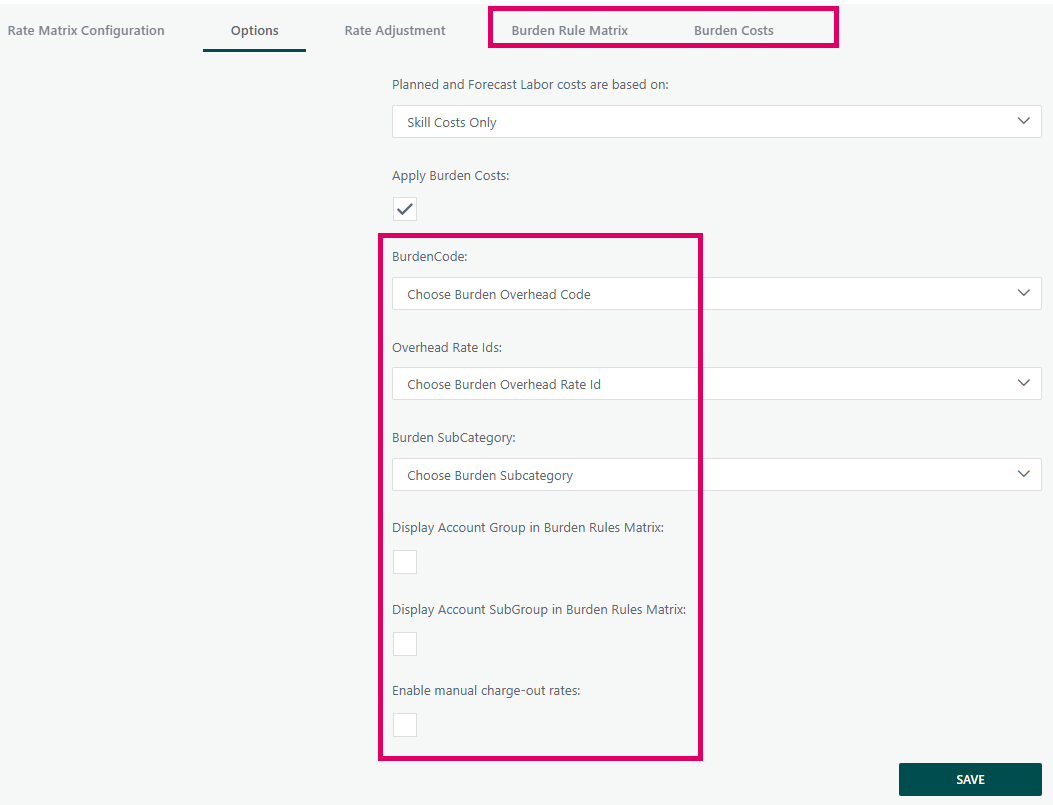
- Burden Rule Matrix tab (only visible when "Apply Burden Costs" is enabled)
- Burden Costs tab (only visible when "Apply Burden Costs" is enabled)
Creating a Rate Matrix (Description + Attributes):
- From the Rate Matrix admin list, click to add a new Rate Matrix Description.
- In the popup, enter a Name for the Rate Matrix.
Use the multi-select attribute picker to select which dimensions apply. Available attribute groups are:
- Predefined: Project Type, Parent Project Type, Skill, Facility, Currency (if multi-currency is enabled), Named User
- Dropdowns: Any system-configured custom dropdown list
- Cascading Dropdowns: Any hierarchical dropdown list configured in the system
- User Custom Attributes: Custom fields defined for users
- Save the Description. Once saved, the Versions grid becomes available.
- Note: Attributes cannot be changed once a version has been created for a Description.
Creating a Rate Matrix Version:
- In the Versions grid on the Rate Matrix Details page, click Add.
- Enter a Name and Version number (up to 4 decimal places). Names and version numbers must be unique within a Description.
- Save. The version is now available to populate with rate detail rows.
- Click the version row to open the rate detail editor
Populating Version Rate Details:
- In the Version Detail editor, select the resource type tab (Skills, Materials, Facilities, Users).
For each combination of attribute values, enter:
- From Date and To Date — the date range for which this rate applies
- Cost — the internal cost rate (per hour for time-based resources)
- Charge-Out Cost — the billing rate
- Overhead Code (if Burden Costs are enabled)
- Attribute values can be set to wildcard (
*) to match any value for that dimension. - Validate: The system checks for overlapping date ranges within the same attribute combination. Overlaps are rejected.
Assigning a Rate Matrix to a Project:
- Open a project and navigate to the Rate Matrix tab in project properties.
- Select a Rate Matrix (Description) from the dropdown.
- Select a Version from the version dropdown. Only non-archived versions with at least one rate entry are shown.
- Optionally set a Burden Override Date (feature toggle dependent).
- Use the Propagate to Inherited Versions option to push this Rate Matrix/Version assignment down to child projects.
- Save. All task resources on the project will be queued for cost recalculation.
Project-Specific Rate Matrix Version:
- If the
ProjectOwnerRateMatrixAccesspermanent toggle is on, a Create Project Rate Matrix Version button appears. - This copies the currently selected version and associates it uniquely with the project.
- A project-specific version appears in the version dropdown. It can be edited independently without affecting other projects.
- A warning label is shown if any tasks have an inconsistent (mismatched) version.
Manual Charge-Out Rates (at project level):
- If enabled at site level (Admin → Rate Matrix → "Enable manual charge-out rates"), a checkbox and multi-select appear on the project's Rate Matrix tab.
- Enable "Manual Charge-Out" on the project and select which resource types (Skills, Users, Materials, Facilities) may use manual rates.
- Individual resources on tasks then allow a manual charge-out rate entry that overrides the matrix value.
Rate Adjustment:
- In Admin → Rate Matrix → Rate Adjustment tab, set a Minimum and Maximum adjustment amount (e.g., -10 to +10).
- Check Adjust Skills and/or Adjust Resources to enable adjustments for those types.
- On individual task resources, a rate adjustment field appears within the configured range. This flat amount modifies the matrix-derived cost.
Burden Cost Configuration:
- Enable Apply Burden Costs in Admin → Rate Matrix → Cost Options.
- Select the Burden Overhead Code custom field (the source dropdown for overhead codes), the Burden Overhead Rate Id field, and the Burden Subcategory field. These fields become locked once set.
- Navigate to the Burden Rule Matrix tab to define rules — each rule maps overhead codes, account codes, subcategories, and "Applied To" targets within a date/effective date range.
- Navigate to the Burden Costs tab to define rate percentages — each entry specifies an overhead rate, rate type (flat or percentage), and a rate percentage value, with date and effective date ranges.
- Advanced filtering (query builder) is available for both burden grids when the
Add_Filter_Functionality_to_Burden_Matrix_Gtoggle is on.
Common Gotchas:
- A Rate Matrix Description cannot be deleted if it is assigned to any project (the delete button is disabled with tooltip "Rate Matrix is in use").
- A Rate Matrix Version cannot be deleted if in use by a project.
- Attributes on a Description cannot be modified once versions exist.
- If you change a project's Rate Matrix Description, all task-level rate matrix version assignments are reset (cleared).
- A project can have only one project-specific version. Attempting to create a second one is blocked.
- Burden cost dropdowns (Overhead Code, Rate Id, Subcategory) cannot be changed once set — the fields become read-only.
- Manual charge-out cannot be disabled at site level while any projects still have it enabled (a count of affected projects is shown).
Was this article helpful?
That’s Great!
Thank you for your feedback
Sorry! We couldn't be helpful
Thank you for your feedback
Feedback sent
We appreciate your effort and will try to fix the article