TABLE OF CONTENTS
- 1. Introduction
- 2. Terminology Clarification
- 3. SSO Configuration
- 4. Quick Introduction to SAML2 Flows
- 5. Additional System Configuration
- 6. Tips and Tools
1. Introduction
This guide provides a standardized reference for configuring Single Sign-On (SSO) in PPM using the SAML 2.0 protocol.
It is intended for support engineers performing setup, configuration validation, or troubleshooting.
PPM acts as a Service Provider (SP), integrating with external Identity Providers (IdPs) to authenticate users securely.
SAML2 enables users to log in once with their organization’s IdP and seamlessly access PPM without a separate password.
2. Terminology Clarification
| Term | Meaning |
|---|---|
| SSO (Single Sign-On) | One login for multiple applications. |
| IdP (Identity Provider) | System responsible for user authentication. |
| SP (Service Provider) | The application being accessed – PPM. |
| SAML2 | Standard protocol for exchanging authentication data. |
| Reply URL / Assertion Consumer Service (ACS) | SP endpoint where IdP posts the SAML Response. |
3. SSO Configuration
3.1 Key Parameters in SSO Integration
Reply URL (Assertion Consumer Service URL) = appURL/SSOAuthenticate.aspx
For example for localhost it is: http://localhost/ProjectVision/SSOAuthenticate.aspx
To enable SSO in PPM:
- Open PPM and log in as an admin.
- Navigate to: Administration | System | General | Single Sign-On
- Configure each available field:
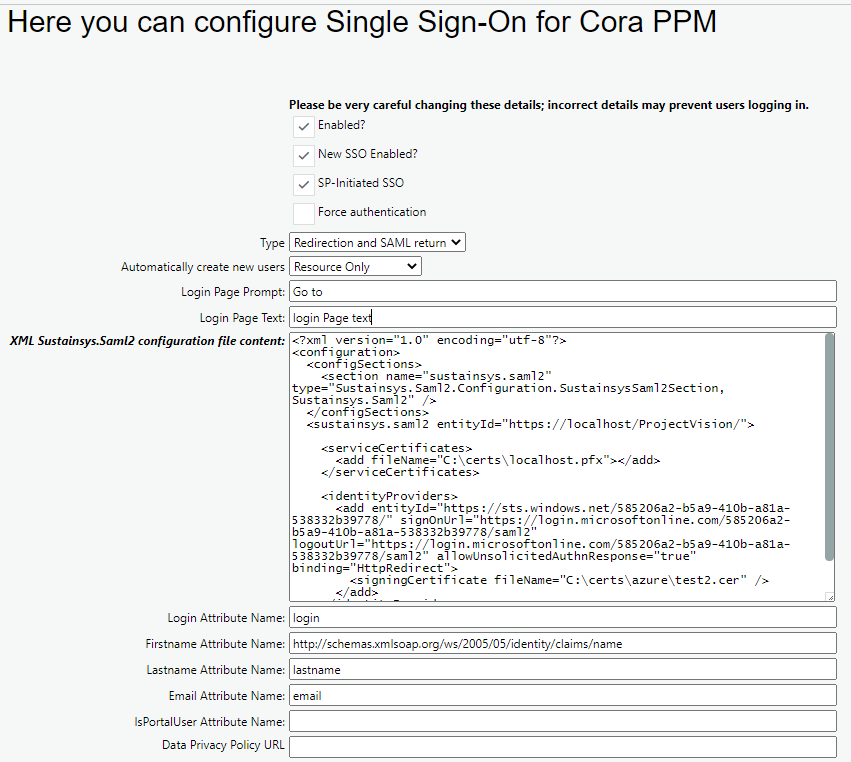
Parameter Overview
- Enabled? – Must be checked.
- New SSO Enabled – Must be checked (old solution deprecated).
- SP-Initiated SSO – Enable if using SP-initiated flow (see Section 4).
- Force Authentication – Forces re-authentication at IdP.
- Type – Redirection and SAML return.
- Automatically create new users – Select user type creation behavior.
- URL – IdP Sign-In URL (only for IdP-initiated flows).
- SignOut Redirection URL – IdP sign-out endpoint.
- Redirect Automatically at Login – Redirects users straight to IdP.
- XML Sustainsys.Saml2 configuration file – Required XML configuration.
3.2 PPM Integration with Sustainsys.Saml2
The PPM application leverages the external library Sustainsys.Saml2 to consume and process SAML 2.0 assertions. This library provides the required components to handle authentication flows, validate SAML responses, and manage Identity Provider (IdP) configurations. By utilizing Sustainsys.Saml2, PPM ensures a reliable, secure, and standards-compliant implementation of SAML2 Single Sign-On (SSO).
To enable this integration, a configuration file must be provided. This involves populating the Sustainsys.Saml2 XML configuration file with the necessary content settings.
1. Snippet: Example XML Configuration for Sustainsys.Saml2 on localhost
<?xml version="1.0" encoding="utf-8"?>
<configuration>
<configSections>
<section name="sustainsys.saml2"
type="Sustainsys.Saml2.Configuration.SustainsysSaml2Section, Sustainsys.Saml2"/>
</configSections>
<sustainsys.saml2 entityId="http://localhost/ProjectVision/">
<identityProviders>
<add entityId="https://sts.windows.net/585206a2-b5a9-410b-a81a-538332b39778/"
signOnUrl="https://login.microsoftonline.com/585206a2-b5a9-410b-a81a-538332b39778/saml2"
logoutUrl="https://login.microsoftonline.com/585206a2-b5a9-410b-a81a-538332b39778/saml2"
allowUnsolicitedAuthnResponse="true"
binding="HttpRedirect">
<signingCertificate fileName="C:\certs\localhost.cer"/>
</add>
</identityProviders>
</sustainsys.saml2>
</configuration>
Main <sustainsys.saml2> Tag
The <sustainsys.saml2> element defines the root section for SAML configuration settings. It encapsulates all Identity Provider definitions required to establish secure SAML-based authentication.
Property:
entityId – A unique identifier for the Service Provider (SP).
This value should correspond to the PPM application’s base URL.
3.3 Identity Provider (IdP) Configuration
To configure a new Identity Provider (IdP), insert an <add> element within the <identityProviders> section of the Sustainsys.Saml2 configuration file. Each <add> entry defines a single IdP integration, including its endpoints, identifiers, and certificates required for secure communication.
2. Snippet: Example Identity Provider Definition
<add
entityId="https://sts.windows.net/{tenant-id}/"
signOnUrl="https://login.microsoftonline.com/{tenant-id}/saml2"
logoutUrl="https://login.microsoftonline.com/{tenant-id}/saml2"
allowUnsolicitedAuthnResponse="true"
binding="HttpRedirect">
<signingCertificate fileName="C:\certs\localhost.cer"/>
</add>
IdP Provider Properties
| Property | Description |
|---|---|
| entityId | Unique identifier of the Identity Provider. This value must match the Entity ID configured in your IdP’s metadata. |
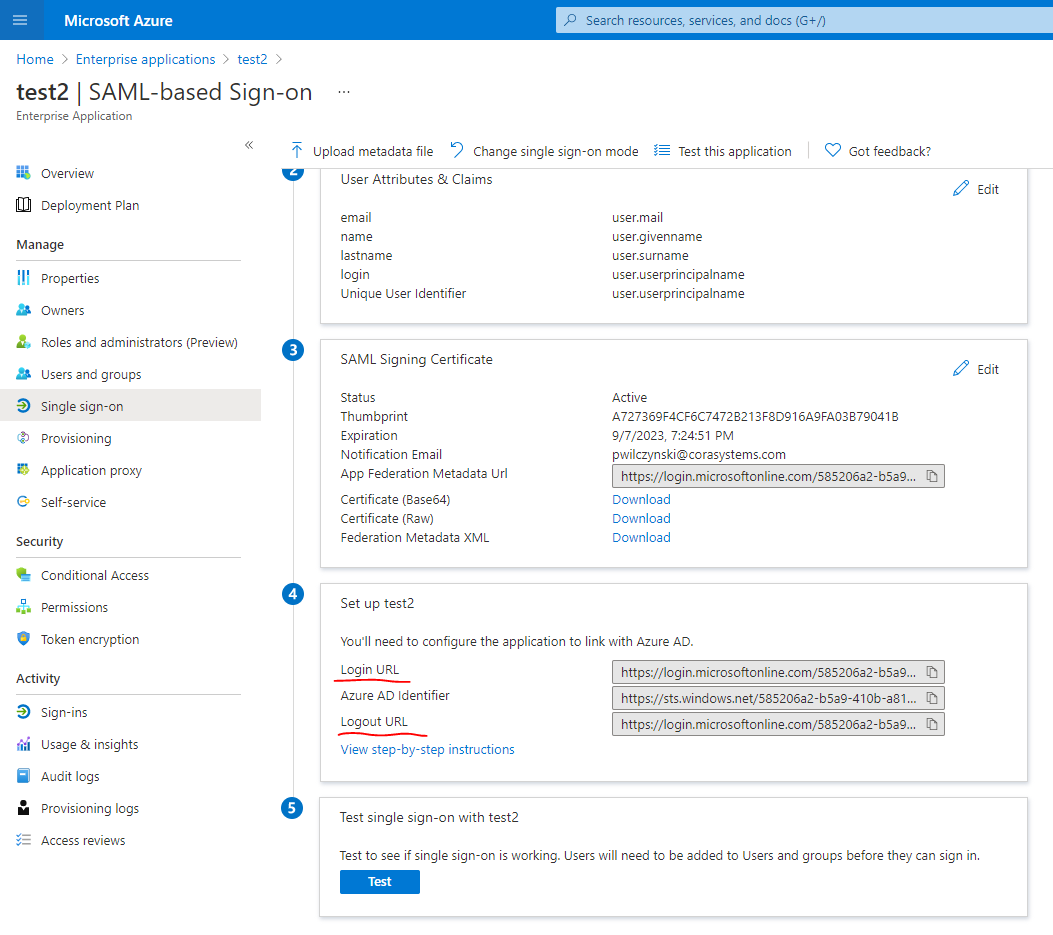
| signOnUrl | The Identity Provider endpoint used to consume SAML Authentication Requests. This setting is applicable only for SP-initiated authentication flows. |
| logoutUrl | The Identity Provider endpoint used to consume SAML Sign-Out Requests. This setting is applicable only for SP-initiated sign-out flows. |
The image below illustrates where the Sign-On URL and Logout URL values are located within the Azure AD SAML-based Single Sign-On configuration:
3.4 Signing Certificate
The Signing Certificate (also referred to as the client certificate) is used to validate the integrity and authenticity of SAML assertions exchanged between the Service Provider (SP) and the Identity Provider (IdP).
Sustainsys.Saml2 supports two methods for attaching the signing certificate: file-based and store-based.
File-Based Attachment
In this method, the certificate file is stored on disk, and the application references its file path.
Ensure that the application pool user (AppPool identity) has read access to the certificate file’s location.
3. Snippet: Example of File-Based Attachment
<signingCertificate fileName="C:\certs\localhost.cer" />
Store-Based Attachment
Alternatively, the certificate can be installed on the server and accessed through the Windows Certificate Store.
This approach enhances security by avoiding direct file-based certificate handling.
4. Snippet: Example of Store-Based Attachment
<signingCertificate
storeName="Root"
storeLocation="LocalMachine"
x509FindType="FindBySerialNumber"
findValue="hereNumber" />
Note: Complete documentation for creating and managing Sustainsys.Saml2 configurations is available in the official guide:
https://saml2.sustainsys.com/en/stable/
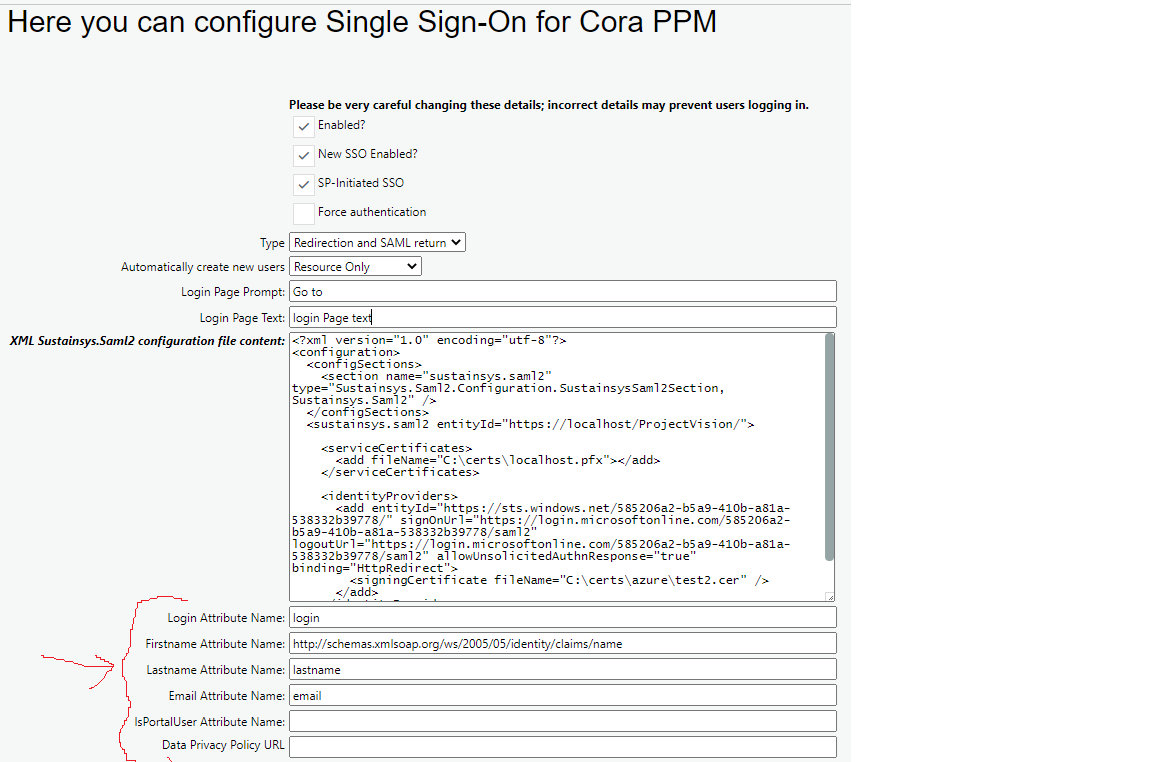
3.5 Attribute Mapping Configuration
SAML attributes are pieces of user information included in the SAML assertion that the Identity Provider (IdP) sends to the Service Provider (SP) during authentication.
These attributes typically include user identifiers such as username, email address, first and last names, roles, or group memberships. The Service Provider uses these attributes to identify the user, establish a session, and apply appropriate access rules or personalization.
In other words:
SAML attributes = secure user profile data shared during the SSO handshake.
Purpose of Attribute Mapping
Because attribute names and formats differ among various IdPs, the PPM application must explicitly map incoming SAML attributes to its internal user fields. This ensures that authentication and authorization function correctly across different SSO configurations.
Required and Optional Attributes
The system expects the following attributes to be present in the SAML assertion:
| Attribute Name | Requirement | Description |
|---|---|---|
| Login Attribute Name | Required | Specifies the attribute containing the user login. This value must match the username stored in the PPM database. |
| Firstname Attribute Name | Required | Attribute containing the user’s first name. |
| Lastname Attribute Name | Required | Attribute containing the user’s last name. |
| Email Attribute Name | Required | Attribute containing the user’s email address. |
| IsPortalUser Attribute Name | Optional | Indicates whether the user is a portal user (true / false). |
Mapping Behavior
The Login Attribute Name is mapped directly to the application’s username field.
The value provided by the Identity Provider must exactly match the username stored in PPM’s user database to ensure that the authentication assertion is correctly associated with the intended user account.
References
Sustainsys.Saml2 NuGet Package
Sustainsys.Saml2 GitHub Repository
3.6 How to Use Multiple Identity Providers (IdPs)
Note: If you enable the multi-IdP feature, you must follow the complete process outlined below.
Step 1: Enable the Feature Toggle
Activate the following feature toggle to allow multi-IdP configuration:
Feature Toggle: 117326_Pentest_2023_Q4
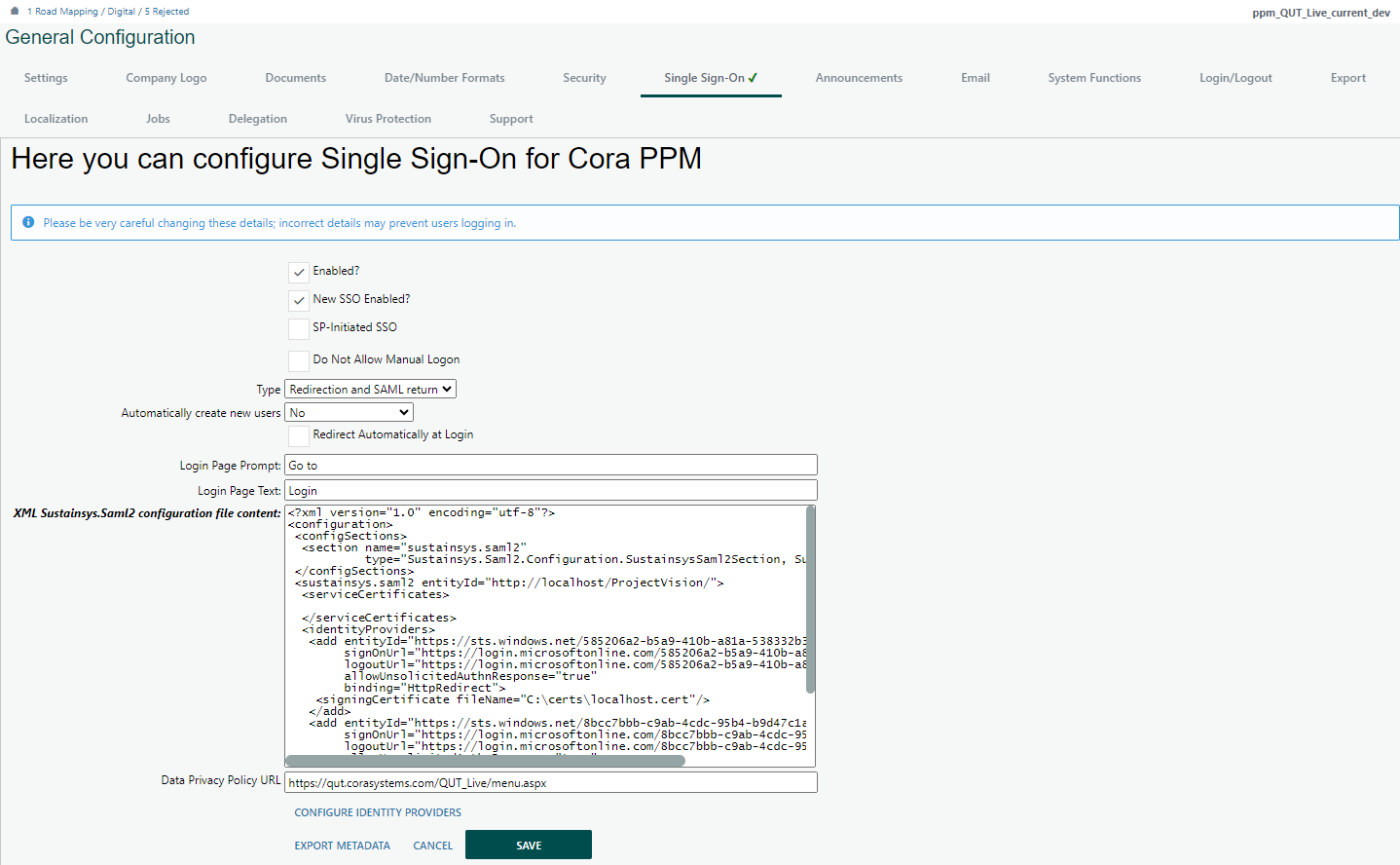
Step 2: Modify SSO Configuration
Navigate to:
Administration | System | General | Single Sign-On
The updated Single Sign-On Configuration page is illustrated below.
Step 3: Add a New Identity Provider
To add a new Identity Provider in the Sustainsys.Saml2 configuration, edit the XML file by adding an additional <add> element inside the <identityProviders> node.
You can define multiple Identity Providers in this section.
5. Snippet: Example Configuration for an Additional Provider
<add entityId="https://sts.windows.net/8bcc7bbb-c9ab-4cdc-95b4-b9d47c1a1632/"
signOnUrl="https://login.microsoftonline.com/8bcc7bbb-c9ab-4cdc-95b4-b9d47c1a1632/saml2"
logoutUrl="https://login.microsoftonline.com/8bcc7bbb-c9ab-4cdc-95b4-b9d47c1a1632/saml2"
allowUnsolicitedAuthnResponse="true"
binding="HttpRedirect">
<signingCertificate fileName="C:\certs\localhost2.cer" />
</add>
6. Snippet: Example XML Configuration for Multiple IdPs
<?xml version="1.0" encoding="utf-8"?>
<configuration>
<configSections>
<section
name="sustainsys.saml2"
type="Sustainsys.Saml2.Configuration.SustainsysSaml2Section, Sustainsys.Saml2"
/>
</configSections>
<sustainsys.saml2 entityId="http://localhost/ProjectVision/">
<identityProviders>
<add
entityId="https://sts.windows.net/585206a2-b5a9-410b-a81a-538332b39778/"
signOnUrl="https://login.microsoftonline.com/585206a2-b5a9-410b-a81a-538332b39778/saml2"
logoutUrl="https://login.microsoftonline.com/585206a2-b5a9-410b-a81a-538332b39778/saml2"
allowUnsolicitedAuthnResponse="true"
binding="HttpRedirect">
<signingCertificate fileName="C:\certs\localhost.cer" />
</add>
<add
entityId="https://sts.windows.net/8bcc7bbb-c9ab-4cdc-95b4-b9d47c1a1632/"
signOnUrl="https://login.microsoftonline.com/8bcc7bbb-c9ab-4cdc-95b4-b9d47c1a1632/saml2"
logoutUrl="https://login.microsoftonline.com/8bcc7bbb-c9ab-4cdc-95b4-b9d47c1a1632/saml2"
allowUnsolicitedAuthnResponse="true"
binding="HttpRedirect">
<signingCertificate fileName="C:\certs\localhost2.cer" />
</add>
</identityProviders>
</sustainsys.saml2>
</configuration>
When multiple Identity Providers are used, each provider must have a separate configuration specifying its sign-in URL, sign-out URL, and attribute mapping.
Step 4: Configure Identity Providers
Navigate to:
Administration → System → General → Single Sign-On → Configure Identity Providers
A view similar to the one below should appear.

Within this interface, you can add or edit Identity Providers.
The following properties are available:
| Property | Description |
|---|---|
| Custom Name | The display name shown in user-facing controls. |
| Entity Id | Unique identifier of the Identity Provider. |
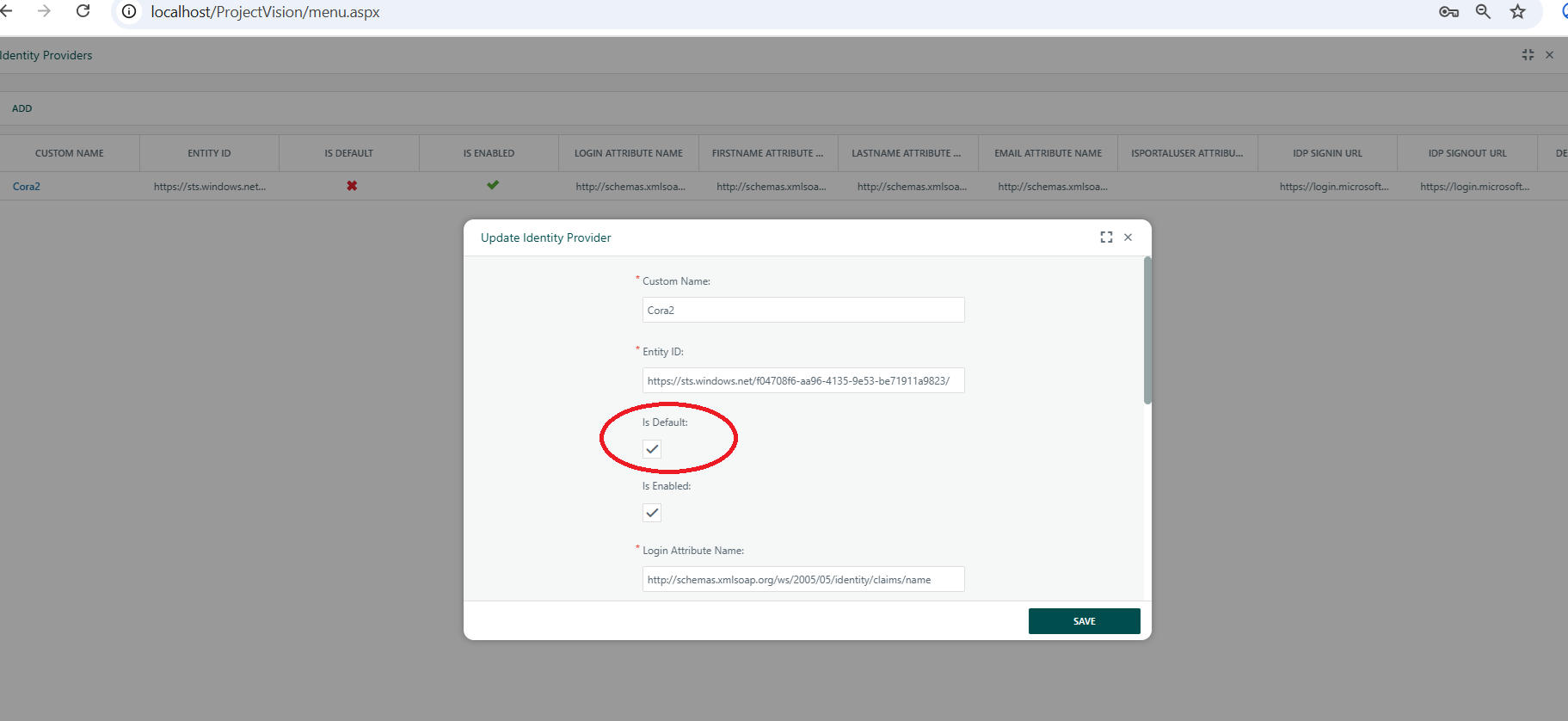
| Is Default | If selected, this provider is used for default authentication. |
| Is Enabled | Enables or disables the provider. |
| Login Attribute Name | Maps to the user’s login field. |
| Firstname Attribute Name | Maps to the user’s first name. |
| Lastname Attribute Name | Maps to the user’s last name. |
| Email Attribute Name | Maps to the user’s email address. |
| IsPortalUser Attribute Name | (Optional) Indicates if the user is a portal user. |
| SignIn URL | Required if the provider is enabled. |
| SignOut URL | Required if the provider is enabled. |
Attributes 5–9 are configured in the Attribute Mapping Section.
3.6.1 Sign-In Pages
If an Identity Provider is marked as default, it will be used during standard sign-in requests via:
app-url/SSORedirectionPage.aspx
If a user wishes to sign in using a non-default provider, use:
app-url/SSOSignInPage.aspx

3.6.2 Additional User Configuration
When multiple Identity Providers are configured, each user must be explicitly associated with one IdP.
Steps:
- Go to Administration | Resources | Users.
- Select a user and locate the Domain field.
- Choose the relevant Identity Provider from the list.
- Save the changes.
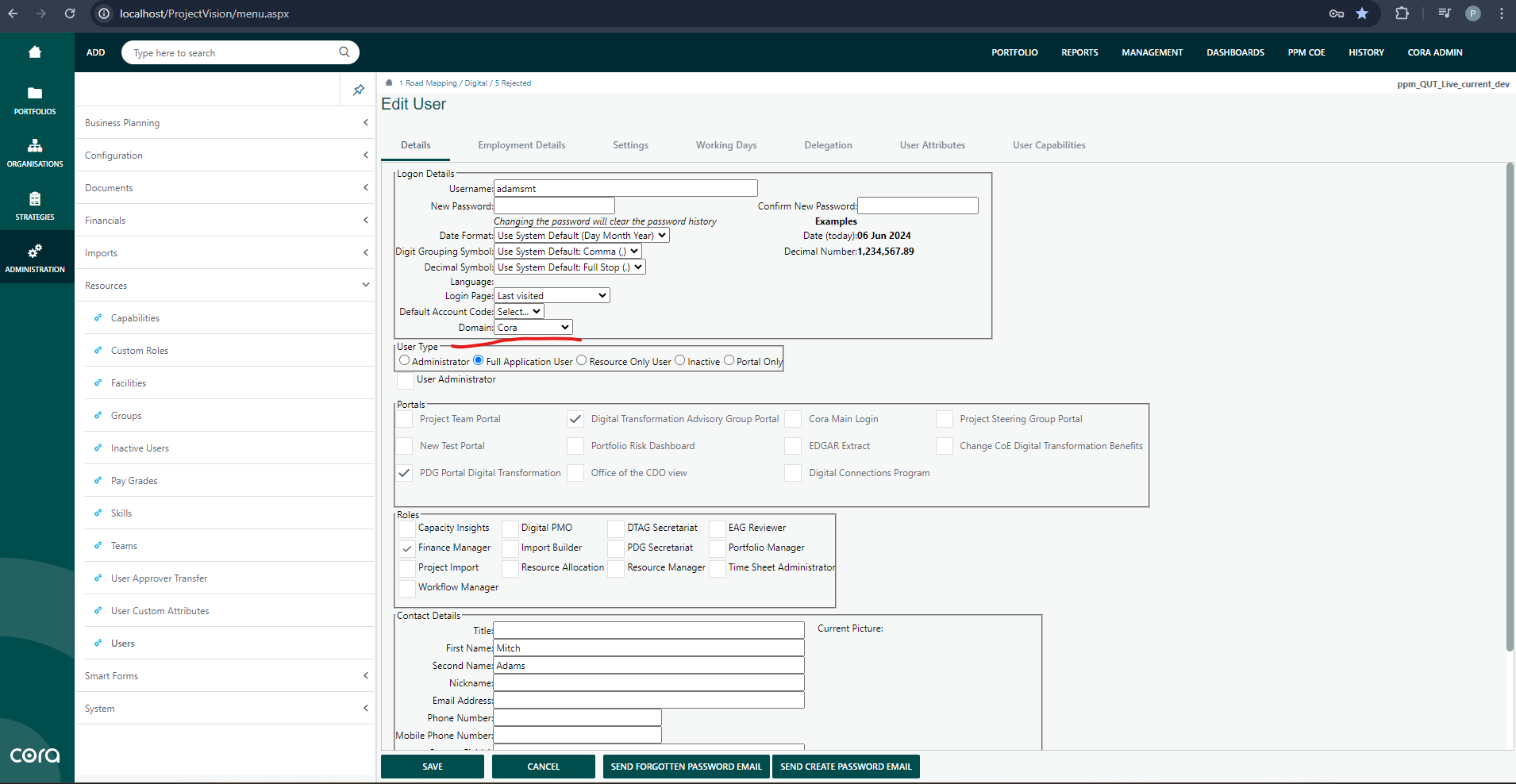
Quick Setup Instructions for User Identity Provider Assignment
- Open SQL Server Management Studio (SSMS).
- Locate the relevant database.
- Run the following query to list all configured Identity Providers:
11. Snippet: Retrieve IdP Providers
SELECT * FROM [dbo].[SSO_IdentityProvider]
An example result is shown below.
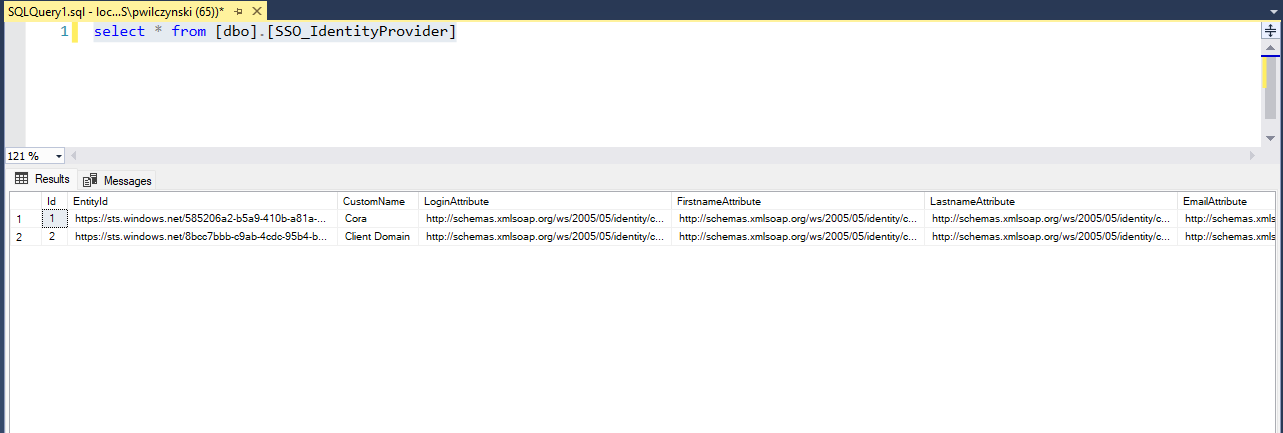
4. Identify the Id value of the target provider.
5. Update users to assign them to that provider using the following query:
12. Snippet: Update User(s) with Assigned Identity Provider
UPDATE [dbo].[appuser]
SET IdentityProviderId = 'Id_Of_Your_Provider'
WHERE
-- condition (e.g., username or group filter)
Example Configuration File:
4. Quick Introduction to SAML2 Flows
The Security Assertion Markup Language (SAML2) defines standardized mechanisms for exchanging authentication and authorization data between an Identity Provider (IdP) and a Service Provider (SP).
In practice, there are two primary SSO flow types: IdP-initiated and SP-initiated.
Both flows result in the user being authenticated by the IdP and granted access to the SP, but they differ in how the process begins.
4.1 IdP-Initiated SSO
In an IdP-initiated Single Sign-On flow, the login process begins at the Identity Provider.
- The user navigates directly to the IdP’s login portal.
- The IdP authenticates the user using its own credentials and policies.
- After successful authentication, the IdP sends a SAML Assertion to the Service Provider (SP).
- The SP validates the assertion and establishes a user session, granting access to the application—without requiring the user to visit the SP first.
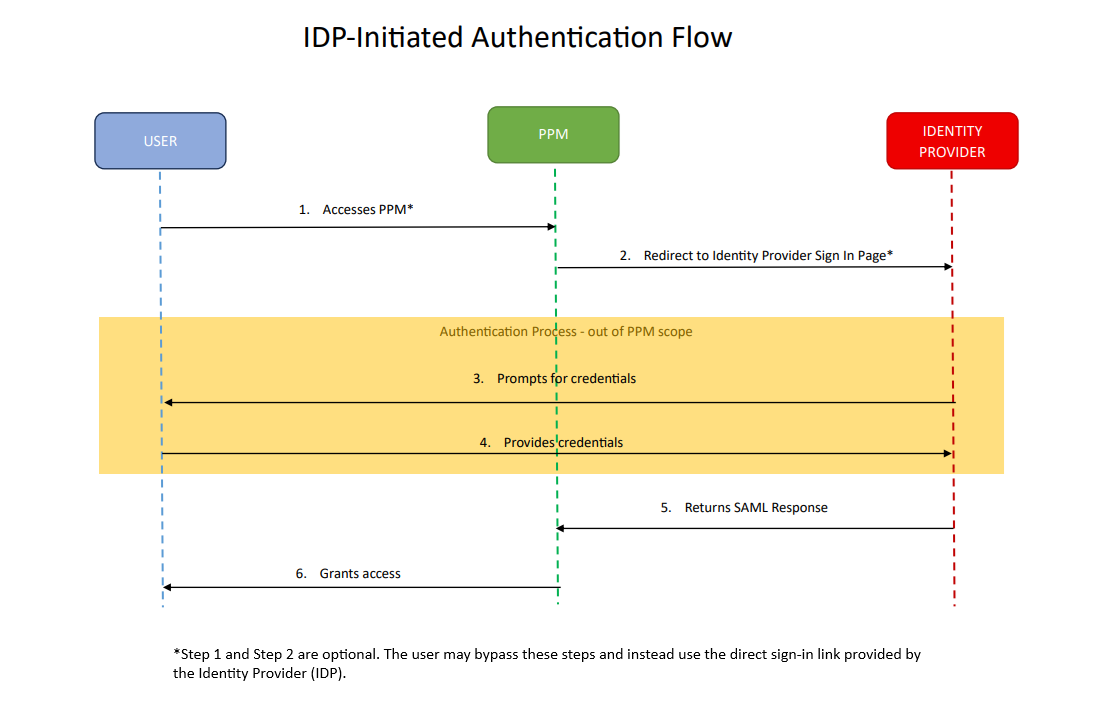
4.2 SP-Initiated SSO
In an SP-initiated Single Sign-On flow, the login process begins at the Service Provider.
- The user navigates to the SP application (e.g., PPM).
- The SP detects that the user is not authenticated and redirects them to the IdP’s sign-on endpoint.
- The IdP authenticates the user.
- The IdP then returns a SAML Assertion to the SP.
- The SP validates the assertion and creates an authenticated session for the user.
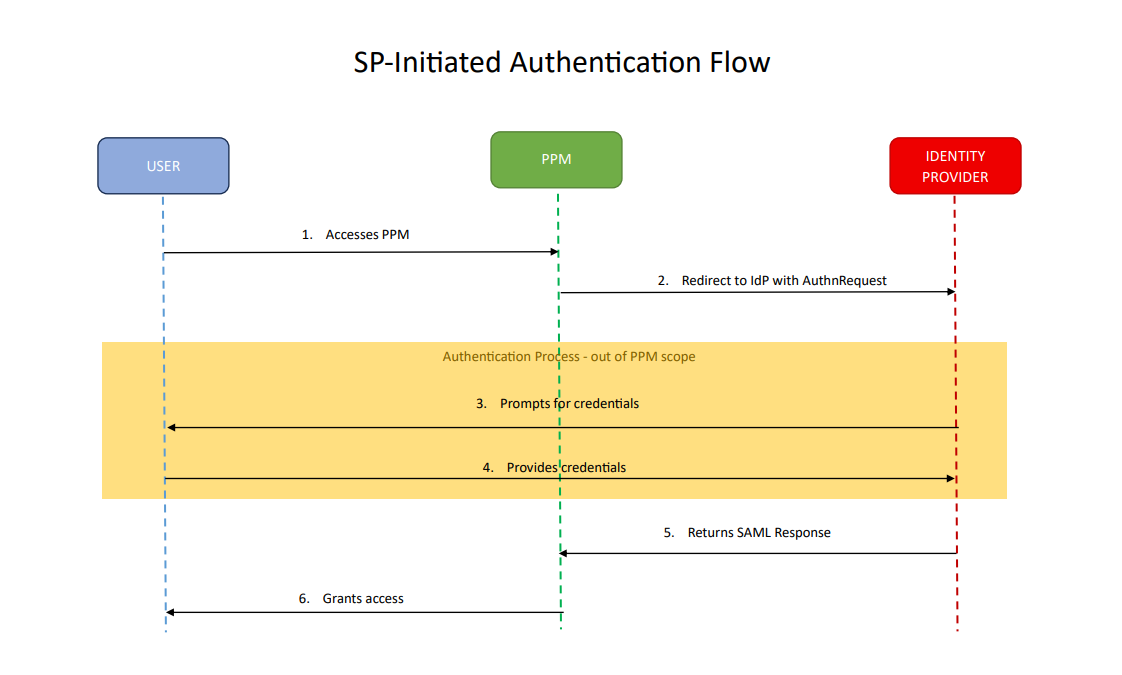
4.3 Flows in Summary
| Flow Type | Initiator | Description |
|---|---|---|
| IdP-initiated | Identity Provider | User begins login from the IdP. After authentication, the IdP sends the SAML assertion directly to the SP. |
| SP-initiated | Service Provider | User begins login from the SP, which redirects to the IdP for authentication and receives a SAML response back. |
In short:
IdP-initiated: user begins at the IdP.
SP-initiated: user begins at the SP.
5. Additional System Configuration
This section describes final configuration steps necessary for a functional and fully integrated SAML2 Single Sign-On (SSO) setup, including updating the application URL, local debugging adjustments, and configuring logout behavior.
5.1 Update Application URL
The Application URL defines the Service Provider’s base address used in SAML Authentication Requests.
Update the ApplicationURL value in the database as shown below.
13. Snippet: Query for Updating ApplicationURL
UPDATE system_configuration
SET ApplicationURL = 'https://localhost/ProjectVision/' -- Adjust as needed
⚠ Important:
Always include the trailing slash ( / ) at the end of the URL.
This ensures that response URLs are built correctly, e.g.:
https://localhost/ProjectVision/
5.2 Local Debugging Configuration
When performing local debugging with an admin account, remember that SAML authentication identifies users based on their email address.
If your PPM admin account uses a different username, you must update it to match your IdP’s email identity.
14. Snippet: Query to Update Username for Admin Account
UPDATE dbo.appuser
SET username = 'youremail'
WHERE [user_id] = 1
This allows local authentication via SAML to correctly associate the assertion with your admin account.
5.3 Example Local Settings
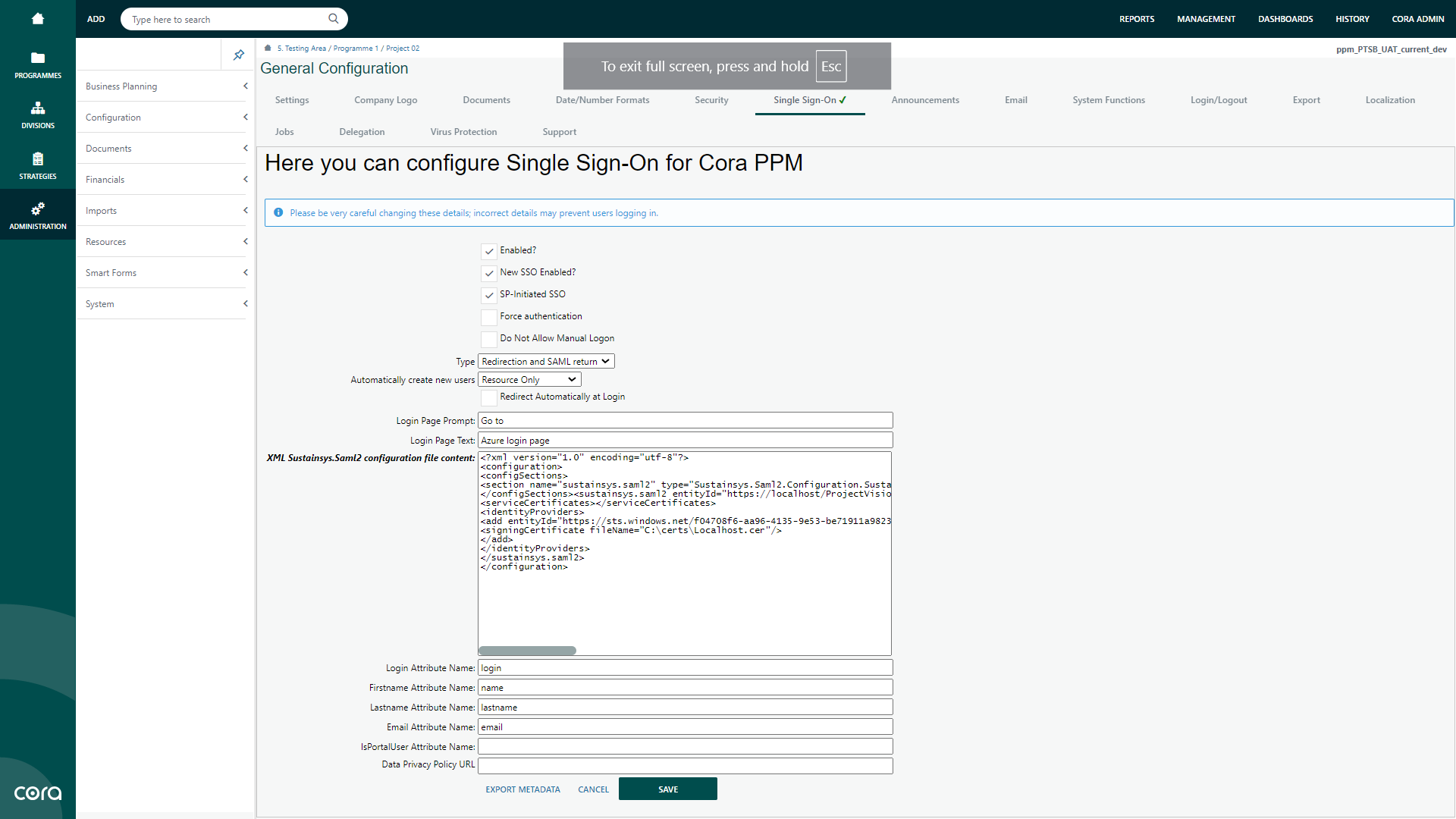
SAML configuration file used locally:
Additionally, ensure that the default IdP endpoint is properly marked as shown below.
5.4 Logout Process
When using SSO, the logout process involves two coordinated steps:
1. Application Logout (ASP.NET):
The user session is terminated within the PPM web application (ASP.NET Web Forms).
2. Azure (IdP) Logout:
After local logout, the user is redirected to the Azure logout page along with their SSO session identifier (ssoID).
This ensures the user is logged out from the Azure identity session as well.
Configuring the Redirect After Logout
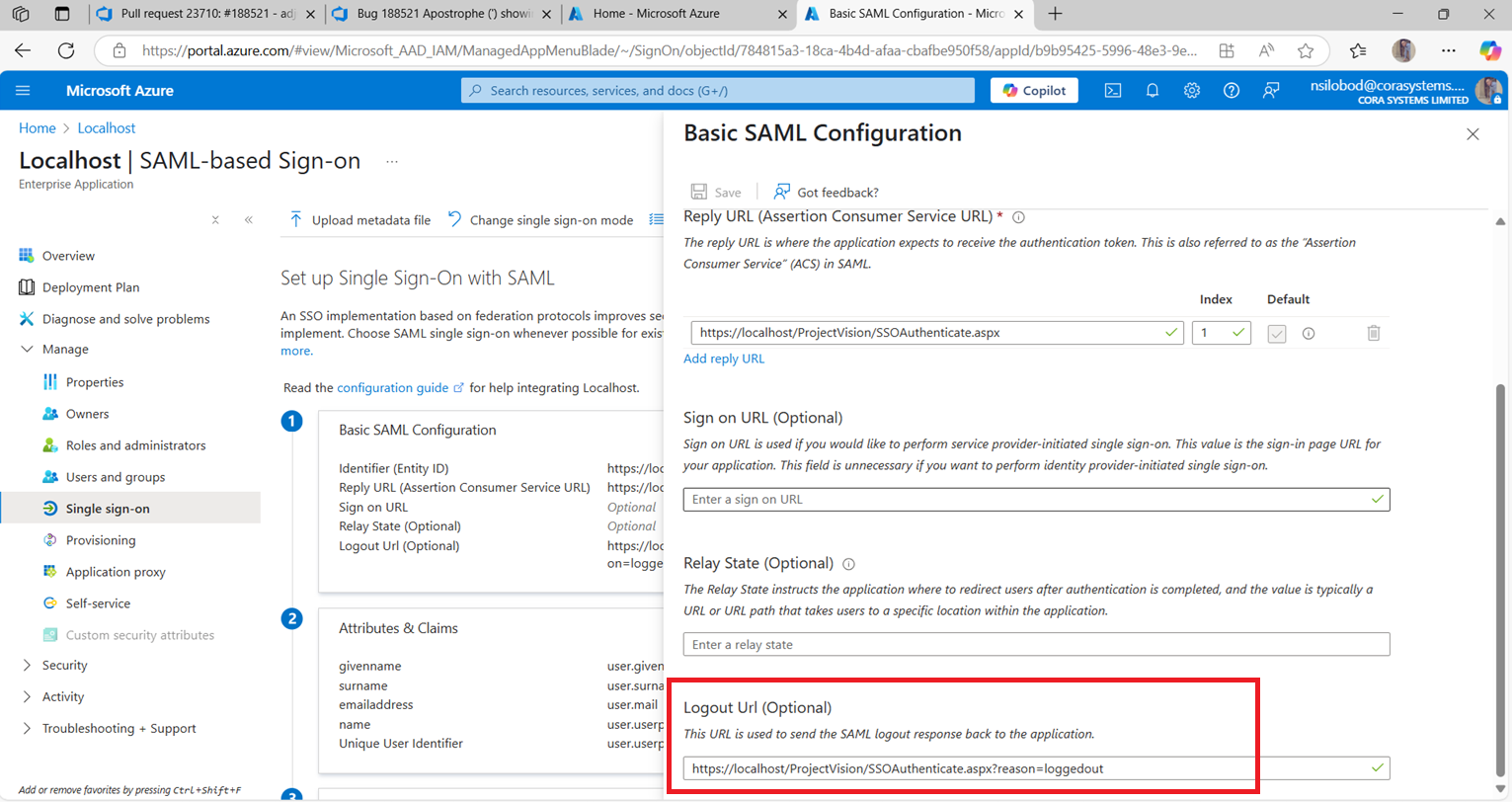
To provide a seamless user experience, you can configure Azure AD to redirect users back to a specific PPM page after logout.
This page should notify users that logout was successful and offer a “Login Again” option.
Add the redirect URL to your Azure Enterprise Application settings.
Typically, the redirect path should end with:
SSOAuthenticate.aspx?reason=loggedout
6. Tips and Tools
This section provides practical guidance, troubleshooting methods, and diagnostic tools for maintaining and debugging SAML2 Single Sign-On (SSO) integrations in PPM.
6.1 General Information
Configuration Reload Requirement
Any modification to the Sustainsys.Saml2 XML configuration requires an application pool restart for the changes to take effect.
Without restarting, updated values will not be applied, and the system may continue operating with outdated or cached settings.
Case Sensitivity and Hidden Characters
SAML2 configurations are case-sensitive. Even a single mismatch or hidden character can invalidate assertions, signatures, or bindings.
How to Detect and Remove Hidden Characters
- VS Code: View → Toggle Render Whitespace, and enable “Render Control Characters.”
- Notepad++: View → Show Symbol → Show All Characters
Checking Logs
In case of authentication or SSO-related issues, review recent entries in the system log.
You can use the query below to retrieve the latest log records.
15. Snippet: Query to Retrieve Log Entries
SELECT TOP(100) *
FROM log
-- WHERE Entry_Date >= '2025-10-01' AND Entry_Date <= '2025-10-03'
ORDER BY log_id DESC
Common Integration Issues
Most SAML integration problems originate from mismatched configurations between the client’s metadata and the Service Provider (SP) setup.
The most frequent root causes include:
| Issue | Description |
|---|---|
| Attribute mismatches | Attribute names or formats differ between the IdP and SP configurations. Since attributes are case-sensitive, even small inconsistencies (capitalization, underscores, or invisible characters) can cause authentication failures. |
| EntityID inconsistencies | The entityId value must match exactly between IdP and SP metadata. Extra spaces, case differences, or hidden characters prevent federation. |
| Certificate errors | Invalid or expired certificates, incorrect certificate chains, or formatting issues (e.g., extra line breaks or BOM markers in PEM files) can cause signature validation failures. Always verify the certificate exchange and encoding. |
6.2 Troubleshooting Using SAML Tracer
The SAML Tracer browser extension is an essential diagnostic tool for analyzing SSO traffic and validating SAML requests and responses.
Installation
- Install the SAML Tracer extension (available for Chrome and Firefox).
- Enable recording and perform an authentication attempt.
Authentication Request
When SP-initiated login is triggered, the PPM application generates and sends an Authentication Request to the Identity Provider (IdP).
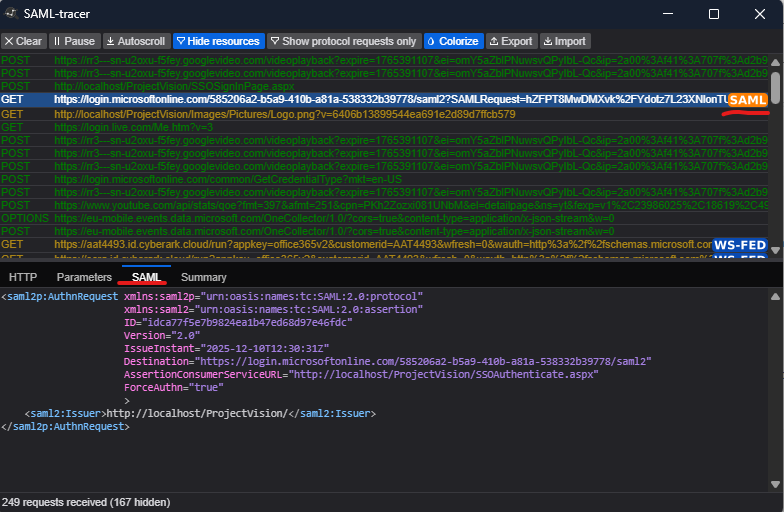
Destination and ACS URL Validation
It is critical to verify that the following parameters are configured correctly:
| Parameter | Description |
|---|---|
| Destination | Must match the IdP’s Sign-On URL (signOnUrl in XML configuration) as specified in the IdP metadata. |
| AssertionConsumerServiceURL (ACS) | Must match the SP’s endpoint registered with the IdP. |
Both values are case-sensitive and must be free of hidden characters (e.g., non-breaking or zero-width spaces).
Consistency between IdP and SP configuration is essential for successful authentication.
Authentication Response
After successful authentication, the IdP sends a SAML Response to the SP.
This response includes a SAML Assertion that contains user information such as username, email, and roles, as configured in the IdP.
Below is an example of an Authentication Response and Authentication Response Summary.
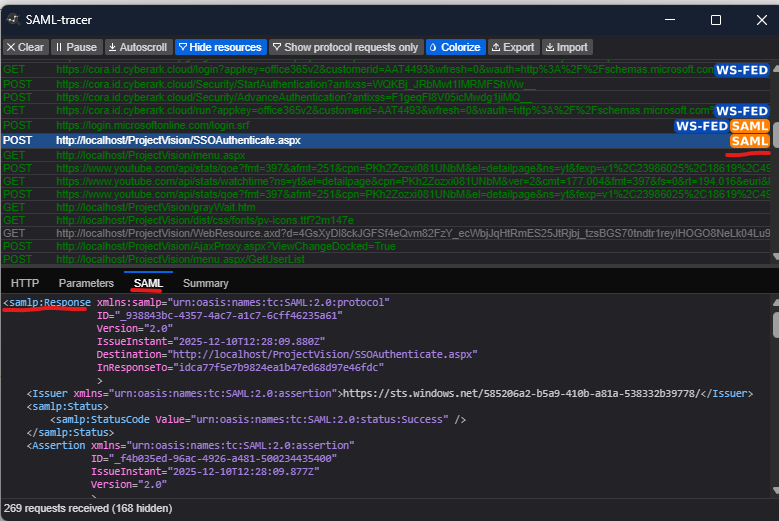
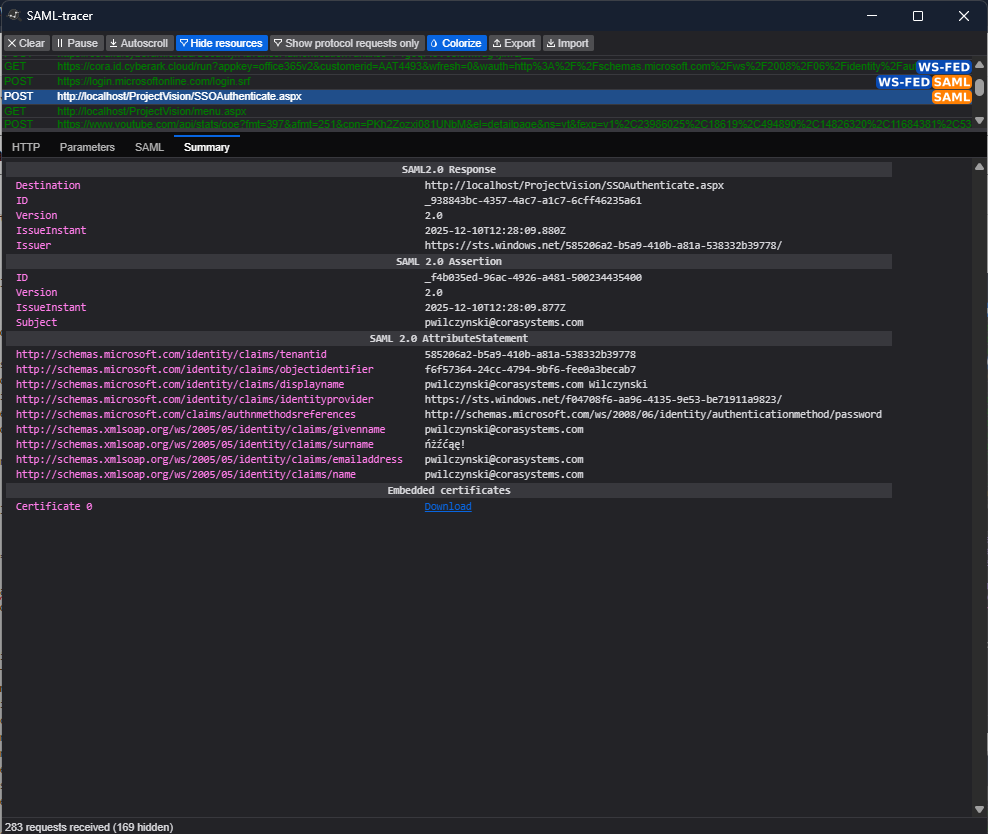
Verify the following:
- Issuer: Matches the IdP entity defined in the metadata exactly.
- Attribute Names: Match those configured in the PPM attribute mapping.
- Formatting: No hidden or extra characters present.
Any mismatch in naming, case, or structure will cause failed assertions or rejected authentication responses.
Authentication Logout Request
When SP-initiated logout is enabled, the Service Provider generates a LogoutRequest message and sends it to the Identity Provider.
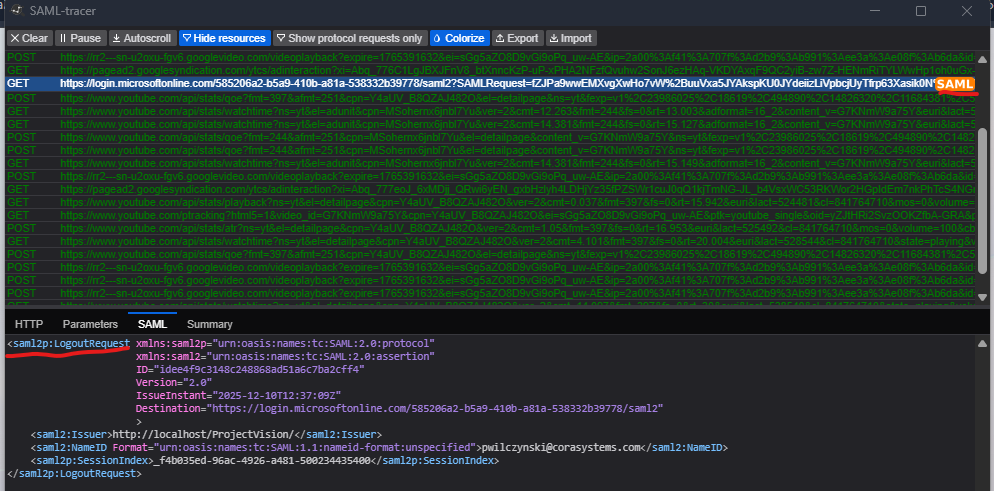
Key Elements to Validate:
| Parameter | Description |
|---|---|
| Issuer | Must exactly match the SP’s entityId. |
| Destination | Must correspond to the IdP’s Single Logout Service endpoint (logoutUrl in the XML configuration). |
By validating these parameters and reviewing the SAML Tracer logs for discrepancies, administrators can quickly isolate and resolve most SSO configuration or communication issues.
Was this article helpful?
That’s Great!
Thank you for your feedback
Sorry! We couldn't be helpful
Thank you for your feedback
Feedback sent
We appreciate your effort and will try to fix the article