Project Forecasting
Project Forecasting is Cora PPM's advanced, period-by-period financial planning module for individual projects. It helps project teams build, maintain, and formally submit a time-phased view of project costs, revenues, and margins, then compare actuals against those plans as work progresses.
What It Does for the User
1. The Forecasting Grid
The core of the screen is four panes: a fixed cost-category label pane plus Left/Centre/Right, scrollable grid showing every cost category and sub-category for the project. The Left column list also drops two real default columns (Current EAC Amount, Variance from Revised Cost Estimate) and lists the rest out of order
Grid Section | What Users See |
|---|---|
Left Section | Static financial summary columns: Original Cost Estimate, Change Orders, Revised Cost Estimate, Project Costs to Date, Remaining Committed, New Re-Estimate, Variance from MSD EAC, and customer-configurable hidden columns. |
Centre Scrollable Section | Time-phased monthly columns from project start to end date when viewing an already-submitted iteration. For the live "Latest" forecast — the normal case — the range starts at the current forecasting period. Each period shows editable Forecast values and, for past periods, Actual and Variance. Optional To Post and Total Estimated columns may appear, with At Risk Revenue (ARR) at the far right. |
Right Section | Cost to Complete, displayed in hours and/or cost depending on user settings. The User can choose the column set in the settings, Rate and Comments columns are displayed by default. |
Footer Rows | System-calculated totals for Total Cost, Total Revenue, Total Gross Margin, GM%, Over/Under Billings, and Positive/Negative Cash Flow, with customer-configurable visibility, except for Total Cost, it will always render. |
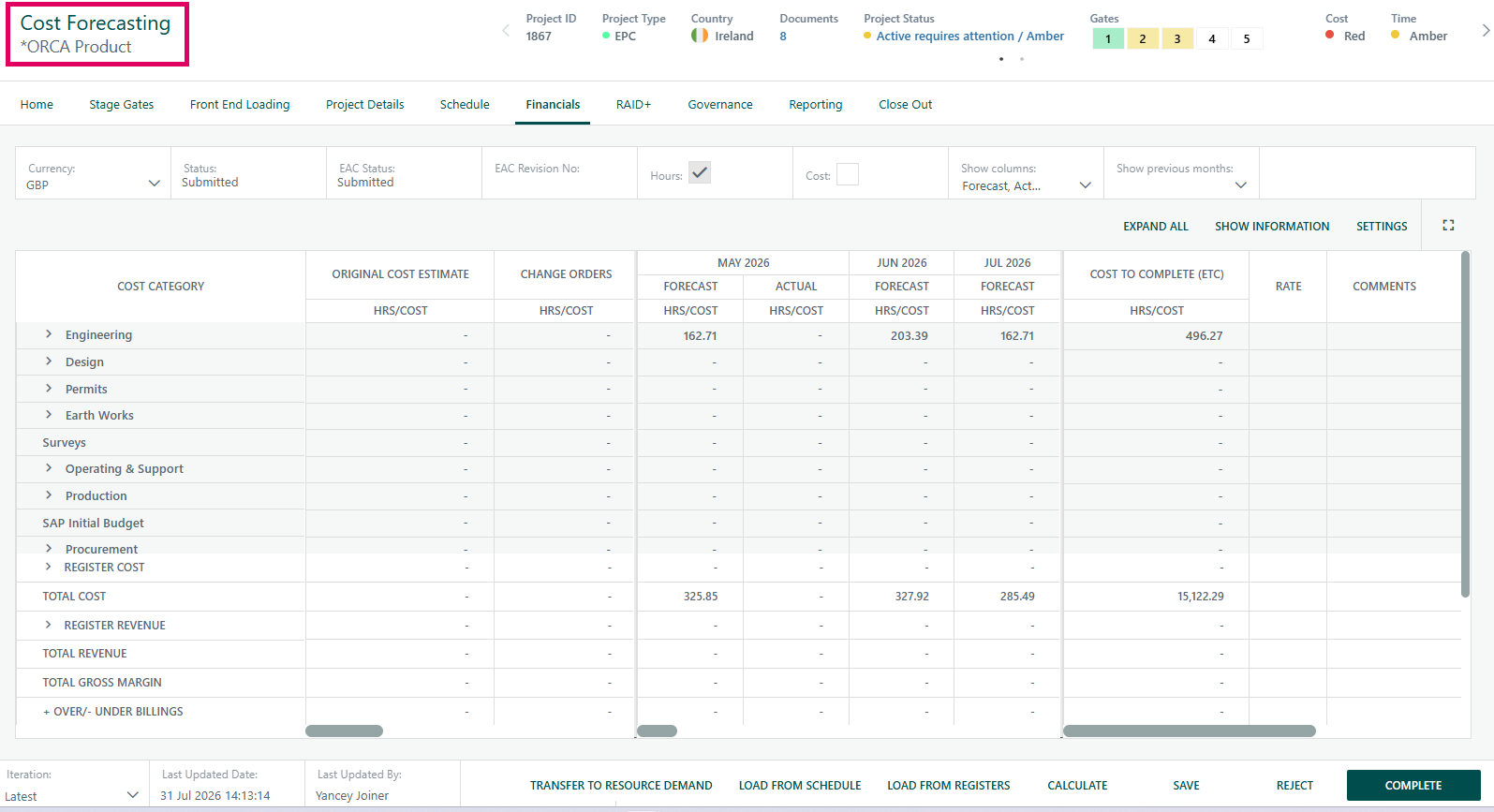
Users edit individual period cells inline by clicking them; edits are tracked in the browser and batched for submission.
2. Data Panels and Information Banner
An expandable information panel above the grid displays key project metadata, including Project Manager, Project Name, Customer, key dates, contract amounts, margin percentages, billed-to-date, cash collected, outstanding AR, and configurable custom fields labels.
3. Iteration History
Every finalised forecast creates a new iteration, which is a locked view of the screen. The Iteration dropdown in the footer lets users navigate to any previous period's finalised version. Previous iterations are read-only; editing and workflow actions apply only to the current Latest iteration.
4. Previous Month Data (Historical Columns)
The Show Previous Months multi-select dropdown lets users overlay actual and forecast values from one or more prior months as additional columns in the scrollable centre section, providing a side-by-side trend view without leaving the page, it disappears entirely when viewing a past iteration.
5. The Forecast Lifecycle (Status Machine)
Status | Meaning |
|---|---|
Open | Being edited; no submission yet. |
Submitted | PM has submitted it for review. |
Completed | Approved by Operations/Business Manager. |
Finalized | Locked and snapshotted as a new iteration. |
6. Submission Modes
There are two distinct modes, controlled by the system setting Enable Project Forecast Submission:
- Hardcoded Flow (setting OFF): PM clicks Submit, manager clicks Complete, and Business Manager clicks Finalize. Finalize takes a snapshot and opens a fresh editable forecast for the next period. A Reject button moves the status one step backward.
- Submit Forecast Workflow (setting ON): Submit starts a configurable approval workflow. The forecast is locked read-only during approval. Approvers see Approve / Reject buttons in the page footer. Once final approval is given, the system automatically finalises and snapshots the forecast.
7. EAC (Estimate at Completion) Adjustment
In addition to the main forecast lifecycle, there is a separate EAC Adjustment lifecycle for revising the estimate mid-period without creating a full new iteration.
EAC Status | Meaning |
|---|---|
Open | Editable, no adjustment submitted. |
Submitted | EAC submitted for approval. |
Approved | Approved, awaiting MSD posting. |
Ready to Post | Queued for integration posting to the financial system through the MSD path. |
Posted | Successfully posted. |
Failed | MSD posting failed. |
Submission Rejected | EAC submission Rejected |
Approval Rejected | EAC Approval Rejected |
Reviewed | EAC Reviewed |
Note: When a workflow is active, Submit EAC, Approve EAC, Reject EAC, and Post EAC buttons are replaced by workflow-driven Approve EAC / Reject EAC actions.
8. Data Loading Helpers
- Load from Schedule — populates forecast values from Gantt/schedule data, replacing future-period grid values with schedule-derived costs.
- Load from Registers — draws data from configured Custom Registers and populates cost, revenue, and billing sections with live register data.
- Set P to A — clears all forecast profile values and optionally seeds remaining-committed values into the first future period.
9. Currency Support
If multi-currency is enabled, a currency dropdown switches between the project's local currency and the base currency. FX conversion is applied to all grid values at the rate appropriate for the forecast date. Only true for submitted or archived forecasts. An open forecast converts at today's rate, not a date tied to the forecast itself.
10. The Forecasting Review Queue (Dashboard Widget)
A dashboard widget, Project Forecasting Review Queue, shows a summary of all projects under a manager, with 12 months of revenue forecast, gross margin, and key financials. Managers can select projects in bulk and Submit, Approve, or Reject forecasts without opening each project individually.
11. Details View (Work Order View)
A toggleable Details View re-renders the grid by Work Order and account code rather than by cost category, using ProjectForecastWorkOrderViewBuilder. Editing buttons are hidden in this view.
12. Audit
Actions like submit are written to the project history audit trail via ProjectForecastGeneralConfigurationRepository.ForecastingAudit.
Where to Find It
Project Forecasting is accessed from a project's navigation toolbar under the Forecasting or Advanced Forecasting link, depending on configuration, loading. The Forecasting Manager Queue widget appears on manager dashboards.
Prerequisites
- The system setting Enable Advanced Project Forecasting must be on.
- The user must have either the User can view Forecast or User can edit Forecast project security right.
- Fiscal periods must be configured for the project's date range; if they are not, the page shows a validation error and the grid is hidden.
Editing a Forecast
- Open the Project Forecasting page. The Latest iteration is selected by default.
- Click any white cell in the Forecast column for a future period; it becomes an inline text box.
- Enter a value and tab or click away; the cell turns highlighted to indicate an unsaved change.
- Click Calculate to refresh derived totals in memory without saving.
- Click Save to persist all changes to the database.
Tip: Changes tracked in the browser are cleared when the page reloads. Always save before navigating away. The header shows Last Updated Date and Last Updated By after each save.
Displaying Previous Periods
- Use the Show Previous Periods multi-select dropdown to select one or more historical months. The grid adds those months' Actual, Forecast, and Variance columns.
Switching Currencies
- If multi-currency is enabled, use the currency dropdown to toggle between the project's local currency and the base currency. All values convert automatically.
Loading Data from the Schedule
- Click Load from Schedule.
- Confirm when the toast appears. The system reads Gantt resource assignments and charge-out rates for all future periods and overwrites the forecast cells. The current period is editable too — and cost-value cells specifically require a separate permanent toggle before they're editable at all.
- Review the loaded values and click Save to confirm.
Loading from Registers
- Click Load from Registers. This requires the
RegistersToAdvancedFinancialspermanent toggle. - Confirm. Data from configured financial Custom Registers populates the Billings, Revenue, and Cost register rows in the footer.
Submitting a Forecast (Workflow Mode OFF)
- Verify all values and click Save.
- Click Submit and confirm the toast. Status changes to Submitted.
- A Business/Operations Manager opens the queue widget or project and clicks Complete. Status becomes Completed.
- The Business Manager clicks Finalize. The forecast is snapshotted, a new editable iteration opens, and status resets to Open.
- To reverse, click Reject. The status moves one step back and the project manager receives a rejection email.
Submitting a Forecast (Workflow Mode ON — Enable Project Forecast Submission)
- Click Submit. The system saves and starts the configured workflow.
- The status label in the grid header changes to a clickable hyperlink showing the workflow status, such as Waiting for Approval.
- The assigned approver opens the project, sees the Approve / Reject buttons in the footer, and clicks one. A comment dialog may appear if comments are required.
- Once all required approvals are given, the workflow engine automatically finalises the forecast.
- The Iteration dropdown updates immediately to show the new finalised iteration.
- If rejected, the forecast returns to Open for editing and re-submission.
EAC Adjustment (Generic / Non-Workflow)
- Edit values in the forecast grid for an in-period EAC.
- Click Submit EAC and confirm. EAC Status changes to Submitted.
- Approver clicks Approve EAC.
- Business Manager clicks Post EAC. EAC Status becomes Posted and the values are transferred to the financial forecasting system.
- To reject at any stage, click Reject EAC. The EAC status reverts one step.
EAC Adjustment (Workflow Mode — Submit EAC Workflow)
- Click Submit EAC. This starts the EAC workflow and locks the forecast read-only.
- The EAC Status field in the header shows the workflow approval status and opens the EAC Workflow Status popup when clicked.
- The MSD Status field in the footer shows the posting lifecycle: Submitted, Ready to Post, Posted, or Failed (Open and Approved are reachable too).
- The assigned approver sees Approve EAC / Reject EAC in the footer. On approval, the system sets status to Ready to Post and triggers MSD posting.
Viewing Iteration History
- Use the Iteration dropdown in the footer. Selections display as Latest, a month/year label, or EAC.
- Historical iterations are read-only; no editing or submission buttons appear.
Forecasting Review Queue (Dashboard)
- On the manager dashboard, find the Project Forecasting Review Queue widget.
- Tick project rows to select them.
- Click Submit in workflow mode or Submit/Approve in legacy mode to progress selected forecasts in bulk.
- Click Approve or Reject to act on workflow-pending forecasts in bulk.
- Click the project number or status links to open the individual project forecast in a modal.
Common Gotchas
Watch for these issues before submitting or reloading a forecast.
- Fiscal Calendar Error: Configure fiscal periods before using forecasting. If the project's date range exceeds the configured fiscal periods, the error fires. If no calendar is configured at all, no error fires
- Unsaved Changes on Reload: Currency changes, iteration changes, or Load from Schedule triggers reload the forecast from the database, discarding unsaved edits. Always Save first.
- Archived Projects: Load from Schedule, Load from Registers, Snapshot, Save, Calculate, and Submit EAC are all disabled for archived projects.
- EAC Comment Requirement : Set EAC adjustments to a threshold (for example, $10,000). Require a comment in the Total Cost comment field before submission, approval, or posting; otherwise block the action.
- DoNotPushForecastToEnterpriseFinancials Toggle: If this permanent toggle is off, every Save automatically pushes forecast data to the enterprise financials module. If it is on, that push is suppressed.
Was this article helpful?
That’s Great!
Thank you for your feedback
Sorry! We couldn't be helpful
Thank you for your feedback
Feedback sent
We appreciate your effort and will try to fix the article