Job Scheduler
The Job Scheduler runs scheduled background processes in Cora PPM that maintain data integrity, update calculations, send notifications, and handle integrations — all without user intervention. It runs continuously as a service, processing enabled jobs as they fall due.
How it works
The scheduler runs continuously and checks which jobs are due based on each job's Next Run date. When a job's Next Run is in the past, it's added to the queue and executed. Jobs run one at a time, in ascending order by ID — this ordering ensures job dependencies are respected.
Background jobs run separately from user activity, so they never block the interface for end users but may impact from time to time, as such, we recommend running daily jobs during the periods of low usage such as overnight.
A failed job does not stop the others — subsequent jobs continue to run. There is no automatic retry; a failed job simply waits for its next scheduled run.
Job status at a glance
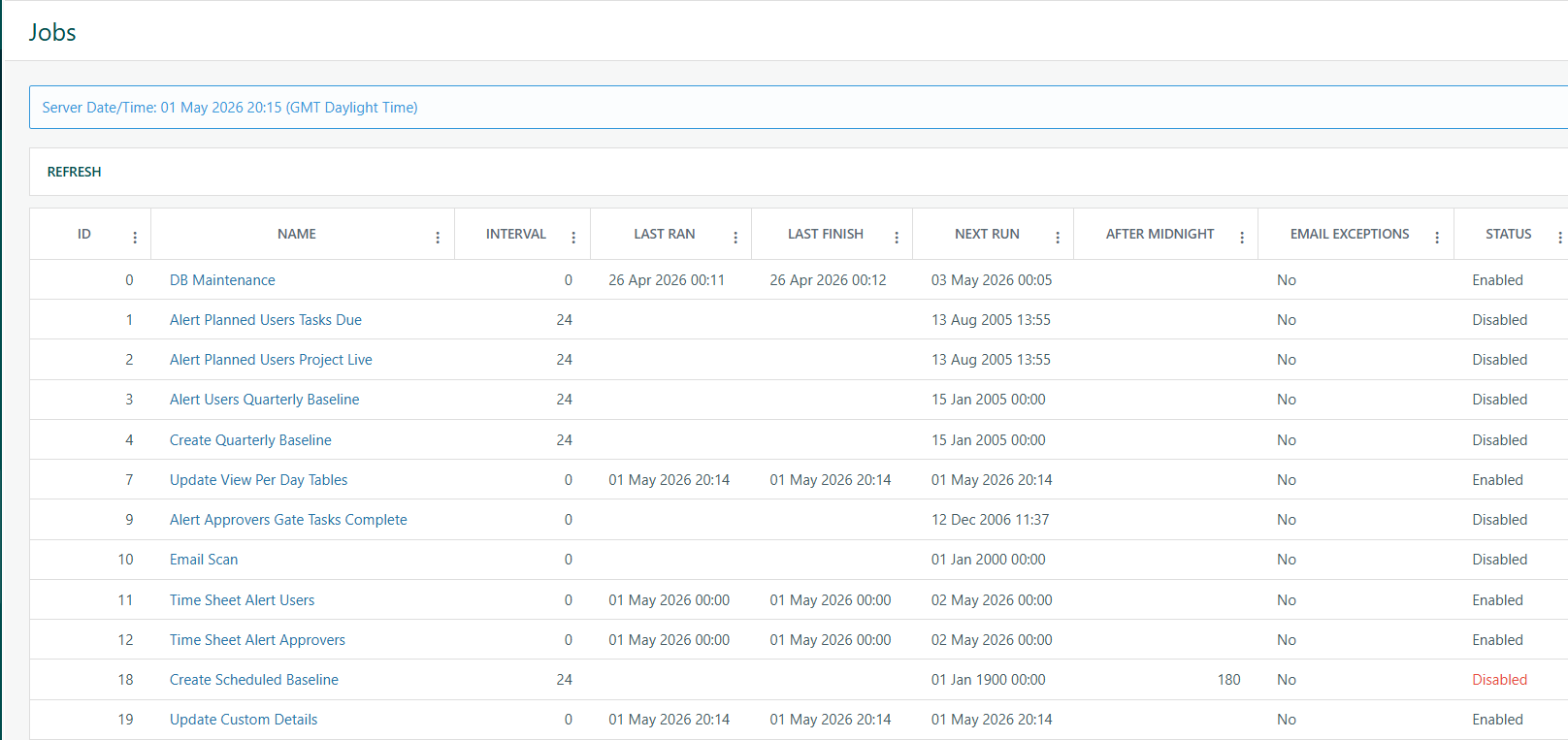 Active
An Active status means a job is currently being progressed.
Overdue
An Overdue status means a job's scheduled run time passed more than 1 hour ago. This typically means a long-running job is blocking the queue. If all jobs show Overdue simultaneously, the scheduler service itself is likely not running. Contact your system administrator to investigate.
Enabled/Disabled
Enabling or disabling a job
- Go to Administration → Monitoring → Jobs
- Click the job name to open its configuration
- Check or uncheck Enabled
- Click Save
If a job was already running when you disable it, it will finish its current run normally. It will only be excluded from future queue passes.
Bringing a Job forward
- Click the job name to open its configuration
- Click Bring Forward
- The job will run within the next queue pass
Bringing a job forward sets its Next Run to 1 hour in the past. It does not change the execution order —by default, jobs always run in ID order to preserve dependencies.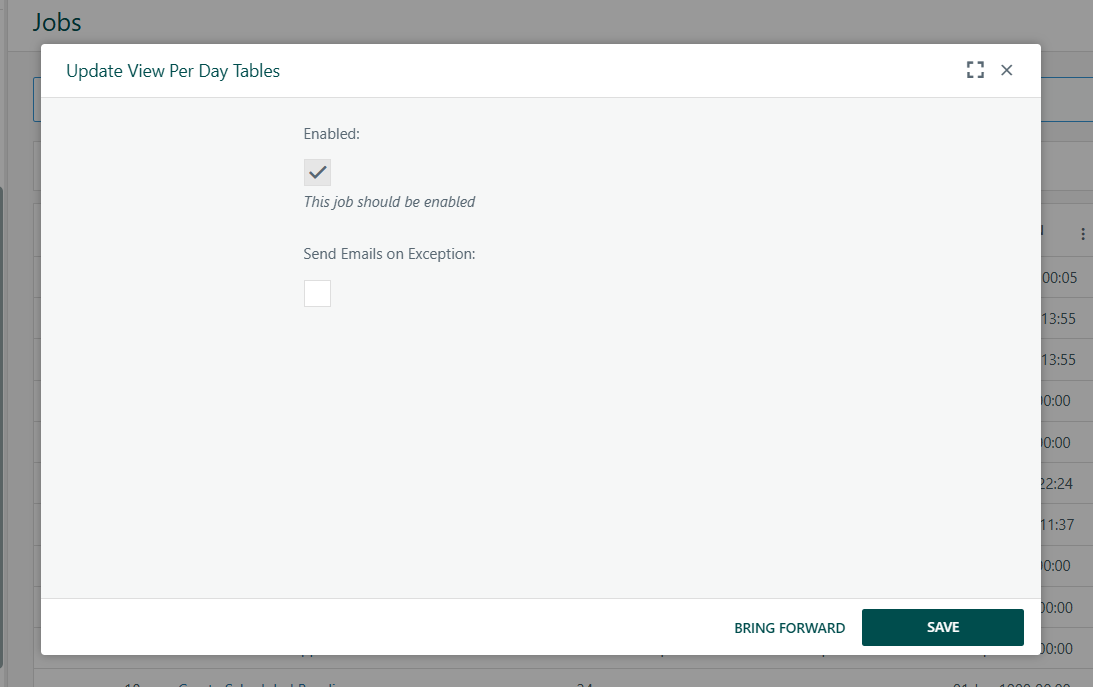
Setting up error email notifications
Enable on a job
Open the job → check Email Exceptions → Save. Each job has its own toggle.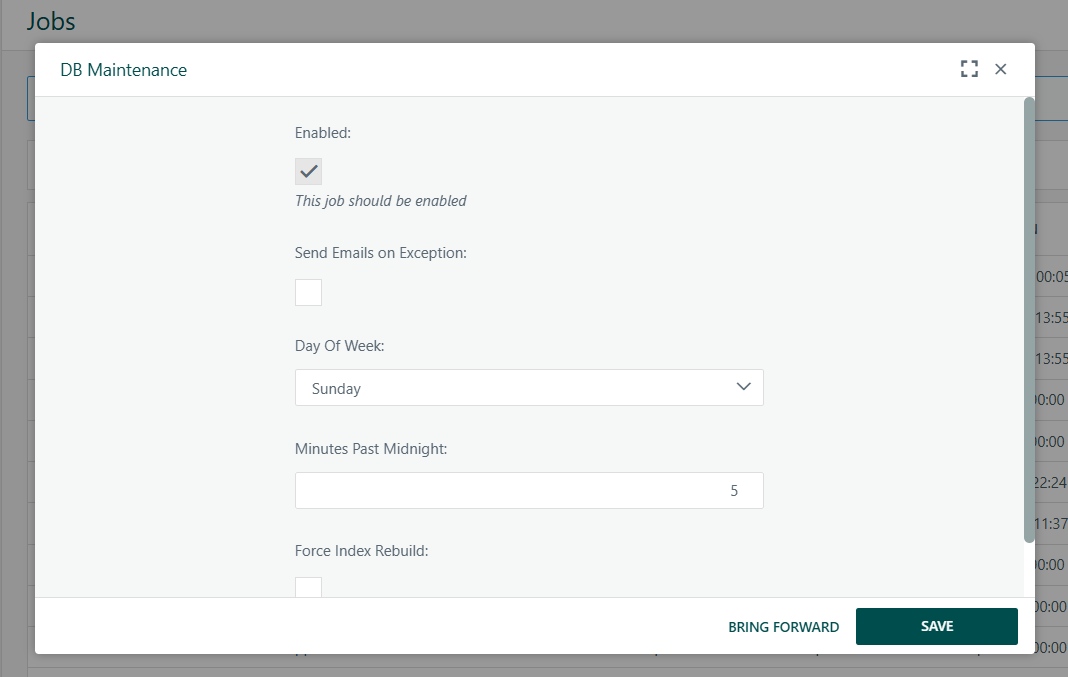
Configure recipients
Go to Admin → System → Monitoring → Email Addresses for Jobs to add or edit recipient addresses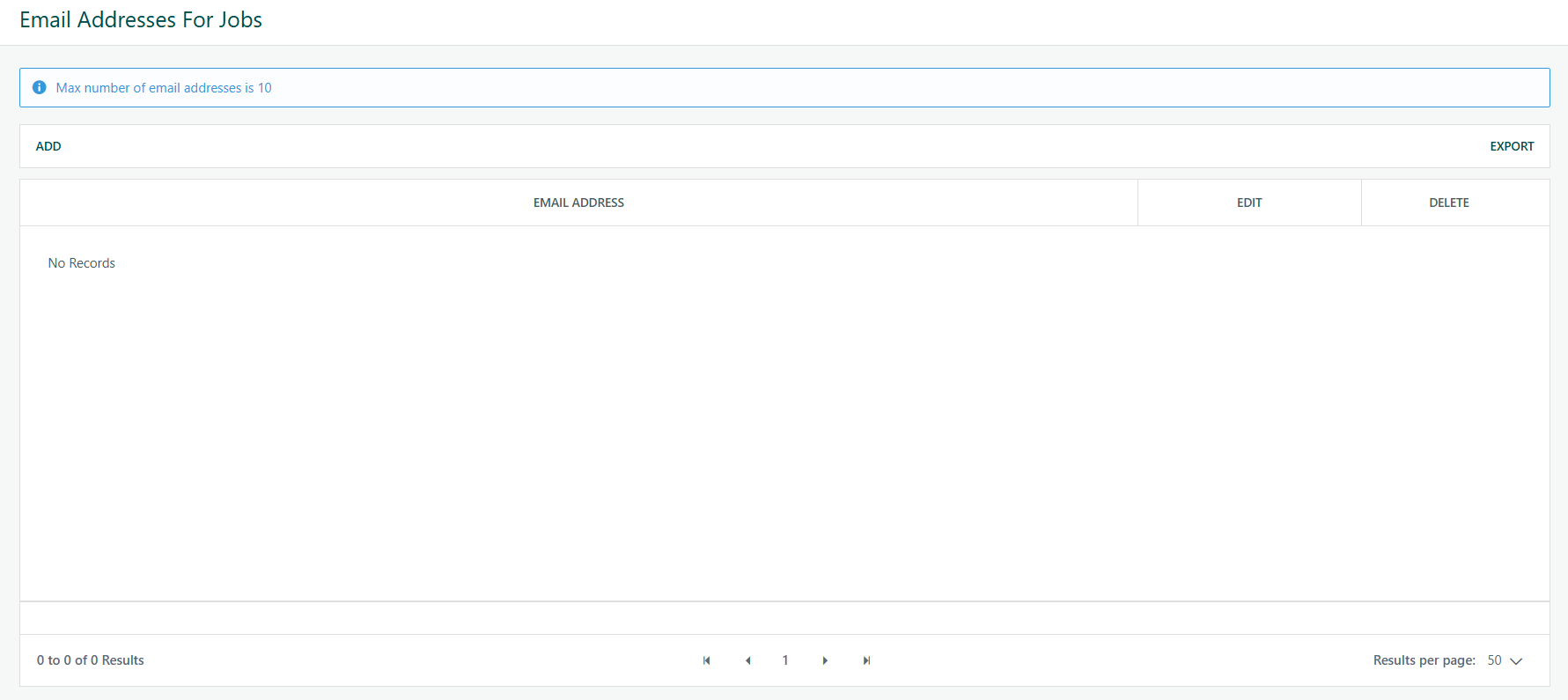 .
.
Viewing execution history
Click the Runs link next to any job to see the last 1,000 executions, including start/end times, duration, and any error messages or stack traces. History beyond the 1,000 most recent runs is automatically purged.
A history log for system jobs was introduced in version 25.2 to support audit and troubleshooting.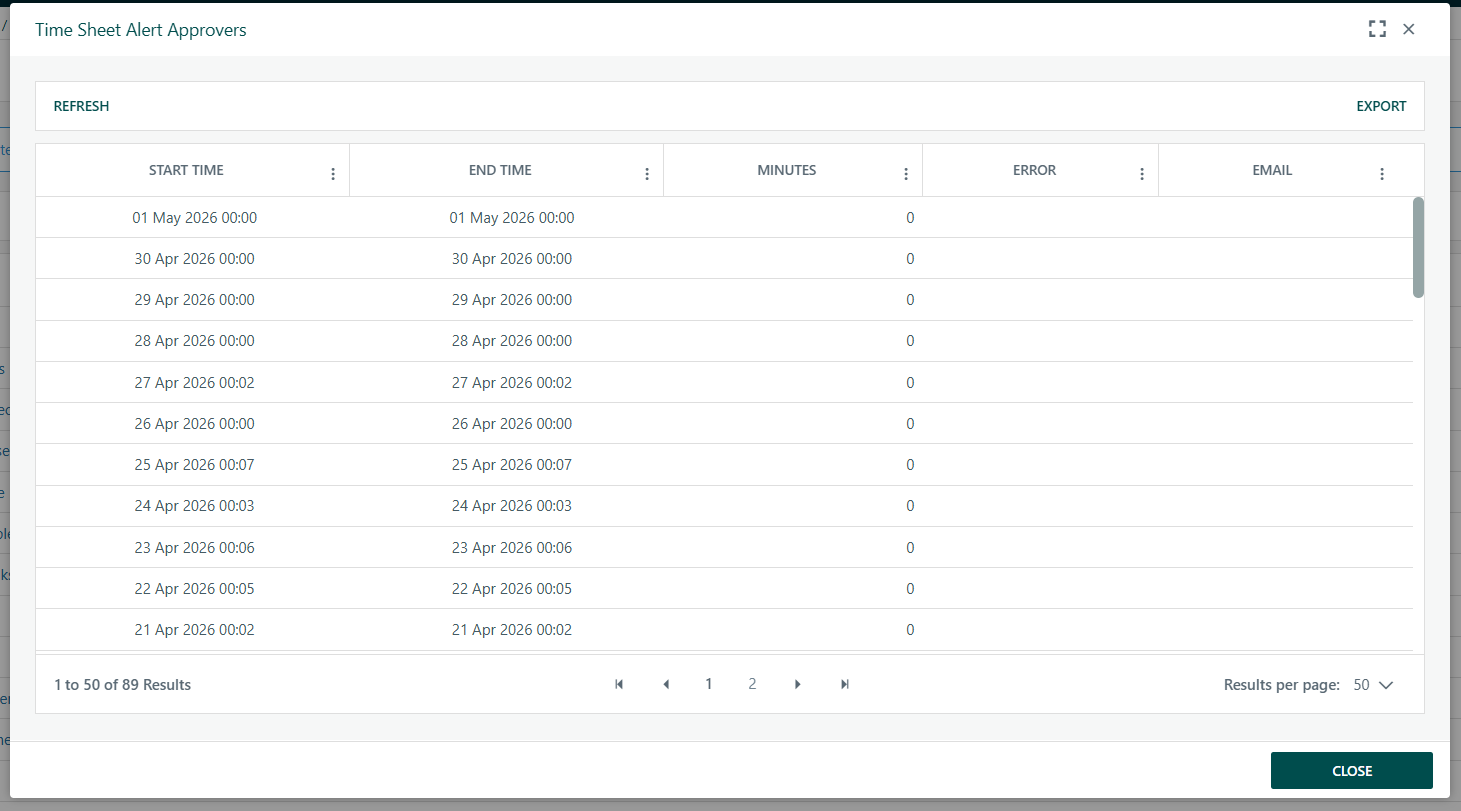
Common System Jobs
ID 18 - Create scheduled baseline
Creates project baselines on a user-defined schedule (e.g. monthly).
ID 19 - Update custom details
Processes queued recalculations of custom fields and roll-ups across projects.
ID 26 - Auto percentage on tasks
Automatically updates % Complete for tasks with auto-calculation enabled.
ID 27 and 28 - Custom field formula full recalc
Queues and processes full recalculations of formulas and rate matrices.
ID 62 - Asynchronous reporting
Handles large report generation in the background so it doesn't block users.
ID 63 - SAP financial imports
Synchronises financial data with SAP and other ERP/FMS systems.
Was this article helpful?
That’s Great!
Thank you for your feedback
Sorry! We couldn't be helpful
Thank you for your feedback
Feedback sent
We appreciate your effort and will try to fix the article