Resource Allocation (the Day-To-Day Tool)
Workforce Planning (or Capacity Management) in Cora PPM bridges project scheduling and resource management. It lets project managers define how many skilled people a project needs, period by period, and lets resource managers assign named individuals or teams to meet that demand.
Capacity Management in Cora PPM (referred to internally in some places as "SCM") is a resource planning and demand management module. It lets organizations track required resources (people and skills) across projects, compare demand with available supply, and analyze gaps within a configured framework of project types, resource hierarchies, skills, and roles.
The module has several interconnected functional areas:
Area | Purpose |
|---|---|
Resource Allocation | Enter and manage how much of each skill or discipline is required per project, per period, in FTE, days, or hours. |
Capacity Insights | View portfolio, project, and resource-level analytics showing demand vs. supply across selected date ranges, skills, and resource groups. |
Scenario Planning (What-If) | Model future resource scenarios, including or excluding projects, without affecting live data. |
Strategies / Resourcing Departments | Group resources, skills, and projects together using the localized term that defaults to "Resourcing Department." Administrators create and manage these groups. |
SCM Terms (Localization) | Rename terms such as Demand, DMD, Approved, APP, Allocated, ALL, Gap, GAP, Requested, REQ, Rejected, and Legend to suit the organization’s language. |
Utilization Bands | Configure up to 10 percentage thresholds used to color-code resource utilization in charts and grids. |
Email Notifications | Send automated emails when resources are allocated, approved, or rejected, with configurable sender and current-user options. |
Resource Allocation
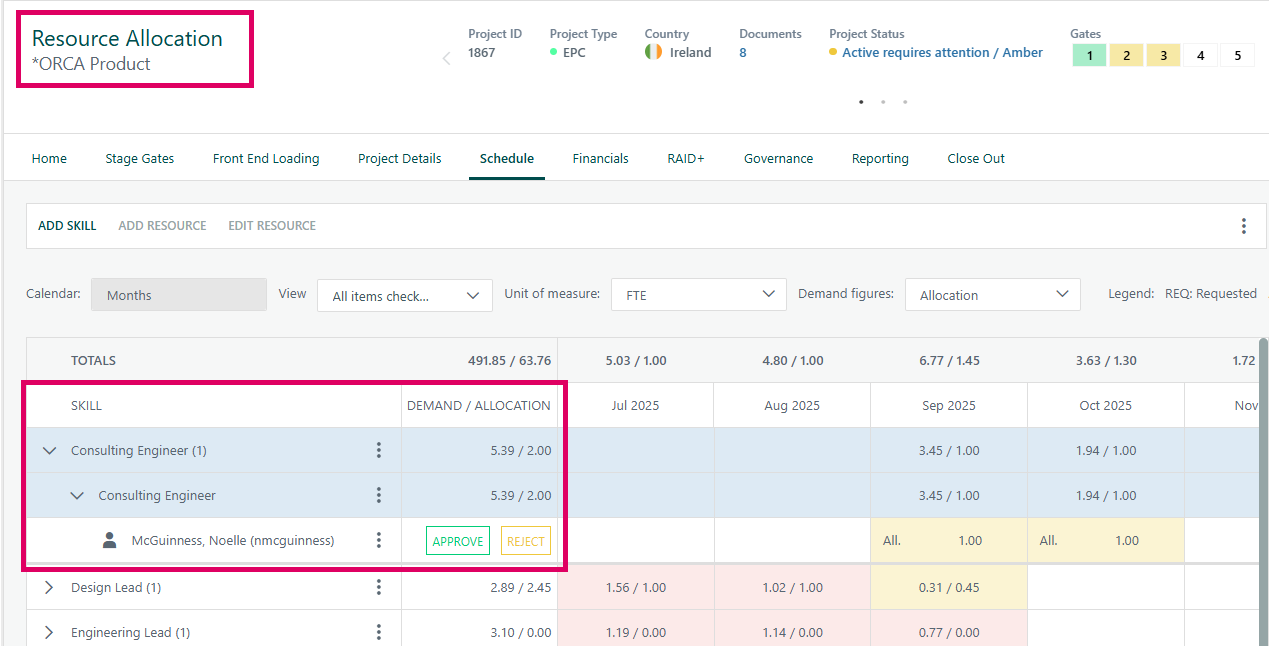
At the project level, the Resource Allocation page presents a time-phased grid showing every skill the project has requested, broken down by month or week.
Grid View | What It Shows |
|---|---|
Demand | How many FTEs, days, or hours are required in each period. This can be derived automatically from the project schedule when "Load from Schedule" is used, or entered manually. |
Allocation or Gap | How much demand has been filled by named users or teams, or how much remains unfilled. |
Individual Resources | Expanding a skill row reveals the specific people or teams allocated, each with a status of Requested, Approved, or Rejected. |
Skills and their associated demand figures are set up per project by the project owner. Resource managers then add named users or teams beneath each skill and enter their availability for each period. Depending on configuration, those allocations may need to be approved by a designated demand approver before they count as filled.
The grid can be viewed in monthly or weekly buckets, and effort can be displayed as FTE, days, or hours. A color-coded legend (Req / All / App / Rej) makes the allocation status immediately visible. Cells where demand is not fully met are highlighted, with an optional threshold tolerance below which a minor gap is not shown as a problem.
Why Does a Customer Use It?
- Turn a skill need into a named, approved resource — no side-channel emails or spreadsheets tracking who has been asked for what.
- One approval queue instead of ad hoc requests landing in inboxes and chat threads.
- See demand vs. proposed allocation — or the gap — at a glance, color-coded per skill and period.
- Three distinct, auditable states — proposed, approved, scheduled — instead of one blurry "assigned" status.
- A full history of every approval and rejection decision on the project.
- Auto-fit approved resourcing onto tasks instead of mapping each one by hand.
Common Use Cases by Project Environment
Project Type | Common Use Cases |
|---|---|
? Manufacture-to-Order |
|
? Pharma |
|
?️ Capital / EPC |
|
?️ GovCon |
|
Was this article helpful?
That’s Great!
Thank you for your feedback
Sorry! We couldn't be helpful
Thank you for your feedback
Feedback sent
We appreciate your effort and will try to fix the article