Workforce Planning Configuration (the admin control)
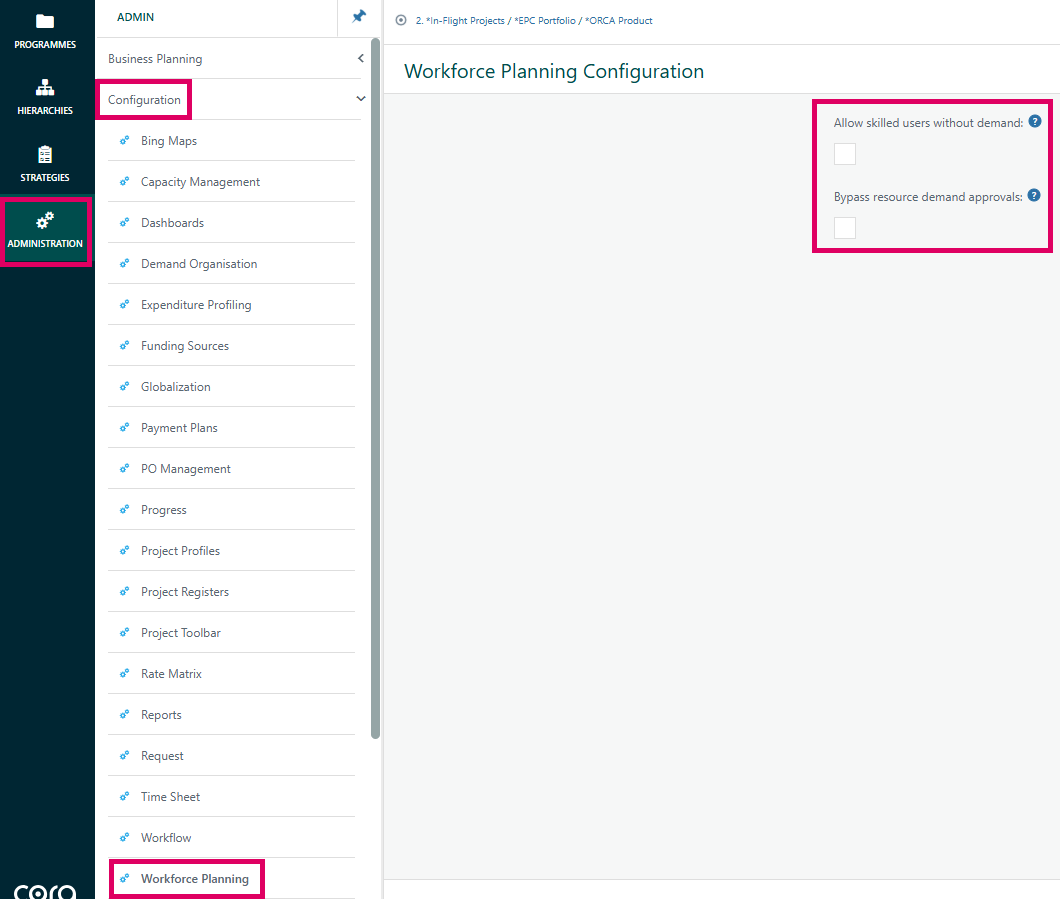
Administrators have a dedicated Workforce Planning Configuration page with two global settings that govern how the Resource Demand page behaves:
- Allow skilled users without demand — when enabled, a project manager can assign a named user who has a particular skill to a task without first having to create a corresponding skill demand entry on the Resource Demand grid. When disabled, a user must be linked to an existing skill demand (or create one) before they can be added.
- Bypass resource demand approvals — when enabled, the normal approval workflow is skipped entirely. When planned effort is pushed from the project schedule to the Resource Demand grid (via "Load from Schedule"), the user allocations are automatically rolled up and set to Approved status, eliminating the need for a demand manager or approver to review them. The system also automatically transfers the user's planned allocation figures to their sub-allocated demand entries.
Both settings are stored in a dedicated database table and every change is written to the system-wide configuration history log so there is a full audit trail.
How the two halves connect
The project schedule drives demand: when a project manager runs "Load from Schedule", the system reads every task skill assignment, calculates how many FTE/days/hours each skill needs in each calendar period (respecting distribution curves, project calendars, company holidays, and excluded days), and writes those figures to the Resource Demand grid. If Bypass resource demand approvals is on, existing user allocations are simultaneously re-distributed over the new periods and auto-approved. If it is off, demand managers and approvers must review allocations before they are treated as filled.
Teams (as well as individual users) can be allocated to skill demands when the Teams Demand Requests feature toggle is active, and the entire grid supports both Organisation-model and Group-model resource management patterns, each with their own role hierarchy for who can add, edit, approve, or reject allocations.
Where to find the features
Area | Navigation path |
|---|---|
Resource Allocation grid (project level) | Open a project → toolbar → Resource Allocation |
Workforce Planning Configuration (admin) | Admin menu → Configuration → Workforce Planning |
Was this article helpful?
That’s Great!
Thank you for your feedback
Sorry! We couldn't be helpful
Thank you for your feedback
Feedback sent
We appreciate your effort and will try to fix the article