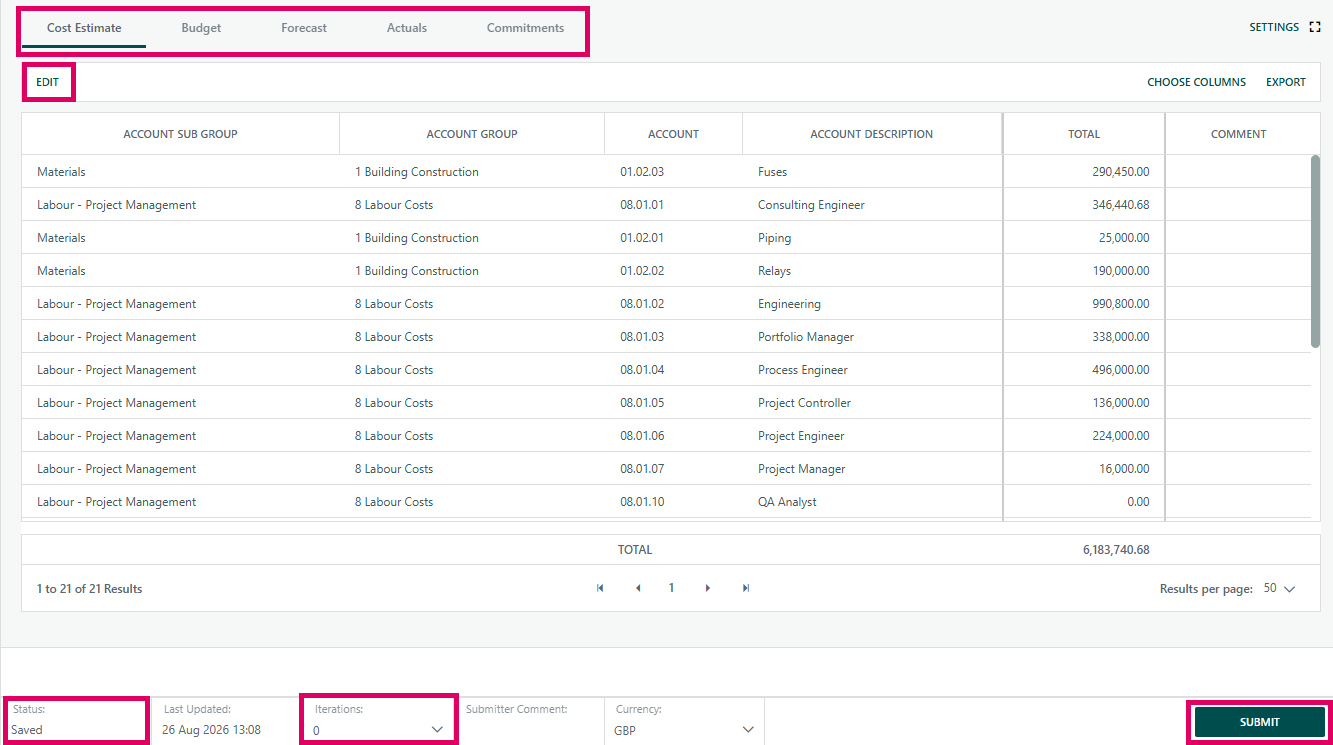
Enterprise Financials is the central project-level financial management module within Cora PPM. It provides a unified, multi-tabbed grid interface that allows project teams to record, track, review, and submit all key financial measures for a project across time periods (months or fiscal periods). The module covers five financial types — Estimate, Budget, Forecast, Actuals, and Commitments — each represented as a separate tab within the same page.
Project Type: Enterprise Financials ?
Use this page to understand the Enterprise Financials module, including financial types, account hierarchy, workflow, reporting, access controls, setup, and common gotchas.
What It Does
Financial Type | Purpose |
|---|---|
Estimate | Initial point-in-time project cost estimate by account code, with Amount and Comment fields. |
Budget | Approved spending plan by account code and monthly or fiscal period. |
Forecast | Projected future spend by account code and period, loaded from schedule, budget, or another enterprise tab. |
Actuals | Recorded spend already incurred, entered manually or imported. |
Commitments | Contracted or obligated spend not yet incurred. |
Account Code Hierarchy
Financial values are always entered against Account Codes (called AGL Accounts), which are organised in a three-level hierarchy:
- Global Site (the top-level grouping, e.g. a division or entity)
- Account Group (a grouping of cost categories within the Global Site)
- Account Sub-Group (a sub-category within the group)
- Account (the leaf-level cost account code)
Note: Each account code includes metadata for Capex or Opex, revenue applicability, VAT applicability, optional S-curve distribution, role-based access restrictions, and per-tab edit restrictions.
Iteration & Versioning
- Every tab maintains a full iteration history.
- Each save creates or updates a working iteration 0.
- Submitting to workflow creates a new numbered iteration: 1, 2, 3, and so on.
- Users can review approved and saved iterations from the Iterations dropdown in the page footer.
- Grid content, status, last-updated date, and submitter comment update to match the selected iteration.
Iteration Tags are optional, or mandatory depending on configuration, labels attached at submission time, such as “Q1 Reforecast” or “Board Approved”.
Scheduled automatic iterations can also be configured to run on a specific day each month.
Workflow Integration
Any of the five financial types can be connected to a workflow approval process. When a user clicks Submit, the system:
- Creates a new iteration record
- Triggers the appropriate financial coupling, such as
FinancialBudgetCoupling - If a live workflow exists, submits to it and shows the result as Submitted, Approved, or Rejected
- Reveals Approve and Reject buttons to eligible approvers
- Supports multi-step approvals, re-authentication, and approval comments
If no workflow is configured, submission is treated as an immediate save without approval.
Enterprise-Wide Reporting
Beyond the project-level page, Enterprise Financials exposes a REST API that aggregates financial data across all projects in the portfolio. Administrators and report consumers can query:
- Budget, Forecast, Actuals, Estimates, Commitments by account code, project, and period across the full project portfolio
- Financial Totals by Project summarising all five financial measures per project
- Global Sites, Account Groups, Account Sub-Groups, and Accounts through the account code hierarchy API
Data Entry Helpers
Helper | Use |
|---|---|
Load from Schedule (Estimate tab) | Pulls planned resource costs from the project schedule into the Estimate grid. |
Load from Schedule (Budget/Forecast tab) | Imports planned costs from the schedule by period, either from the current month forward or from project start. |
Load from Budget / Load from Forecast | Copies approved values from another tab into the currently active tab. |
Apply Distribution Curves (S-Curves) | Applies a configured distribution shape to spread a total cost amount across periods for selected account codes. |
Add Account Codes | Opens a modal to add new account codes mid-session without leaving the page. |
Multi-Currency
When multi-currency is enabled, a Currency dropdown appears in the footer. Switching to a non-base currency recalculates displayed values using the project FX rate. Editing and submitting are disabled when viewing in a non-base currency.
Settings & Date Range
Users access a Settings modal to control the date range displayed in the grid. The date range can be set to project duration, a custom date range, or a named range.
A warning banner appears if data exists outside the currently selected date range. Administrators configure the maximum number of years that can be displayed.
Access Control
- Viewing requires the “General – Can View Project General Report Section” project right.
- Editing Budget requires
Actions_Can_EditorUser_Can_Update_Budgets. - Editing Forecast requires
Actions_Can_EditorUser_Can_Update_Forecasts. - Editing Estimate requires
Actions_Can_EditorUser_Can_Update_Estimates. - Editing Actuals and Commitments can be restricted to the Finance Manager application role.
User_Can_Update_Actuals/User_Can_Update_Commitmentsrights exist as independent edit paths alongside the Finance Manager.- Individual account codes can be set read-only per tab.
- Account groups, sub-groups, and accounts support custom role restrictions cascaded down the hierarchy.
- A global Enterprise Financials Read Only flag disables all editing and submission across the entire page.
Where to Find Enterprise Financials
Enterprise Financials is accessed per project, typically from the project toolbar under a Financials or Enterprise Financials menu item.
Prerequisites / Setup
Before the feature is usable, an administrator must:
- Go to Admin → Configuration → Financials
- Check Enable Financial Management
- Select which tabs are visible in Enterprise Financials: Estimate, Budget, Forecast, Actuals, and Commitments
- Optionally configure manual entry permissions for Actuals and Commitments
- Set up the Account Code Hierarchy: Global Sites → Account Groups → Account Sub-Groups → Account Codes
- Assign account codes to projects, either globally or per project through the Add Account Code modal
Using the Tabs
Action | Steps / Details |
|---|---|
Switching Tabs | Click Estimate, Budget, Forecast, Actuals, or Commitments. The grid, footer status, and available buttons update automatically. |
Entering Data | Click Edit, enter values into editable period cells, then click Submit. The Estimate tab also supports Amount and Comment fields; the Budget tab also supports Cost Estimate. |
Loading Data from Other Sources | Use Load from Schedule, Load from Forecast, or Load from Budget to import values from supported sources. |
Applying Distribution Curves | On Budget and Forecast tabs, click Apply Distribution Curves, choose the accounts and S-curve shape, then apply the curve. |
Adding Account Codes Mid-Session | Click Add Account Code, select accounts from the modal, and confirm. The grid refreshes in edit mode with the new rows ready for entry. |
Submitting to Workflow | After editing values, click Submit, complete the Submit to Workflow dialog, and send the iteration for approval. |
Navigating Iterations | Use the Iterations dropdown to view saved or approved iterations. Older iterations are read-only. |
Viewing Actuals/Commitments Drill-Down | Click transaction-linked cells on the Actuals or Commitments tabs to open the FMS Popup and review detailed transactions. |
Settings (Date Range) | Use the Settings button to adjust the from/to date range, select a named range, apply changes, or reset to project duration. |
Full Screen Mode | Use the expand icon to hide the page header and maximise the grid. Click again to return to normal view. |
Common Gotchas
Gotcha | What to Check |
|---|---|
Submit Button Greyed Out After Editing | The Submit button is enabled only after changes are made. It remains disabled while a submitted workflow is pending. |
Edit Button Disabled | You may be viewing a historical iteration, a workflow may be waiting for approval, the global read-only flag may be on, or you may not have the required project security role. |
Data Outside Date Range Warning | Values exist outside the displayed window. Expand the date range or reset to “Project Duration”. |
Currency Dropdown Hides Buttons | Switching to a non-base currency disables Submit, Approve, and Reject. Switch back to the base currency to submit. |
New Account Has No Values Warning | If a new account code has no values, the system asks you to confirm whether to save without values. |
Was this article helpful?
That’s Great!
Thank you for your feedback
Sorry! We couldn't be helpful
Thank you for your feedback
Feedback sent
We appreciate your effort and will try to fix the article