The Task Predecessors panel in Cora PPM is a scheduling tool that allows users to define dependency relationships between tasks within a project. When you open the Task Manager for any task, the Predecessors panel shows all tasks that the current task depends on, and provides a form to add new, edit existing, or delete such dependencies.
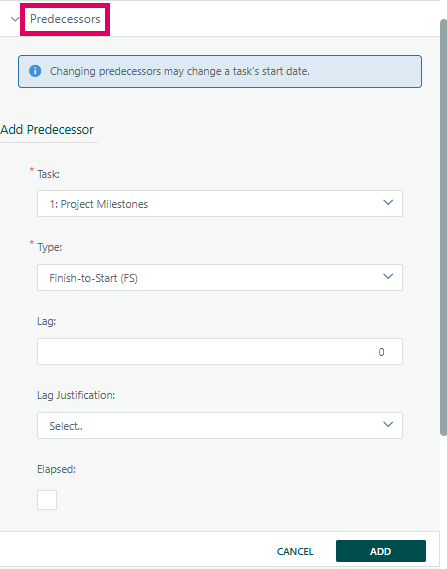
What it does: A predecessor link tells the scheduler "Task B cannot start (or finish) until Task A has reached a certain point." By defining these links, Cora PPM can automatically calculate the correct start dates of tasks based on project logic, maintaining a live critical-path schedule. Adding or changing a predecessor may cascade changes through the entire project's timeline — hence the blue informational banner: "Changing predecessors may change a task's start date."
The Five Form Fields Explained
- Task (required): A dropdown listing every eligible task within the project that can be linked to the current task. Tasks are displayed as
[sequence number]: [task name]— for example, "1: Project Milestones". Cora automatically filters out tasks that would create circular references, parent-child links, or other invalid structures. You cannot link a task to itself, to its parent/child, or to tasks in linked sub-projects. Type (required): The dependency relationship type. There are four options drawn directly from the MS Project-compatible CPM scheduling model:
- FS (Finish-to-Start): The predecessor must finish before the successor can start. This is the most common and the system default.
- SS (Start-to-Start): Both tasks start at the same time (or with an offset).
- FF (Finish-to-Finish): Both tasks finish at the same time (or with an offset).
- SF (Start-to-Finish): The successor cannot finish until the predecessor has started (rare).
Restriction: FF and SF link types cannot be used when the predecessor task is a summary (mother) task.
- Lag: A numeric value (positive or negative, up to two decimal places, range −999.99 to +999.99) that offsets the relationship by a number of working days. A positive lag means a delay — for example, FS+5 means the successor starts 5 working days after the predecessor finishes. A negative lag (also called "lead time") means an overlap — the successor can start before the predecessor fully completes. A value of 0 means no offset.
- Lag Justification: A dropdown populated from a configurable list managed by system administrators. When you enter a non-zero Lag value, the system requires a Lag Justification to be selected — you cannot save a predecessor with lag ≠ 0 and no justification. Conversely, a justification cannot be selected if lag is 0 (the system enforces this validation on both sides). This is a governance control to ensure that any scheduling delays or overlaps are documented.
- Elapsed: A checkbox that, when ticked, tells the scheduler to count the Lag value in elapsed (calendar) days rather than working days. Elapsed days include weekends and public holidays. This is used when a lag represents real-world calendar time (e.g., waiting for concrete to cure), not just business days.
What Happens When You Click ADD
The system performs a comprehensive validation before saving:
- Checks for duplicate links (in either direction)
- Checks for circular references (would the new link create a loop?)
- Checks for parent-child conflicts
- Checks lag/justification consistency
- Detects whether the task is Out of Sequence (if the dependency type is FS) — if so, a "Planning Wizard" modal appears asking how to handle the scheduling conflict before the save proceeds
After a valid save, Cora runs its full CPM scheduler (TaskScheduler.Rearrange) across the project and all dependent projects. If the saved task's start date has changed as a result, the user sees a success toast message noting the date change, and the Gantt chart and task details panel are automatically updated.
Permissions
The Add Predecessor form only appears if the user has sufficient rights. Three access levels are checked:
- Full Access to the Project (full WBS/Gantt rights)
- Access via a High-Level Deliverable they own
- Access to their own tasks (edit-own-tasks right)
Users with insufficient rights see an error message and cannot add or modify predecessors.
The Existing Predecessors List
Above the Add form, a grid displays all current predecessor links for the task, showing: Task name, Go-To number, Type, Lag (with an "E" suffix when elapsed), Driving Task indicator (tick if this is the path-driving predecessor), Critical indicator, and Total Slack days. Clicking on a task name or its Go-To number switches the panel to edit mode for that link.
Inter-Project Predecessors
The Inter-Project Predecessors panel is a feature within the Cora PPM task scheduling module that allows a task in one project to be made dependent on a task (or an entire project) in a different project. This creates a cross-project scheduling link so that the start date of the dependent task can be automatically driven by the finish (or start) of a predecessor that lives outside its own project plan.
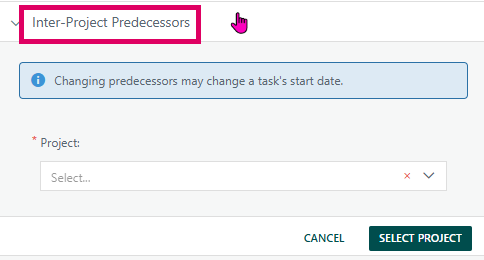
Why it exists: Real-world programmes often involve multiple inter-dependent projects. A design task in Project A may need to be completed before a build task in Project B can start. Inter-Project Predecessors captures these cross-boundary relationships inside Cora PPM's scheduling engine so the system can automatically compute schedule impacts across project boundaries.
How it works from the user's perspective:
- The user opens the Task Manager (the slide-in panel that appears when a task is selected in the Gantt or WBS view) and expands the "Inter-Project Predecessors" section — one of several collapsible accordions in the Task Manager.
- The panel first shows an existing grid listing any current cross-project links for that task.
When the user clicks Add (the "+" button on the grid), the panel transitions into a two-step form:
- Step 1 – Project Selection: A project dropdown tree appears (the screen in the screenshot), labelled "Project:", marked as required. The user must pick the other project (not the current one) from the full hierarchy of accessible projects. An informational blue banner reminds the user that "Changing predecessors may change a task's start date." Clicking SELECT PROJECT advances to step 2; CANCEL returns to the grid.
- Step 2 – Link Configuration: The selected project name is displayed read-only. A task dropdown lists all linkable tasks in that project (or the user can link at the project level without choosing a specific task). Additional fields allow the user to set: the link type (FS, FF, SF, SS — Finish-to-Start, etc.), a lag value in days (positive or negative), and whether the lag is elapsed (calendar days rather than working days). Buttons at the bottom become ADD (to create the link), RE-SELECT PROJECT, and CANCEL.
Once submitted, the system:
- Validates the link (checking for duplicates, circular dependencies, self-links, parent/child conflicts, and permission rules).
- Saves the relationship to the database.
- Re-runs the task scheduler for the affected project(s).
- Updates the Gantt chart in real time without a full page reload.
- Notifies the project owner of the affected project by email (if email notifications are enabled).
- An existing cross-project predecessor can also be edited (change type, lag, elapsed flag) or deleted from the grid — both actions also trigger a rescheduling pass and a Gantt redraw.
- When a task is manually scheduled, the panel header includes a note that predecessors are ignored for scheduling purposes.
Permission controls: This feature is governed by a system-level setting ("Inter-Project Linking") that an administrator configures. It can be:
- Disabled – the Add button is hidden for all users.
- Project Owner only – both the current task's project and the target project must have the same user as Project Owner.
- Portfolio Manager only – the user must hold the Portfolio Manager application right and have full task rights on both projects.
- Project Owner or Portfolio Manager – either of the above qualifies.
Additionally, individual projects can be individually set to "Not Permitted" for inter-project dependencies, blocking linking regardless of the global setting.
Was this article helpful?
That’s Great!
Thank you for your feedback
Sorry! We couldn't be helpful
Thank you for your feedback
Feedback sent
We appreciate your effort and will try to fix the article