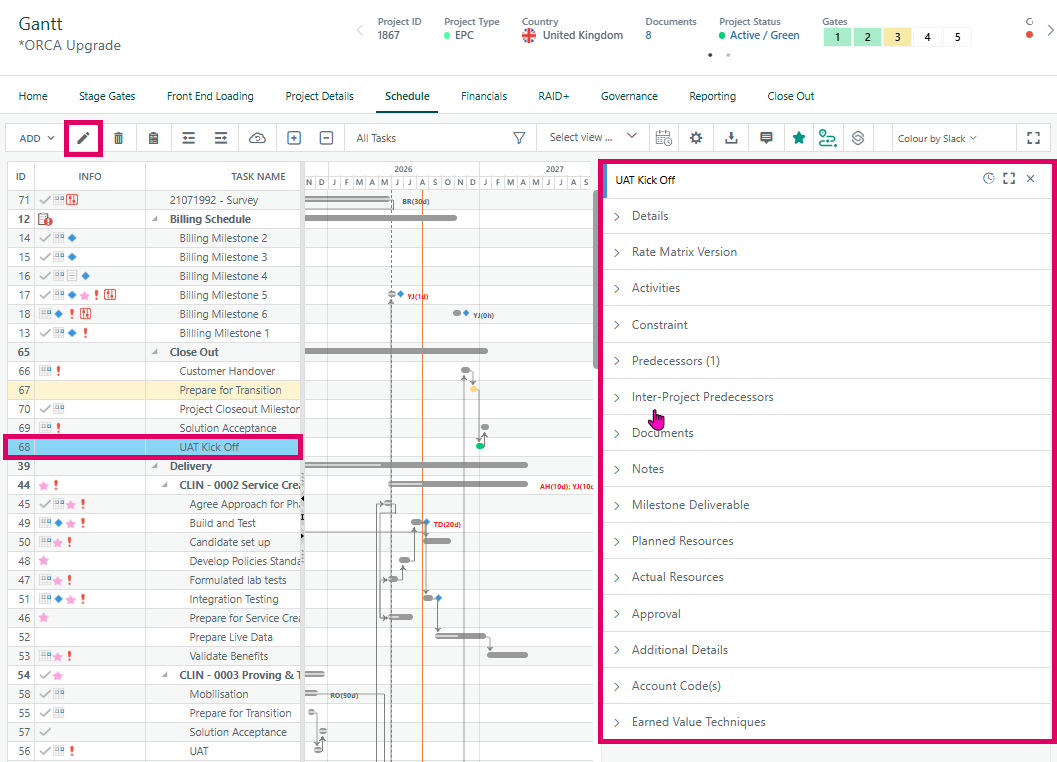
Edit Task Details is the primary mechanism in the Cora PPM Gantt (and WBS) chart for viewing and modifying every attribute of an individual task. It opens a dedicated Task Manager panel — a collapsible, tabbed side-panel that docks to the right of the Gantt grid — giving users deep, structured access to a task's full lifecycle data without leaving the scheduling view.
Where to find Edit Task Details
On the Gantt:
- Toolbar button (pencil icon) — The quickest route. In the toolbar at the top of the Gantt grid, click the pencil (edit) icon labelled "Edit task details". If a task is already selected, the Task Manager panel opens to that task's Details tab. If the same task was already open, clicking again closes the panel (toggle behaviour).
- Right-click context menu — Right-click any task row or Gantt bar. In the pop-up menu, choose "Edit task details" (or equivalent localised label).
Double-click on a Gantt bar — Opens the Task Manager directly to the Details tab.
- On the task list area (left side): double-click the task row opens inline editing for a quick field update.
- On the Gantt bar area (right side): double-click opens the full Task Manager panel.
Keyboard shortcut — With a task selected:
- Press Enter (without Ctrl) → activates inline editing (quick edit in the grid row).
- Press Ctrl+Enter or F2 → opens the full Task Manager panel.
- Double-click icons — Double-clicking the Notes, Documents, Milestone, Skills, Constraint, or Approval icons in the task row opens the Task Manager pre-navigated to that specific tab.
What is it used for?
The panel is organised into expandable accordion sections (tabs), each covering a logical group of task properties:
Tab | What it lets you edit |
|---|---|
Details | Task name, type, manual scheduling flag, start/finish dates, duration (with elapsed option), actual start/finish, deadline date, priority, phase, status, % Complete, Physical % Complete, WBS code, calendar, non-production flag, hide-in-timesheet flag |
Rate Matrix Version | Rate matrix version assignment (when enabled) |
Activities | Kanban/activity tracking (feature toggle dependent) |
Constraint | Scheduling constraint type and date |
Predecessors | Intra-project task predecessors and successor links |
Inter-Project Predecessors | Cross-project predecessor dependencies |
Documents | Attached files and document types |
Notes | Free-text notes; also PCS Guidance Notes (a second notes field) |
Skills | Skill requirements assigned to the task |
Milestone | Milestone classification and deliverable details |
Planned Resources | Users, facilities, and materials planned for the task |
Actual Resources | Actuals recorded against the task |
Approval | Task approval status and tracking |
Additional Details | Organisation-defined custom fields |
Account Details | Finance account code assignments (when financial management is enabled) |
Earned Value Techniques (EVT) | EV technique selection (% Complete, Weighted Milestones, etc.) |
Qualifications | Qualification/certification requirements |
Details
The Edit Task Details in Cora PPM is the primary interface for defining and managing an individual task within a project schedule (Work Breakdown Structure / Gantt chart). It surfaces every scheduling-relevant attribute that governs how and when a task is placed in time, how its progress is tracked, and how the broader scheduling engine interprets it. The Tab shown in the screenshot covers the core scheduling fields:
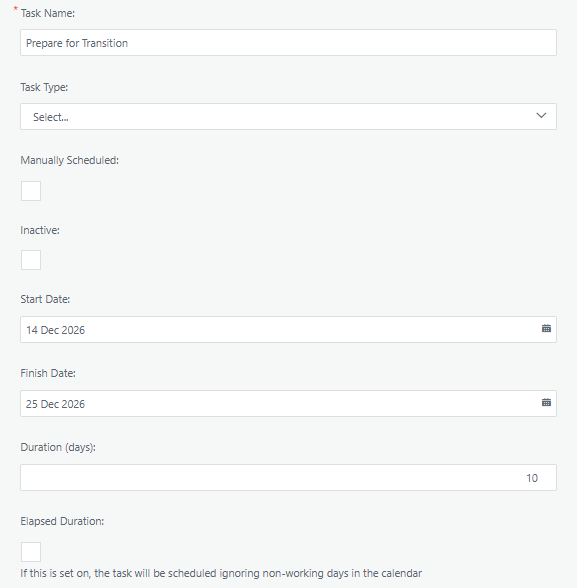
Task Name is simply the human-readable label for the task. It is a free-text field and is mandatory — a task cannot be saved without one.
Task Type is an optional classification that allows a task to be tagged against a configured set of types (for example, a normal work task versus a milestone-style deliverable). Task Types are configured by administrators and can be marked as milestone types. When a task type is flagged as a milestone in configuration, selecting it carries additional behaviour: Cora warns you if the data is inconsistent (e.g. the type is a milestone type but no milestone deliverable data exists, or vice-versa). Task Type is only visible on the Deatils Tab if the administrator has enabled the "Task Types" feature in system configuration. When not selected ("Select…"), no type classification is applied.
Manually Scheduled controls whether Cora's automatic scheduling engine is allowed to move this task. When this checkbox is unchecked (the default, as shown), the task is auto-scheduled: the system calculates its start and finish dates based on its predecessors, constraints, project calendar, and network logic, and will automatically reschedule it whenever linked tasks or the project changes. When checked, the task becomes manually scheduled: you are directly in control of its start date, finish date, and duration — the engine will not move it automatically. On "mother tasks" (summary/parent tasks), toggling this control triggers a server-side postback because it also enables or disables editing of the date and duration fields below.
Inactive marks the task as excluded from the active schedule. An inactive task is transparent to the scheduling engine: it does not consume resource time, does not drive successor dates, and is visually suppressed on the Gantt. This is used when a task is planned but shelved, or when a previously active task needs to be "ghost" preserved without deletion. A task cannot be made inactive if it has already started (actual start date set, or percentage complete > 0), or if it is a linked sub-project. The checkbox is greyed out with an explanatory tooltip in those situations.
Start Date and Finish Date are the scheduled start and end dates of the task. In auto-scheduled mode, these are calculated and updated by the scheduling engine based on the task's position in the network. In manually scheduled mode, you type them directly. Changing either date triggers an immediate AJAX call to the server (TaskMan.aspx/ChangeDates), which recalculates the third value (duration) based on the project's working calendar and non-working day rules. A constraint is also automatically applied when you manually edit a date in auto-scheduled mode: editing the start date applies a "Start No Earlier Than" constraint; editing the finish date applies a "Finish No Earlier Than" constraint. The system warns you before applying this constraint and offers a confirmation dialog.
Duration (days) is the number of working days the task is expected to take. Like the date fields, it participates in the three-way Start / Finish / Duration calculation: any time you change one of the three values, the server recalculates the remaining two. The label "Duration (days)" confirms the default unit is days, though the system also supports hours and minutes as duration units if configured (in which case separate time-of-day fields also appear). Duration is constrained to a maximum of 9,999 days. The system also validates that the duration is not set shorter than the maximum planned resource allocation on the task.
Elapsed Duration is a checkbox that changes the fundamental calendar rule for this task. When unchecked (default), duration is measured in working days — weekends, company holidays, and other non-working days are excluded from the count, so a 10-day task starting on a Monday always spans two full working weeks. When checked, duration is measured in elapsed (calendar) days — every calendar day counts regardless of whether it is a working day. The helper text below the checkbox — "If this is set on, the task will be scheduled ignoring non-working days in the calendar" — exactly describes this: with elapsed duration active, a 10-day task starting on 14 December 2026 would finish 10 calendar days later on 24 December, passing straight through the Christmas non-working period. Without it, the scheduler skips non-working days and would place the finish date on the first available working day after accumulating 10 working days.
Calendar
Toggling this checkbox immediately triggers a date/duration recalculationCalendar ("Project Calendar" with View link)
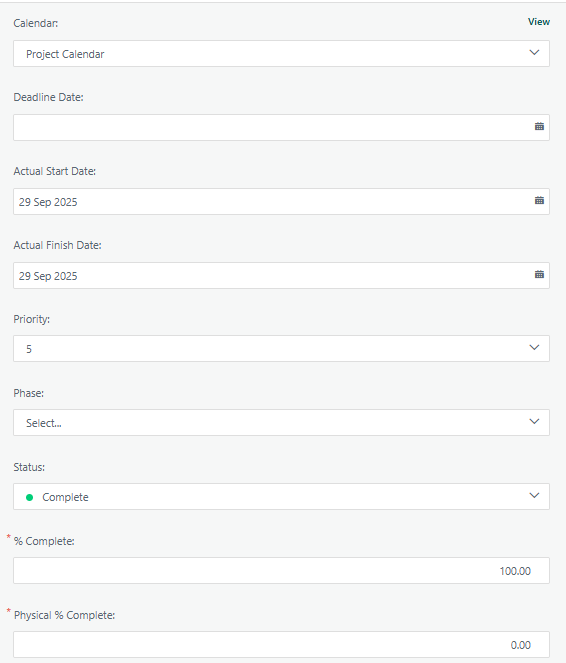
Each task can be assigned its own working calendar, which governs which days are working days for scheduling purposes. When shown as "Project Calendar", the task is inheriting the project-level calendar rather than having a task-specific override. The View link opens the calendar definition so users can inspect its working/non-working days. Task-level calendars are only available when enabled by a system administrator in both the system task configuration and at the project level.
Deadline Date
An optional target date by which the task should be completed. It is distinct from the scheduled Finish Date: the Deadline is informational and feeds the backward scheduling pass — it clamps the task's Late Finish and Slack values in the scheduling engine. It does not prevent saving. A missing Deadline Date is completely valid even for a completed task; it simply means no deadline constraint was ever applied.
Actual Start Date / Actual Finish Date
These record when work genuinely began and ended, as opposed to the planned Start and Finish dates. They are essential for Earned Value Management (EVM) calculations. The system enforces that Actual Finish cannot be earlier than Actual Start. Once an Actual Finish Date is set, the task's % Complete is locked at 100 by the scheduling engine. Editing these dates after the fact requires specific project-level security rights ("User Can Edit Actual Start Date" / "User Can Edit Actual Finish Date"); if those rights are absent, the fields become read-only once a date is recorded.
Priority (5 — midpoint on a 1–10 scale)
A task-priority indicator from 1 (highest) to 10 (lowest). The default for new tasks is 5. It drives reporting and filtering but does not directly affect automatic scheduling order. It is audited in the task history log.
Phase
An optional classification that groups tasks into user-defined project phases (e.g., "Design", "Build", "Test"). Phases are configured system-wide and can be filtered by a display formula, meaning only relevant phases appear in the dropdown for a given project. A value of "Select…" (internal value 0) means no phase has been assigned. This is valid data; the field is optional. Phase changes trigger a project cost re-calculation.
Status
A dropdown representing the task's lifecycle state. The three core statuses are: 0 = Not Started (default, grey/neutral), 1 = In Progress/Started, 2 = Complete (typically displayed in green). Administrators can create additional custom statuses (e.g., On Hold, Action Required) with configurable colours, which appear as coloured dots. The system enforces strong coupling between Status and % Complete: setting Status to "Complete" automatically sets % Complete to 100, and setting % Complete to 100 automatically changes Status to "Complete". Setting Status back to "Not Started" clears both Actual Start and Actual Finish dates.
% Complete
The percentage of the task's work that has been completed, on a 0–100 scale stored to two decimal places. This is required (marked with a red asterisk) and drives the scheduling engine. When % Complete = 100, the system automatically populates Actual Start and Actual Finish dates if they are missing. An "Auto Update % Complete" toggle (if enabled) lets the system calculate this automatically based on the current date relative to the task's planned dates. The field can be locked by an approval workflow if a predecessor task is awaiting approval.
Physical % Complete
A separate, independent measure of physical progress — distinct from time-based % Complete. It answers "how much of the physical work product is actually done?" rather than "how much time has elapsed?". It is used primarily in Earned Value Management (EVM) as an independent verification of schedule performance. This field has its own stored value in the database and is audited separately. Critically, it is not automatically updated when Status or % Complete changes — it must be set manually. An administrator can configure it to be read-only, in which case the system derives it automatically; otherwise it remains a manual entry field. The discrepancy in the screenshot — Status "Complete", % Complete 100, but Physical % Complete 0 — is therefore expected and architecturally intentional: the two fields are independently managed and not automatically synchronised.
Why both % Complete and Physical % Complete are marked required: Both fields are always required by the form's validation. Physical % Complete defaults to 0.00 on new tasks and is stored as DEFAULT ((0)) in the database, so a value of 0.00 is always a valid (non-empty) submission..
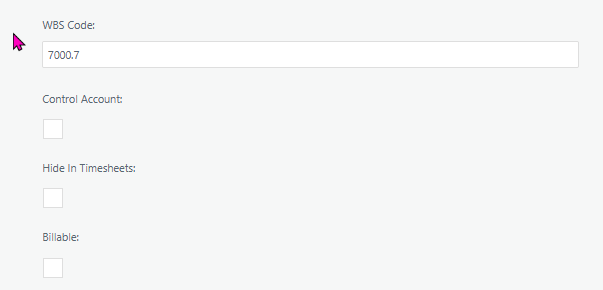
WBS Code A free-text field where you can assign a unique alphanumeric code (e.g. "7000.7") to identify the task's position in the work breakdown hierarchy. This code must be unique within the project.
Control Account A checkbox that, when checked, designates this task as a Control Account for Earned Value Management (EVM). This is only visible when EVM is enabled for the system.
Hide In Timesheets A checkbox that, when checked, prevents this task from appearing on team members' timesheets. It will not be bookable for time entry.
Billable Based on the system context, this likely corresponds to the Non-Production Task flag (which controls cost and billing classification). When unchecked, the task is treated as a production/billable task.
Was this article helpful?
That’s Great!
Thank you for your feedback
Sorry! We couldn't be helpful
Thank you for your feedback
Feedback sent
We appreciate your effort and will try to fix the article