The Documents section is a reusable sub-panel embedded within several entity detail pages in Cora PPM — most prominently the Task Manager (the side panel that appears when you click a task in the Gantt Chart or WBS). The specific variant shown in the screenshot (with columns NAME, VERSION, UPLOAD DATE, RENAME, ACTIONS) is the Task Documents panel, which presents the documents attached to an individual project task.
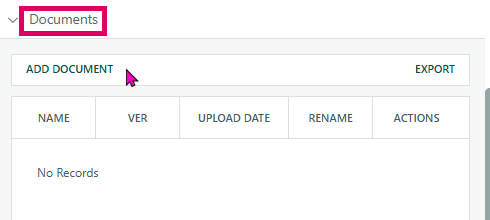
The panel exists so that team members and project managers can attach supporting files directly to a task, rather than having to store them elsewhere. Every document uploaded here is permanently linked to that task in the database, appears in the task's history log, and updates the count shown in the panel's tab header (e.g. "Documents (3)").
What the section does, from a user's perspective:
- Displays all documents already attached to the current task/entity in a sortable, pageable grid. When no documents exist, the grid shows "No Records."
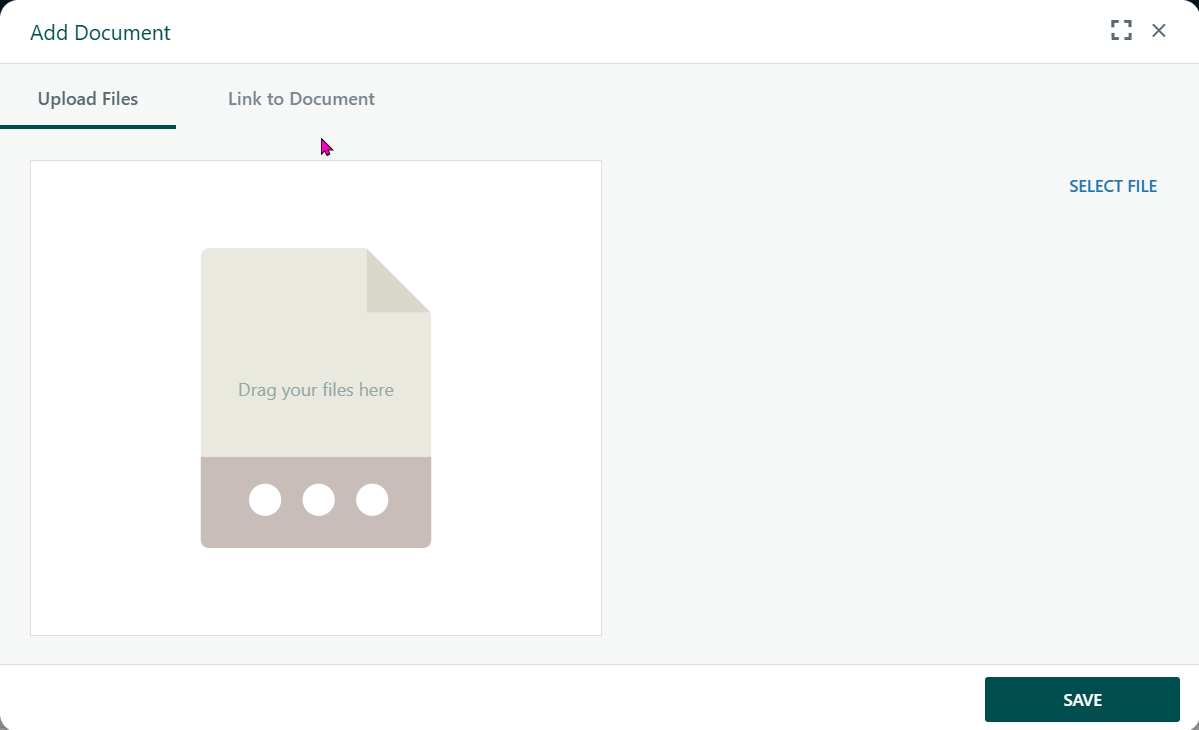
- Supports two types of attachments: physical file uploads (stored in the database or on a secure file system / Azure Blob Storage), and URL links (pointing to external documents or shared drives).
- Versioning (VER column): Every new upload of the same filename increments the version counter. The system tracks which version number a document is at, so you can see how many times a file has been updated.
- Rename (RENAME column): A pencil-icon button appears on each row for non-checked-out documents. Clicking it opens a lightweight modal that lets you rename the file's display name (while preserving the file extension). The rename is recorded in the project history log.
- Actions (ACTIONS column): Per-row delete button. Deleting a document that is currently checked out by another user is blocked; the system shows a toast warning naming the person who has it checked out.
- Check-in / Check-out: Documents can be locked for exclusive editing. When checked out by the current user, they see "Checked Out to you" and a Check In option. When checked out by someone else, the Rename and Delete buttons are disabled, and the user is shown who holds the lock.
- ADD DOCUMENT button: Opens the
UploadDocument.aspxmodal. From there, the user selects a file (multi-file upload is supported). The system validates the file content, extension, size, and runs it through a virus scanner if configured. If clean, the file is stored and the grid refreshes. - EXPORT button: Exports the entire document list to an Excel (XLSX) spreadsheet, with configurable column widths.
- Security and access: Read-only project profiles suppress the Add and Actions (delete) columns entirely. Users who are only on their own tasks (limited rights) also have the Actions column hidden. DMS/SharePoint-stored documents suppress the delete button specifically for those files.
- Document Markup (optional feature): If the Document Markup licence is active, PDF documents can be annotated directly within Cora PPM, and a separate Markup column appears, allowing users to open the PDF markup viewer.
- Virus scanning: Uploaded files are scanned. If a virus is detected, the file is refused, a toast error appears, and an alert email is dispatched to administrators. Files in zip archives are also recursively scanned.
The same Documents widget, with slight variations in columns and permissions, appears across other entity types: Risks, Issues, Action Logs, Project-level Documents, Custom Registers, Invoices, Benefits, and more — all sharing the same upload pipeline and Documents data-access class.
Notes
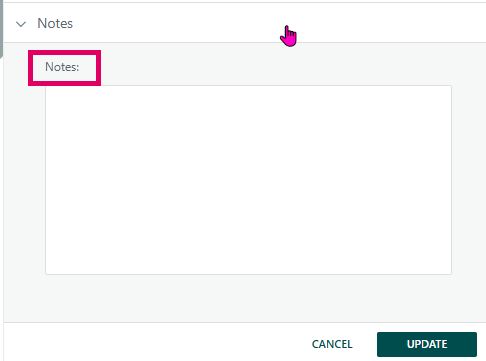
The screenshot shows the Notes section within the Task Manager panel in Cora PPM. This is a collapsible section (indicated by the chevron/arrow on the left of the "Notes" header) that appears as part of the task detail panel — a multi-section accordion-style interface where users can view and edit various aspects of a task (Details, Constraints, Predecessors, Notes, etc.).
The Notes field is a large, free-text area where users can enter or update narrative notes against a specific task. It supports up to 3,500 characters and includes a character count indicator. At the bottom of the section are two buttons: CANCEL (which discards any unsaved changes and reloads the saved text) and UPDATE (which saves the typed notes to the task record).
Access Restrictions
- If you do not have sufficient project rights (Full Access, HLD Access, or Own Task access), the Notes text area will be read-only and the UPDATE and CANCEL buttons will be hidden. A message stating "You have insufficient rights to modify the notes" will be displayed instead.
Tips
- The Notes field is a plain text area — no formatting is supported.
- Notes are also editable from the legacy Popup Tasks page (used for batch task updates), where a
notescolumn appears per task row.
Was this article helpful?
That’s Great!
Thank you for your feedback
Sorry! We couldn't be helpful
Thank you for your feedback
Feedback sent
We appreciate your effort and will try to fix the article