The Additional Details tab in the Gantt's Task Manager is a configurable set of custom fields that administrators define system-wide, and which users fill in per task. When you open a task in the Gantt and click "Additional Details," you see a dynamically generated form containing whatever custom fields have been configured — text boxes, numeric fields, date pickers, standard dropdowns, cascading (hierarchical) dropdowns, or user-picker dropdowns. You can edit the values and save them. Changes are recorded in the audit history, and the Gantt chart is redrawn to reflect any updates.
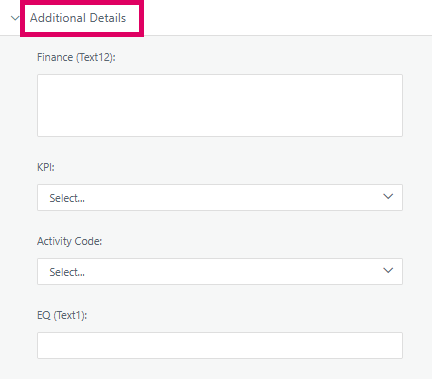
If no custom fields have been configured by an administrator, the "Additional Details" tab is hidden entirely.
Accessing Additional Details
- Open the Gantt view of a project.
- Click on a task to open the Task Manager panel on the right.
- In the accordion/panel bar on the left side of the Task Manager, find and click "Additional Details".
- If the tab is not visible, no custom fields have been configured by an administrator.
Filling in Fields
Depending on what your administrator has set up, you may see any combination of:
- Text fields (single or multi-line)
- Numeric fields (with optional min/max range and decimal places)
- Date pickers
- Dropdowns (single-select from a predefined list)
- Cascading dropdowns (hierarchical selection)
- User pickers (search and select a system user)
- Fields marked as mandatory must be filled before saving.
- Numeric fields with a configured min/max will show a hint about the valid range.
- Text fields may display a character count if configured.
Saving
- Click the Save button at the bottom. A validation group (
grpCustomField) runs first. - On success, a toast notification confirms the update and the Gantt chart redraws for the affected task.
- Click Reset to discard unsaved changes and reload the saved values.
Unsaved Changes Warning
If you attempt to switch to a different tab while there are unsaved changes, a confirmation dialog appears:
- Save — saves and then switches.
- Discard — discards and switches.
Access Restrictions
- You need full project rights, HLD access, or ownership of your own tasks to edit fields.
- If you are a linked task user (read-only mirror task), all fields are disabled and the Save button is hidden.
Administrator Configuration
Admins manage custom fields at: Admin → Add Task Custom Detail .
Each field can be configured with:
- Label, tooltip, type (Text/Number/Date/Dropdown/User/Cascading)
- Mandatory flag, archived flag, include-in-export flag
- Regex validation (text fields), min/max/decimal places (numeric fields)
- Multi-row display height and character count (text fields)
- Whether to Show in Gantt (a separate flag that controls column visibility in the Gantt grid itself, limited by a configurable max)
The order of fields can be drag-and-dropped in the admin configuration grid.
Was this article helpful?
That’s Great!
Thank you for your feedback
Sorry! We couldn't be helpful
Thank you for your feedback
Feedback sent
We appreciate your effort and will try to fix the article