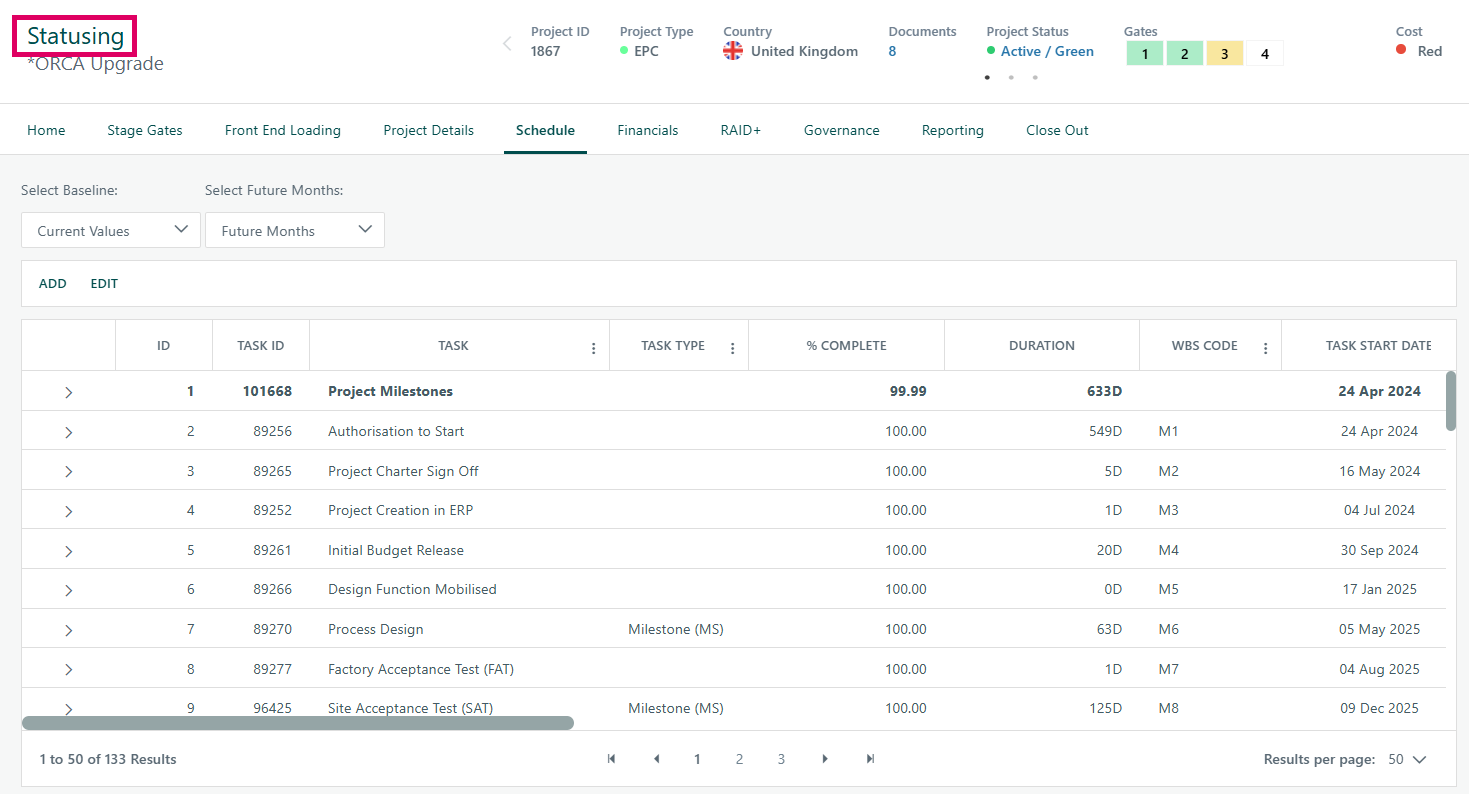
The Statusing page in Cora PPM is the project's Schedule Status Update screen. It is the primary tool a project manager uses to record current progress against the project's task schedule — without needing to open the full Gantt chart editor. It corresponds directly to the Schedule tab visible in the project's navigation header (as shown in the attached screenshot).
What it does
The page displays the complete task hierarchy of a project in a flat, scrollable grid. For each task (milestones, summary tasks, work packages), it shows key scheduling fields such as task ID, task name, task type, percentage complete, duration, WBS code, start date, and finish date. The project manager can update progress directly in the grid by editing the following fields inline:
- % Complete — the primary field; setting it to 100% automatically marks the task as Complete; setting it above 0% marks it as In Progress
- Start Date / Finish Date / Duration — editable to shift or extend tasks
- Actual Start Date / Actual Finish Date — to record when work actually began or finished
- Status (in linked mode)
- WBS Code
When changes are saved, the system intelligently decides whether to reschedule the project (full or partial rearrangement using the internal TaskScheduler) or simply apply percentage completes, based on which fields were edited.
ETC Re-profiling (the "Statusing engine")
Behind the scenes, every time the Statusing page loads (on the first non-postback), it fires a re-profiling operation via an internal REST API call. This recalculates the Estimate to Complete (ETC) for every planned resource (skills, materials, facilities, and named users) on every task, comparing the project's status date with each resource's time-phased distribution curve (linear, S-curve, or custom). Resources whose tasks are already past the status date are set to ETC = 0; resources in the future retain their remaining effort. This ensures that forecasting (EAC = Actual + ETC) is always aligned to the current status date.
Baseline Comparison
A Select Baseline dropdown at the top of the page allows the user to compare current task values against a saved baseline snapshot (e.g., the approved project plan). This does not change data — it controls which reference values are displayed alongside actuals.
Future Months drill-down
A Select Future Months dropdown (1–12) controls an expandable sub-grid that appears when the user clicks on a task row. This sub-grid (the Assignment Level popup) shows the individual resources (skills, materials, facilities, users) assigned to that task, with month-by-month ETC effort columns for the chosen number of future months. The user can also edit the total ETC and rate adjustment for each resource here.
EVM (Earned Value Management) fields
In addition to scheduling fields, the grid contains read-only columns for BCWS (Budgeted Cost of Work Scheduled), BCWP (Budgeted Cost of Work Performed), EV Technique, and EV % Complete, enabling earned-value performance measurement alongside the schedule update.
Constraint warnings
If a user manually edits a start or finish date, the system detects that a scheduling constraint ("Start No Earlier Than" or "Finish No Earlier Than") is about to be applied to the task. Before saving, it shows a toast confirmation dialog so the PM is aware a hard constraint is being set. Users can opt to suppress this confirmation in future via a checkbox on the dialog.
Out-of-sequence detection
The system checks whether a task would become out-of-sequence relative to its predecessors (e.g., marking a successor as complete when its predecessor is not). If detected, a confirmation popup is shown before saving proceeds.
Prerequisites
The page requires the project to have a Status Date set. If none is set, the grid is hidden and the user is directed to the Gantt to set one first. The feature is also gated behind a system-wide feature toggle; if the toggle is off, users see a "no access" message.
Was this article helpful?
That’s Great!
Thank you for your feedback
Sorry! We couldn't be helpful
Thank you for your feedback
Feedback sent
We appreciate your effort and will try to fix the article