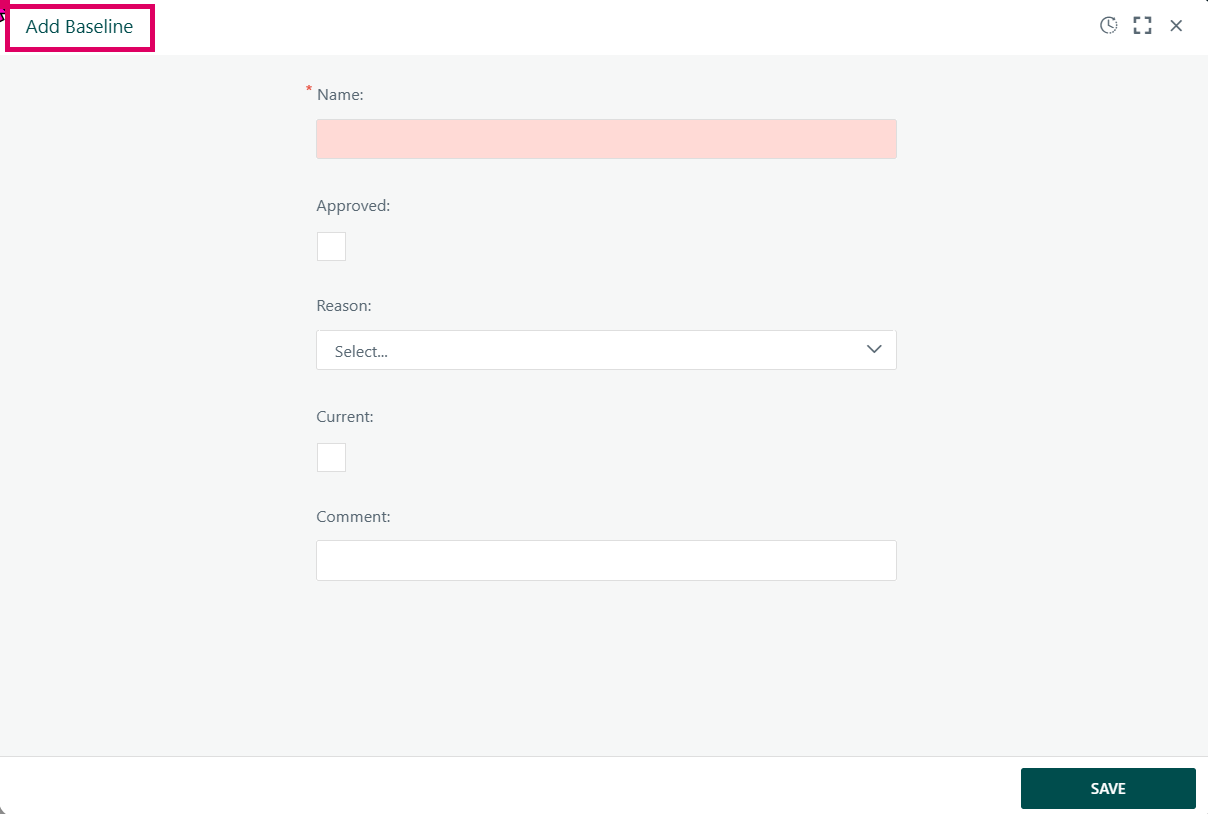
The Add Baseline dialog in Cora PPM is a modal panel used within the project management module to capture a snapshot of a project's current schedule, costs, and performance data at a specific point in time. A baseline is essentially a frozen reference copy of the project's planned state, enabling teams to compare original plans against actual progress throughout the project lifecycle.
Baseline
When a user clicks the Add button from the Baselines tab on a project's details page, the system first checks whether a baseline has already been created today. If one exists, it prompts the user to choose between adding a second baseline alongside the existing one, or replacing it. If no baseline exists for today, the Add Baseline modal opens immediately.
The modal collects the following information before saving:
- Name (required, flagged with a red asterisk): A human-readable label for the baseline. This is a mandatory field. If the user clicks SAVE without entering a name, the field background turns pink/red — this is the validation highlight visible in the screenshot.
- Approved (checkbox): Marks the baseline as formally approved. Only Portfolio Managers can toggle this checkbox directly — for all other users it is read-only. If a workflow is configured for baseline approvals, this checkbox is always disabled and approval is handled through the workflow process instead.
- Reason (dropdown, labelled "Reason" in the code, showing "Select…"): This is the Baseline Code dropdown. It is populated from a system-maintained list of non-system baseline codes (e.g., PMB – Performance Measurement Baseline). This dropdown is hidden when no baseline codes have been configured by the administrator. When baseline codes are configured and marked as required in system settings, the dropdown becomes a required field. Its visibility and required state are driven by system configuration.
- Current (checkbox): Designates this baseline as the one currently in use for performance measurement comparisons. This can only be set to "Current" when the baseline is also Approved. If a workflow is active, this checkbox is disabled. If the user tries to mark a baseline as Current without it being Approved, a server-side validation error is raised.
- Set as Current When Approved (checkbox): Appears only when a baseline approval workflow is configured. When checked, the baseline is automatically promoted to "Current" status the moment the workflow approves it. It becomes read-only once the baseline has been submitted into the workflow.
- OTB – Over Target Baseline (checkbox): A specialised field that only appears when the PMB (Performance Measurement Baseline) baseline code is selected AND at least one approved PMB baseline already exists for the project. It is hidden otherwise.
- Comment (multi-line text area): An optional free-text note about the baseline.
Validation at Save Time
The SAVE button runs a client-side validation pass before allowing the server postback. If the Name field is empty, validation fails immediately and the pink/red highlight appears on the Name field — the exact state shown in the screenshot. No inline error message text is displayed beside the field; the colour change is the sole indicator. If a workflow is configured, a SUBMIT button replaces or supplements the SAVE button, directing the baseline into the approval process rather than saving directly.
What Happens When Saved
On successful save, the system:
- Optionally recalculates EVM (Earned Value Management) metrics for the project before capturing the snapshot.
- Calls the
baseline_create_ForProjectstored procedure, which creates the baseline record and takes a snapshot of all project task data, costs, and schedule information. - Optionally propagates the baseline to all sub-projects if the project is part of a programme hierarchy.
- If the "Current" flag is set, re-evaluates EVM technique logic across the project.
- Writes an audit trail entry in project history.
- Optionally expires any pending Baseline Change Control records associated with the previous baseline of the same code.
Closes the dialog and refreshes the Baselines grid on the parent project details page.
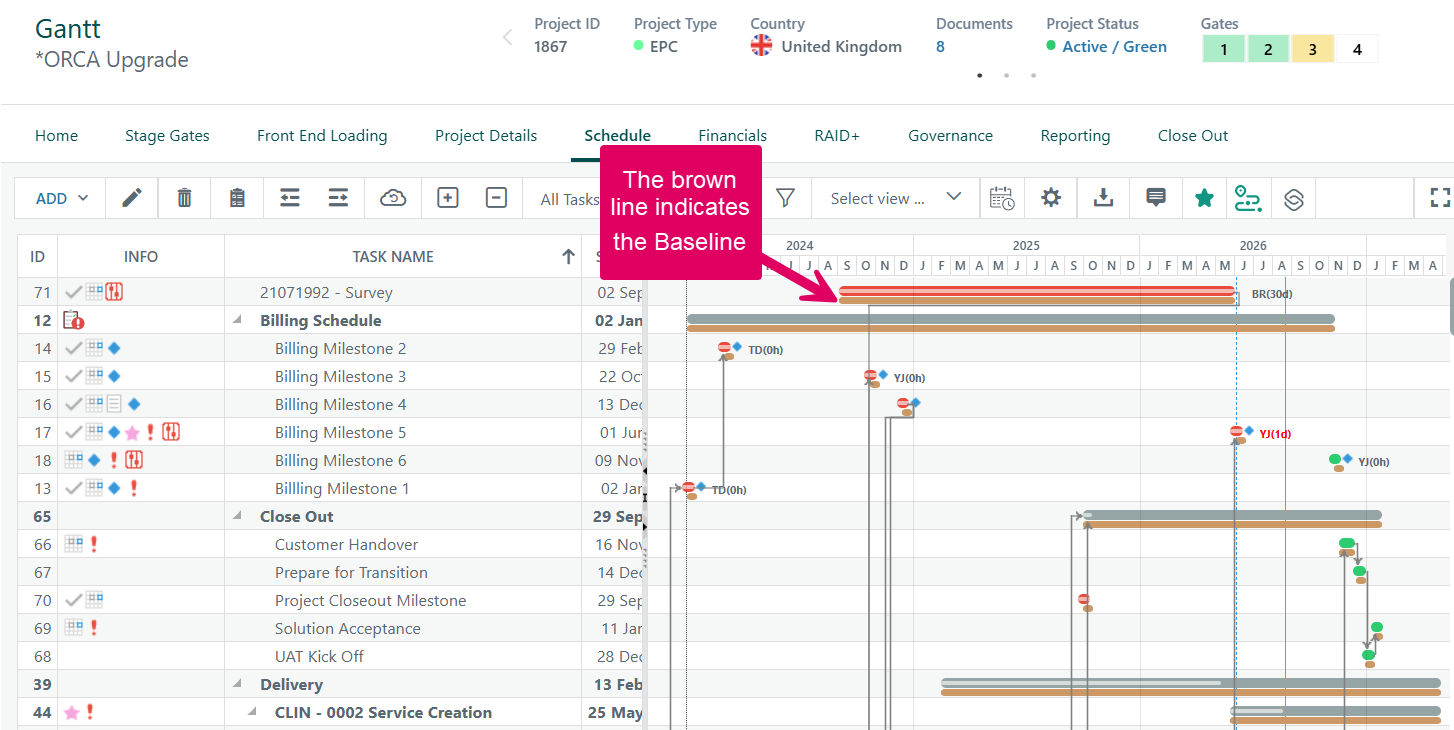
Editing an Existing Baseline
Click on the baseline name in the Baselines grid. The same modal opens in edit mode. Some fields become read-only if the baseline has already been approved.
Deleting a Baseline
Click the delete icon on a baseline row. A confirmation prompt appears. Baselines that are currently inside an active workflow or referenced by a Baseline Change Control record cannot be deleted — the delete button will be greyed out with an explanatory tooltip.
Common Gotchas
Situation | What Happens | Resolution |
|---|---|---|
Name field left blank | Field turns pink/red, save is blocked | Enter a baseline name |
Current ticked but Approved not ticked | Server-side validation error on Save | Tick Approved, or use workflow Submit |
Sub-project baseline creation already pending | Save/Submit disabled, warning message shown | Wait for the pending job to complete |
No Reason codes configured | Reason dropdown is hidden | Contact your administrator |
Was this article helpful?
That’s Great!
Thank you for your feedback
Sorry! We couldn't be helpful
Thank you for your feedback
Feedback sent
We appreciate your effort and will try to fix the article