Workflow - Overview
Cora PPM's configurable approval and process engine — the tool that turns a manual email chain into a governed, auditable path from request to decision.
Personas covered: Approver · Workflow Manager · Admin
1. What It Is
Workflow is Cora PPM's generic, configurable approval engine. It isn't tied to one screen or record type — an admin designs a workflow once, as a visual diagram of steps, and attaches it to a record type. From then on, every matching record is routed, approved, and updated automatically along that path.
A workflow is built from a small set of step types wired together on a canvas:
Step Type | Purpose |
|---|---|
Start | Begins the workflow path. |
Condition | Checks criteria and branches the process. |
Approval | Routes the item to one or more approvers. |
Update | Assigns a variable or updates record data. |
Sends notifications to stakeholders. | |
Get Variables | Retrieves values needed later in the workflow. |
Move Project | Moves a project as part of the configured process. |
Baseline | Captures or approves baseline information. |
Register Look-Up | Finds register data for workflow logic or updates. |
Copy Register Item | Copies a register item when approval logic requires it. |
Lock Item | Prevents changes while the governed step is active. |
End Complete / End Rejected | Closes the workflow with an approved or rejected outcome. |
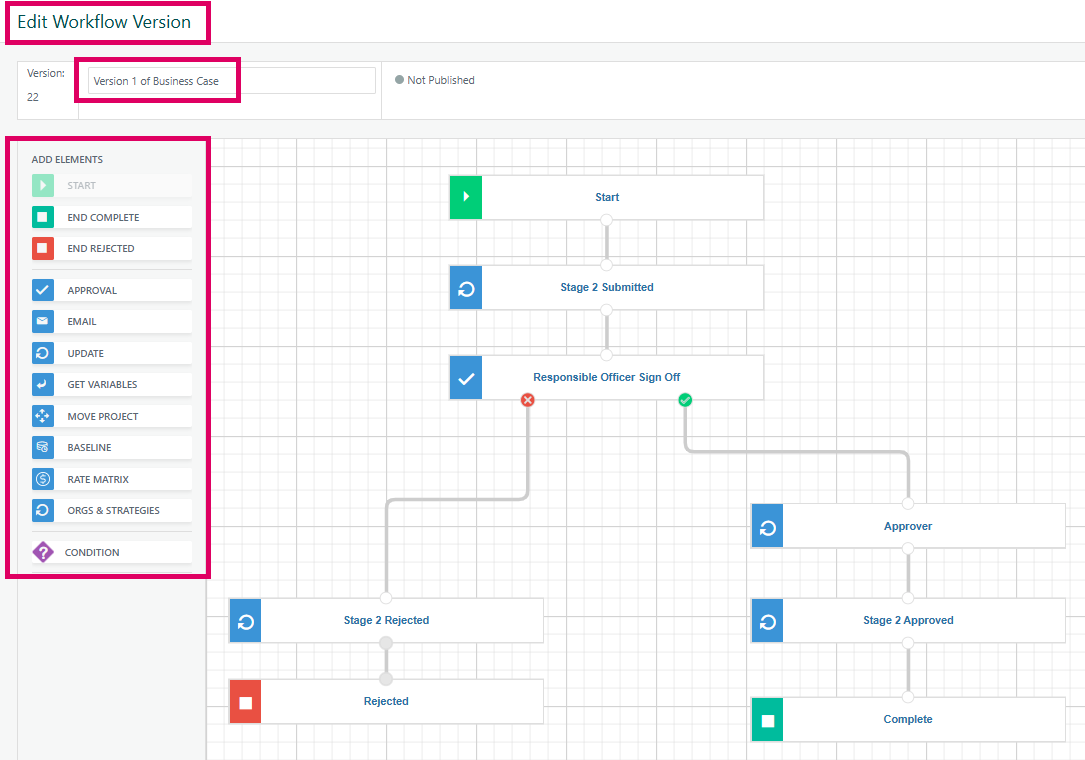
Connect them in sequence and you have a process: gather data, check a condition, route to an approver, take an action, and finish.
Where workflows attach: Smart Forms, the Project Register, Project Requests, Expenses, Portfolio, Cost Book Estimates and Budgets, Financial Budget / Estimate / Forecast / Actuals / Commitments, Baseline Approval, Submit EAC, and Submit Forecast.
Most financial types allow only one active workflow at a time; Smart Forms, Registers, and Project Requests allow one per template, so different forms can run different approval paths.
In one sentence: Workflow replaces a hardcoded status field with a real, visual, auditable process — and every record that moves through it leaves a trail of who did what, and when.
2. Why Customers Use It
Reason | What It Means |
|---|---|
Governance Without Code | Business teams design and version approval paths visually — no development cycle needed to change how a request is routed. |
Numbers Only Become Official on Approval | Baselines, forecasts, and EACs move through a real gate before they're treated as the plan of record. |
Nothing Stalls Silently | Overdue and month-end escalation rules can auto-approve, auto-reject, cancel, or reassign a stuck step. |
Coverage During Absence | Approvals can be delegated to another user, so a single out-of-office approver never blocks a queue. |
Full Audit Trail | Workflow History records every step, actor, decision, and timestamp — evidence for compliance and post-mortems alike. |
Matches Your Org Shape | Single-stage sign-off or multi-stage parallel approval with a vote quorum — both are configuration, not customisation. |
3. Common Use Cases by Project Type
? Manufacture to Order — Order-to-Production Gates
- Project Request approval turning a customer order into an active project
- Cost Book Estimate / Budget sign-off before production cost is committed
- Baseline Approval to lock the production schedule before work releases to the floor
- Smart Form–driven engineering change sign-off ahead of a spec revision
? Pharma — Regulated Program Gates
- Portfolio stage-gate approval advancing a program between trial phases
- Baseline Approval for regulator-facing timelines that can't shift informally
- Submit Forecast / Submit EAC approval for clinical trial budget reporting cycles
- Smart Form quality and compliance sign-off before a milestone is marked complete
?️ Capital Projects — Funding and Spend Gates
- Cost Book Budget approval for capital appropriation requests
- Baseline Approval as the gate that releases funding against a plan
- Financial Forecast / Actuals approval for periodic capital spend reporting
- Project Request approval for new capital project intake and screening
?️ GovCon — Compliance and Reporting Gates
- Baseline Approval with PMB code validation to keep the plan EVMS-compliant
- Submit EAC / Submit Forecast approval on contract reporting cadences
- Financial Commitments approval ahead of obligating contract funds
- Register look-up and update steps that keep WBS-linked data synchronised on approval
4. Glossary
Term | Meaning |
|---|---|
PPM | Project Portfolio Management — planning, prioritising, and tracking a portfolio of projects as a set, not one at a time. |
EAC | Estimate at Completion — the current best forecast of total project cost, submitted and approved through Workflow. |
PMB | Performance Measurement Baseline — the time-phased budget plan against which earned value is measured; validated during Baseline Approval on GovCon projects. |
WBS | Work Breakdown Structure — the hierarchical decomposition of project scope that register and baseline steps update on approval. |
EVMS | Earned Value Management System — the cost/schedule performance discipline that GovCon baseline and forecast approvals are built to satisfy. |
MTO | Manufacture to Order — a delivery model where production starts only once a specific customer order is confirmed. |
5. How to Use Workflow
Instance statuses you'll see: Not Started · Waiting for Approval · Paused · Approved · Rejected · Cancelled
A. Acting on an Approval (Approver)
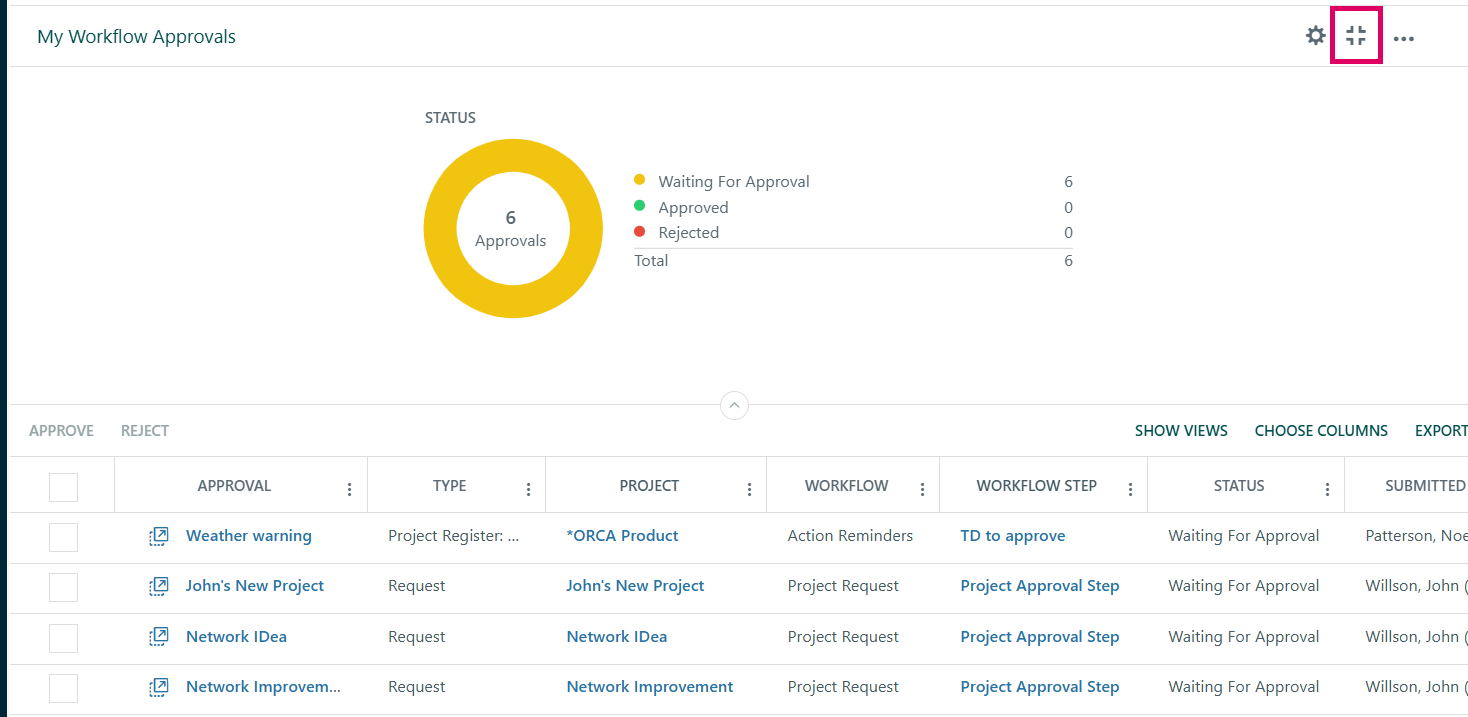
- Open Your Approval Queue — Go to the
My Workflow Approvalswidget on your dashboard. It lists every item currently waiting on you, with a donut chart summarising the queue. - Review Each Item — Check the item name, workflow type, current step, and how long it's been pending before you act.
- Open the Item, or Select Several — Click into a single item for full context, or tick multiple rows to act on them together with bulk Approve or Reject.
- Approve or Reject — Choose the action. Some workflows require re-authentication for a sensitive decision, and most require a comment explaining the decision.
- Submit — Your decision is recorded immediately. On a multi-stage approval, your vote counts toward the quorum needed before that step completes.
Track What Happens Next — Open
Workflow Historyon the item at any time to see the full trail of steps, actors, and decisions so far.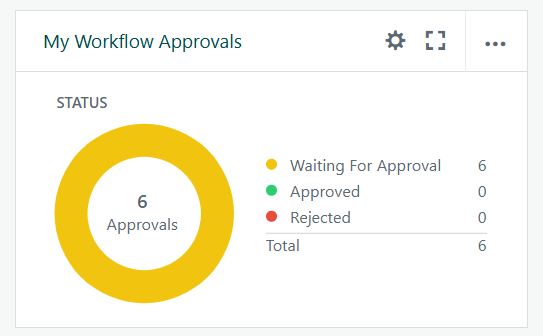
B. Monitoring and Controlling a Running Instance (Workflow Manager)
- Open Workflow Manager — Navigate to
Workflow > Workflow Managerto see every in-flight workflow instance. - Find the Instance — Filter by workflow type or status; the list shows current status and current approver for each.
- Check Who It's Waiting On — Use the current-approver link if you need to chase, delegate, or explain a delay.
- Intervene if Needed — Use
Start / Resume,Pause,Restart, orCancelto control the instance directly. Review the Audit Trail — Open
Workflow Historyfor a complete, timestamped record of every step the instance has passed through.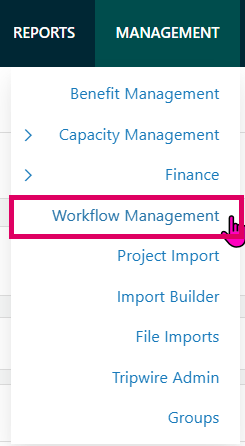
C. Building or Configuring a Workflow (Admin)
- Open the Workflow List — Navigate to
Admin > Workflow > Workflow Listto see every configured workflow. - Add or Edit — Click
Addto start a new workflow, or open an existing one. Name it, and choose its Type — the record type it will attach to. - Choose the Approval Shape — Set Single Stage for sequential sign-off, or Multiple Stage for parallel approval with a vote quorum.
- Design the Diagram — Drag step types onto the canvas: Start, Condition, Approval, Update, Email, Get Variables, Move Project, Baseline, Register Look-Up, Copy Register Item, Lock Item, End Complete, End Rejected.
- Connect and Configure Each Step — Wire the steps into order, then set each one's properties: approvers, conditions, variables, and email templates.
- Set Escalation Rules — Define what happens if a step goes overdue or hits month-end: auto-approve, auto-reject, auto-cancel, notify, or reassign.
- Assign Workflow Managers — Name who can monitor and intervene on live instances once it's active.
- Validate — Check the
Workflow Errorsscreen and resolve anything flagged. - Save as Draft, Then Activate — Leave it as Draft while testing; for most financial types, only one workflow can be Active per type at a time.
- Version When You Need to Change It Later — Editing a live workflow creates a new version; export/import as JSON to move between environments, and use
Workflow Historyto see which version an instance ran on.
6. FAQ
Question | Answer |
|---|---|
My approver is out of office — will the item just sit there? | No. Approvals can be delegated to another user, so coverage doesn't depend on one person being available. A Workflow Manager can also reassign a step directly, and overdue escalation rules can act automatically if nobody responds in time. |
Can two workflows apply to the same type of record? | It depends on the type. Smart Forms, the Project Register, and Project Requests can each have one workflow per template. Most financial types — Baseline Approval, Submit EAC, Submit Forecast, and the Financial Budget/Estimate/Forecast/Actuals/Commitments types — allow only one active workflow at a time. |
What happens if nobody approves in time? | Overdue and month-end escalation rules take over: the step can auto-approve, auto-reject, auto-cancel, email the approver or a specified person, or reassign to someone else, depending on how the workflow is configured. |
What's the difference between single-stage and multi-stage approval? | Single-stage routes to one approver, or one at a time in sequence. Multi-stage runs approvers in parallel and needs enough approve/reject votes to hit a quorum before that step completes. |
Can I see why an item is stuck? | Yes. Open |
If an admin edits a workflow, does that change items already in progress? | Workflows are versioned. Instances already running keep progressing on the version they started on; edits are captured as a new version that new instances pick up once active. |
Who can build or edit a workflow? | Users with the Workflow Manager role for that workflow, or system admins with access to |
Can a running workflow be cancelled or restarted? | Yes, from |
Is there a record of who approved or rejected what? | Yes. Every step, actor, decision, and timestamp is captured in |
Was this article helpful?
That’s Great!
Thank you for your feedback
Sorry! We couldn't be helpful
Thank you for your feedback
Feedback sent
We appreciate your effort and will try to fix the article