A Smart Form (also known internally as a Custom Page) is Cora PPM's flexible, configurable data-capture mechanism that lives inside every project. Think of it as a bespoke digital form — built and named by the organisation's administrator — that project teams fill in to record any project-specific information that the core system doesn't capture in its standard fields.
What is a Smart Form?
A Smart Form is a named page in a project's navigation toolbar. When a user selects it, they see a form containing exactly the fields their organisation has chosen to include — nothing more, nothing less. The system ships with no Smart Forms by default; they are entirely administrator-defined, making them a "blank canvas" for capturing the data that matters to each organisation.
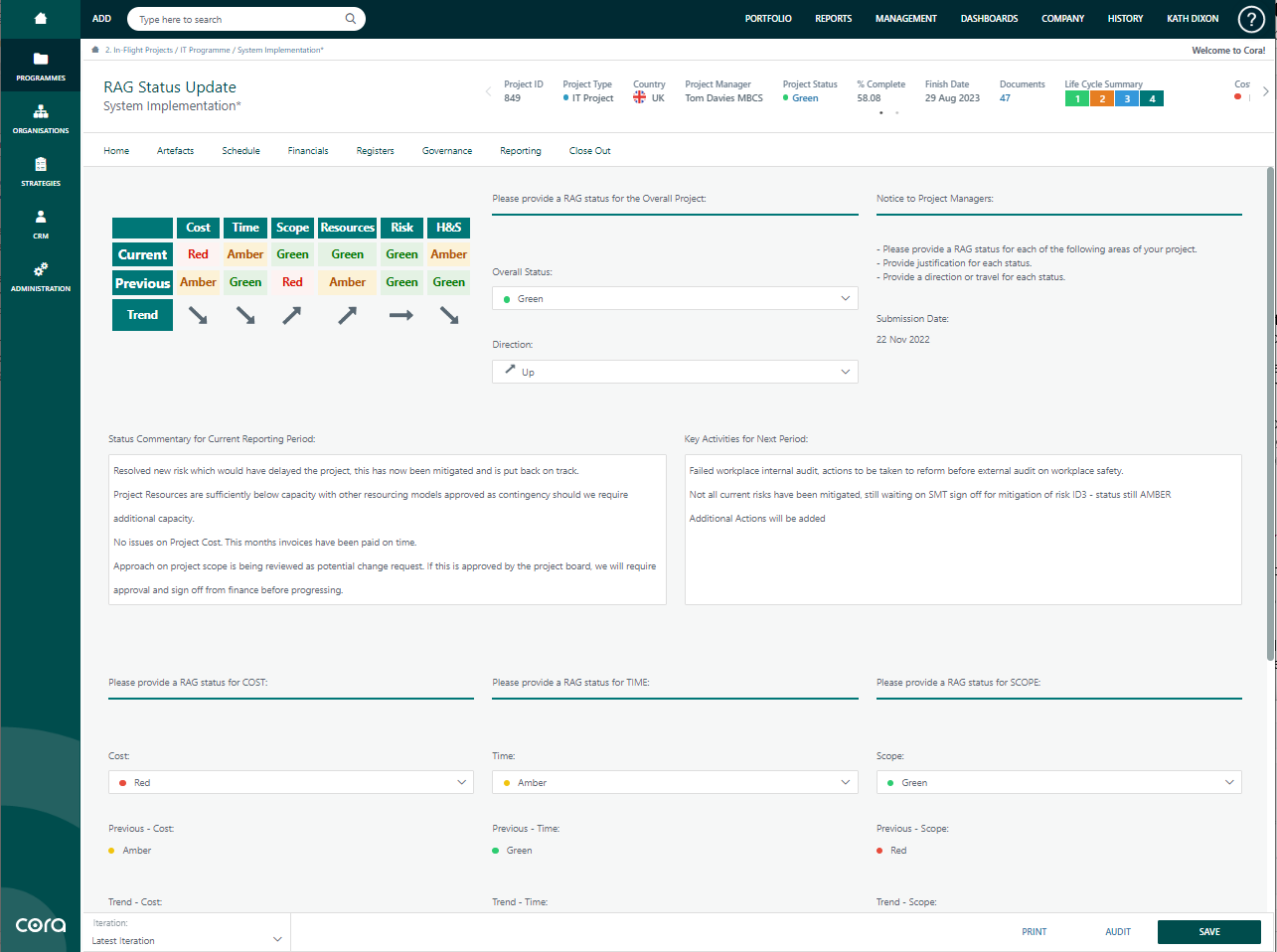
A typical example of a Smart Form is the RAG Status Update.
Why would a customer need one?
Organisations need Smart Forms because every portfolio is different. A defence contractor might need a form for Government-mandated status reporting, a construction firm might need a checklist for materials sign-off, and a healthcare organisation might need a benefits-realisation tracker. The core PPM fields (schedule, cost, risk, milestones) are the same for everyone, but the additional governance and compliance data varies enormously. Smart Forms are the solution to that diversity — a single, powerful tool that replaces spreadsheets, emails, and paper forms that would otherwise live outside the system.
What can go on a Smart Form?
Smart Forms are built from over 40 different field types organised into named groups and pages. Fields range from plain text boxes, numbers, dates, and checkboxes, to rich contextual controls such as:
- Dropdown lists — single or multi-select, colour-coded, hierarchical, or formula-driven
- Calculated/function fields — numbers, text, dates, and checkboxes whose values are computed automatically from formulas referencing other fields, project variables, user attributes, register data, and many other sources (read-only, updated whenever the form is saved)
- Project-context fields — project status, project type, stage/phase, project owner, organisation, strategic alignment, and more
- Grid-type fields — Risks, Issues, Scope, Actions, Milestones, NPV, Funding Sources, Resource Demand, Invoice Categories, and others that display and link to data held elsewhere in the project
- Visual fields — Charts, Gauges, RAG status indicators, Images, Maps
- Financial fields — Financial Summary (automatically aggregated from the project's financial registers), Management Reserve, Contingency, etc.
- Register-computed fields — numbers or text computed by querying a project register, enabling real-time aggregated metrics from log data
Fields can also be hidden or made read-only using conditional formulas, so the same form adapts its appearance and editability based on the project's current data — for example, showing certain fields only when the project is in a specific stage, or preventing changes once a workflow is in progress.
How does a user interact with a Smart Form?
A user navigates to a project, selects the Smart Form from the project toolbar, sees the form, edits the fields they are permitted to change, and either:
- Saves (Change) — persists the current values without creating a formal record
- Submits — creates a permanent, time-stamped snapshot (iteration) of the form's values, optionally triggering a Workflow
Iterations — the snapshot history
When a Smart Form is configured with an interval (yearly, monthly, weekly, or daily), each Submit creates a numbered iteration. Users can view any past iteration from a dropdown, giving a complete historical record. Older iterations are read-only; only the latest can be edited. This makes Smart Forms ideal for periodic reporting — monthly status returns, quarterly reviews, annual audits, and so on.
Workflow integration
A Smart Form can have a Workflow attached to it. When a user submits the form, it enters the workflow and is routed to one or more approvers. Approvers can approve or reject the form, and the workflow engine can automatically update Smart Form field values based on approval outcomes. The form page shows the current workflow status, the submitter's name and date, and the approve/reject buttons for eligible approvers. Entire approval chains — with multiple stages, delegated approval, re-authentication, role-based routing, and automated email notifications — can be modelled.
Where else do Smart Forms appear?
Smart Forms are not limited to the project toolbar. They can also be:
- Surfaced inside an Executive Dashboard or Portfolio view for cross-project comparisons
- Embedded in a Customer Portal, where external stakeholders can view or even update specified fields without having full PPM system access
- Used as the basis for Project Requests — a special variant of a Smart Form that initiates the creation of a new project through a formal approval process
- Exported to printed PDFs or Telerik reports for governance documentation
- Connected to an Import Builder for bulk data population via spreadsheet or API
Why is this powerful?
Because Smart Forms are entirely configurable without code changes, an organisation can:
- Replace paper-based governance forms and spreadsheet trackers with a single, auditable system record
- Enforce mandatory data entry (required fields, submit-only required fields)
- Automate calculations so users never mis-total a formula
- Apply consistent approval workflows with a complete audit trail
- Roll up numeric values from child projects into parent programmes automatically
- Track change over time through the iteration history
Finding Smart Forms in Cora PPM
- Open a Project by selecting it from the Projects list or the Executive Dashboard.
- Look at the project toolbar (the horizontal navigation bar at the top of the project). Smart Form pages appear there as named tabs — for example "Monthly Status", "Risk Summary", "Benefits Capture". The names are defined by your administrator.
- Click the tab name to open the Smart Form.
Filling in a Smart Form
- Once you open the Smart Form, you will see one or more sections (groups) of fields. Each group has a header; you can collapse/expand groups by clicking the expand/collapse button next to the header.
- Fill in the editable fields. Calculated fields will show computed values automatically and cannot be edited directly.
- If any field shows a red asterisk or a validation error when you try to save/submit, it is required — you must fill it in before proceeding.
- Some fields (e.g. Risks, Issues, Scope, NPV) open a separate popup when clicked — you interact with the linked data there and the summary on the Smart Form updates automatically.
Saving your changes (Change/Save)
- Click the Change button (or Save button depending on configuration) to save your current values without creating a formal snapshot. This is equivalent to saving a draft.
- A toast notification will confirm the save was successful.
Submitting (creating an Iteration)
- Click the Submit button to create a permanent, time-stamped snapshot.
- If a Workflow is attached to the form, a confirmation popup will appear asking you to confirm submission to the workflow. Once submitted, the form moves to "Waiting for Approval" and the Save/Change button may become hidden until the workflow concludes.
- If submit-only required fields exist (marked with a different indicator), these must be filled in before the Submit button will work, even if they were not required for saving.
Viewing historical iterations
- If the form has iterations enabled, a dropdown labelled Iteration (or the configured period name) will appear near the top of the page. It defaults to "Latest Iteration".
- Select a past iteration from the dropdown to view that period's data in read-only mode. The form shows the values as they were at the time of that submission.
Approving or Rejecting a workflow
- If you are an approver for the current workflow step, you will see Approve and Reject buttons on the form.
- Optionally type a comment in the Comments box (required for Reject, optional for Approve depending on configuration).
- Click Approve or Reject. A confirmation or re-authentication step may appear.
- The workflow progresses to the next step or completes, and the form status updates accordingly.
Multi-currency
If multi-currency is enabled and the Smart Form contains currency fields, a currency selector dropdown will appear. Switching to a non-base currency displays values converted at the relevant FX rate; the base currency view is read-only.
Printing / reporting
- A Print button opens the form in a printable report layout.
- If a Telerik Report is linked to the page, a separate report button launches it.
Reports
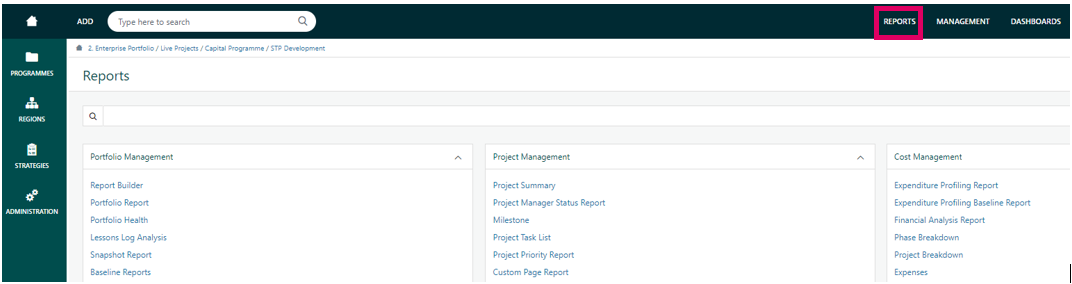
All of the fields on a smart form can be used in the reporting suite, e.g., Snapshot report, Report Builder, etc.
Dashboard
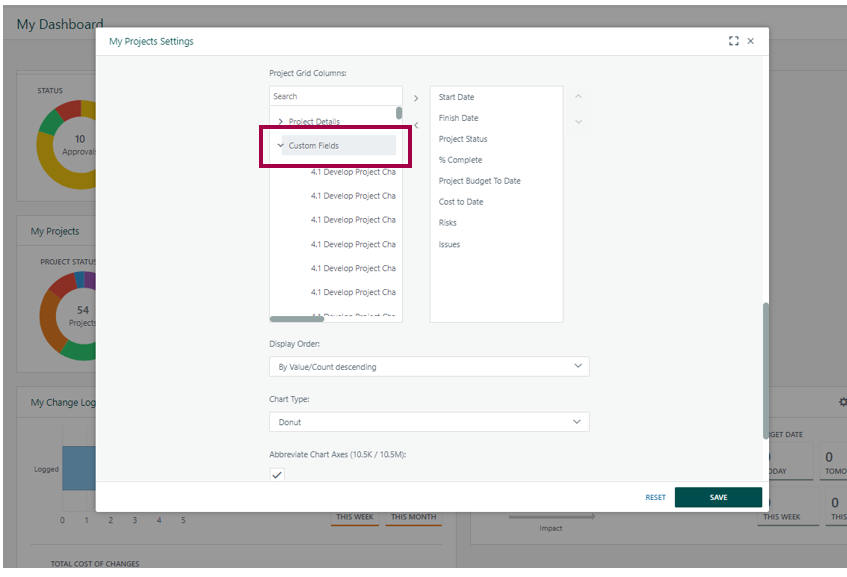
On the Projects Widget on the My Dashboard, Project Dashboard, Programme Dashboard, Portfolio and Strategy Dashboards, you can pull through any smart form field to show in the widget grid view.
Gotchas
- Submit button missing: Either you don't have "Can Submit Custom Pages" rights, or the form's submit formula evaluates to false for the current project, or a workflow is already in progress.
- Change button missing: You may have read-only access, be viewing a historical iteration, or the project may be a programme (parent project) for which direct editing is disabled.
- Fields grayed out: The field's change formula is false for the current project state — it is intentionally read-only under the current conditions.
- Workflow already in progress: You cannot submit again until the current workflow instance is approved, rejected, or cancelled.
- Required fields on Submit only: Some fields only become mandatory when you click Submit, not when you click Save. These are marked with a different indicator.
Was this article helpful?
That’s Great!
Thank you for your feedback
Sorry! We couldn't be helpful
Thank you for your feedback
Feedback sent
We appreciate your effort and will try to fix the article