Smart Forms are Cora PPM's fully configurable, project-level data-capture pages. They allow system administrators to design bespoke information screens that appear in a project's toolbar navigation — so project managers and team members can capture any structured information the organisation needs, beyond the built-in fields. Every Smart Form is a self-contained hierarchy of three elements:
- Page — the top-level named form that appears in the project toolbar (e.g. "Business Case", "Risk Summary", "EAC Adjustment"). A page controls the interval/iteration behaviour (so data can be submitted and versioned over time), whether a print button is shown, and optionally gates visibility behind a formula or workflow.
- Group — a labelled section within a page. A group controls display (yes/no/formula-driven), whether changes are allowed, whether submission is allowed, the visual layout (1–4 columns, row span, colour, whether the header row is hidden), and alignment behaviour.
- Field — the individual data input or display control within a group. Fields come in a very wide variety of types, including: text, numeric, date, checkbox, dropdown list (single or multi-select, cascading, multi-column), user list, user role, project type, project status, stage, phase, RAG status, calculated functions (numeric/text/date), charts, gauges, images, maps, NPV, risks, issues, actions, organisations, strategies, milestones, register items, financial summaries, and more.
Before fields can be used, Dropdown Lists must be pre-configured as independent reference data that fields then reference. Cascading Dropdowns allow hierarchical parent-child dropdown relationships.
Configuration changes are made exclusively by system administrators through the Admin area. Once configured, Smart Forms appear automatically in each project's toolbar (subject to formula or access control rules), and users interact with them to enter, save, and optionally submit data through versioned iterations tied to workflow processes.
Smart Forms can also be imported from a JSON export file — allowing forms designed in one environment to be migrated to another, with a matching step to map any referenced dropdown lists, system constants, images, and other dependencies.
A separate Import/Export migration mechanism (under System → Import/Export) transfers the entire Smart Form configuration — pages, groups, fields, dropdown lists, admin grids, Telerik reports, and more — between environments as an XML snapshot.
Where to find Smart Form configuration
Navigate to Admin → Smart Forms in the Cora PPM top-level administration menu. The sub-menu contains:
Sub-menu item | Purpose |
|---|---|
Dropdown Lists | Create/manage dropdown reference lists used by Smart Form fields |
Cascading Dropdowns | Create hierarchical (parent→child) dropdown lists |
Pages-Groups-Fields | Main configuration screen — create/edit pages, groups, and fields |
Settings | Miscellaneous settings for custom fields |
System Constants & Images | Define reusable numeric/text constants and images usable in formulas |
Imported Forms | View/manage Smart Forms imported from JSON files |
Deleted Forms | Recover or re-import previously deleted Smart Form pages |
Admin Grids | Configure Admin Grid definitions |
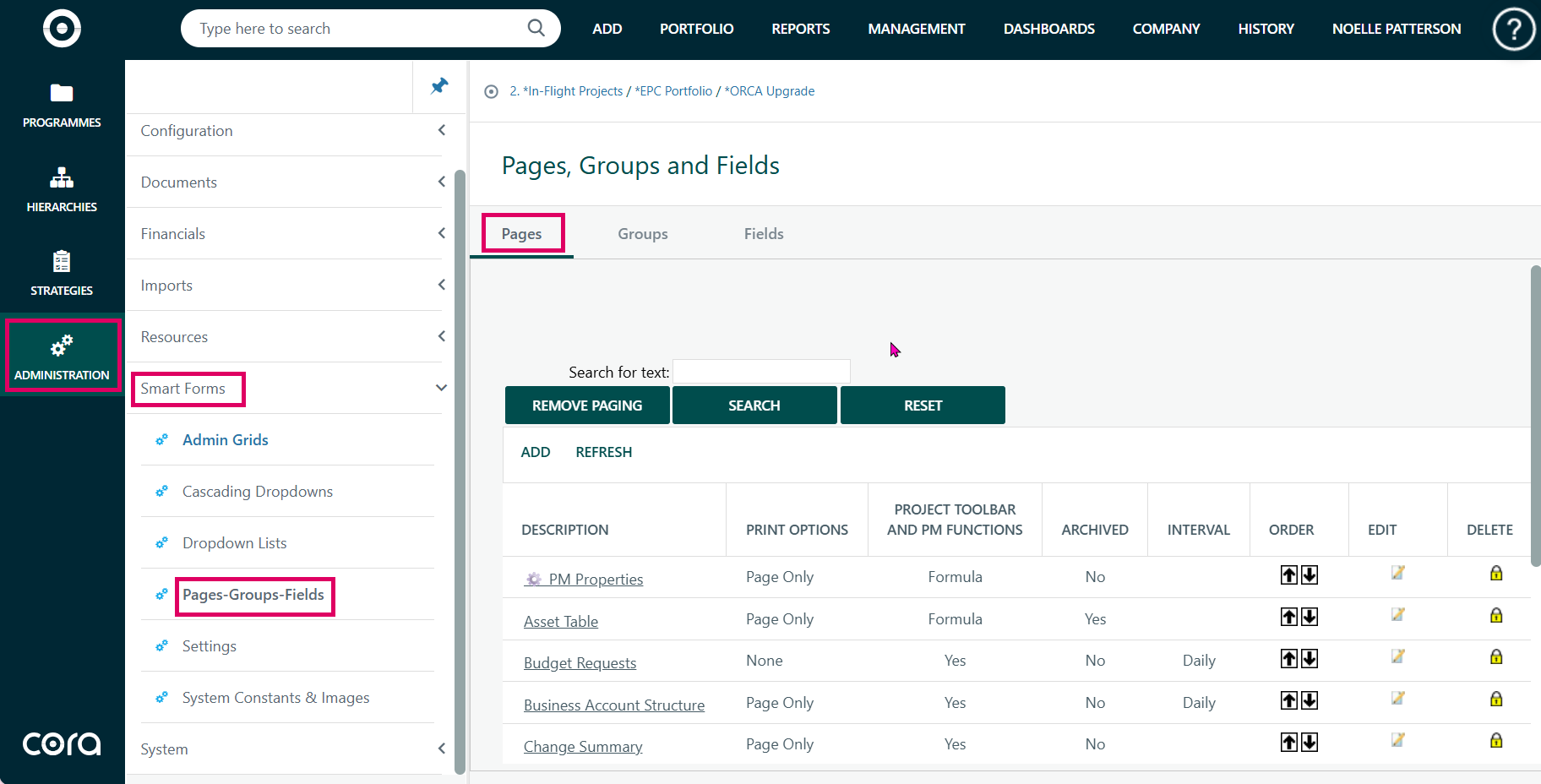
Pages Tab
The Pages tab within the Pages-Groups-Fields administration screen (Admin > Smart Forms > Pages-Groups-Fields) is where administrators manage the top-level containers for Smart Form pages in Cora PPM. A "Page" is the highest-level grouping in the Smart Form hierarchy: Pages contain Groups, and Groups contain Fields. The Pages tab lets you create, edit, reorder, archive, export, import, and delete Smart Form pages. Each page can be configured with a description, display visibility (including formula-based rules), print options, audit button settings, re-authentication requirements, and an optional interval setting.
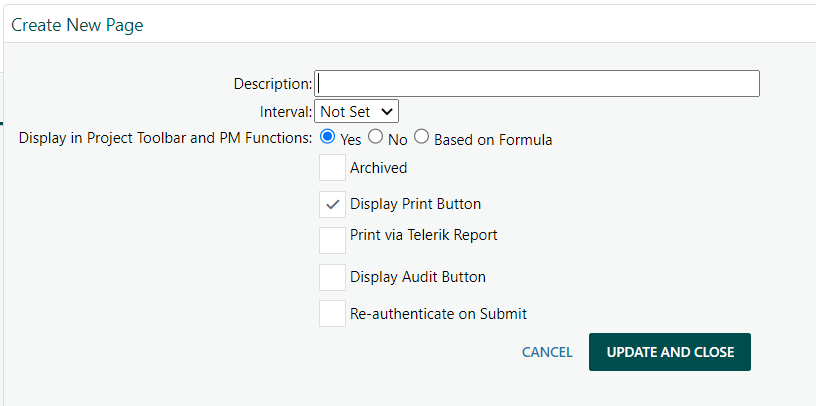
When setting up a new page, use the Add button to set up the name of the page. Other options are available such as display settings and iteration frequency.
If the page is to be displayed to some users but not all users, click the “Based on Formula” to set the display conditions.
Was this article helpful?
That’s Great!
Thank you for your feedback
Sorry! We couldn't be helpful
Thank you for your feedback
Feedback sent
We appreciate your effort and will try to fix the article