Fields
The Fields Tab in Admin → Smart Forms → Pages-Groups-Fields is the primary configuration screen for creating and managing individual Smart Form fields — the individual data entry controls (text boxes, dropdowns, date pickers, numeric inputs, calculated formulas, etc.) that appear on Smart Form pages throughout Cora PPM.
Smart Form fields are the atomic building blocks of the entire Smart Forms system. Each field belongs to exactly one Group (which in turn belongs to a Page). When you create or edit a field, you are defining what type of data it stores, how it appears, how it validates, whether it can be edited, how it rolls up across programmes, and much more.
The Fields tab shows every field in the system in a sortable, pageable grid. From there, administrators can add new fields, edit existing ones, copy, clone, reorder, and delete them. The fields you configure here are then available to be placed on Smart Form pages (via the Pages and Groups tabs), referenced in workflow rules, formula expressions, and reports across the platform.
Navigating to the Fields Tab
- Go to Admin (top navigation menu).
- Click Smart Forms → Pages-Groups-Fields.
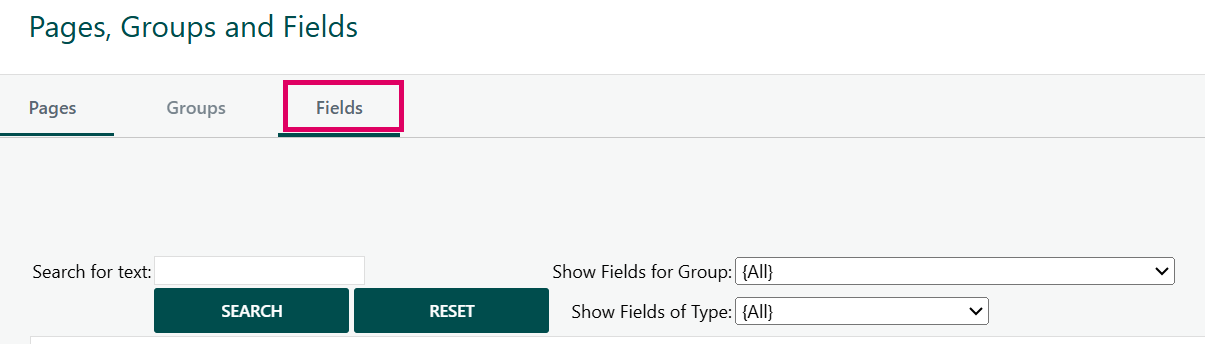
- The screen opens on the Fields tab by default (or click the Fields tab if you land elsewhere).
Filtering the Field List
At the top of the tab are two filter controls:
- Search for text — free-text search against field label/ID. Type and click Search; click Reset to clear.
- Show Fields for Group — filter the list to only fields belonging to a specific Group.
- Show Fields of Type — filter by field data type.
Adding a New Field
Click the Add button (top of the grid). The Create New Field popup opens.
Editing an Existing Field
Click the underlined ID or Label of any row in the grid, or click the Edit icon (pencil) at the right.
Most Common Grid Columns Explained
Column | Meaning |
|---|---|
ID | System-assigned unique identifier for the field |
Label | The display name shown on the Smart Form |
Group | Which Group this field belongs to |
Column | Layout column within the group (if the group has multiple columns) |
Type | The data type of the field |
Formula Length | Character length of the formula (if applicable) |
Rollup Action | How this field's value rolls up to parent programme levels |
Archived | Whether the field is archived (hidden from normal use) |
VisibleMost common | Whether the field is visible (Yes / No / Formula-driven) |
Allow Changes | Whether the field is editable by end users (Yes / No / Formula-driven) |
Order | Up/Down/Top/Bottom arrows to reorder fields within their group |
Copy | Creates a copy of the field |
Edit | Opens the edit popup |
Clone | Creates a Clone-type field that mirrors this field's value |
Delete | Removes the field |
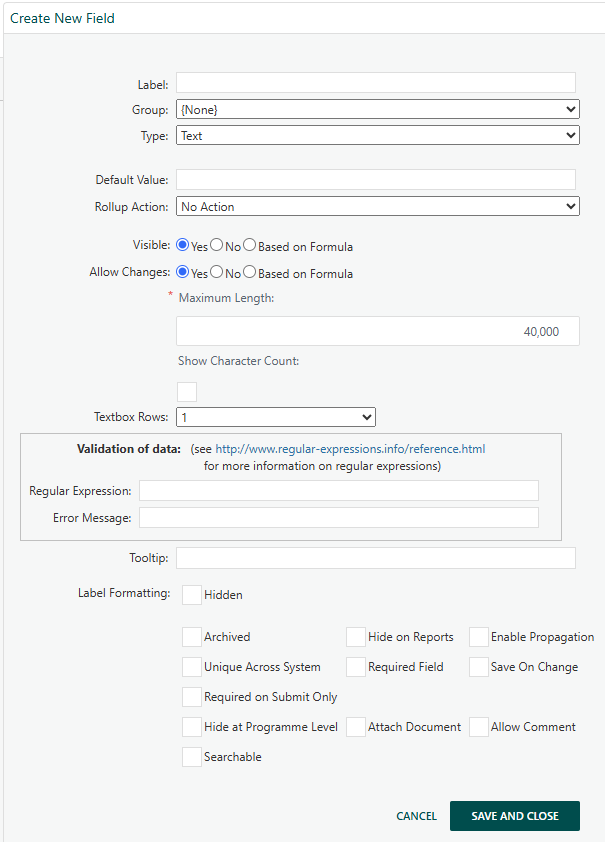
When an administrator creates a new field on a Smart Form in Cora PPM, the Type dropdown determines the data type, input mechanism, and behaviour of that field throughout the system. There are two distinct contexts where fields are created:
- Smart Form fields (on project custom pages/forms, accessed via Admin → Smart Forms → Fields) offering up to ~50+ types depending on feature toggles and licence configuration.
- Register fields (on Custom Register / Log configurations, accessed via Admin → Registers → [Register] → Fields) — offering approximately 38 types (with some hidden or conditionally shown depending on register type and feature toggles).
Note: The selection criteria in the pop up will differ for each Type picked.
Basic Data Entry Types:
- Text — A free-text field where users type any string. Supports multi-line display height, maximum character length, character counter, and optional regular expression validation. Has a rollup option (No Action or Hide at programme level) and supports propagation up/down hierarchies.
- Numeric — A decimal number field. Supports configurable decimal places, min/max values, currency marking (with multi-currency conversion), percentage display, empty-field null display, and rollup actions (Sum, Average, Count, Min, Max, Hide). Can show as a graph in reports.
- Date — A date picker. Supports optional time display, rollup (Min, Max, Hide), default value, and a configurable "missing value" display label.
- Checkbox — A Yes/No toggle. Default can be set to checked or unchecked, and custom display text for "Checked" and "Unchecked" states can be configured (shown in formulas and reports). Rollup options: No Action or Hide.
Selection / Dropdown Types:
- Dropdown List — A single-select or multi-select dropdown from a pre-configured custom dropdown list. The list source is chosen from your configured "Custom Field" lists. Supports cascading (hierarchical) dropdowns. Default value, "missing" display text, and multi-select mode are configurable.
- RAG Status — A Red/Amber/Green calculated status indicator. You select which RAG category it represents (Milestone, Tasks, Issues, Risk, Scope, Time, Cost, Quality, Project Overall). Requires the Calculated RAG feature to be enabled.
- User List — A dropdown of system users. Supports default user assignment, propagation to sub-projects, and rollup (No Action or Hide). The selected user can be used in formulas.
- User Role — A dropdown that shows users restricted to a specific application role. The role is selected during field configuration, and there is a filter option to limit to users with project access only.
System / Reference Types:
- Phase — Displays the current project phase (a system-driven value). Read-only reference data.
- Stage — Displays the current project stage. Read-only reference data, with save-on-change behaviour.
- Project Type — Shows the project type. Read-only reference data, with save-on-change behaviour.
- User Details — (Internal/system type — not available for selection in the standard UI.)
- Organisations — Displays the organisations linked to the project in a read-only table format. Requires the Organisations feature to be configured.
- Strategy — Displays strategies linked to the project. Requires the Strategies feature.
- Scope — Displays scope headings linked to the project. Requires the Scope feature.
- Map — Displays a map widget associated with the project. (Can be viewed but not created as a new field in add mode.)
- Risks — Displays a summary table of risks associated with the project. Requires the Risks & Issues feature.
- Issues — Displays a summary table of issues associated with the project. Requires the Risks & Issues feature.
- CRM — Displays CRM (company/contact) relationships associated with the project. Requires the CRM feature.
- Actions — Displays a summary table of action log items for the project. Requires the Actions feature.
- Priorities — Displays the project's priority scoring table.
- Milestones — Displays a table of project milestones from the Gantt chart. Configurable sort order, include-completed filter, and milestone type (specific deliverable type or all milestones).
- Next Milestone — Shows only the next upcoming (not past) milestone from the Gantt.
- Invoice Categories — Displays invoice categories and values. Requires the Invoicing feature.
- Invoice Type — Shows the invoice type. Requires the Invoicing feature.
- Project Status — Shows the current project status (RAG health). Save-on-change is supported; rollup is not available.
- Resource Demand — Shows a capacity/skill demand table for the project. Requires the Project Skill Planning feature.
- Net Present Value — A structured JSON data entry and display for NPV calculations (discount rate, cash flow lines, success probability).
- Vendor — Displays subcontractor/purchase order data (Honeywell-specific feature, only visible for the Honeywell customer licence).
- Property Linking — Allows linking a property (address, county, post code) to the project.
- Grant — Related to grant/funding management.
- Funding Source — (Hidden from the standard Type dropdown — not selectable.)
Formula / Calculated Types:
- Numeric Function — A read-only calculated numeric field whose value is computed from a formula you define using other field values, project variables, system constants, key activities, and date expressions. Supports decimal places, currency marking, rollup with "Include Current Level" option, percentage display, and abbreviated display options.
- Numeric Function For Dates — A numeric formula that produces a number derived from date arithmetic (e.g., number of days between two date fields). Like Numeric Function but specialised for date-to-number conversions.
- Date Function — A read-only calculated date field whose value is computed by a formula (e.g., start date plus a numeric offset). Configurable "missing" display text.
- Text Function — A read-only calculated text field whose value is the result of a string formula. Supports searchability. Can be used in infographic widgets. Can be converted to "Read Only Text Function" (see below) if no other formula references it.
- Read Only Text Function — Like Text Function but even stricter: it is never persisted/recalculated to the database by the background recalculation job. It is always re-evaluated at display time and therefore cannot be referenced in any other field's formula or used as a workflow variable source. Introduced for pure display-time text construction.
- Checkbox Function — A read-only calculated checkbox (Yes/No boolean) whose value is the result of a boolean formula. Custom display text for "Checked" and "Unchecked" states can be configured.
- Dropdown List Function — A read-only calculated dropdown value whose result is derived by a formula (evaluating to the numeric key of a custom list item). Source list is chosen at configuration time, "missing" display text is configurable.
- Register Numeric Function — A read-only calculated number that aggregates numeric data from a linked register (e.g., count, sum, average, min, max of a numeric register field, with optional query filter). Supports rollup and multi-currency. Queries can be filtered by register field values and date ranges.
- Register Text Function — A read-only calculated text field that concatenates text values from a linked register's text fields, using a configurable separator.
- Financial Summary — A calculated field that pulls a specific financial value (Estimate, Budget, Forecast, Actuals, Commitments) from the project financials, filtered by account codes, sub-groups, or groups, for a specific period/iteration. Supports rollup with "Include Current Level".
- Numeric Rollup — A field that automatically sums (or applies another aggregate) a nominated source Numeric/Numeric Function/Financial Summary field value up through the project hierarchy. The specific field to roll up is chosen at configuration time.
- Dropdown List Function — (duplicate entry covered above under Formula types.)
Display / Layout Types:
- Header Row — A decorative label row within the form, not a data field. Used to add section headings. No data is captured.
- Image — An image upload field, allowing users to attach/upload an image to the form.
- Chart — A chart/graph widget that visualises one or more data sources (custom fields, planned costs, actual costs, benefit profiles, etc.) in a configurable chart format (bar, line, pie, etc.).
- Gauge — A gauge visualisation (speedometer-style) that displays the value of a selected numeric field against configured min/max thresholds with Red/Amber/Green colour zones.
Project Linking Types:
- Project Dropdown — A dropdown that allows the user to select another project from the system. Configurable to filter by project type, allow/disable "current project" selection, prefix the project name, and include sub-programmes.
- Clone — Mirrors the value of another nominated Smart Form field from the same project. The source field is selected at configuration time. Useful for displaying the same value in multiple groups/pages.
- Cross Project Clone — Like Clone, but mirrors the value of a field from a different project (cross-project cloning). Requires the Cross Project Clone feature toggle.
Specialist / EVM Types:
- Management Reserve — A financial field for EVM management reserve. Requires the Project Additional Attributes feature toggle.
- Unallocated Budget — A financial field for tracking unallocated budget. Requires the Project Additional Attributes feature toggle.
- Authorized Unpriced Work — A financial field for tracking authorised but unpriced work. Requires the Project Additional Attributes feature toggle.
- Contingency — A numeric contingency/reserve field. Requires the Project Additional Attributes feature toggle.
Other / Legacy Types:
- Budget — Displays budget information.
- Benefit — Displays benefit information.
- Invoice Type — (Covered above under System/Reference.)
- Materials Check OK — A system field for material approval status. Requires the Project Additional Attributes feature toggle.
- Multi Column Dropdown List — A dropdown that uses a multi-column list source (currently hidden/unavailable in the UI —
Continue Foris called, so it is not presented to users even though the enum exists). - Milestone Details — Shows milestone summary statistics (e.g., count of late/complete/on-track milestones). Configurable by milestone deliverable type.
- Irrecoverable VAT Category — A field for VAT category assignment.
- Registers Items — A field that links to and displays records from a selected project register, filtered by a specific register field value. Can be single or multi-select. Requires a query saved after configuration.
- Register Text Function — (Covered above under Formula types.)
- Project Role Hierarchy — A field that looks up user/role information from a configurable project role hierarchy admin grid. Requires the Project Role Hierarchy / Workflow Variables feature toggle.
- Baseline Value — A field that captures and displays a value from a named baseline (by baseline code), sourcing from a project variable, custom field, or key activity. Requires the Updated Baselines permanent feature toggle.
Was this article helpful?
That’s Great!
Thank you for your feedback
Sorry! We couldn't be helpful
Thank you for your feedback
Feedback sent
We appreciate your effort and will try to fix the article