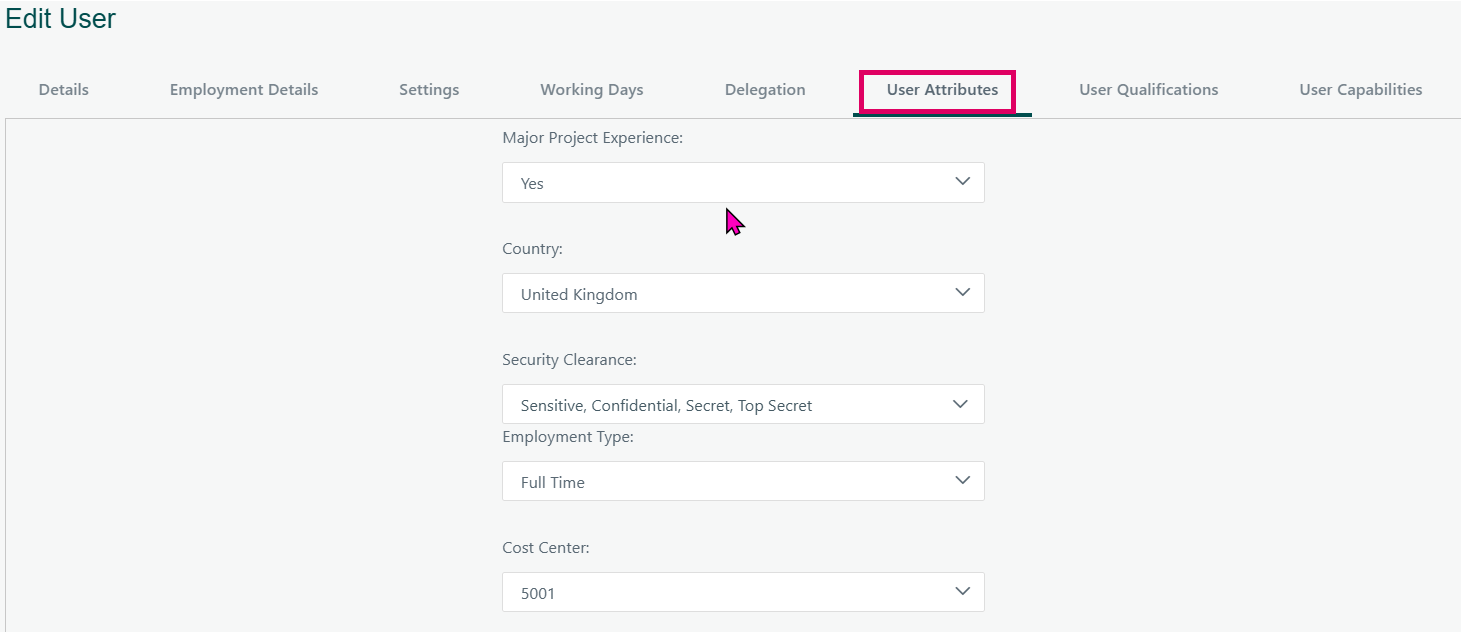
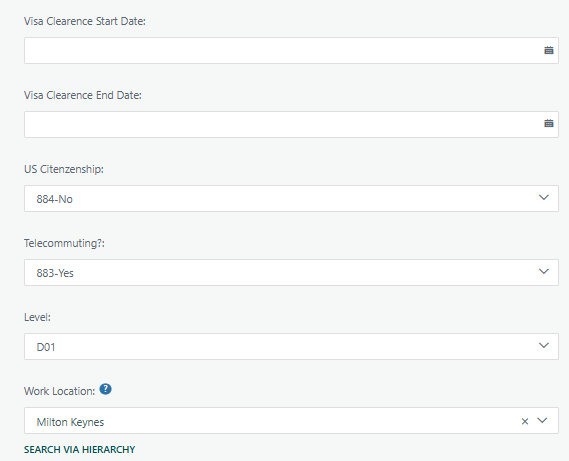
The User Attributes Tab is a fully configurable section within each user's profile in Cora PPM that allows organisations to capture any additional descriptive information about their people — information that goes beyond what the standard user record holds (name, email, pay grade, etc.). Think of it as a set of custom "smart fields" that an administrator defines once and that then appear on every user's profile for population.
What problem does it solve?
Standard HR and PPM systems hold a finite set of fields about a person. Organisations almost always have their own terminology, classification schemes, or data requirements that don't map cleanly to those built-in fields. Examples include security clearance level, cost centre assignment, home department code, country of operation, an external ERP identifier, or a seniority tier. Without a mechanism to hold this data inside Cora PPM, organisations have to maintain that information in a spreadsheet or separate system, creating a synchronisation problem. The User Attributes Tab solves this: it lets the customer define exactly the fields they need and store the answers directly against every resource in the system.
What can you capture?
Administrators can create fields of thirteen different data types, including free text (single-line or multi-line), numbers (with configurable decimal places, minimum and maximum bounds), dates, standard dropdowns (with optional multi-select), cascading hierarchical dropdowns, country pickers, cost centre pickers, organisation pickers, user pickers, and a special "Global Site ID" type. Every field can have a plain-English label, an optional tooltip, and an optional regular-expression validation rule to enforce format (e.g. a three-letter department code).
How does it affect the rest of the system?
User attribute fields are not isolated to the profile screen. Fields marked as a Skills Filter appear as columns on the Task Manager Planned Resource Skills grid and the Fast Tasks Skills modal, letting project managers see resource attributes while assigning people to tasks. Fields marked as a Users Filter appear as filterable chips in the resource picker, so a scheduler can narrow down "show me only resources with Clearance Level = Top Secret." Fields can be flagged Mandatory, which prevents saving a user profile (via the web UI or the REST API) until a value is provided. Fields can also be marked Include in Export, which means they appear in any data extracts the customer runs. The order of fields on the tab is drag-and-drop configurable, and individual fields can be archived when they are no longer needed (without destroying historical data).
Who sees it?
Administrators see the User Attributes Tab in two places: when editing any user via Admin → Resources → Users, and when editing their own profile via My User Details. Non-administrator users who can access their own profile page also see the tab for their own record.
Setting up User Attributes (Admin configuration)
- Navigate to the configuration screen. In the left-hand administration menu, go to Resources → User Custom Attributes. This shows a grid listing every custom attribute that has been defined, with columns for its label, data type, whether it is used as a Skills Filter, Users Filter, whether it is mandatory, whether it is currently in use by any user, and whether it has been archived.
Add a new attribute. Click the Add button (top right of the grid). A modal dialog opens with the following options:
- Label – the field name that users will see on their profile (e.g. "Clearance Level").
- Type – choose from Text, Number, Date, User (a user picker), Dropdown, Country, Cost Centre, Organisation, Global Site ID, or Cascading Dropdown. Selecting "Dropdown" reveals a further dropdown to pick the specific list values to use (these must already exist in the Dropdown Lists administration area).
- Archived – tick to hide the field from all profiles (historical data is retained).
- Mandatory – tick to require a value on every user's profile. Users (and API callers) will be prevented from saving without a value.
- Tooltip – optional helper text that appears when a user hovers over the field.
- Skills Filter – tick to make this attribute visible as a column on the Task Manager Planned Resources / Skills grid.
- Users Filter – tick to make this attribute available as a filter chip in the resource picker.
- For Text types: configure maximum character length, optional display height (multi-line), optional regex validation and corresponding error message, and a character count display toggle.
- For Number types: configure decimal places, optional minimum value, and optional maximum value.
- For Dropdown types: optionally allow multi-select (converts the control to a multi-select combo box).
- For Cascading Dropdown types: select the hierarchical dropdown list to use (configured separately under Smart Forms → Cascading Dropdowns).
- Save. The new field immediately appears on every user's User Attributes tab.
- Edit an existing attribute. Click on any row in the grid. The same modal opens pre-populated. Note: if the attribute is already in use by at least one user, the Type and Dropdown source fields become read-only to prevent data-type conflicts.
- Delete an attribute. Use the delete icon on the row. Deletion is blocked if the field is in use by any user or is referenced in other parts of the system (e.g. the Rate Matrix). A tooltip explains why the delete button is greyed out.
- Reorder attributes. Drag and drop rows using the grab handle (↕ icon) in the first column. The new order is reflected immediately on all user profile screens.
Was this article helpful?
That’s Great!
Thank you for your feedback
Sorry! We couldn't be helpful
Thank you for your feedback
Feedback sent
We appreciate your effort and will try to fix the article