The Delegation Tab in Cora PPM is a feature that allows a user to temporarily hand over their approval responsibilities to another person — called a "delegate" — for a defined period of time. Think of it as an "out of office" arrangement for approval tasks: if someone is on leave, travelling, or otherwise unavailable, they can set up a delegation rule so that another user receives and can action their pending approvals on their behalf.
What can be delegated?
Delegations are scoped and flexible. A user can delegate one or more of the following types of work:
- All Items – Everything delegated in one rule (a catch-all delegation).
- Timesheet Approvals – The delegate can approve/reject timesheets on the original user's behalf (only available if Timesheet Approvals are enabled in system configuration).
- All Workflows – The delegate can handle every workflow approval assigned to the original user, optionally restricted to specific projects or including sub-projects.
- Specific Workflows – The delegate handles approvals only for one named workflow type (e.g. Financial Budget Approval), again optionally scoped to specific projects.
- Resource Manager – The delegate acts as a Resource Manager for the original user's projects, and the system automatically grants the delegate the required project access rights for the duration of the delegation.
Date-bound and suspendable
Every delegation has a From Date and a To Date. The system enforces that the "To" date cannot precede the "From" date. Delegations that are no longer needed can be suspended (temporarily paused) or deleted. A suspended delegation stays on record but has no effect until it is re-activated.
Email notifications
The system automatically sends email notifications to the delegated-to user at each key milestone:
- Added – when the delegation is first set up.
- Start – on the delegation's start date (driven by a background scheduled job called
Job_Delegation). - Updated – if details of the delegation change.
- End – when the delegation period expires.
- Removed – when a delegation is deleted.
Two separate contexts
The Delegation Tab appears in two places in the Cora PPM interface:
- The user's own profile page (
user_details_update.aspx) – every user can manage their own delegations. - The Admin User Edit page (Admin/User_edit.aspx↗) – administrators can manage delegations on behalf of any user.
In addition, there is a system-wide configuration panel in the general system configuration (configuration_delegation.ascx) where an administrator must first enable the delegation feature and configure which action types (Timesheet Approvals, Workflow Approvals) are available for delegation.
Access control
The Delegation Tab is only shown if:
- Delegation is enabled globally (controlled by the
SystemConfiguration.Instance.DelegationEnabledflag). - The user is a full application user (not a "Monitor/Resource Only" user).
- The user has been marked as "Allow Delegation" in their user record.
- The "Resource Manager" delegation option only appears if the user is actually a Resource Manager.
Prerequisites (Admin setup)
Before any delegation can be used, an administrator must:
- Go to Administration → System Configuration → General and open the Delegation section.
- Check the "Enable Delegation" checkbox.
- Use the Actions swap list to move the desired delegation types (Timesheet Approvals, Workflow Approvals) into the "Selected" column.
- Click Save. The page also displays the "Last Notification Time" for the background scheduler, which should be green/recent to confirm emails will fire correctly.
Managing your own delegations (User profile)
- Click your user name/profile in the top navigation to open your user profile page.
- Select the Delegation tab (only visible if delegation is enabled).
- The tab shows a grid listing all your active and suspended delegations.
To add a new delegation:
- Click the Add button.
In the modal dialog that opens:
Action dropdown – choose what to delegate:
- All Items – all supported approval types.
- All Workflows – all workflow approvals (optionally filter by project/sub-projects).
- Specific Workflows – one named workflow (a second dropdown appears to select the workflow; project filters may appear depending on the workflow type).
- Time Sheets – timesheet approvals only.
- Resource Manager – your resource management responsibilities.
- Delegated To – search for and select the user who will act on your behalf.
- From Date / To Date – set the period. To Date must not be before From Date.
- Suspend – optionally mark it as suspended from the outset.
- Projects (workflow delegations only) – optionally restrict the delegation to specific projects; check Include Sub-Projects to include child projects.
- Click Save. The delegated-to user will immediately receive a "Delegation Added" email notification.
Important: You cannot delegate to yourself. The system will warn you if a duplicate active delegation already exists for the same user and action type.
To edit a delegation:
- Click on the Action type link in the grid to re-open the modal in edit mode. Modify details and save. The delegated-to user receives an "Updated" notification email.
To suspend or unsuspend delegations:
- Use the checkbox column in the grid to select one or more delegations.
- Click the Suspend button (active delegations only) or the Unsuspend button (suspended delegations only).
- This is useful when a user returns earlier than expected.
To delete a delegation:
- Click the Delete (bin icon) button on the relevant row.
- The delegated-to user receives a "Delegation Removed" notification email.
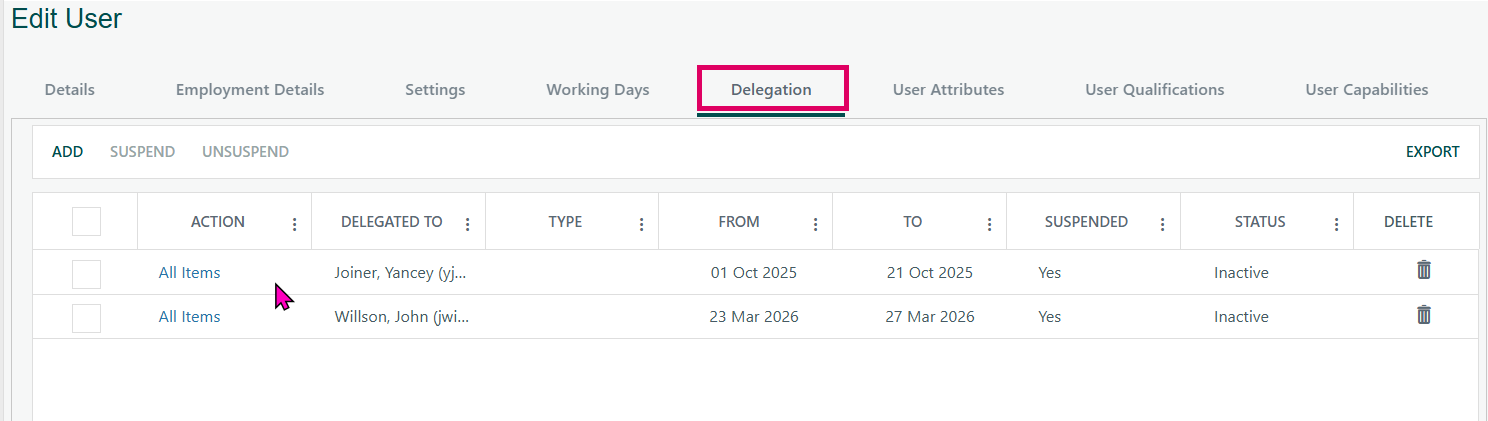
Managing delegations for another user (Admin)
- Go to Administration → Users and open the user's edit page.
- Select the Delegation tab.
- Use the same grid and Add/Edit/Suspend/Delete actions described above. The same rules apply.
- Note: Administrators can also tick or untick the "Allow Delegation" checkbox on the main user details tab to control whether a user is permitted to have delegations at all.
Tips and common pitfalls
- The Delegation tab is hidden for "Resource Only (Monitor)" users — they cannot be delegators.
- The email notification job must be enabled and running in the scheduler; if the "Last Notification Time" on the admin configuration tab is red or shows "Not enabled!", start/end emails will not fire automatically.
- For Resource Manager delegations, the system automatically grants the delegate project-level access rights when the delegation is active and removes them when it expires or is suspended/deleted.
- You cannot have two active non-suspended delegations of the same type (All/All Workflows) pointing to the same user. The system prevents this on save.
- Delegation of Specific Workflows does allow the same workflow to be delegated to two different users, but not the same workflow to the same user twice.
Was this article helpful?
That’s Great!
Thank you for your feedback
Sorry! We couldn't be helpful
Thank you for your feedback
Feedback sent
We appreciate your effort and will try to fix the article