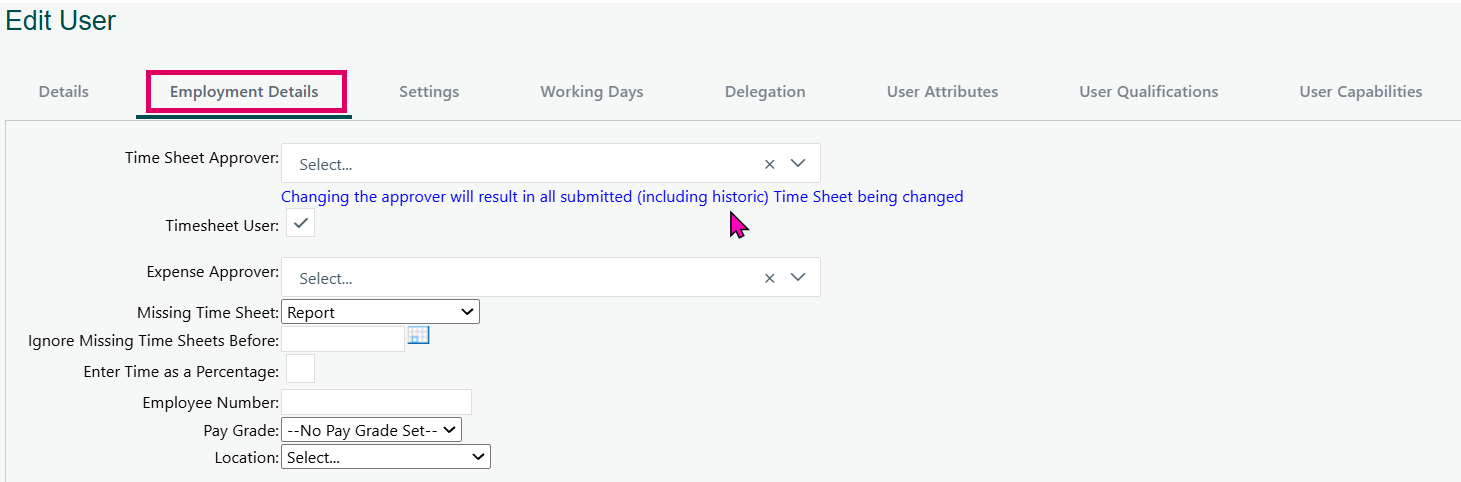
The Employment Details tab is the second tab within the Edit User screen in Cora PPM's Admin area. It is dedicated to capturing and managing the employment-related, financial, and timesheet-specific attributes of a single user. In other words, while the Details tab stores personal contact info and logon settings, the Employment Details tab stores everything an organisation needs to know about how that user works and is costed.
The tab groups information into the following functional areas:
Timesheet & Approval Settings
Administrators can assign which user will approve this person's timesheets and which user will approve their expenses. If the Demand / Capacity Management resource model is enabled, a third Demand Approver can also be set. A flag controls whether the user is a Timesheet User at all. There is also a "Missing Timesheets" dropdown to configure whether the system should alert on missing submissions, and a cut-off date before which missing timesheets are ignored. An "Enter Time as a Percentage" option is also surfaced here.
Work Costs & Hours Per Day
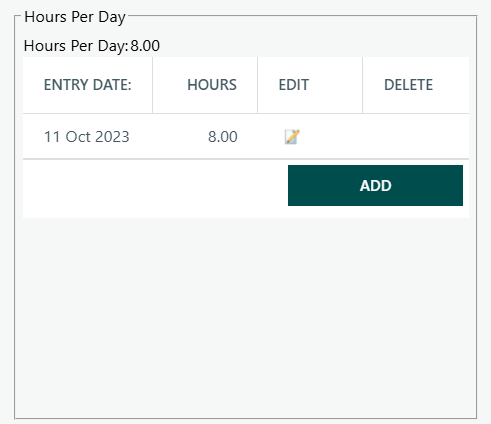
The tab contains three side-by-side date-effective grids:
- Hours Per Day — tracks the number of hours per working day that apply to the user from a given date (used for scheduling and resource calculations).
- Cost Per Hour — tracks the internal labour cost rate per hour from a given date (used in project cost calculations across all projects the user is resourced on).
- Charge-Out Cost Per Hour — tracks the charge-out (billing) rate per hour from a given date. This section only appears when the system is configured to use per-user charge-out costs rather than a rate matrix.
Each grid is date-effective: multiple rows can exist, and the most recent entry effective up to today is the one used. Adding, editing, or deleting a row automatically triggers a system-wide cost recalculation for all projects the user is resourced on.
Overtime Settings (shown only when the Overtime feature is enabled)
Two additional grids appear:
- Overtime Cost Per Hour (Hours Per Day grid) — tracks overtime working-hours per day with effective dates.
- Overtime Cost Per Day — tracks the initial-hours threshold, the initial overtime cost rate, and the remaining (after-threshold) cost rate with effective dates.
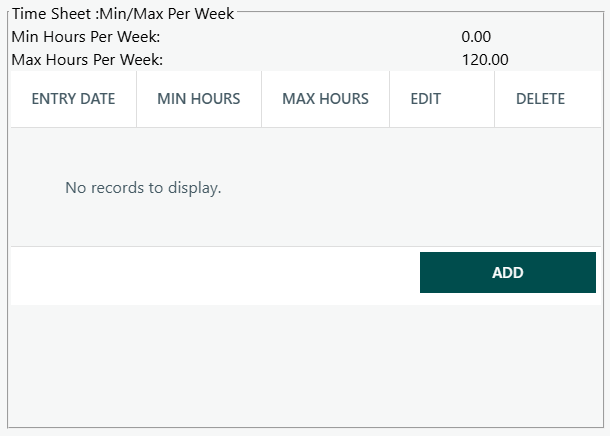
Timesheet Min/Max Per Week (shown only when the Min/Max timesheet feature is enabled)
A further date-effective grid allows an administrator to specify minimum and maximum hours that can be submitted per week, useful for ensuring timesheets comply with contractual obligations.
Pay Grade, Location, Staff Number, and Other Fields
- Pay Grade — selects a pre-configured pay grade for the user; choosing a pay grade automatically updates the displayed Cost Per Hour label.
- Location — assigns a country-level location to the user.
- Staff Number — an optional numeric staff identifier (must be unique across all users if supplied).
- Productivity — a percentage (0–100) that represents how productive the user is for planning purposes.
- Date of Termination — optionally records when a user's employment ended (only visible when the Inactive Users feature toggle is on).
External Resource ID (only visible for Bravida customer configuration)
Allows mapping the Cora PPM user to an external HR/payroll system ID.
Must Approve Assignments / Demand Approver (only visible under the Organisation resource model)
When the Capacity Management module uses the Organisation resource model, additional fields appear for flagging whether the user must manually approve resource demand assignments and for selecting their demand approver.
Every change made on this tab is fully audited: each field modification is written to the user history log and, where configured, also logged to Azure Sentinel for security monitoring.
Where to Find the Employment Details Tab
- Log in to Cora PPM as an Administrator (or a user with the Resource Allocation role).
- Navigate to Admin → User Management (typically accessed from the top navigation bar under the Admin menu).
- Click the name (or the Edit icon) of the user you want to configure.
On the Edit User screen, click the "Employment Details" tab — it is the second tab, immediately to the right of "Details".
Was this article helpful?
That’s Great!
Thank you for your feedback
Sorry! We couldn't be helpful
Thank you for your feedback
Feedback sent
We appreciate your effort and will try to fix the article