The User Settings Tab is a secondary tab within the Manage User / Edit User dialog in Cora PPM Administraion. It is dedicated to configuring the resource-related classification and assignment attributes for an individual user — the information the system needs to treat that person as a managed resource within capacity planning, scheduling, and organisational structures.
The tab is distinct from the Details tab (which holds personal contact info, access rights, and login preferences) and from the Capacity Management tab (which manages line-manager relationships). The Settings tab specifically governs what the user can do as a resource and how the system should categorise and pool them.
Where to Find the Settings Tab
- Navigate to Admin → User Management (the Manage Users page).
- Find the user you want to configure in the grid and click their name/row to open the Edit User dialog.
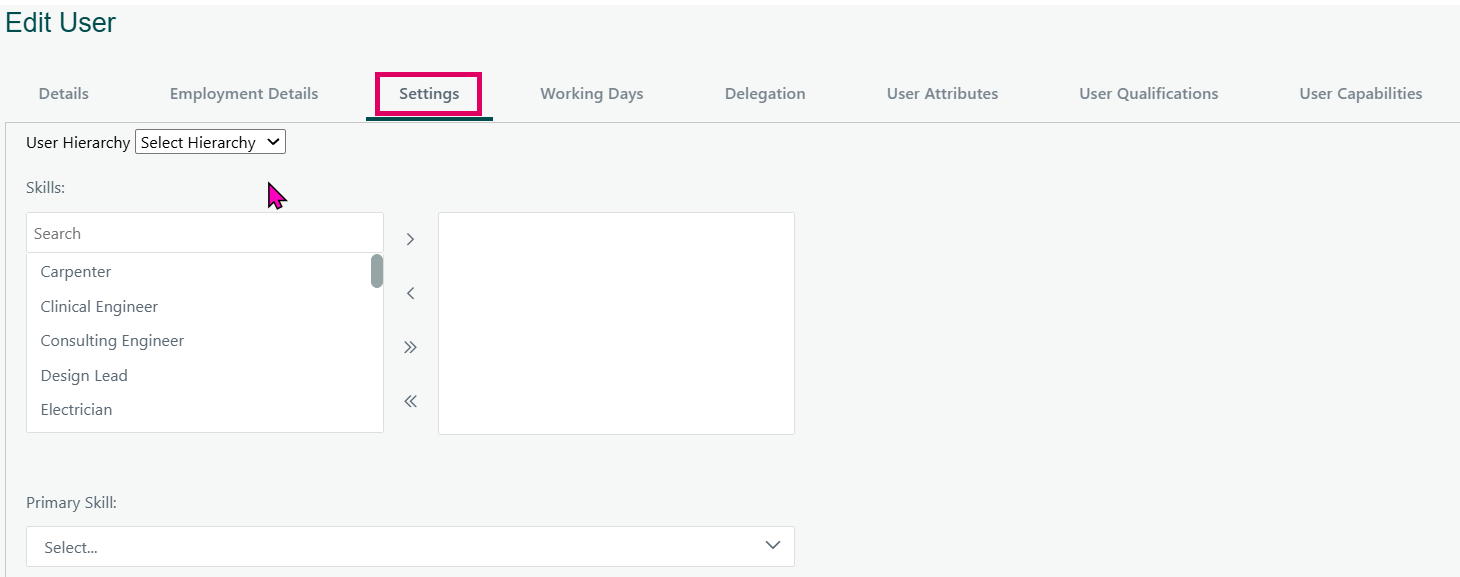
- In the dialog, click the Settings tab (second tab, after Details).
The tab presents up to six areas of configuration, each of which may appear or be hidden depending on your system's feature configuration:
- Organisation – A hierarchical tree-picker that places the user within the company's organisational structure. This field drives which part of the business "owns" this resource. If the system is configured to use Organisation-based Resource Demand, the organisation dropdown may be locked (read-only on this tab) if the value is being driven by a User Attribute on another tab.
- Demand Organisation(s) – Appears only when the Capacity Management resource model is set to Organisation mode. A multi-select tree-picker that designates which demand organisations this user can supply resources to. This is the organisation from which the user will receive and fulfil resource demand requests.
- Allow Demand Over-Allocation – A checkbox, visible only when the global "Allow Demand Over-Allocation" feature toggle and the corresponding Capacity Management configuration are both enabled. When ticked, this user can be allocated beyond their normal capacity in Resource Demand.
- Skills (Available Skills swap list) – A dual-list control that assigns one or more skills to the user from the global skills catalogue. Skills are used in resource planning, skill-based demand matching, and reporting.
- Primary Skill – A dropdown populated from the user's already-selected skills. Designates which of their skills is considered their main competency. Required when the Project Skill Planning feature is active and the user has at least one skill assigned. If the user has exactly one skill, it is automatically set as the primary skill on save.
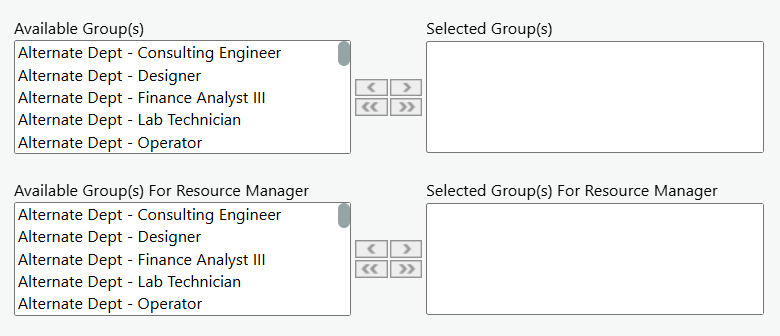
- Groups (Available Groups swap list) – Assigns the user to one or more Groups. Groups are used for access-control, resource pooling, and reporting.
- Qualifications (Available Qualifications swap list) – Appears only when the Qualifications feature is enabled in the global project configuration. Assigns qualifications (certifications, competencies) from the global qualifications catalogue to the user. is this the User Qualifications Tab now?
- Resource Manager for Groups swap list – Appears only when the Project Skill Planning feature is active and the capacity resource model is Group mode. Designates which groups this user acts as Resource Manager for — meaning they receive and process resource requests on behalf of those groups. When the resource model is Organisation, this control is hidden and replaced by the Demand Organisations control.
When the administrator clicks Save, all of these settings are persisted in a single stored-procedure call and full audit trail entries are written for every change (skill added/removed, organisation changed, primary skill changed, resource manager group added/removed, etc.).
Was this article helpful?
That’s Great!
Thank you for your feedback
Sorry! We couldn't be helpful
Thank you for your feedback
Feedback sent
We appreciate your effort and will try to fix the article