Groups
Every smart form must have at least 1 group, and there is no upper limit to the number of groups on a smart form page. These are used to break up the page into logical sections for the user.
The Group Tab is where you create and manage these sections inside your pages. Every field shown on a Smart Form must belong to a group, and groups must belong to a page. The Group tab popup editor contains a rich set of controls that determine exactly when a group appears, whether users can edit it, whether it enables the Submit button, and how it is displayed visually.
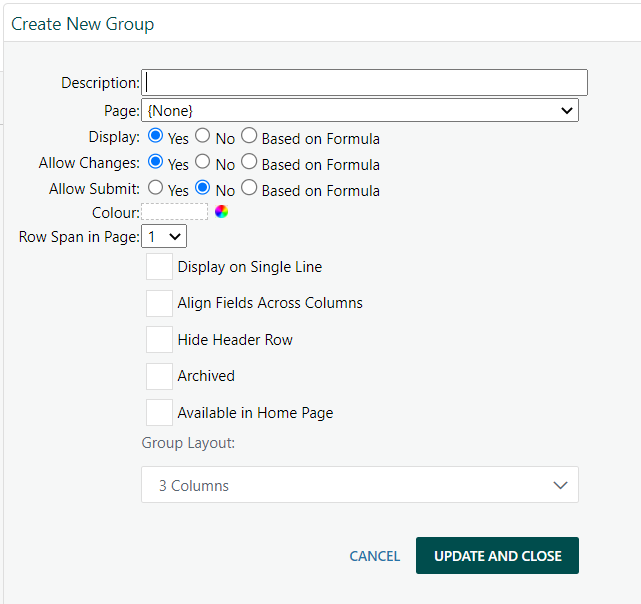
Here is what each setting on the Group editor means:
Setting | What it does |
|---|---|
Description | The name of the group/section shown as a header on the Smart Form |
Page | Which Smart Form page this group belongs to |
Display | Whether the entire group is visible to the user |
Allow Changes | Whether the fields inside this group are editable (vs. read-only) |
Allow Submit | Whether the presence of this group enables the "Submit" workflow button (only shown when Iterations are enabled) |
Colour (Deprecated Feature) | The background/header colour of the group's header bar |
Row Span in Page (Deprecated Feature) | How many vertical rows this group occupies when displayed alongside other groups |
Display on Single Line | Forces the group to occupy a full row by itself (prevents other groups appearing beside it) |
Align Fields Across Columns | Vertically aligns field labels and controls across all columns within the group |
Hide Header Row | Suppresses the group header/title bar so the section's fields appear without a visible heading |
Archived | Hides the group from all Smart Forms (it still exists but is invisible) |
Available in Home Page (Deprecated Feature) | Makes the group available as a widget on the Project Home dashboard |
Group Layout | Sets the number of columns (1, 2, 3, or 4) for field layout within the group |
Display, Allow Changes, and Allow Submit each offer three modes:
- Yes — always apply this behaviour
- No — never apply this behaviour
- Based on Formula — use a formula expression (referencing project variables, custom fields, user details, etc.) to dynamically control behaviour per-projectr.
NB: Remember to use the ‘Page’ drop down to display the group on your chosen page.
Was this article helpful?
That’s Great!
Thank you for your feedback
Sorry! We couldn't be helpful
Thank you for your feedback
Feedback sent
We appreciate your effort and will try to fix the article