The Smart Form Settings page (found under the Smart Forms section of the Admin menu) is the central configuration hub for behaviour, labelling, and diagnostics relating to Cora PPM's Smart Forms — the configurable project data-capture pages built from Pages, Groups, and Fields.
Where to Find Smart Form Settings
- Log in as an Administrator.
- Click Admin in the top navigation.
- Expand the Smart Forms section in the left-hand admin menu.
- Click Settings.
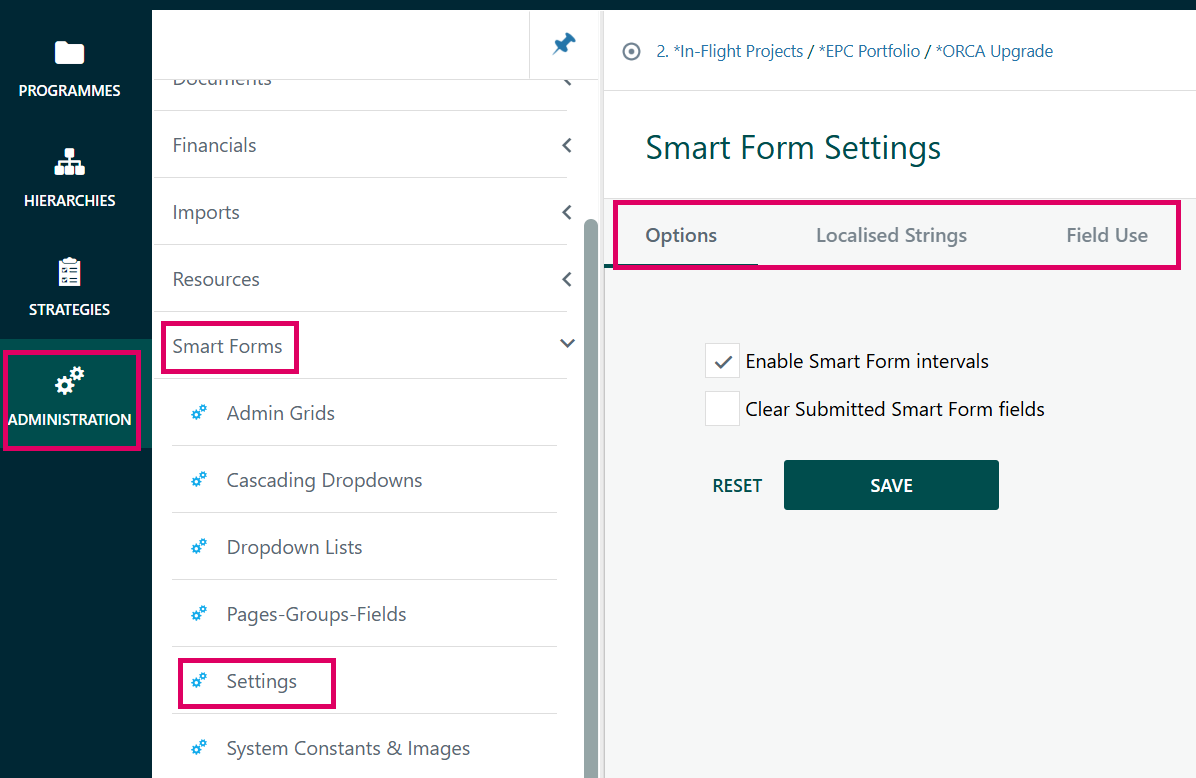
The page loads with three tabs at the top: Options, Localised Strings, and Field Use.
Options Tab
The Options tab inside the Smart Forms Settings screen presents exactly two system-wide toggle checkboxes: Enable Smart Form intervals and Clear Submitted Smart Form fields. These are global on/off switches that affect how Smart Forms behave across the entire Cora PPM installation — not for a specific form or project.
Enable Smart Form intervals controls whether the iteration/interval feature is available on Smart Form pages. When switched on, individual Smart Form pages can be configured with an interval type (e.g., monthly, weekly), which allows users to submit multiple timestamped snapshots of a form's data over time. When it is off, the interval dropdown on each individual page configuration is hidden and the iteration functionality is suppressed system-wide.
Clear Submitted Smart Form fields controls what happens to a Smart Form's live field values after a user submits the form into a workflow. When enabled, submitting the form clears the stored field values in the "live" record (the working copy), effectively resetting the form so users can start entering data fresh for the next cycle or iteration.
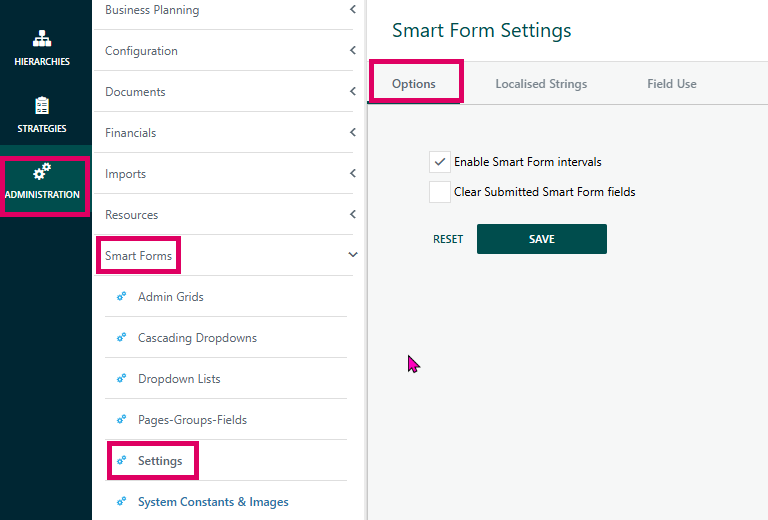
How to access these settings:
Navigate to Admin → Smart Forms → Settings. The page opens on the Options tab by default. The two checkboxes appear immediately.
Enable Smart Form intervals
- Tick this box to enable the intervals/iterations feature system-wide.
- Once enabled, when you edit an individual Smart Form page (Admin → Smart Forms → Pages-Groups-Fields → edit a page), you will see an Interval dropdown (Not Set, Monthly, Weekly, etc.) become visible.
- If this global toggle is off, the Interval row is hidden on every individual page configuration popup, regardless of what interval may already be saved for that page.
- Note: turning this on does not automatically activate intervals on existing pages — you still need to set the interval on each page individually.
Clear Submitted Smart Form fields
- Tick this box if you want submitted field values to be cleared from the live record after a user submits a Smart Form.
- This is relevant when Smart Forms are used with workflow submission, where the expectation is that each submission cycle starts with a blank form.
- Leaving this unchecked means field values persist in the live record after submission.
Saving:
- Click Save to apply changes. An audit history entry is written for any value that actually changes.
- Click Reset to revert the checkboxes back to the currently saved values without saving.
Tips:
- These are system-wide settings. Changes affect all projects and all users immediately after saving.
- Enabling Smart Form intervals without configuring an interval on specific pages has no visible effect on those pages.
Localised Strings Tab
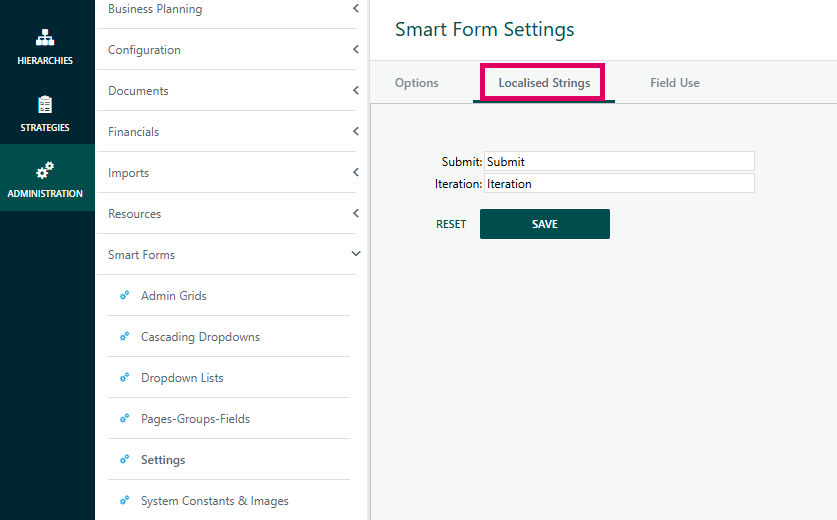
Depending on the terminology of your organisation, you can change the name of the Submit Button and Iteration at the bottom of the smart form, Note: this will be a product wide change.
Field Use Tab
The Field Use tab and row in Cora PPM appears in the "Confirm Delete Smart Form Page" dialog — a safety confirmation popup that appears when an administrator attempts to delete an entire Smart Form page (custom detail page) from the system. The dialog presents a read-only summary of what will be affected or prevented by the deletion. The Field Use row is one specific piece of that summary.
What the three columns mean in context:
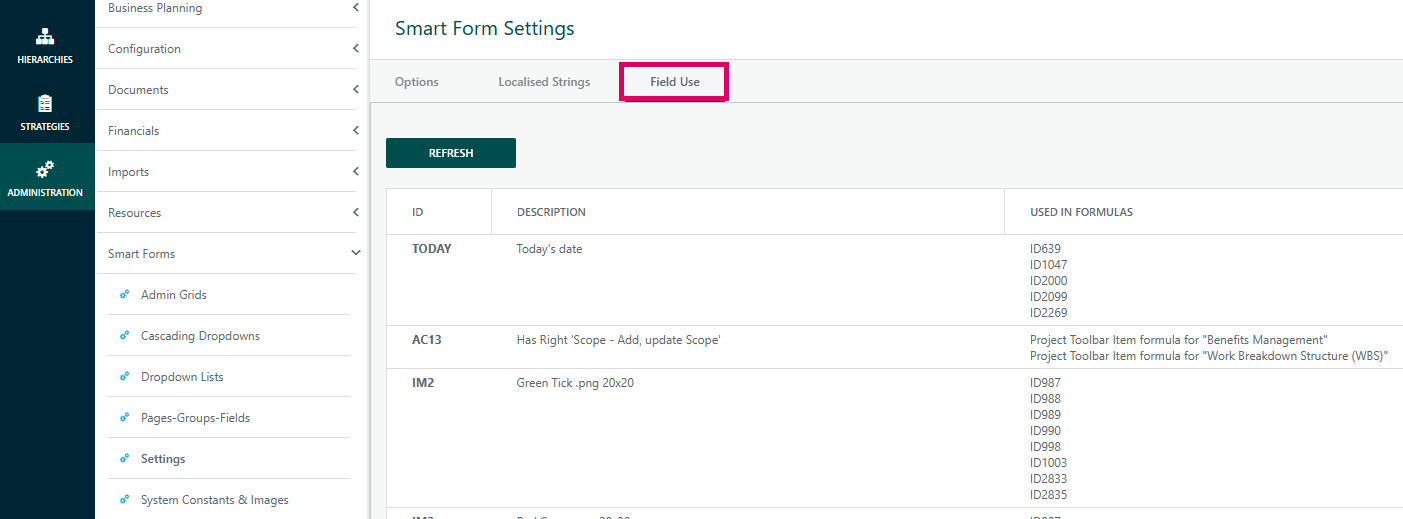
The table the question refers to (ID, Description, and Used in Formulas) is actually the set of custom fields (custom details) belonging to the page being deleted. The system scans every field on that page and checks whether any of those fields are referenced by formulas defined elsewhere in the system — i.e., in other custom fields' calculation formulas, visibility/display formulas, group-level show/hide or submit formulas, or page-level formulas that exist outside the page being deleted.
- ID: The internal numeric identifier of the custom detail field on the page (e.g.,
ID1234). - Description: The human-readable label of that field (as configured by the admin).
- Used in Formulas: Whether that field's token (e.g.,
ID1234,FD1234,LD1234, and related suffix variants likeID1234N,ID1234D) appears in any formula defined on a different field, group, or page — i.e., it is a dependency somewhere else in the system.
Why this matters — the key purpose:
The Field Use check exists as a safety gate to prevent deletion. If any field on the page being deleted is currently referenced by a formula elsewhere in the system, the delete is blocked and the administrator sees the "Field Use" warning row. This prevents broken formulas — computed/function fields that would silently fail or produce errors because their source data field has been removed. If the Field Use row is empty/hidden, the delete proceeds safely.
What "referenced by a formula" means in practice:
Cora PPM has a rich formula engine. Any custom field of type Numeric Function, Date Function, Text Function, Checkbox Function, Dropdown List Function, etc., can reference another field using token codes like ID<fieldId>, FD<fieldId> (first baseline), LD<fieldId> (last baseline), SD/TD/YD/ZD<fieldId> (other baseline variants), plus date/numeric suffix variants N and D. The system computes a full dependency graph (called FieldsUsed) across all formulas system-wide, including field formulas, custom detail display formulas, "allow changes" formulas, group-level display/submit/change formulas, and page-level formulas. If any field on the to-be-deleted page appears in that dependency graph — and the referencing formula is in a different page or area — the Field Use row reports the conflict.
Where to find the Field Use tab/row:
- Navigate to Admin → Configuration → Smart Forms (Custom Detail Pages).
- In the list of Smart Form pages, find the page you want to delete.
- Click the Delete action (bin/trash icon) for that page.
- A confirmation popup appears — "You are about to delete a Smart Form - this will delete all related data".
The popup shows a read-only summary table with rows for:
- Page — the name of the page being deleted
- Group Count — how many groups are on the page
- Field Count — how many custom fields are on the page
- Project Count — how many projects have saved data for this page
- Value Count — total number of saved data records for this page
- Field Use — (only visible if there is a problem) — which fields on this page are referenced by formulas elsewhere, preventing deletion
Reading the Field Use row:
- If Field Use is hidden (blank): no fields on this page are used in any external formula — it is safe to delete.
- If Field Use is visible: it shows a message such as "Field ID1234 is used by [formula name] in another area (first issue of N)". This means at least one field on the page is being consumed by a formula elsewhere. The delete button is blocked and will fail validation.
What to do if Field Use blocks a delete:
- Note the field name and formula reference shown in the Field Use row.
- Navigate to the formula that references that field (could be another custom field's formula, a group display formula, or a page formula).
- Edit or remove that formula reference.
- Return to the page list and retry the delete.
Important cautions:
- The Field Use check also covers baseline token variants — even if you use
FD1234(first baseline of a field) in a formula rather thanID1234(current value), it will still be flagged. - The check covers formulas in all areas: field-level calculation formulas, visibility ("display") formulas, "allow changes" formulas, group display/submit formulas, and page formulas.
- The message reports only the first issue out of potentially many — fix all of them before the delete will succeed.
- The check does not block deletion based on projects having data — only formula dependencies block it. The Project Count and Value Count rows are informational only.
Was this article helpful?
That’s Great!
Thank you for your feedback
Sorry! We couldn't be helpful
Thank you for your feedback
Feedback sent
We appreciate your effort and will try to fix the article