User Profiles (also called Project Profiles) on a project exist to control what each person or group of people is allowed to see and do within that specific project. Rather than giving everyone the same level of access, profiles let administrators fine-tune permissions so that, for example, a read-only viewer cannot accidentally edit the schedule, a finance reviewer can see cost data but not modify tasks, and only the Project Owner has full control.
Why assign a User Profile to a project?
- Limit what people can see. A stakeholder might only need to view the PM status report but should not see cost figures or be able to edit tasks. A profile with only "Can View General Report Section" and similar view-only flags switched on achieves this.
- Control what people can change. A team member may need to update percentage complete on their own tasks but must not be able to restructure the Schedule/WBS. A tailored profile grants the narrow right without granting everything else.
- Protect financial data. Rights such as "Can View Cost Section", "Can View Reports With Cost Element", "Can Update Estimates/Budgets/Forecasts/Actuals" are individually toggleable, so only authorised finance roles see or touch money figures.
- Enforce workflow and approval boundaries. Profiles control who can submit smart forms, approve timesheets, add/delete approvers, change project phase, and initiate or advance workflow steps.
- Grant or restrict document access. Separate rights exist for viewing, uploading, and editing documents.
- Propagate access down a programme hierarchy. When adding a user or group to a project, a "Propagate Rights" checkbox causes the same profile to be applied automatically to all child projects (Sub-projects) in the hierarchy, saving manual effort.
- Support group-based access. Instead of assigning profiles user by user, a whole group can be assigned a profile. All members of that group then inherit those rights on the project.
Managing the profiles themselves (admin):
- Administrators can create, edit, and delete profiles via the admin area
- A profile in use (assigned to at least one user or group on any project) cannot be deleted — it shows a padlock icon.
- Profile ID 40 (Project Owner) is permanently bold, cannot be edited or deleted, and its checkboxes are disabled.
Project Profiles govern what a User has permissions to do within a Project, once they have been given access via a Group or directly via Project Access. By default, a new system will have 1 profile set up; Project Owner.
Note: The settings within Project Owner cannot be changed.
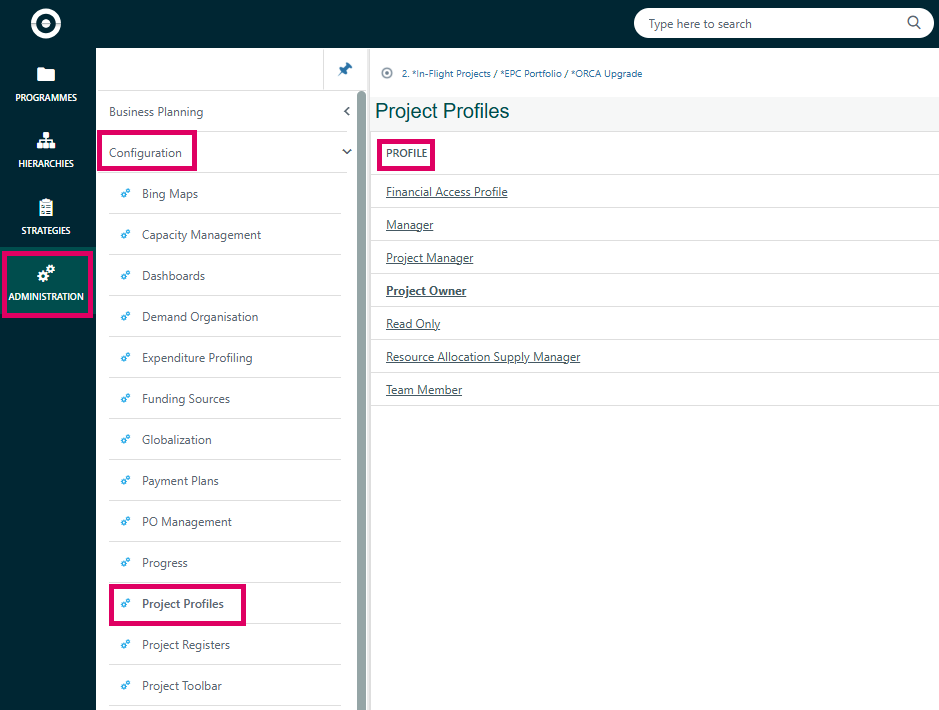
An Administrator can set up additional Profiles as required, via Administration | Configuration | Project Profiles.
The following is the list of the available options and an explanation of what permissions the item allows.
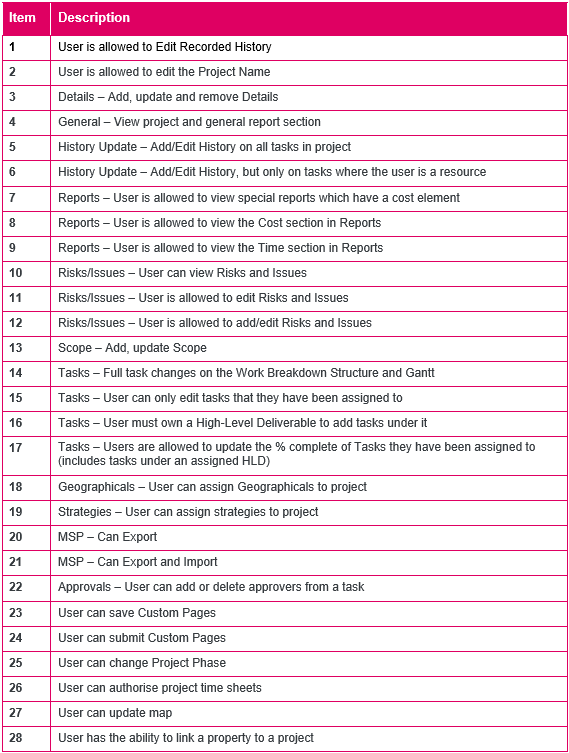
To breake this down, in Admin, under Configuration > Project Profiles you will a list of permission you can grant to users. Below provides a description of each and in some cases a further note. Note: the items in red indicate a deprecated feature and in some case the notes column will indicate the feature that replaced it.
Access Privilege | Description of the Access | Note |
User is allowed to edit Recorded History (Deprecated Feature) | Controls manual entry of actuals values | Legacy permission. |
User is allowed to edit the Project Name | Allows users to rename a project | The rename project page is accessed by right-clicking the project name in the program hierarchy and selecting rename. Projects are usually re-named via project properties and access is restricted to Project Owners |
Details - Add, update and remove Details (Deprecated Feature) | Access and update OLD project details | Legacy permission. Old project details was superseded by custom fields |
General - View project and general report section | Read only access to basic project data | This is the minimum level of access that can be given to a user and is always checked on all profiles |
History Update - Add/Edit History on all tasks in project (Deprecated Feature) | Controls manual entry of actuals values | Legacy permission. |
History Update - Add/Edit History, but only on tasks where the user is a resource (Deprecated Feature) | Controls manual entry of actuals values | Legacy permission. |
Reports - User is allowed to view special reports which have a cost element | Controls if project appears in certain cost reports | |
Reports - User is allowed to view the Cost section in Reports | Controls if cost info for the project is hidden in certain cost reports | Note this setting is only applied in reports. It does also prevent display of planned cost column in the Gantt but costs may still be visible in other areas. |
Reports - User is allowed to view the Time section in Reports | Controls if time info for the project is hidden in certain cost reports | Note this setting is only applied in reports - it does not prevent the display of time in other areas of the system (e.g. planned hours in the Task manager) |
Risks/lssues - User can view Risk and Issues (Deprecated Feature) | View access to legacy risks and issues log | This log has been replaced with registers |
Risks/lssues - User is allowed to edit Risk and Issues (Deprecated Feature) | Edit access to legacy risks and issues log | This log has been replaced with registers |
Risks/lssues - User is allowed to add/edit Risk and Issues (Deprecated Feature) | Add and Edit access to legacy risks and issues log | This log has been replaced with registers |
Scope - Add, update Scope (Deprecated Feature) | Enables deprecated scope page | This log has been replaced with registers |
Tasks - Full task changes on the Work Breakdown Structure and Gantt | User can update all details for a task | |
Tasks - User can only edit tasks that they have been assigned to | User can view all tasks but only update tasks where they are a planned resource | |
Tasks - User must own a High Level Deliverable to add tasks under it | User can view all tasks but only update tasks where they are a planned user on the task or a task at a higher level | |
Tasks - Users are allowed to update the % complete of Tasks they have been assigned to | User can only update percentage complete of tasks they are a planned resource on. They cannot change any other attributes of any task | |
Project Groups - User can assign Project Groups to project (Deprecated Feature) | N/A | Deprecated option |
Strategies - User can assign strategies to project | User can link or unlink a project to a strategy | |
MSP Can Export | User can access the export to Microsoft Project page to export the project | Note, for historical reasons this page is referred to as export to MSP but it supports P6 as well |
MSP - Can Export and Import | User can access the import to Microsoft Project page to import a project. Importing a project can replace or update the tasks in a project or create a new project depending on options selected | |
Approvals - User can add or delete approvers from a task | User can set an approver for the assignment of a resource to a task | This option is not relevant when using resource demand or resource allocation |
User can save Custom Pages | User can save data in a smart form | |
User can submit Custom Pages | User can submit a smart form | |
User Can Change Project Phase | User can change the project stage | For historical reasons this is called phase |
User can update map | User can update the map (GIS Mapping) for a project | |
User has the ability to link a property to a project | N/A | Only relevant for customers using deprecated streeting index |
User can view custom pages | User can view smart forms | |
User has full access to cash flow (Deprecated Feature) | N/A | Relates to old, deprecated financial feature. |
User can view cash flow (Deprecated Feature) | N/A | Relates to old, deprecated financial feature. |
User can update PM Status Report (Deprecated Feature) | User can update the Project Manager's status report | This page has been replaced by smart forms |
User can view PM Status Report (Deprecated Feature) | User can view the Project Manager's status report | This page has been replaced by smart forms |
Risks/lssues - User is allowed to delete Risk and Issues (Deprecated Feature) | Delete access to legacy risks and issues log | This log has been replaced with registers |
Change Requests - User is allowed to view Change Requests (Deprecated Feature) | View access to legacy change request log | This log has been replaced with registers |
Change Requests - User is allowed to edit Change Requests (Deprecated Feature) | Edit access to legacy change request log | This log has been replaced with registers |
Change Requests - User is allowed to add/edit Change Requests (Deprecated Feature) | Add and Edit access to legacy change request log | This log has been replaced with registers |
Change Requests - User is allowed to delete Change Requests (Deprecated Feature) | Delete access to legacy change request log | This log has been replaced with registers |
User can update Financial Management - Cost Estimate | User can edit the cost estimate in Enterprise Financials | |
User can update Financial Management - Budget Management | User can edit the budget in Enterprise Financials | |
User can update Financial Management - Forecast Management | User can edit the forecast in Enterprise Financials | |
User can update Financial Management - Actuals | User can edit the actuals in Enterprise Financials | |
User can update Financial Management - Commitments | User can edit the commitments in Enterprise Financials | |
Forecasting - User can view Forecast | User can view the financial forecast* | |
Forecasting - User can edit Forecast | User can edit the financial forecast | |
User can view Forecast | User can view the financial forecast | |
User can edit Forecast | User can edit the financial forecast | |
User can edit Actual Start date | User can edit the actual start date on tasks | |
User can edit Actual Finish date | User can edit the actual finish date on tasks | |
Tasks - Users are allowed to update the physical % complete of Tasks they have been assigned to | User can edit the physical % complete of a task if they are a planned resource on the task | See row 18 for % complete - same logic |
User can edit the Project Role Hierarchy Page | User can edit the project role hierarchy | This feature has not been fully released |
User can view the Project Role Hierarchy Paqe | User can edit the project role hierarchy | This feature has not been fully released |
Project Register Rights
Project Register Rights are Cora PPM's per-user, per-register access control system. They determine exactly what each user can do with any given Project Register — whether they can view records, add new ones, edit existing ones, or delete them.
The system is deliberately granular: rights are not set directly on individual users. Instead, they are attached to Project Profiles (named sets of permissions assigned to users in the context of a specific project). An administrator configures which Create/Read/Update/Delete operations are allowed for each register within each profile; users inherit those rights through the profile they hold on a particular project.
There is also a register-level "on/off" switch called Enforce Access Rights. When this flag is turned on for a given register, the rights matrix is actively respected — the system checks and applies the per-profile permissions before allowing any action. When the flag is off, the register is effectively open to anyone who can see it.
Why rights matter:
- Data integrity and governance. Registers often hold sensitive project data — risks, change requests, financial cost registers, baseline change controls. Controlling who can edit or delete that data prevents accidental or unauthorised changes.
- Role-based collaboration. Different project roles (e.g., project manager, reviewer, finance controller) should have different permissions. Project Register Rights enforce those role boundaries without restricting overall system access.
- Audit trail. Every change to profile rights is written to the configuration history log, giving organisations a record of who had what access and when.
- API security. The WebAPI layer applies the same rights checks before returning or accepting data, ensuring that any external integration respects the same access model as the UI.
- Consistency across entry points. Whether a user opens a register in the project page, a dashboard widget, the Gantt view, a portal page, or via the REST API, the exact same rights are evaluated, so there is no way to bypass them through an alternate route.
The four individual rights and their practical effect:
Right | Effect when absent |
|---|---|
CanView | The register is hidden entirely; an "access denied" message is shown |
CanAdd | The "Add" button is disabled; the user cannot create new records |
CanEdit | The "Edit" button, in-line editing, and the "Submit to Workflow" button are disabled |
CanDelete | The delete button and bulk-delete action are disabled |
If a user has CanAdd, CanEdit, or CanDelete, they automatically receive CanView as well (this is enforced in the save routine).
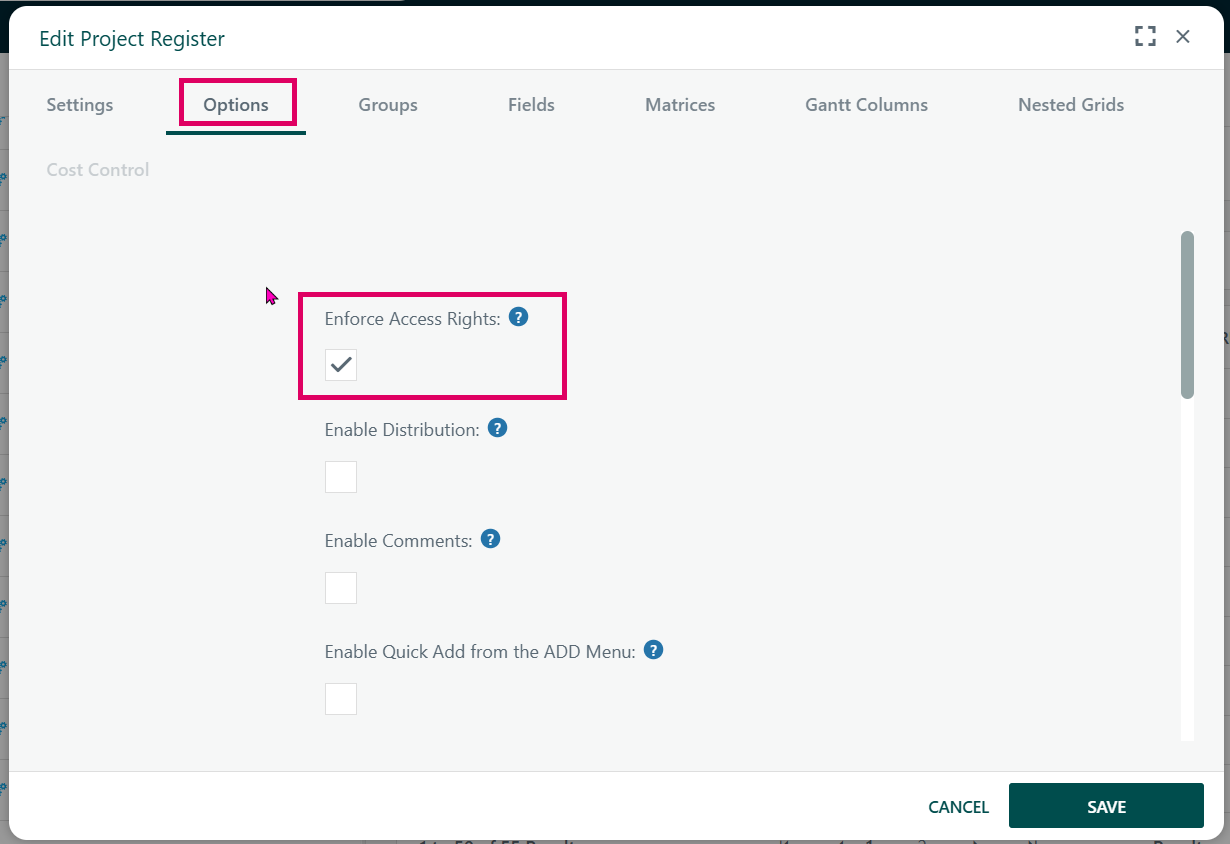
Note: In order to implement the Project Register Rights for a specific Register, the ‘Enforce Access Rights’ tick box must be ticked on the specific register.
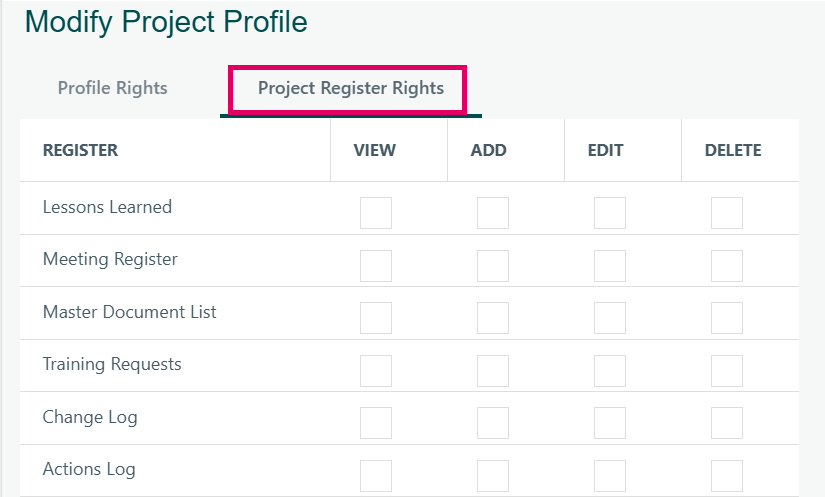
Where to find Project Register Rights
Rights are configured in two places:
- On the Project Profile (Admin area)
Navigate to Admin → Project Profiles → [select a profile] → Edit.
The edit page has two tabs: the main options grid (standard project security settings) and a second section titled "Custom Register Rights" (visible only if registers with Enforce Access Rights enabled exist). Each active register appears as a row in a grid with four checkboxes: Can View, Can Add, Can Edit, Can Delete.
- On the Register itself (Admin → Project Registers → [select a register] → Options)
The "Enforce Access Rights" checkbox controls whether the rights matrix is applied to this register at all. If unchecked, no permission checks are performed regardless of what is configured on the profiles.
Was this article helpful?
That’s Great!
Thank you for your feedback
Sorry! We couldn't be helpful
Thank you for your feedback
Feedback sent
We appreciate your effort and will try to fix the article