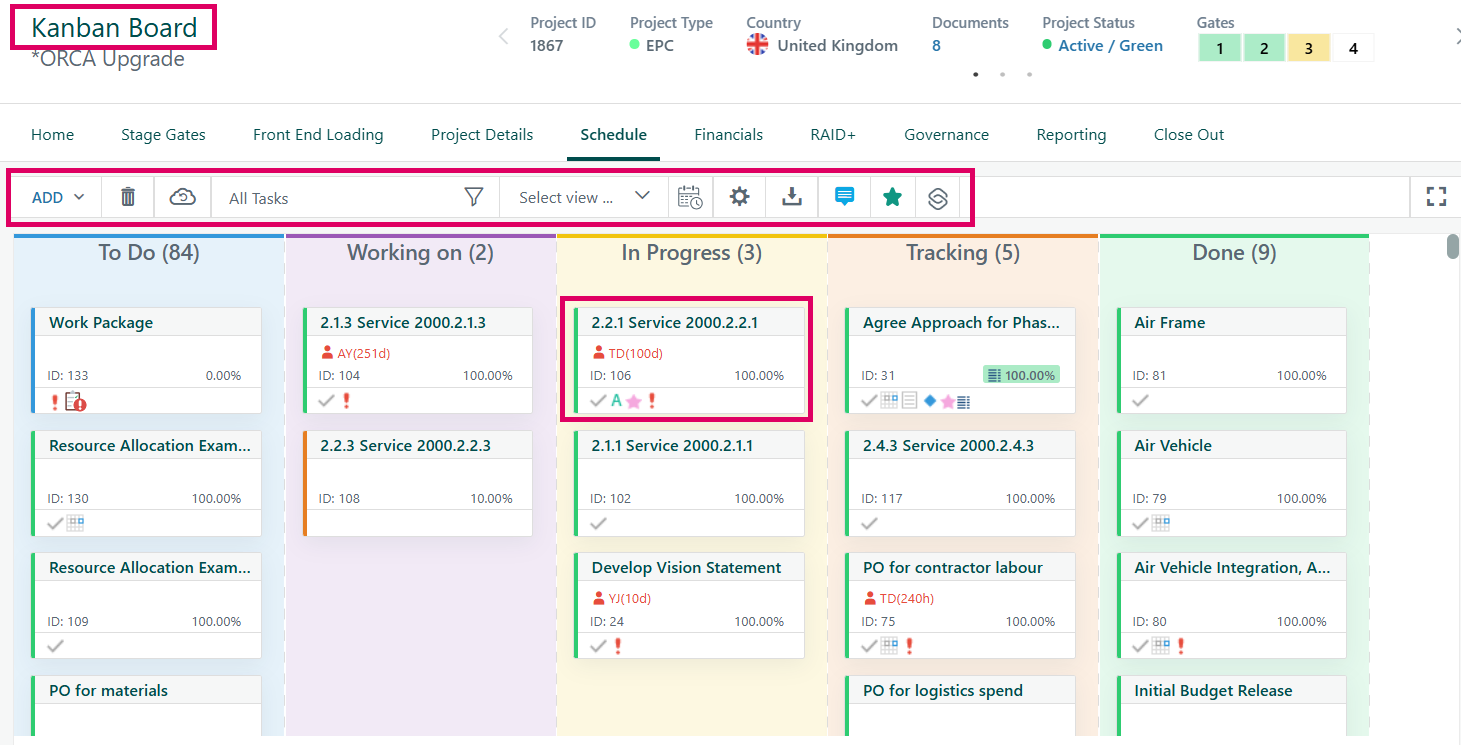
The Kanban Board in Cora PPM is a visual task management view available within the Schedule module of a project. It transforms what would normally be a hierarchical Gantt/WBS (Work Breakdown Structure) task list into a column-based, card-style board — much like a traditional Kanban methodology tool — allowing project teams to see and manage the workflow status of tasks at a glance.
What it Does
Instead of displaying tasks in a time-based Gantt chart or a hierarchical WBS tree, the Kanban Board presents each task as a card grouped into named swim-lane columns. Each column represents a workflow status (e.g., To Do, Working On, In Progress, Tracking, Done). The columns and their names are fully configurable per project type, meaning different types of projects can have their own custom workflow stages.
Each task card shows:
- Task name and a truncated WBS/task code
- Task ID (the system display order number)
- Percentage complete (e.g., 0.00%, 10%, 100%)
- Assigned resource initials (e.g., "AY", "TD", "YJ") and allocated duration/hours
- Warning icons (red exclamation mark) when the task has an issue — such as being scheduled to start before the project's live date, having a constraint conflict, out-of-sequence progress, over-allocated resources, or material delivery date issues
The column header shows the column name plus a live count of how many tasks currently belong to that stage (e.g., To Do (84), Working on (2), In Progress (3), Tracking (5), Done (9)).
Why it Exists
The Kanban Board exists to give project teams a workflow-centric view of schedule tasks, complementing the traditional Gantt and WBS views. It is particularly useful for:
- Agile-style project execution where teams track tasks by workflow stage rather than timeline
- Quick visual identification of bottlenecks (columns with high task counts)
- Teams who prefer drag-and-drop status updates over date-driven Gantt manipulation
How it Works
Users can drag a task card from one column to another to update its workflow status. When a card is dropped into a new column, the system instantly calls the server via AJAX, updates the task's Kanban lane and row position in the database, writes an audit trail entry in the project history, and redraws the board — all without a full page reload. The board also supports sorting within a column: cards can be dragged above or below other cards within the same column to control their display order.
The board shares the same rich toolbar as the Gantt and WBS views, including: Add task, Delete, Cloud upload (save), Filter (All Tasks / by status / by slack / by critical path etc.), Select View dropdown (saved column configurations), Export, Tooltips toggle, and Fullscreen mode. It also supports a Condensed View option that compacts the card display.
Tasks carrying alerts are immediately visible thanks to the red exclamation-mark warning icon rendered on the card.
The Kanban feature is gated behind a feature toggle (KanbanBoard) and is only available for project types that have been explicitly configured with a Kanban column list. If the feature toggle is off or the project type has no Kanban list assigned, users visiting the Kanban Board URL are automatically redirected to the standard WBS view with an informational message.
Where to Find the Kanban Board
- Open a project in Cora PPM
- In the project navigation toolbar, click the Schedule tab (it will be underlined/active when selected).
- The Schedule tab may offer multiple sub-views depending on your project type configuration. If Kanban Board has been enabled for your project type, it will appear as a navigable option — either directly or via the Schedule toolbar's Select view dropdown.
- The URL for the Kanban Board page is
KanbanBoard.aspx(relative to the project context).
Prerequisite: The Kanban Board must be enabled system-wide (feature toggle
KanbanBoard = ON) and configured on your project's project type (a Kanban column list must be assigned to the EPC project type by an administrator). If these are not set, you will be redirected to the WBS page.
Was this article helpful?
That’s Great!
Thank you for your feedback
Sorry! We couldn't be helpful
Thank you for your feedback
Feedback sent
We appreciate your effort and will try to fix the article