The Work Breakdown Structure (WBS) in Cora PPM is an interactive, card-based visual diagram that displays a project's entire task hierarchy as a series of nested boxes — one box per task, arranged left-to-right and top-to-bottom according to the parent–child relationships defined in the Gantt chart. It is, in effect, an alternative view of the same task data: everything you create or edit in the WBS is immediately reflected in the Gantt, and vice versa.
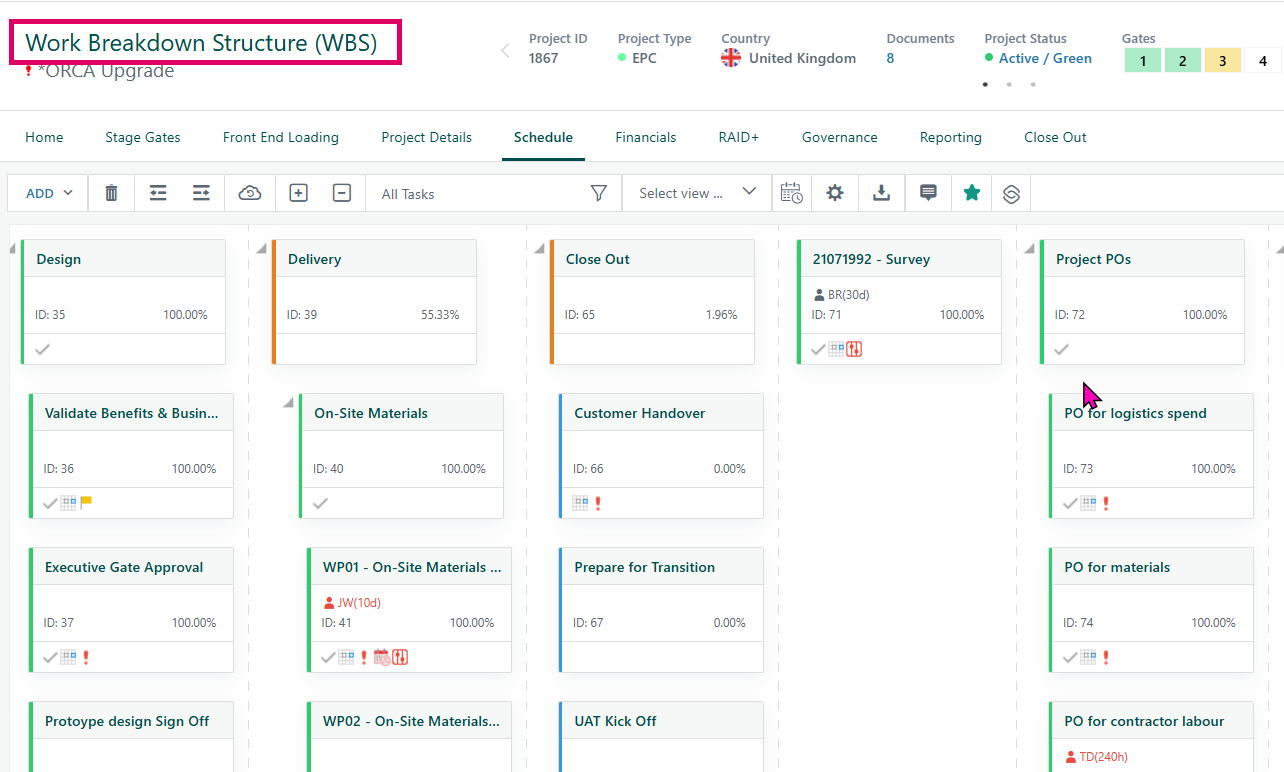
What it shows. Each WBS card displays the task name, its sequential task ID, its percentage complete, the initials of any planned labour resources (up to five by default), the task's current status colour (a thin stripe on the left edge of the card), and a row of small icons indicating attachments, notes, milestones, skills, constraints, risks, approvals, and other attributes. Mother (summary) tasks are shown in bold; sub-project links appear in blue with a folder icon.
Two visual modes. The WBS can be viewed in the classic hierarchical tree layout — tasks indented by level, expanding or collapsing at the click of a +/− icon — or switched to a Kanban / Board view, where tasks are grouped into swim-lane columns, one column per status value (e.g. Not Started, In Progress, Complete). In Kanban mode, drag-and-drop moves a task to a different status column.
What you can do directly in the WBS. Beyond simply viewing the diagram, users with appropriate rights can:
- Add tasks (single, multiple at once, or recurring) and sub-projects directly from the toolbar.
- Delete tasks or unlink sub-projects.
- Indent / outdent tasks, which promotes or demotes them in the hierarchy.
- Move tasks by drag-and-drop — dragging a box onto another box makes it a child; dragging to the gap above or below a box places it as a sibling before or after.
- Cut, copy, and paste tasks (with a rich options dialog to control which attributes — duration, resources, notes, documents, skills, predecessors, approvals, risks etc. — are carried across).
- Open the Task Manager (inline or full popup) to edit every detail of a selected task.
- Expand sub-projects inline so that a programme hierarchy can be browsed as one continuous diagram.
- Apply filters (All Tasks, Critical Tasks, Longest Path, Secondary/Tertiary Paths, by status, by slack band, by active/inactive, or a custom filter) — filtered views highlight matching tasks and dim context tasks.
- Save and reload named views (column configurations and filter combinations).
- Print or export the WBS to a PNG image, paginating automatically across A4/A3/Letter in portrait or landscape.
- Create, restore, and delete Schedule Restore Points — lightweight snapshots that capture the current schedule as an MSP file so that the schedule can be rolled back if needed.
Status colour legend. Up to five system-defined status categories can be displayed in the top toolbar as a legend row. Each task card shows a colour stripe derived from its current status (not-started, started, on hold, complete, cancelled, or a custom status). The visibility of this legend is configurable per project type.
Condensed and full view. A View Options dialog lets users switch between a compact (condensed) card and the default full card. This preference is saved per user per project and is recalled on the next visit.
Tooltips. Hovering over a task box shows a detailed tooltip with start/finish dates, duration, baseline comparisons, % complete, status, phase, task type, planned and actual labour, materials, facilities, risks, issues, KPIs, constraints, and notes. Tooltip display can be toggled on/off and the setting is persisted per user per project.
WBS Code. If the system is configured to display WBS codes, each task card also shows an alphanumeric code representing its position in the hierarchy (e.g. 1.2.3).
Where to find the WBS
Navigate to a project and click the WBS tab in the project toolbar (it sits alongside Gantt, Reports, etc.). The page requires JavaScript and will display a loading spinner while task data is retrieved.
Access requirement
You need at least the "Can View Project General Report Section" permission for the currently selected project. Without it, a "no access" message is shown instead of the diagram. Full editing (add/delete/move tasks) requires the "Full Rights WBS/Gantt/Network Diagram" permission.
Selecting a project
The WBS always displays the project currently selected in the system's top-level project drop-down. If no project is selected, you will see a plain message asking you to select one.
Was this article helpful?
That’s Great!
Thank you for your feedback
Sorry! We couldn't be helpful
Thank you for your feedback
Feedback sent
We appreciate your effort and will try to fix the article