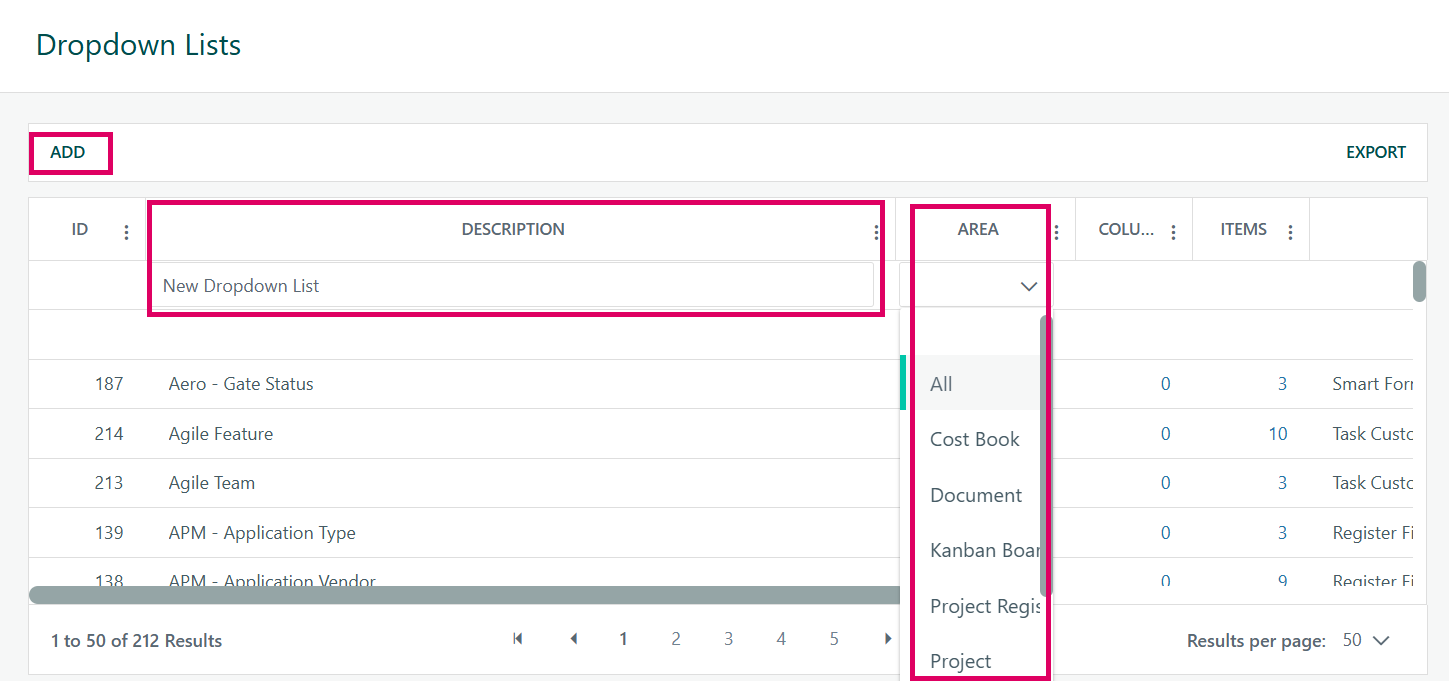
Cora PPM provides a dedicated Dropdown Lists administration area, found under the Smart Forms section of the Admin menu. This feature lets administrators create and manage reusable dropdown lists of selectable options that can then be attached to fields across many parts of the system — including
- All
- Smart Forms (custom detail pages),
- Projects,
- Risks,
- Project Registers,
- Tasks,
- Documents,
- Cost Book,
- Kanban Board,
- Rate Matrix,
- User,
- Benefits
Because the lists are defined once and referenced everywhere, updating a list's items automatically propagates to every field that uses it.
There are two distinct types of dropdown:
- Standard Dropdown Lists — A flat list of options (e.g. "Red, Amber, Green") that a user picks from one level.
- Cascading Dropdown Lists — A hierarchical structure where picking a value in one level (e.g. "Country") filters the choices available in the next level (e.g. "City"). These are configured under a separate "Cascading Dropdowns" page.
What you can configure for a standard dropdown list
- Name/Description of the list
- Area — which part of the system the list is intended for (e.g. Smart Forms, Project, Risks, Task Dropdown, etc.). Lists scoped to "All" can appear anywhere
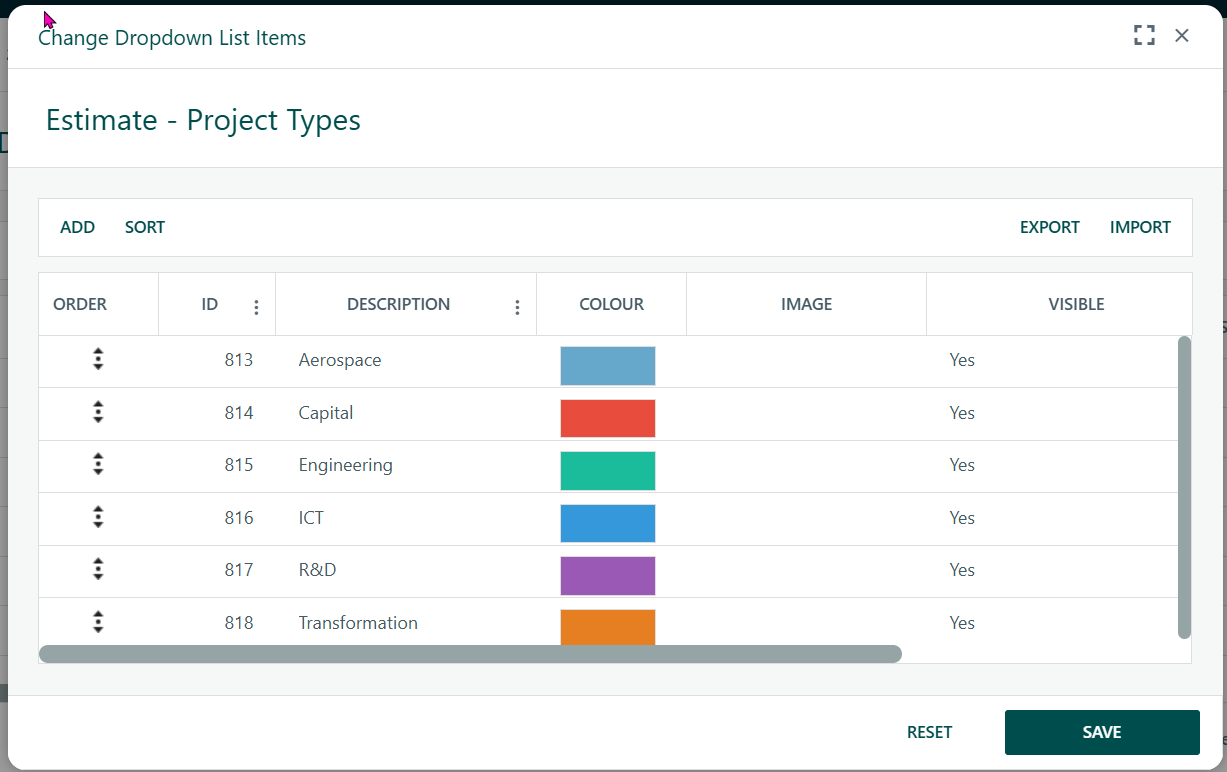
Items — the selectable entries, each with:
- A Description (displayed to users)
- Up to four extra custom data columns (e.g. a code, a reference, a category)
- A Colour (colour-coded display, available for Smart Forms, Project Registers, Kanban, and All)
- An Image (a small icon, for Smart Forms and All areas)
- A Visibility setting — whether the item is always Visible, Hidden, or visible only when a configurable formula evaluates to true
- An Archived flag to retire items without deleting them
- Item ordering — items can be manually drag-and-drop reordered (for Smart Forms, Registers, Tasks, Cost Books, and All), or bulk-sorted alphabetically
- Bulk import from Excel (
.xlsx) — a single-column file of item descriptions can be uploaded to add many items at once - Columns — optional extra data columns attached to each item, also configurable via a sub-dialog
All configuration changes are audit-logged in the system's configuration history.
Protection rules
- A dropdown list cannot be deleted if it is currently assigned to any field in any area of the system
- An individual item within a list cannot be deleted if any record in the system currently holds that value
What a Dropdown List is:
A Dropdown List has a name (Description), is scoped to a functional Area, and contains one or more items. Each item has a text label (its "Description"), a unique integer value used internally, and optional properties including a display colour, an image/icon, a visibility setting (always visible, always hidden, or shown/hidden based on a formula), an archived flag, a custom sort order number, and up to four additional multi-column descriptive fields.
Where to Find Dropdown Lists
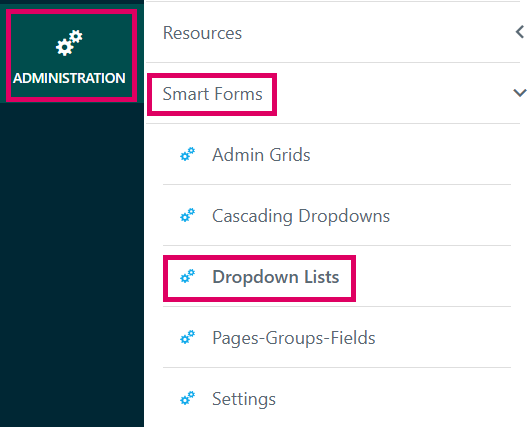
Navigate to Administration → Smart Form Configuration → Dropdown Lists. This page lists every defined Dropdown List in the system.
Was this article helpful?
That’s Great!
Thank you for your feedback
Sorry! We couldn't be helpful
Thank you for your feedback
Feedback sent
We appreciate your effort and will try to fix the article