Cascading Dropdowns (internally known as "Hierarchical Dropdown Lists") is a Smart Form configuration feature in Cora PPM that lets administrators build multi-level, parent-controlled dropdown lists. Instead of presenting a user with a single flat list of options, Cascading Dropdowns present a sequence of dropdown fields where the choices available in each subsequent dropdown are filtered by what was selected in the preceding one.
What problem it solves
Standard dropdowns show every available option regardless of context. With Cascading Dropdowns, an administrator can model real-world hierarchical relationships — for example: Region → Country → City, or Business Unit → Department → Team — so that a user picking "Europe" in the first dropdown only sees European countries in the second, and only relevant cities in the third.
How it works conceptually
A Cascading Dropdown configuration consists of three tightly-linked pieces:
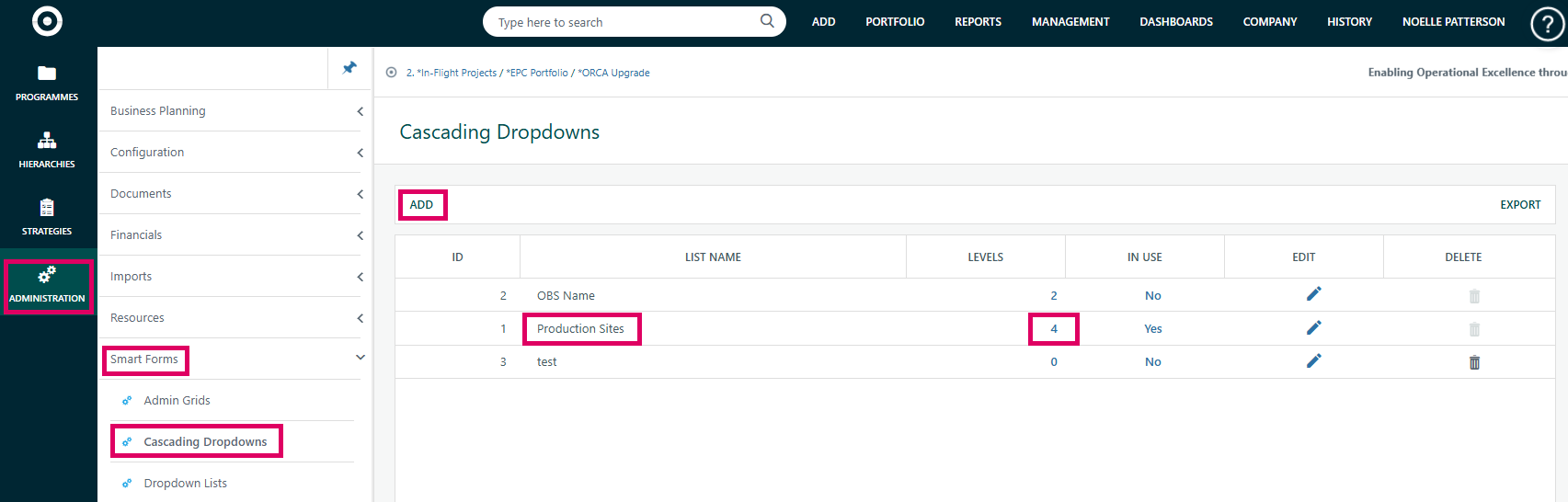
- The List – A named container (e.g. "Location Hierarchy") that groups the whole chain. Lists are given unique names, and administrators can see how many levels they contain and whether the list is already in use on a form.
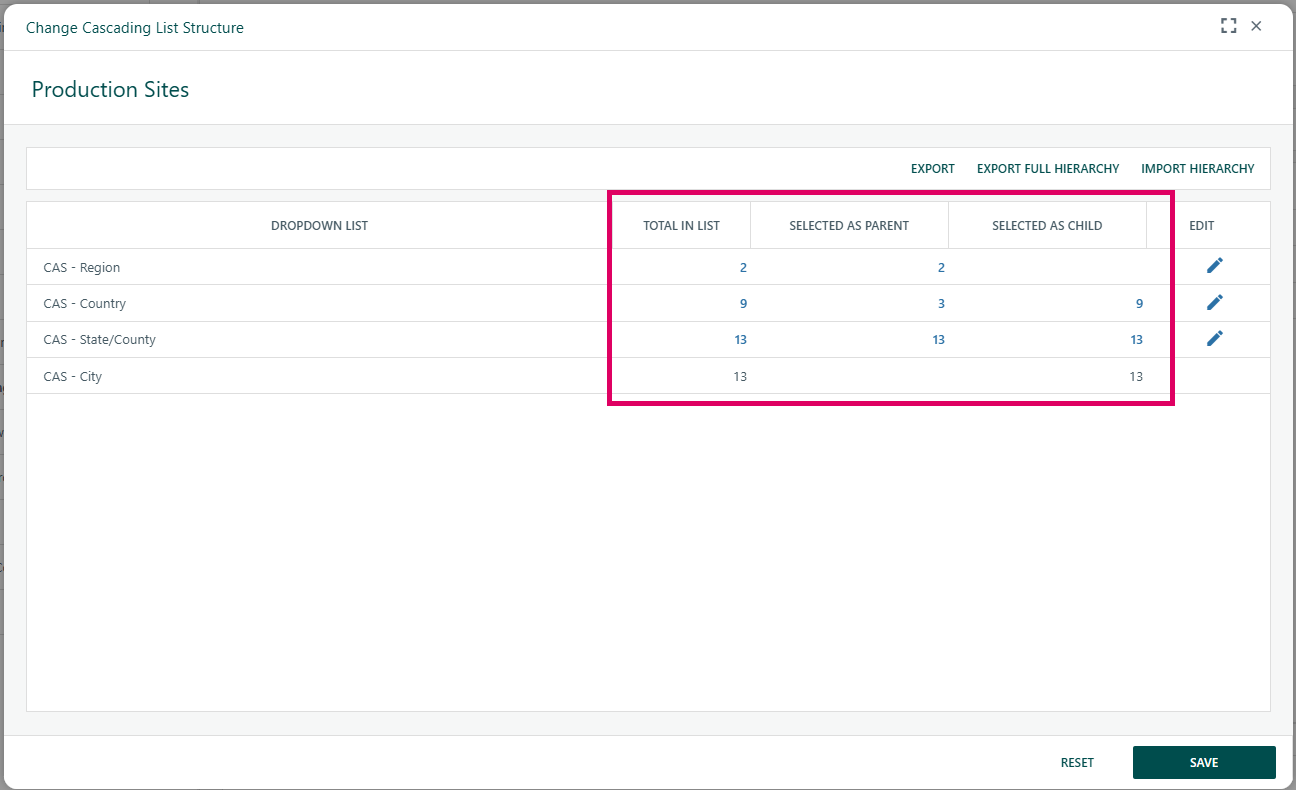
- Elements (Levels) – Each level maps to an existing Custom Field (a standard dropdown field whose items are already defined in the system). The order in which elements are arranged defines the cascade direction: the first element is the topmost parent, the last is the lowest child. Administrators can drag and drop the elements to reorder them, provided the list is not already in use on a form.
- Links – For each parent-level item, an administrator explicitly selects which child-level items are valid beneath it. For example, under "Europe" (parent) the administrator checks "UK", "France", "Germany" (children). This is the "wiring" that makes the cascade work at runtime.
What users experience
When a project form contains a Cascading Dropdown custom field, the user sees a series of dropdowns rendered in order. Selecting a value in the first dropdown immediately filters and enables the second, selecting in the second filters the third, and so on. Only the bottom-most level's selection is saved as the field value on the project record.
How it is linked to a Smart Form field
A Cascading Dropdown is activated on a Dropdown type custom field in the Smart Form field configuration. The administrator ticks a "Cascading" checkbox on that field and selects which Cascading Dropdown List should govern it, as well as which level of that list the field represents (i.e. which specific dropdown in the chain this field is the "leaf" for).
Import / Export
An entire hierarchy structure can be exported to Excel or imported from an Excel file (.xlsx). The import validates that every value in the file matches a known item in the relevant list, that parent values are populated before child values on each row, and produces a log file showing which rows were processed and which were skipped.
Was this article helpful?
That’s Great!
Thank you for your feedback
Sorry! We couldn't be helpful
Thank you for your feedback
Feedback sent
We appreciate your effort and will try to fix the article