System Constants & Images is a configuration area within Cora PPM that lets system administrators define two types of shared, reusable data objects: System Constants and Custom Images. These objects are stored centrally and can be referenced anywhere across the platform that supports formula expressions — including Smart Form fields, custom-detail calculated fields, group display/submit formulas, workflow logic, KPIs, and Infographic widgets.
System Constants
A System Constant is a named, typed value that is defined once by an administrator and can be consumed by any formula in the system using the token SC<id> (e.g. SC3). This means that instead of hard-coding a number, date, text, or boolean value directly into dozens of formulas, administrators maintain a single authoritative entry. When the constant's value changes, every formula that references it automatically picks up the new value through a background full-recalculation job.
Constants support four data types:
- Text – A string value (up to 5,000 characters), used in text formulas.
- Numeric – A decimal number, used in arithmetic formulas.
- Date – A calendar date (validated against the system's expected date format).
- Checkbox – A true/false boolean.
There is also a special built-in constant, SC0, which always holds the system's application URL. This is maintained automatically in System → General → Settings and cannot be edited from the System Constants screen. SC0 is specifically used as the base URL prefix for image path expressions (see below).
Constants can be archived (flagged as inactive for clarity, but still functional in formulas) and can carry Notes for administrator documentation. Each constant shows an "In Use" indicator. If any formula references the constant — whether on a Smart Form field, a custom group, a page, a workflow, or a register field — the constant is locked against deletion, and a tooltip lists all the fields using it. If the constant is referenced by a custom register calculated field, it is also locked. Only constants that are completely unreferenced can be deleted.
When a constant is updated, the system triggers a full background recalculation (CustomDetail.FullReCalc(True)) so that every project's Smart Form values that depend on the constant are recomputed with the new value.
Custom Images
A Custom Image is an uploaded picture file (JPG, JPEG, PNG, or GIF) that is given a description and stored in the system. It is then addressable in formulas using the token IM<id> (e.g. IM1). The standard pattern for embedding an image into a formula-computed HTML field is:
'<img src="' + IM1 + '" />'
At formula-evaluation time, IM1 resolves to the full URL path of the image file (constructed as SC0 + 'Images/CustomImages/<id><extension>'), so the resulting string is a complete, valid HTML image tag.
Images also have a "For Templates" flag which marks them as available for use in document/report templates. Images that are used in a Custom Dropdown List as icon images must be no larger than 16×16 pixels; if the image is already in use in such a dropdown, uploading a replacement that exceeds those dimensions is rejected with a validation error.
Like constants, images show an "In Use" indicator and cannot be deleted if referenced by any formula or by a custom dropdown list. All adds, updates, and deletes are recorded in the audit history.
Both features use an application-level in-memory cache (SystemConstantsList and ImageList) so that formula-evaluation pipelines can look up constants and images without hitting the database on every project recalculation. The cache is invalidated (and optionally propagated to partner API servers) whenever any constant or image is changed.
Where to Find It
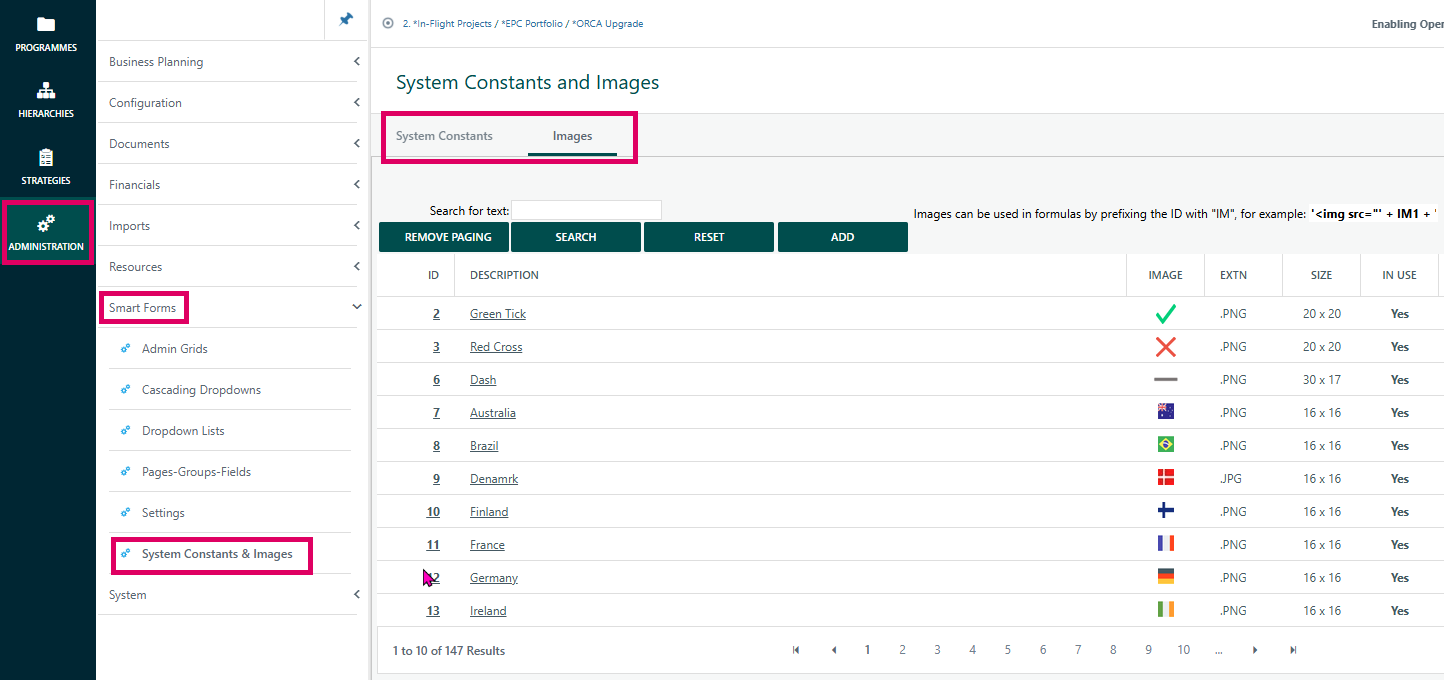
Navigate to Admin → System Constants and Images (the page is titled "System Constants and Images"). The page has two tabs:
- System Constants – Lists and manages all named constants.
- Images – Lists and manages all uploaded image files.
Was this article helpful?
That’s Great!
Thank you for your feedback
Sorry! We couldn't be helpful
Thank you for your feedback
Feedback sent
We appreciate your effort and will try to fix the article