Project Profiles
User Profiles (also called Project Profiles) on a project exist to control what each person or group of people is allowed to see and do within that specific project. Rather than giving everyone the same level of access, profiles let administrators fine-tune permissions so that, for example, a read-only viewer cannot accidentally edit the schedule, a finance reviewer can see cost data but not modify tasks, and only the Project Owner has full control.
A profile is essentially a named set of permission switches — up to ~96 individual on/off rights covering areas such as editing tasks, viewing cost reports, submitting timesheets, managing risks, updating cashflow, changing project phases, and many more. Every user or group assigned to a project is given exactly one profile, and the system enforces those limits on every page they visit.
There is also one special built-in profile — Project Owner — which bypasses all individual permission checks and grants complete control. The system prevents the last Project Owner from being removed from a project to ensure there is always at least one person who can manage access.
To propergate rights allows that user the same level of to access to any sub-projects.
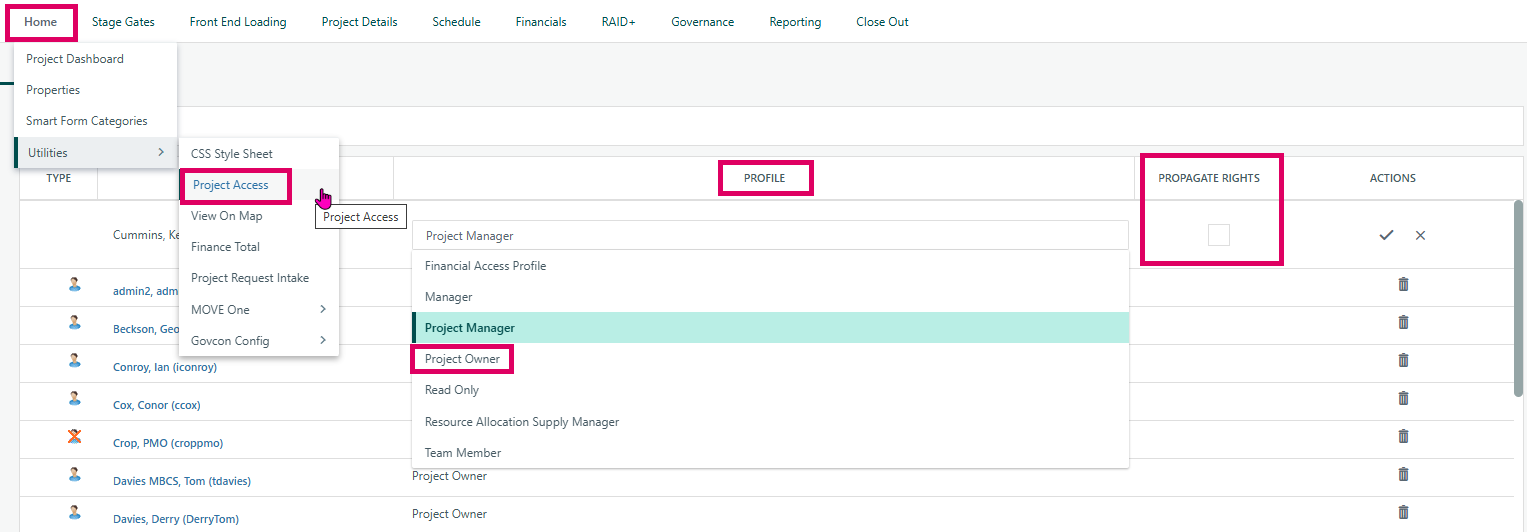
How to assign a profile to a user or group on a Project:
- Navigate to the project and open the Project Access Rights page .
- Switch between the Users tab and the Groups tab.
- Click Add to assign a new user or group, select them from the dropdown, choose a profile from the Profile dropdown, optionally tick Propagate Rights to cascade the profile to child projects, then save.
- To change an existing assignment, click the row to edit it in place and select a different profile.
- To remove access, use the delete action (the system will warn you if you are about to remove the last Project Owner).
During project creation/copy:
- The Create Project also has a Rights step, where the same user/group/profile assignments are made before the project is finalised.
Was this article helpful?
That’s Great!
Thank you for your feedback
Sorry! We couldn't be helpful
Thank you for your feedback
Feedback sent
We appreciate your effort and will try to fix the article