Cora PPM: User Types & User Management
Related Pages: [link to Licensing overview, Custom Roles reference, if they exist]
Overview
Purpose / Scope
Cora PPM has a well-defined user-type system that controls what each person can see and do within the platform. Every user account is assigned one of five primary user types, and separately can be given one or more specialised custom roles that unlock additional functional areas..
The Five Primary User Types
Every Cora PPM account gets one of these five types. Here's what each one can do:
- Administrator — This is the highest-privilege user type. An Administrator has full access to all areas of the application, including system configuration, user management, and all project data. There must always be at least one Administrator in the system — the platform prevents you from demoting the last remaining admin. Administrators count against the "Full Licence" count.
- Full User (Full Application User) — A Full User has access to the core PPM features — projects, tasks, timesheets, reports, and so on — but does not have access to administrative configuration screens. They have the "is_user" flag set (without "is_admin"). Full Users also consume a Full Licence from the organisation's licence allowance.
- Resource Only (Read-Only / Monitor) — A Resource Only user is a limited-access account. This type is typically used for people who need to report their time against tasks but do not need the full breadth of project management functionality. Resource Only users are counted against a separate "Resource Only Licence" pool, distinct from Full Licences.
- Portal Only — A Portal Only user has no access to the main Cora PPM application. Instead, they are restricted exclusively to the Portal module (a separately configurable lightweight interface). Portal Only users only appear as an option when at least one Portal has been configured in the system. They do not require Full or Resource Only licences..
- Inactive (Disabled) — An Inactive user cannot log in. Their account is soft-deleted. The account remains in the database for historical audit trail purposes but consumes no licence. Inactivating a user instead of deleting them preserves all of their historical work, timesheet entries, and assignments for reporting and the audit trail.
The "User Administrator" designation
Separately from the five types above, a user can be marked as a User Administrator. A User Administrator is a Full or Admin user who has been delegated the ability to manage other users — specifically, they can be given restricted access to manage only certain groups of users (controlled by "User Type Groups"). This is not a sixth user type; it is a cross-cutting privilege layered on top of one of the five types above.
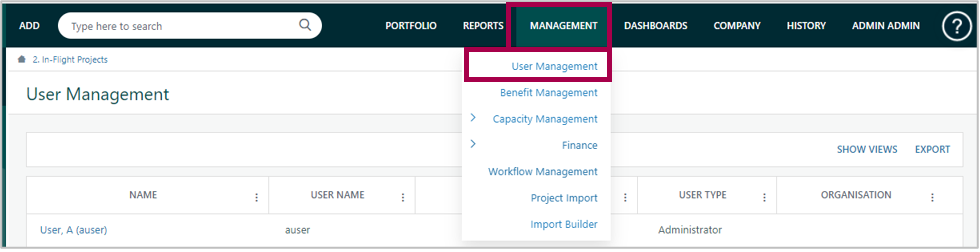
Note: Not all administration level user settings are available. A User Administrator cannot make another user an Administrator nor can they add users to their group.
Custom Roles (Functional Permissions)
Beyond the primary type, any Full User or Administrator can be granted one or more Custom Roles. These roles unlock specific functional capabilities across the platform. Examples include: Timesheet Administrator, Portfolio Manager, Resource Manager, Finance Manager, Benefits Manager, Workflow Manager, Capacity Insights, Second Level Project Time Approver, Project Import, File Import, and many more. Custom roles are configured by system administrators and can be selectively activated or deactivated depending on which modules the organisation has licensed. Certain custom roles (e.g. Honeywell-specific roles, Workflow Manager, Capacity Insights) are only present if the relevant licence or feature toggle is active.
Was this article helpful?
That’s Great!
Thank you for your feedback
Sorry! We couldn't be helpful
Thank you for your feedback
Feedback sent
We appreciate your effort and will try to fix the article