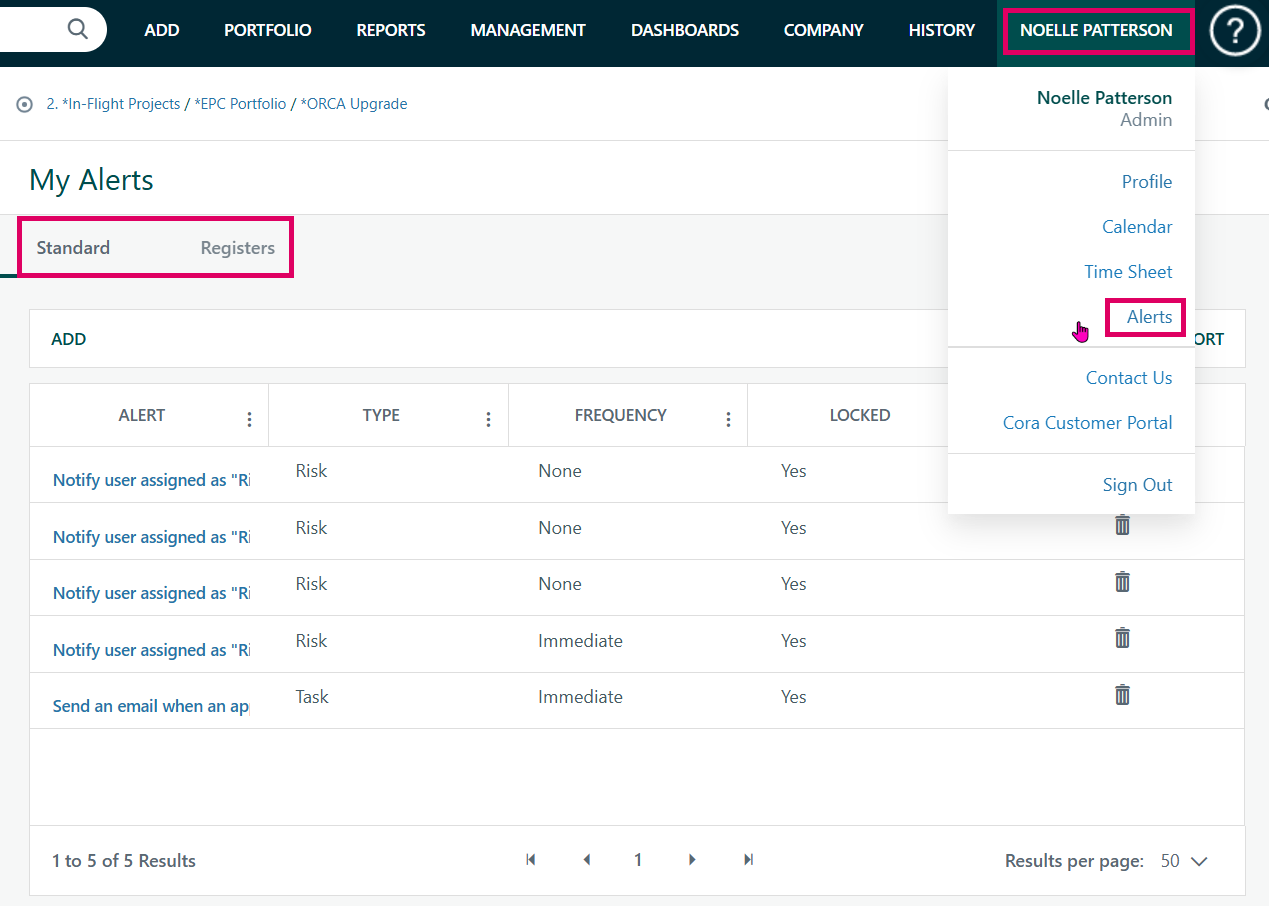
Custom Alerts Based on Project or Register Attributes is a rule-based email notification system in Cora PPM that lets administrators automatically send emails — and optionally update data — when a project or a register record reaches a specific condition. Unlike the built-in Standard or Register alert tabs (which use pre-defined event triggers), Custom Alerts give administrators complete control over when an alert fires and what it does.
The Two Alert Types
- Project Alerts
A Project alert monitors every active project in the system. The administrator writes a boolean formula (the Condition) using the same formula engine used elsewhere in Cora PPM — referencing project custom fields (prefixed ID/PV/AC), project variables, system constants, user variables, and so on. Each scheduled run evaluates the formula for every project. When it evaluates to true, the alert fires.
The alert email's Subject and Body are also formulas — they can embed dynamic tokens from project details (Project ID, Project Name, Project Status, Project Type) and from any project custom fields (Text, Numeric, Date, Dropdown). For example, the body might say "Project [PD - Project Name] has exceeded its budget threshold."
In addition to sending an email, a Project alert can be configured to update a Project Attribute — for example, automatically flip a project's status field, change a text/date/number custom field, or reassign a User List/User Role field to a specific value when the condition is met.
- Register Alerts
A Register alert is scoped to a specific custom register (e.g., Risks, Issues, or any administrator-defined register). The administrator selects which register, then builds the condition using an expression editor that draws on that register's own custom fields, plus parent-register fields and project information. The condition is evaluated row-by-row: every record in the register is tested. When a record satisfies the condition, the email fires and (optionally) a Register Attribute (a field on that specific register record) is automatically updated.
Register alert emails also support dynamic tokens: Project Details tokens (PD - *), Custom Detail tokens (CD - *), and Register Field tokens (RF - * pulled live from the matching register record).
Triggering Behaviour
Each alert has a Trigger setting:
- Once — the alert fires exactly once per project/record combination the first time the condition becomes true. If the condition later becomes false, the "fired" marker is cleared, allowing it to re-arm and fire again if the condition becomes true again.
- Daily — the alert fires every time the scheduled job runs, for as long as the condition remains true.
Recipients
Administrators can target any combination of:
- Project user fields — people listed in project custom fields of type User Details, User List, or User Role
- Register user fields (Register alerts only) — people named in register User-type fields
- Roles — all users assigned a specific system profile/role
- Specific users — individually named users
- A custom email address — a hard-coded address (e.g., a shared inbox)
The Update Attribute Feature
When a condition is met and an email is dispatched successfully, Cora PPM can also write back a value to the record. For projects this can update: a Text, Numeric, Date, User List, User Role, or Project Status custom detail field. For register records this can update: a Text, Number, Date, Single-Select User List, or Multi-Select User List field — to a value set at design time by the administrator.
Email Links
The alert email can include a deep link back into Cora PPM:
- No Link — plain email, no clickable link
- Project Dashboard — links directly to the triggering project's dashboard
- Item (Register alerts only) — links directly to the specific register record that triggered the alert
Active/Inactive Control
Each custom alert has an Active toggle. Inactive alerts are excluded from every scheduled run.
Audit Trail
All creates, edits (condition changes, recipient changes, attribute changes), and deletes are written to the Cora PPM configuration history log so they can be reviewed.
Was this article helpful?
That’s Great!
Thank you for your feedback
Sorry! We couldn't be helpful
Thank you for your feedback
Feedback sent
We appreciate your effort and will try to fix the article