Registers: Grid View
Grid View (also called a Saved View or Grid State) is a personalization feature built into every Register grid. It lets users configure the grid exactly how they want it — choosing which columns are visible, how they are ordered, which filters are active, how the data is sorted and grouped — and then save that entire configuration as a named View that can be reloaded at any time with a single click.
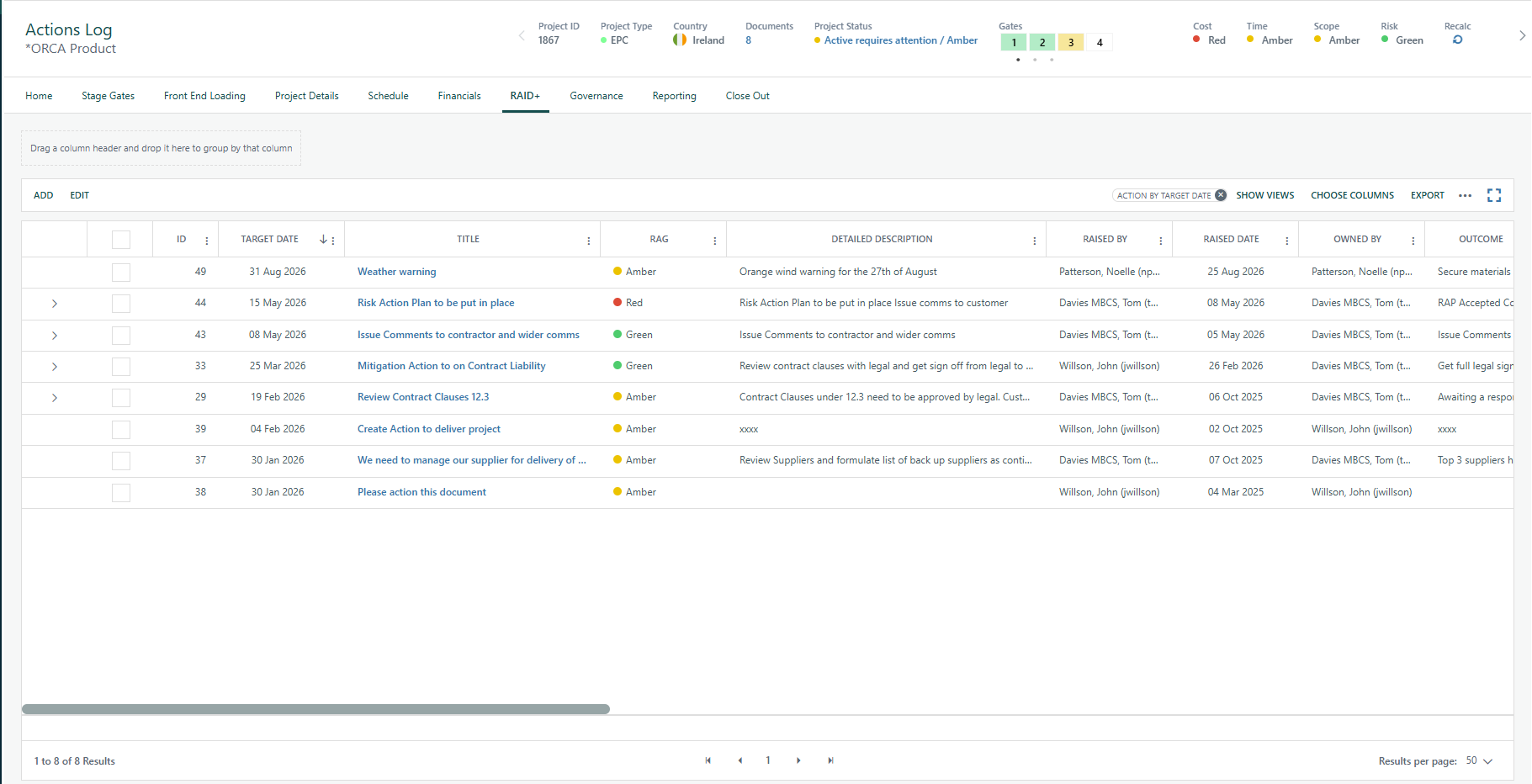
Grid View Features
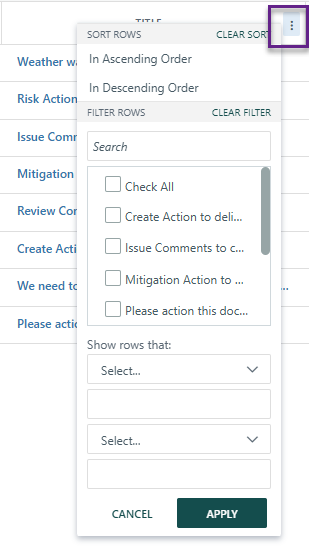
Filtering
Clicking any column header opens a filter menu where users can apply one or two conditions (contains, equals, greater than, date ranges, etc.), narrowing the rows displayed. Active filters are visually indicated on column headers.
Sorting
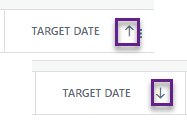
Clicking a column header (or using the header context menu) sorts rows in ascending or descending order. Multiple sorts can be applied. A "Clear Sort" option resets all sorting.
Grouping
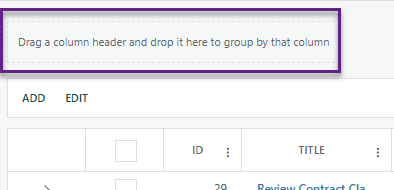
Users can drag any column header into the Group Panel (a designated drop zone at the top of the grid) to group rows by that column's values. Multiple groupings are supported.
Column Chooser
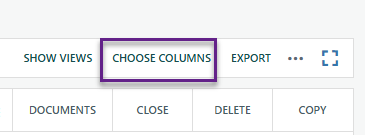
The "Choose Columns" button opens a modal panel listing all available columns with checkboxes. Users tick or untick columns to show or hide them. Columns can also be reordered by dragging them within the chooser. The chosen layout is saved per user, per grid, per active view.
Creating & Maintaining Views
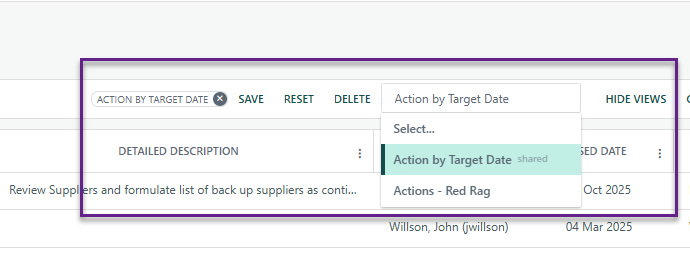
- Saving a View: After configuring the grid to the desired layout, clicking "Show Views" expands the Views toolbar, and then "Save" opens a small modal where the user names the view and optionally marks it as "Shared" (visible to all users of the system). The complete grid state — column visibility, order, widths, sort expressions, filter expressions, group-by expressions, and paging — is serialized and stored in the database under that name.
- Loading a Saved View: The Views toolbar contains a dropdown listing all personal and shared saved views. Selecting a view immediately restores the grid to that exact state. The last-used view is automatically remembered so returning to the register re-applies the same view without manual selection.
- Resetting: The "Reset" button clears the active view and returns the grid to its default (unfiltered, unsorted, all-columns) state.
- Deleting: The "Delete" button removes the currently selected saved view. Users can only delete views they own (shared views owned by others show the Delete button as disabled).
Note: Saved views are scoped per-user, per-register, per-page, so views saved on the Risk Register do not appear on the Issue Register, and each user's personal views are private unless shared.
Expand
The Expand button hides the top and left navigation bars and enlarges the grid, giving you more screen space to review your register items.
Inline Editing
Single Row
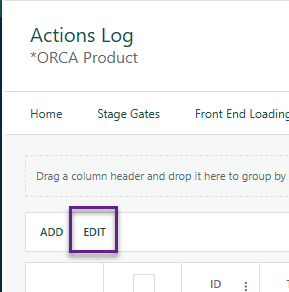
Clicking the Edit button in the register's toolbar puts the grid into an edit mode where each row becomes directly editable in place. Supported field types include dates, numbers, text fields, single-select dropdowns (status lists, custom lists, user lists, task lists, system data), and checkboxes. The "Description" field is never bulk-editable to prevent accidental mass overwrites. Fields configured by an administrator as read-only (via an Allow Changes Formula) are excluded from editing.
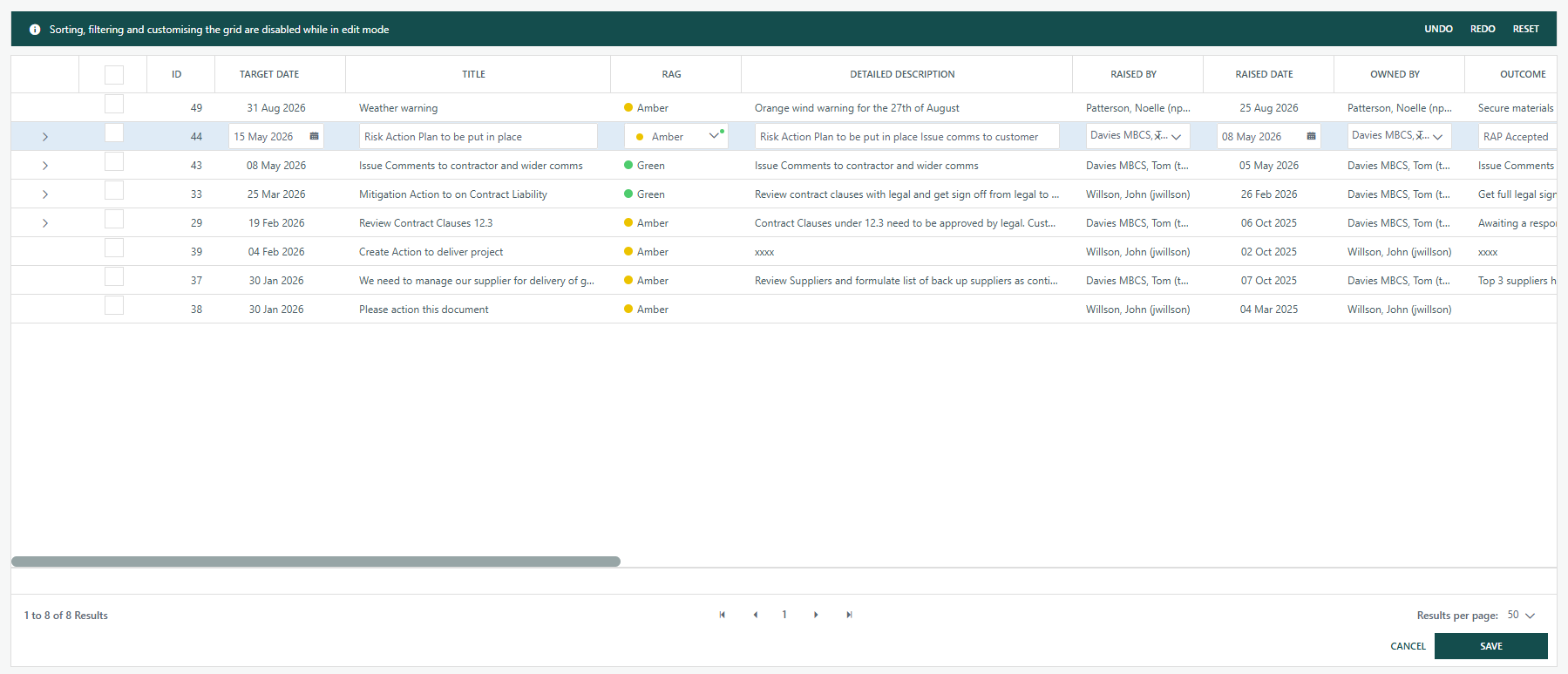
Bulk (Multiple) Row
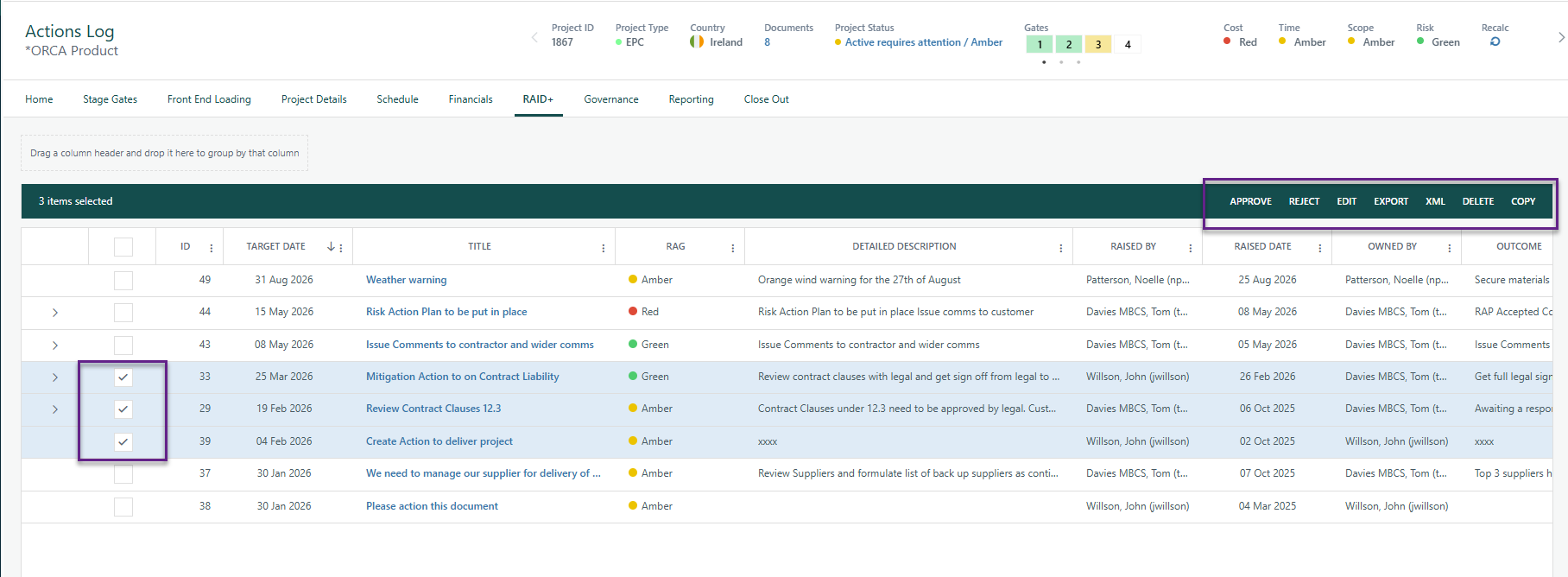
When the grid is in edit mode, users can tick the checkbox in the leftmost column for any number of rows, then use the Edit link that appears in the edit toolbar (next to Undo, Redo, Reset, Delete, Export). Clicking this opens a "bulk edit" panel where a single change to a field value is applied to all selected rows simultaneously.
When changes are saved (by clicking Save in the bottom footer, or the save control within the edit toolbar), each modified record is written to the database one by one, alerts are dispatched, and the audit history is updated. A success message shows how many fields were updated.
Note: The inline edit feature is only available when the register administrator has explicitly enabled it. It is also disabled automatically when: the grid is grouped, the user is viewing the register in a currency other than the project's native currency (base-currency view is read-only), the user lacks "Can Edit" rights for that register, or an individual record is locked (e.g. in an active workflow)
Was this article helpful?
That’s Great!
Thank you for your feedback
Sorry! We couldn't be helpful
Thank you for your feedback
Feedback sent
We appreciate your effort and will try to fix the article