Register: Workflow
Workflow availability is configured at the register level by an administrator who links a workflow definition to the register (and optionally to specific projects). Not all registers have a workflow — only those that do will display the submit and approval buttons.
Submitting a Register
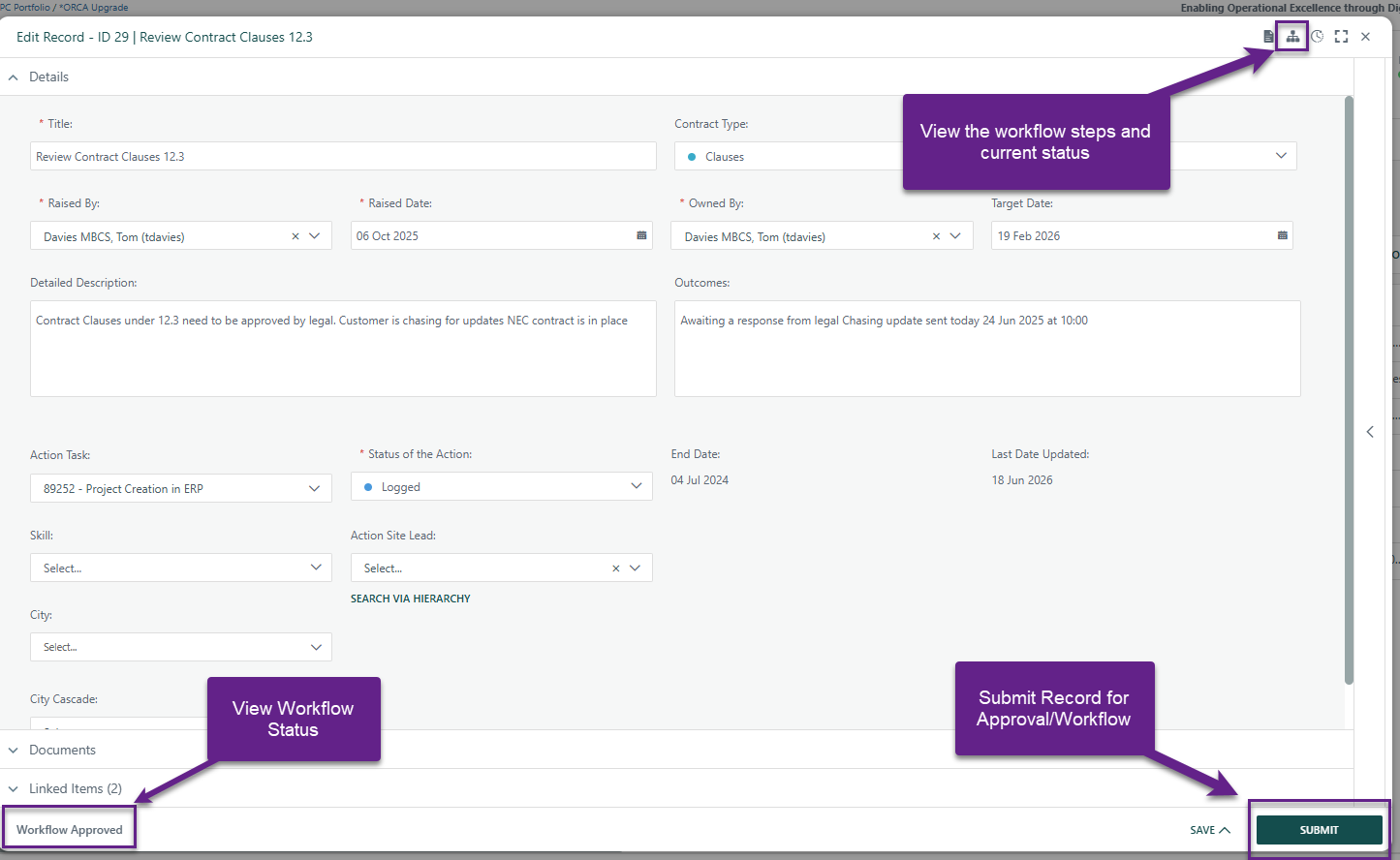
When a user opens an individual register record (by clicking on its Description in the grid), the system automatically checks whether that record is eligible for a workflow. If it is, a Submit button appears in the modal footer. Clicking Submit first saves any outstanding field changes, then initiates the workflow instance. The record is then can be locked for inline editing while the workflow is active, and the workflow columns in the grid (Workflow Name, Workflow Status, Submitted By, Submitted Date) are immediately populated.
Bulk Submission
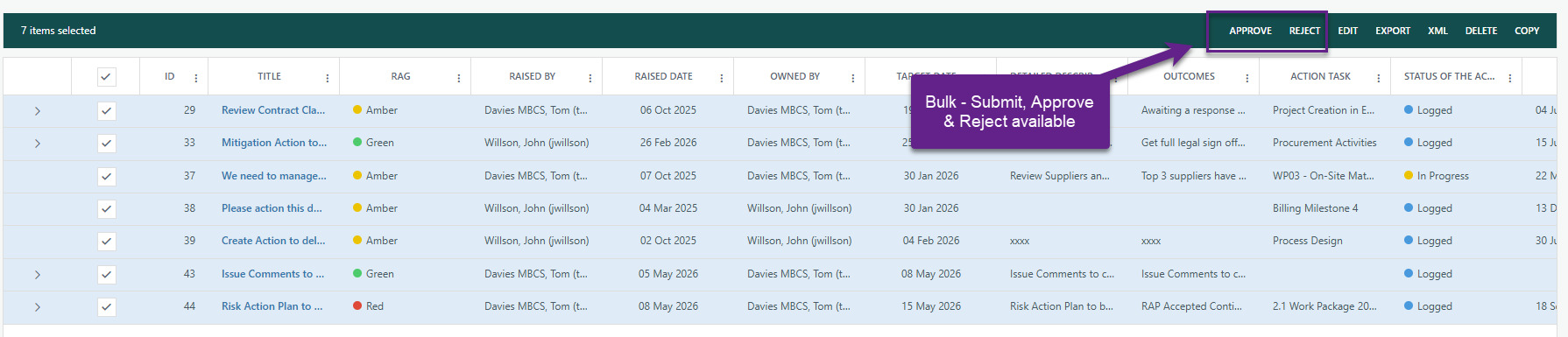
When the "Submit to Workflow" feature toggle is on and the user has edit rights, a Submit to Workflow toolbar button appears above the grid. The user selects one or more records using the checkboxes on the left, then clicks the button. The system submits each selected record to its workflow in parallel. Records that are already in an active workflow or have no workflow available are automatically excluded (their checkboxes become disabled or the button becomes greyed out).
Workflow Status
The register grid displays four dedicated workflow columns — Workflow Name, Workflow Status, Workflow Submitted By, and Workflow Submitted Date — for every record that has an active or completed workflow. These columns appear alongside the regular register fields and are visible whenever a workflow has been associated with the register.

Opening the record detail modal while a workflow is active also shows contextual workflow information in the modal header/footer area. If the current user is a designated approver for the record's current workflow step, Approve and Reject buttons appear in the footer. If the step requires re-authentication or has multiple approvers, the system routes through the appropriate re-authentication or multi-step approval dialog.
Approving or Rejecting Register Workflows
Depending on configuration, the approval step may be:
- Single approver — clicking Approve/Reject shows a confirmation toast, then records the decision directly.
- Multiple approvers — all approvers must individually vote; the step advances only when the required votes are reached.
- Re-authentication required — the user is asked to re-enter credentials before the vote is recorded (Teleflex-specific).
- Multi-stage approval — if the workflow has multiple sequential steps, each step is shown as a separate modal before the step completes.
When a workflow finishes (approved or rejected), the workflow engine can automatically update register field values (such as Status) and can send notification emails as configured by the administrator. The record's Locked flag (if configured by administrator) is managed throughout — locked records cannot be edited inline or deleted while a workflow is active.
Was this article helpful?
That’s Great!
Thank you for your feedback
Sorry! We couldn't be helpful
Thank you for your feedback
Feedback sent
We appreciate your effort and will try to fix the article