Registers: Exporting Registers
Cora PPM provides three distinct ways to export register data, depending on where you are in the application and what output you need:
Excel Export from the Register Grid (.xlsx)
This is the primary export method, available directly from the register grid toolbar. When you click Export, the system uses a custom EPPlus-based exporter that streams an .xlsx file to your browser. The export respects whatever filters, sorts, and column selections are active on screen — only the data you can currently see is exported.

Selective row export is also available: if you tick rows using the checkbox column before clicking Export, only those selected rows are included in the file.
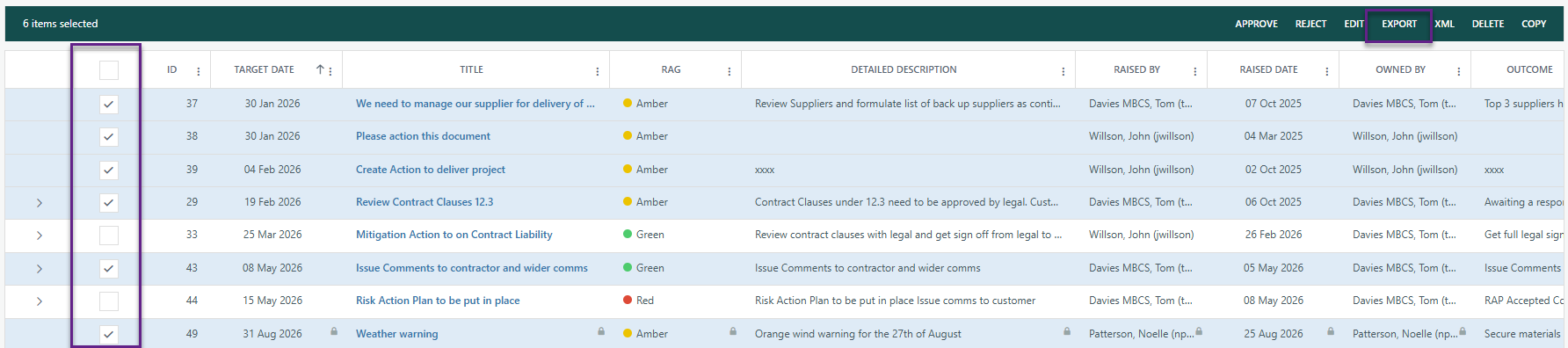
Bold headers are applied automatically to the first row of the spreadsheet for readability. Column widths are auto-fitted to content. For large datasets (over 2,000 rows), only the header row is auto-fitted to keep export times acceptable.
Nested grid (child rows) in the Excel export
If the register has one or more nested grids configured (e.g. linked Tasks, linked register records, or cost register entries under each parent row), the Export button gains a dropdown offering two choices:
- Export all rows (parent + nested) — produces a single-sheet
.xlsxwhere each parent row is followed by an indented section for each nested grid type. Each nested section has a bold/italic sub-header label, a bold column-header row, and then the child data rows. Parent rows with no child data are not given a sub-section. The layout mirrors the on-screen nested grid display. - Export only parent rows — the original behavior, unchanged.
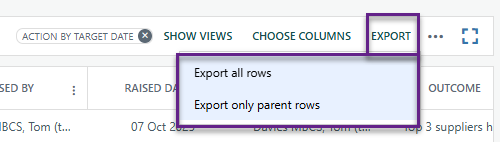
If the register has no nested grids, only a plain Export button appears (no dropdown).
Access masking is applied to nested data exactly as it is on-screen:
- Linked registers: users without access to a linked register's project see only the Description, Owned By, and Status columns for those linked items; all other columns are blank.
- Tasks: users without access to a linked project have their Start Date, Finish Date, and Percent Complete blanked out.
- Cost registers: no per-user masking is applied (matching on-screen behavior).
XML Export from the Register Grid (.xml)
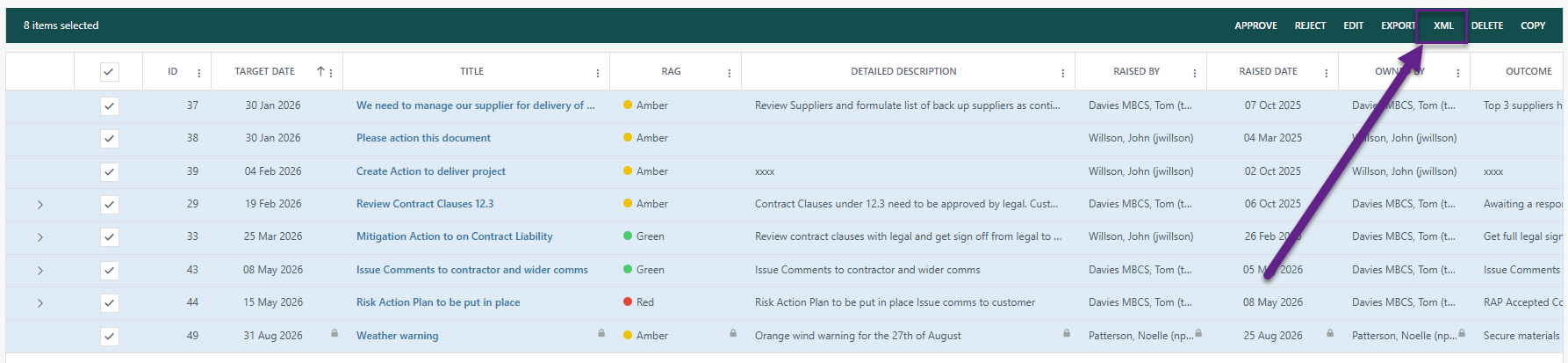
The same register grid toolbar also offers a Download XML button. This exports register data as a structured XML file, with each register record forming a <Row{ID}> element containing child elements for each column. Multi-select fields are wrapped in a parent element containing individual child elements per selection.
Excel Export from the Register Analysis Report
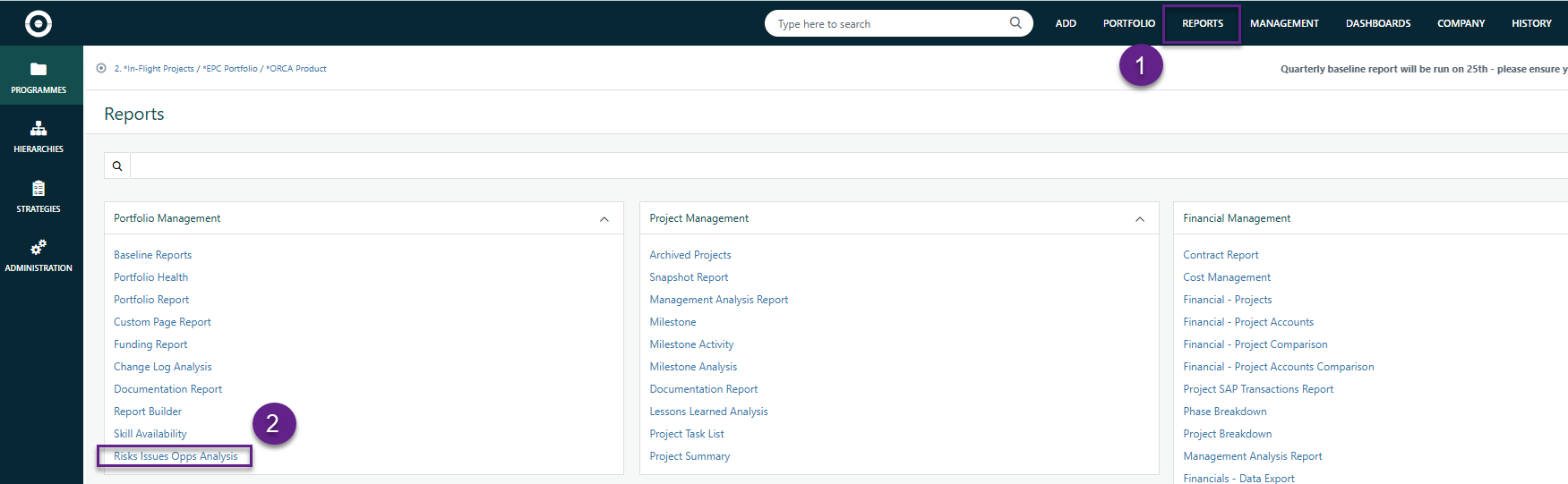
The Register Analysis Report (accessible from the Reports area) also provides an Excel export. This report allows you to configure advanced filters (query builder), select specific columns (headings), choose sort order, include sub-projects, include history, and optionally include child register records. When you click Export → Excel from this report:
- If the report has detail/child tables (e.g. child register records), a multi-sheet or detail-table Excel export is produced.
The Register Analysis Report export honors all report settings including project selection, sub-project inclusion, status filters, currency selection, and column ordering.
Administrators control whether the Register Analysis Report is available in the Reports tab.
Was this article helpful?
That’s Great!
Thank you for your feedback
Sorry! We couldn't be helpful
Thank you for your feedback
Feedback sent
We appreciate your effort and will try to fix the article