The Cost Book is Cora PPM's core project financial management and cost control tool. It gives project teams a single, structured view of project costs, from the original budget through real-time actuals, commitments, and the forward-looking Estimate at Completion (EAC).
Costs are tracked as cost lines — one row per cost item, keyed to an account code and optionally a work package, task, award, building, or location. Each line carries Baseline Budget, Approved Budget Transfers, Commitment, Actual Cost, Cashout, Estimate to Complete, and Estimate at Completion (EAC), plus variance columns. It lives inside the project's Advanced Financials module alongside Cashout Forecast, Transactions, and Cost Book Grid, and rolls up into the Costbook Portfolio Report for multi-project views.
Use it to answer: How much will this project ultimately cost? It also provides a full audit trail of how that estimate has changed.
Cost Book — End User Guide
Cora PPM · Advanced Financials
Cost Book is the project-level cost-control screen in Cora PPM. This guide explains what it does, why finance and delivery teams rely on it, how it applies across manufacture-to-order, pharma, capital, and government-contracting programs, and how to use the screen line by line.
1. What is Cost Book?
Cost Book is where a project's costs are tracked at the level of individual cost lines — one row per cost breakdown item, keyed to an account code and, optionally, a work package, task, award, building, or location. For every line, Cost Book shows Baseline Budget, Approved Budget Transfers, Commitment, Actual Cost, Cashout, Estimate to Complete, and Estimate at Completion (EAC), plus variance columns that compare EAC against budget and against actuals plus remaining forecast.
Cost lines are not only entered manually. They are fed automatically from custom-register records, including Change Requests, Budget Transfers, Project Change Notices (PCNs), and Trends, so the financial impact of a change flows directly into the line it affects. Cost Book lives inside the project's Advanced Financials module, alongside Cashout Forecast, Transactions, and Cost Book Grid, and rolls up into the Costbook Portfolio Report for multi-project views.
2. What It Shows
The Cost Book is organized as a hierarchical grid based on the project's Cost Breakdown Structure (CBS / Account Code hierarchy).
Level | Description | Examples / Notes |
|---|---|---|
Account Group | Highest-level cost category. | Civil, Electrical, Procurement |
Account Subgroup | Mid-level breakdown within each group. | Used to organize related account codes. |
Account Code / CBS Code | Individual line item and ledger entry point for financial data. | Where transactions are captured and rolled up. |
Job Code (Internal Order) | Optional top-level hierarchy when Rollup Internal Order is enabled. | Costs are organized first by internal charge code, then by CBS structure. |
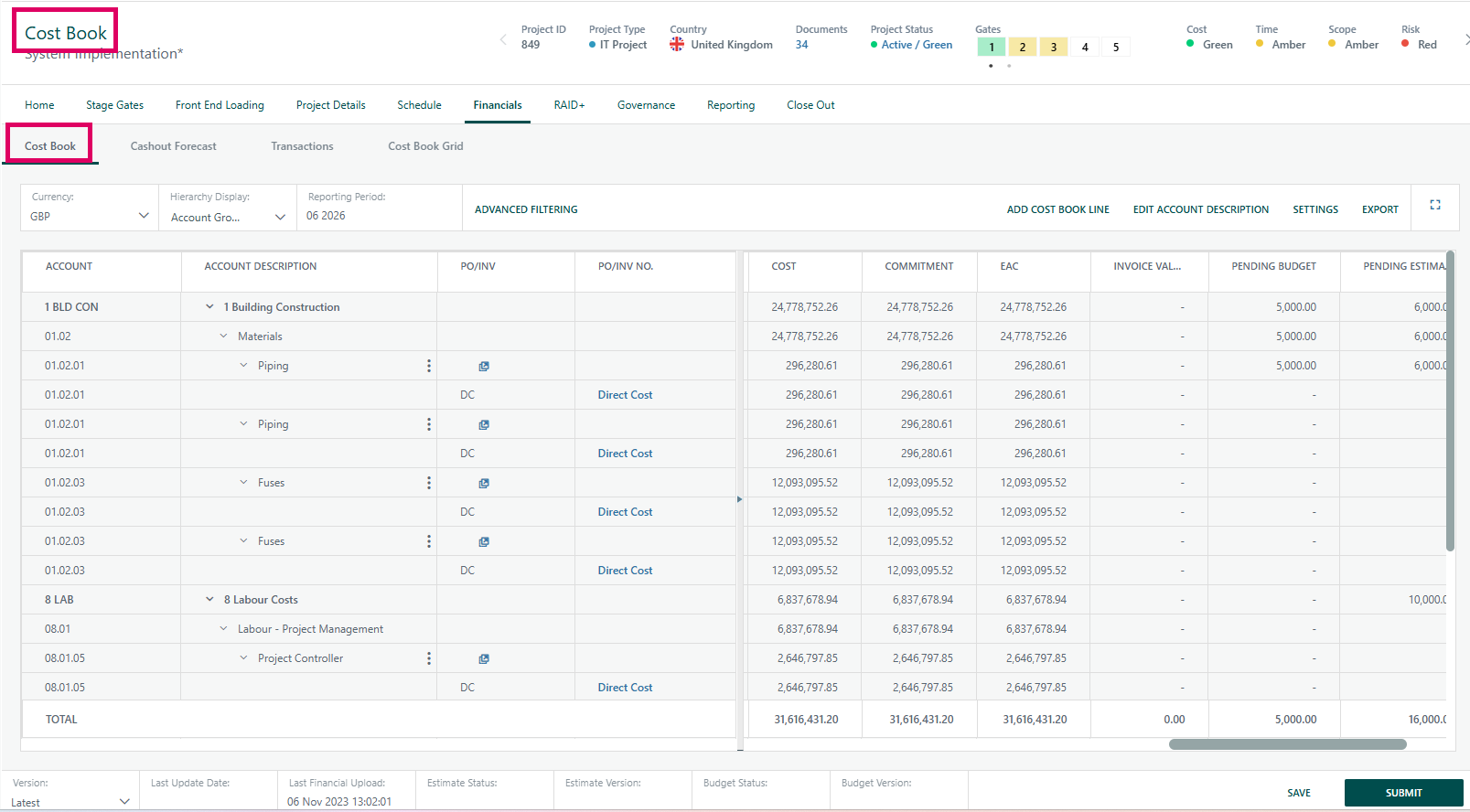
Each account-level line has financial columns divided into two panes:
- Left Pane (Identification): CBS code, description, PO/invoice number, WIP ID, job code, task number, award number, location, building, comments, person responsible, and related identifiers.
- Right Pane (Financial Values): Current Baseline Budget, Commitment, Actual Cost, Invoice Value, Accruals, Down Payments, VOWD, Remaining Commitment, Scope to Order, EAC, Previous EAC, Estimate to Complete, Pending/Approved Estimates, Pending/Approved Budgets, Approved Budget Transfers, Approved Changes, Approved Trends, Risks and Opportunities, Baseline Variance, CapEx/OpEx breakdowns, Actuals + Remaining Forecast, Delta EAC vs Control Estimate, Delta EAC vs Actuals + Remaining Forecasted, and more.
3. Why Customers Use It
Cost Book replaces spreadsheet-and-email cost reviews with one governed, line-level grid where budget, forecast, actuals, and commitments all come together.
Benefit | Why It Matters |
|---|---|
One Grid, Not Five Sources | Budget, forecast, actuals, and commitments sit on the same row per cost line, instead of being reconciled manually from POs, invoices, and separate spreadsheets. |
Variance You Can See, Not Calculate | Delta EAC columns are color-coded so reviewers can spot favorable, unfavorable, or neutral movement during the meeting, not at month-end close. |
Governed Forecast and EAC Submission | Forecast and EAC numbers move through structured, auditable workflows with approvals, giving every submission a status and an owner. |
CapEx/OpEx Without Side Reconciliation | Every financial column breaks into Total, CapEx, and OpEx rows automatically, so capital-intensive programs can report to corporate finance without a manual split. |
Portfolio Cash Visibility | The Costbook Portfolio Report aggregates cashout across every project by year, from the current year through +7 and an 8-and-beyond bucket. |
Built From What Is Already Happening | Change Requests, Budget Transfers, PCNs, and Trends post directly to cost lines, keeping Cost Book current with project activity. |
4. Line Types
Under each Account Code line, the system automatically pulls in categories of financial transactions. The full set of Cost Book line types is summarized below.
Family | Member / Line Type | Description |
|---|---|---|
Hierarchy / Structure Lines | Group | Top-level Account Group row in the CBS tree. |
Hierarchy / Structure Lines | SubGroup | Account Sub-Group nested under a Group. |
Hierarchy / Structure Lines | Account | Account Code — the leaf that PO, invoice, and direct cost lines roll up into. |
Hierarchy / Structure Lines | JobCodeTopLevel | Top-level Job Code / Internal Order grouping row, such as a “NO JOB CODE” bucket, above Group/SubGroup/Account. |
Purchase Order Family | PurchaseOrder | PO header/parent level, currently a no-op case in save logic. |
Purchase Order Family | PurchaseOrderLine | PO Lines — an individual, allocated PO line under an Account. The most common line type. |
Purchase Order Family | UnallocatedPurchaseOrders | Container row grouping POs with no Cost Book account assignment yet. |
Purchase Order Family | UnallocatedPurchaseOrderLine | Individual PO line rows nested under the unallocated container. |
Purchase Order Family | PurchaseOrderValueLine | Value-only monthly forecast/actual row underlying a PO line; used on the Forecast/Cashout side, not as a persisted CBS row. |
Invoice Family | Invoice | Invoice header/parent level, currently a no-op case in save logic. |
Invoice Family | InvoiceLine | Invoice Lines — an individual invoice line. If its PO Line ID matches a PO line, it is parented directly under that PurchaseOrderLine in the display tree; this relationship is structural, not a separate enum member. |
Direct Cost Family | DirectCostLine | Direct Cost Lines — an individual cost entry allocated directly to an Account, with no PO involved. |
Direct Cost Family | UnallocatedDirectCosts | Direct costs with no Cost Book account assigned yet, parallel to Unallocated Purchase Orders. |
Direct Cost Family | DirectCostValueLine | Value-only monthly row underlying a direct cost line on the Forecast/Cashout side. |
Other / Unassigned | UnassignedLines | Catch-all bucket for forecast/actual values not tied to any PO line, direct cost, or account. |
Pending Changes | PendingChanges | Root/summary row aggregating not-yet-approved changes for the whole Cost Book. |
Pending Changes | PendingChangeRegister | Individual pending-change/register entry nested under that root. |
Contingency | ProjectContingencyContainer | Parent/summary row for the project’s contingency register. |
Contingency | ProjectContingencyLine | Individual contingency line item nested under the container. |
OpEx / CapEx | ProjectOpexLine | Computed view of an Account line’s value split by OpexPercentage — not a persisted row, a derived split. |
OpEx / CapEx | ProjectCapexLine | Computed view of the same line split by CapexPercentage. |
The Cost Book also includes two special sections below the main grid:
- Project Contingency: A designated account code that acts as a reserve, with its own Budget Transfer and Risks and Opportunities tracking.
- Pending Changes: A register of pending change-order costs not yet incorporated into the baseline.
5. Use Cases by Project Type
Cost Book's core capabilities — commitment tracking, EAC/ETC, multi-year cashout, CapEx/OpEx splitting, and register-driven cost lines — support different cost-control patterns depending on the type of project.
Project Type | Cost-Control Pattern | Common Uses |
|---|---|---|
? Manufacture-to-Order | Tracking a custom build against a fixed customer PO. | Supplier commitments, engineering changes mid-build, and cash timing across the production schedule. |
? Pharma and Life Sciences | Managing multi-year, phase-gated R&D and trial budgets. | Long-running budgets, protocol amendments, traceability, and capitalization rules on trial spend. |
?️ Capital Projects | Managing the budget–forecast–actual triangle on construction and infrastructure work. | Scope reallocation, work package/location cost control, and progress-based measures such as VOWD. |
?️ Government Contracting | Meeting formal EAC reporting and approval requirements on a contract. | EAC/ETC reporting, approval before re-estimate submission, award/task structure, and disciplined budget transfers. |
6. Versioning
Every project has exactly one live, unsubmitted Cost Book version at any given time. When the team is satisfied, they can submit the live version to create an immutable snapshot.
Submission Type | Description | Workflow Impact |
|---|---|---|
Iteration | Standard progress snapshot. | No formal approval workflow. |
Estimate | Formal Estimate submission. | Triggers an Estimate Approval workflow. |
Budget | Formal Budget submission. | Triggers a Budget Approval workflow. |
Once submitted, old versions are read-only and are accessible through the Version dropdown in the page footer. The current live version shows the Save and Submit buttons; historical versions do not.
7. Workflow Integration
Estimate and Budget submissions are routed through Cora PPM's workflow engine. The system:
- Checks whether a workflow is configured for the project.
- Submits the version into workflow.
- Tracks approval status, such as Pending, Waiting for Approval, or Paused.
- Displays the workflow status in the page footer.
- Disables the Submit button for a submission type that is already in workflow.
8. Enterprise Financial Propagation
Every save or submit triggers an update to the enterprise financial store. Calculated values such as EAC, totals, and CapEx/OpEx splits are recalculated and pushed to portfolio-level dashboards and reporting.
The system also integrates with a Cashout Forecast. Upon submission, a new corresponding forecast version is automatically created.
9. Quality Checks
On every Save and Submit, the system can run a Cost Book Quality Check to verify data integrity across:
- Invoice lines
- Direct cost lines
- Purchase order lines
- Version counts
- Cash-out values
- SAP financial imports
Any failures are logged and trigger an automated email report.
10. Access Control
Access to the Cost Book is gated by a FeatureConfiguration.Instance.CostBook flag. A Cost Center Data Access feature toggle further restricts visibility of specific account groups, subgroups, or account codes to users with the appropriate role.
- Restricted lines are hidden from the grid, but a notification banner is shown.
- Users can also block specific accounts through
AGLAccounts.ListBlockedAccounts.
11. Display and Personalization
Users can personalize their Cost Book view by adjusting:
- Column visibility for left and right panes, with preferences saved per user in the database.
- The splitter between left and right panes.
- Hierarchy rows by collapsing or expanding them.
- Lines using the Query Builder filter.
- Currency display between local and base currency through FX rate conversion.
- Hierarchy display level: Job Code, Group, Subgroup, Account, or Transactions.
- Excel export of the entire Cost Book.
12. How to Use Cost Book
12.1 Finding Cost Book
- Open the project. Navigate to the project you want to review.
- Open Advanced Financials. Select the Advanced Financials section from the project navigation.
- Select Cost Book. Choose the Cost Book tab or menu item.
Prerequisite: Your system administrator must have enabled the Cost Book feature (FeatureConfiguration.CostBook = true). If it is not enabled, a "Not Enabled" message is shown and the page content is hidden.
The project must also have an Account Group Mapping configured (CBS Mapping). If this is missing, an error banner is shown and the "Add Cost Book Line" and "Edit CBS Description" buttons are disabled.
12.2 The Cost Book Tab
The Cost Book tab is a two-panel grid. The left panel carries descriptive fields for each cost line, including CBS, WP ID, Cost Code Description, PO/INV/SC/DC, Supplier, Building, Location, Award Number, Task Number, and more. The right panel carries the financial figures for the same line, including Budget, Commitment, Actuals, Cashout, EAC, and the variance columns.
The screen footer tracks two independent version/status pairs — Estimate Status/Estimate Version and Budget Status/Budget Version — plus an iteration selector and a Submit control. These track the estimate and budget lifecycle separately from the forecast/EAC submission covered in section 12.9.
12.3 Customizing Your View
Hierarchy Display — a toolbar control on both the Cost Book and Cashout Forecast tabs lets you show or hide grid levels: Internal Order, Group, Subgroup, Account, and Transactions. Each screen remembers its own setting per user. Collapsing Cost Book to Account level does not affect what Cashout Forecast shows, and vice versa.
Column Chooser — use the column chooser on the right panel to add, remove, and reorder the financial columns shown. The choice is saved per user, so it persists the next time you open the screen.
12.4 Reading the Columns
Column | What It Shows |
|---|---|
| The approved budget for the line in local currency, before any in-period transfers. |
| Budget moved onto or off this line since baseline, once approved. |
| The current working estimate the line is being managed against. |
| Value committed to suppliers or contracts against this line, such as issued POs. |
| Cost actually incurred and posted to date. |
| The planned spend profile for the line, spread across future periods. |
| Committed value not yet turned into actual cost. |
| Value of Work Done — progress-based cost earned on the line. |
| Projected cost remaining from today through completion. |
| Estimate at Completion — the full projected cost of the line at finish. |
| Actual cost to date plus the remaining forecast still to come — the figure EAC is checked against. |
| EAC minus the Control Estimate — how far the current projection has moved from the working estimate. |
| EAC minus Actuals + Remaining Forecast — the fastest way to see whether EAC is tracking ahead of or behind what has actually been spent plus what is still planned. |
Variance color coding:
Status | Meaning |
|---|---|
Positive Delta | Favorable; EAC is under the comparison figure. |
Negative Delta | Unfavorable; EAC exceeds the comparison figure. |
Zero | No variance; default color. |
12.5 Editing a Cost Line
- Confirm You Are Editing the Current Version. All edits apply only to the current, unsubmitted Cost Book version. Once a version is submitted, it becomes historical and read-only. Edit its successor instead.
- Edit Directly, or Let a Register Drive It. Most cost detail arrives from a register — a Change Request, Budget Transfer, PCN, or Trend record — and posts to the cost line automatically. Direct edits to a line's Amount or Ordered value are also supported, individually or in bulk.
- Watch for Source/Target Pairing. If the project enforces Source/Target cost control, every entry is recorded as a matched pair:
SourceTarget=1row with aSourceTarget=2row. - Know the "Not Costbook Related" Case. A cost can be recorded on a register without being tied to a specific cost line. It appears as
Not Costbook Relatedrather than against a line.
Note: Writing to cost lines, including create, update, bulk update, and delete, reading cost line detail is available to any user with access to the project.
12.6 Budget and Forecast Curves
Each cost line can carry two separate distribution curves that control how its value is spread across periods: a Budget Curve and a Forecast Curve. This lets you shape how the baseline budget lands over time independently of how the live forecast is shaped.
Which curve governs a given period depends on the project's Forecasting Level setting — Detailed Level Forecasting or Account Level Forecasting — and only applies where a line has not been manually overridden. Overridden rows are left alone by any bulk curve update.
12.7 The Cashout Forecast Tab
Cashout Forecast is the dedicated screen for shaping how planned spend lands month by month. It shows several months at once, so a long-range plan does not require scrolling back and forth across a year boundary.
- The grid supports familiar spreadsheet shortcuts: copy, cut, paste, fill down, fill right, undo, and redo.
- Hierarchy Display is set independently here from the Cost Book tab.
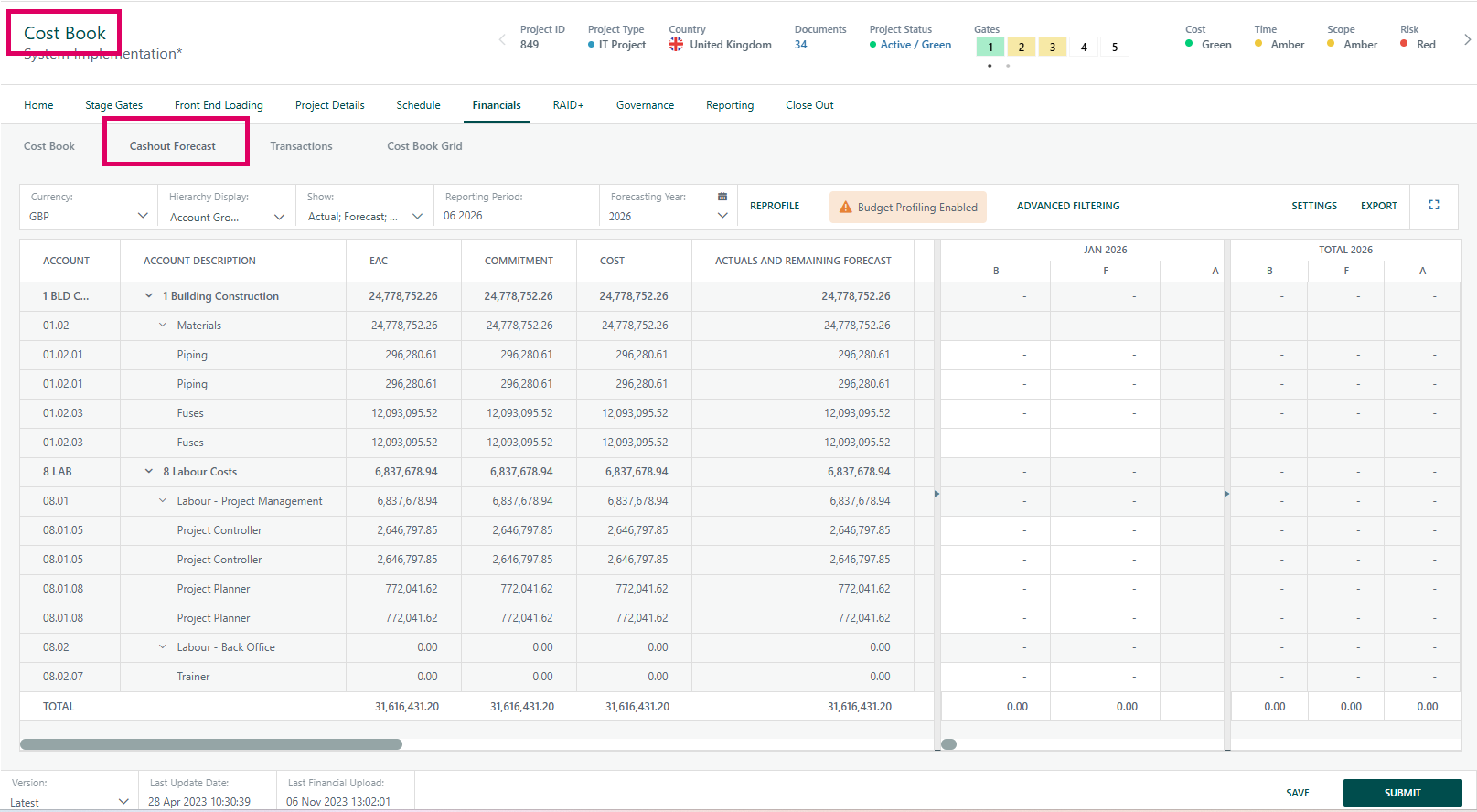
The default for Forecast Duration, labeled Profile Duration in the UI, on the Cost Book → Cashout Forecast screen is Project Duration, not Task Duration. The available options are Project Duration, Task(s) Duration, and Custom Duration. Although the underlying database column carries a raw fallback value corresponding to Task (1), the UI and application code set the value explicitly to Project Duration when a line is created.
12.8 Transactions and Cost Book Grid Tabs
Transactions shows the underlying transaction-level detail that rolls up into a cost line's Commitment and Actual Cost figures. Use it to trace a total back to the individual entries behind it.
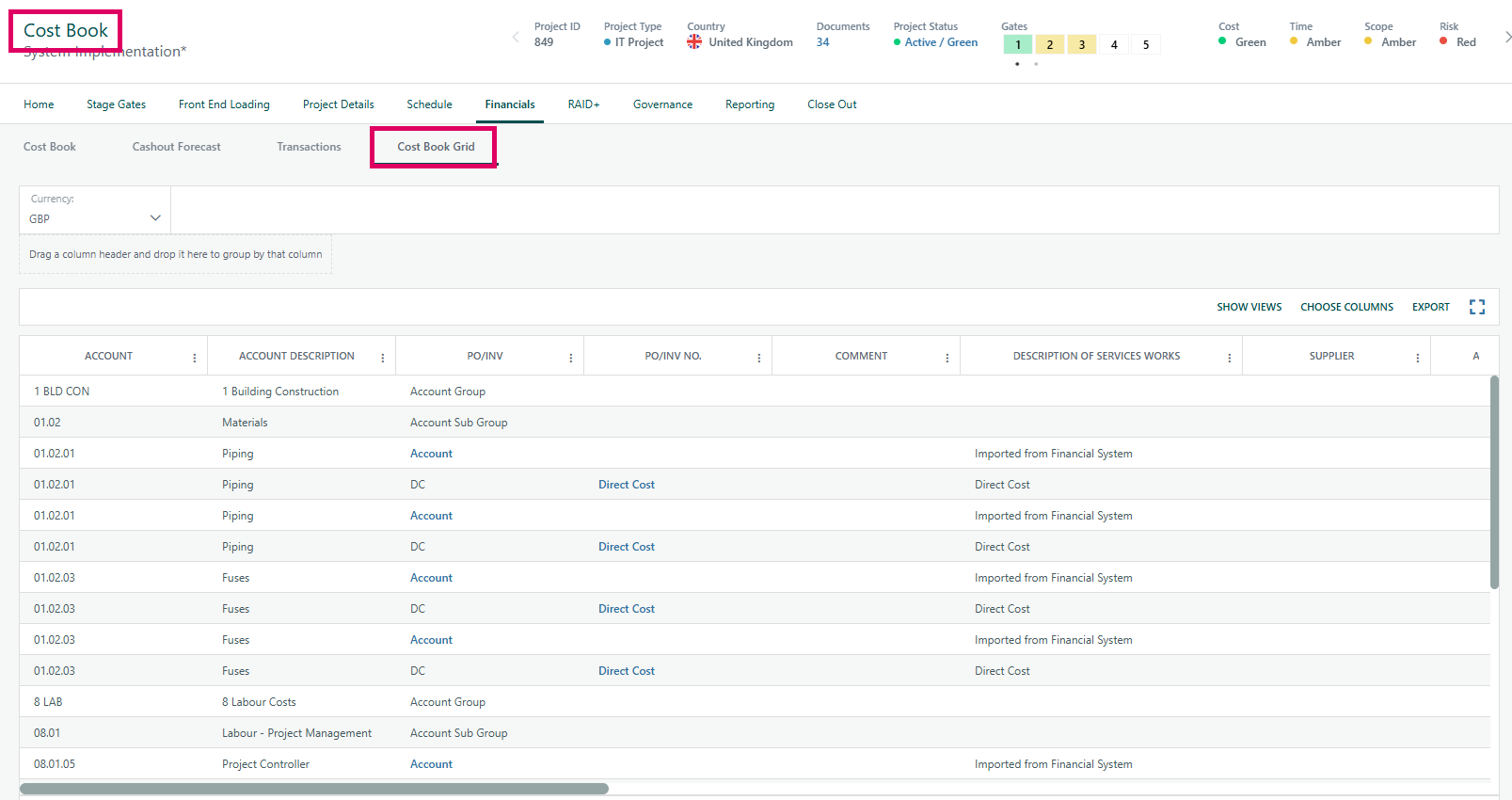
Cost Book Grid presents cost line data in a flatter, spreadsheet-style grid layout. It is a useful alternative view for scanning or exporting a large number of lines.
12.9 Submitting Forecast or EAC
A site runs exactly one of two mutually exclusive submission workflows, controlled by the Enable Project Forecast Submission setting under Admin → Financials → Configuration.
Mode | What Happens |
|---|---|
Submit Forecast | If Forecast Submission is enabled, selecting |
Submit EAC | If Forecast Submission is disabled, the forecasting grid shows |
Both workflows draw on the same Forecast variable group — Forecast Period, Forecast Iteration, Forecast Status, Total Cost to Complete, Total New Reestimate, Total ARR, and Total Gross Margin — for workflow conditions and approval emails.
12.10 Portfolio Reporting
The Costbook Portfolio Report rolls cashout data up across every project in scope, broken into Cap, Exp, and Total figures for each future-year bucket: Current Year, +1, +2, individually through +7, and an aggregate 8-and-beyond bucket.
13. Glossary
Term | Meaning |
|---|---|
Cost Book | The project cost-control screen tracking budget, forecast, actuals, commitments, and EAC at the cost-line level. |
Cost Line | One row in Cost Book — a cost item keyed to an account code and optionally further defined by work package, task, award, building, or location. |
Cost Book Version | Cost lines belong to a current, unsubmitted version. Submitting locks that version as historical and opens a new current version. All edits apply only to the current version. |
EAC | Estimate at Completion — the projected total cost of the cost line or project at finish. |
ETC | Estimate to Complete — the projected cost remaining from today to finish. |
PV | Project Variable — a named calculated value, such as "Current Year Forecast CapEx," pulled from the project's variable list. |
PCN | Project Change Notice — one of the registers, along with Change Requests, Budget Transfers, and Trends, that can post cost detail directly to a cost line. |
CBS | Column label used on the left panel and in Global Site configuration. Treat it as the cost-code structure the account hierarchy is built on. |
WP / WP ID | Work Package (ID) — an optional grouping dimension on a cost line, used heavily on capital and construction-style programs. |
PO | Purchase Order — referenced on the left-panel PO/INV/SC/DC and PO Line columns that tie a cost line to procurement documents. |
VOWD | Value of Work Done — a standard project-controls measure of progress-based cost earned. |
Source / Target (S/T) | A pairing model for cost entries: a negative source row and a positive target row recorded together, enforced by the |
ARR | At Risk Revenue — a forecast variable used in the Submit Forecast / Submit EAC workflows. |
FMTD | Forecast Month to Date (Revenue) — a forecast workflow variable. |
CEACA | A calculated EAC-related amount persisted when an EAC is posted. |
MSD | The external system Cora PPM calls to create a budget revision once an EAC is approved and posted. |
LC | Local Currency — appears on columns such as "Current Baseline Budget (LC)." |
CapEx / OpEx | Capital / Operational expenditure — every financial column on Cost Book splits automatically into Total, CapEx, and OpEx rows. |
Cashout Forecast | The screen and underlying spend profile showing planned cost spread across future periods, distinct from the EAC total. |
EACAutomation | The background service that, once an EAC workflow completes, posts the resulting budget revision to MSD and tracks it through to Posted or Failed. |
14. FAQ
Question | Answer |
|---|---|
What is the difference between the Cost Book tab and the Cashout Forecast tab? | Cost Book is where the bulk of financial review happens — budget, commitment, actuals, EAC, and variance, all by cost line. Cashout Forecast is the dedicated screen for shaping how that spend is spread across future monthly periods. |
What exactly is a cost line? | One row in Cost Book. It is keyed to an account code and can carry additional dimensions such as work package, task, award number, building, and location. |
Why can't I edit a cost line? | Either the version you are viewing has already been submitted and is now historical/read-only, or writing to cost lines requires the Admin role. Reading cost line detail does not require Admin. |
Will I see "Submit Forecast" or "Submit EAC"? | Only one appears, controlled by a single site-wide setting: |
What does "Not Costbook Related" mean on a register entry? | It means the cost was recorded on a register without being attached to a specific Cost Book line. This is a valid state, not an error. |
What is the difference between "Delta EAC vs Control Estimate" and "Delta EAC vs Actuals + Remaining Forecasted"? | The first compares EAC to the working Control Estimate. The second compares EAC to what has actually been spent plus what is still forecast to be spent. |
Why does every financial column show Total, CapEx, and OpEx? | Cost Book automatically splits every figure by each line's Capital/Operational split, so you get the breakdown without a separate reconciliation. |
Can I change which columns appear in the grid? | Yes. The right-panel column chooser lets you add, remove, and reorder financial columns, saved per user. Hierarchy Display separately controls which grid levels show. |
What happens after I submit my EAC? | It moves through the Project Forecast EAC Approval Queue for approval, then the EACAutomation service posts a budget revision to MSD. Status moves from Submitted to Ready to Post to Posted, or to Failed if posting does not succeed. |
Where do Change Requests, Budget Transfers, PCNs, and Trends show up in Cost Book? | They post their cost impact directly to the cost line they affect. Use the Transactions tab to trace a total back to individual entries. |
Reflects the four Cost Book screens (Cost Book, Cashout Forecast, Transactions, Cost Book Grid) as configured in Advanced Financials; exact fields and workflow options depend on your site's configuration.
Was this article helpful?
That’s Great!
Thank you for your feedback
Sorry! We couldn't be helpful
Thank you for your feedback
Feedback sent
We appreciate your effort and will try to fix the article