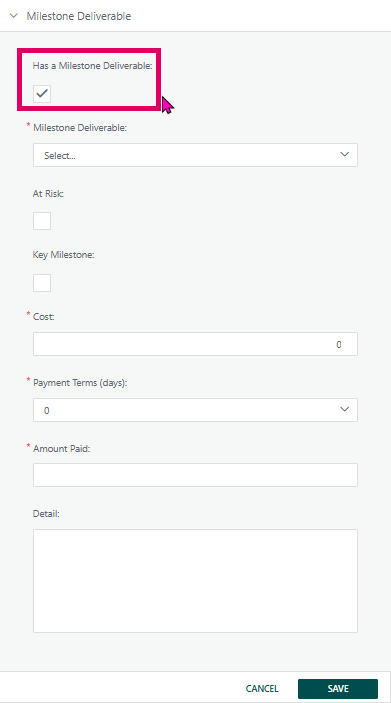
The Milestone Deliverable panel is a collapsible section within the Task Manager in Cora PPM. It allows users to designate a task as a milestone and capture all associated deliverable details. The "Has a Milestone Deliverable" checkbox is the master toggle: checking it reveals all the subordinate fields (Milestone Deliverable dropdown, At Risk, Key Milestone, Cost, Payment Terms, Amount Paid, and Detail). Unchecking it hides those fields entirely. The Cost, Payment Terms, and Amount Paid fields only appear when the project's invoicing model is configured for milestone-based invoicing — they will be hidden if invoicing is not configured or the invoice model does not involve milestones.
Zero-duration auto-milestone: If a task has zero duration and is not linked to another task, it is automatically treated as a milestone (shown by the "This task is a milestone due to a zero duration" label), but this is separate from the explicit Milestone Deliverable record.
Importantly, if a milestone is linked to a Payment Scheduler, all fields become read-only and a warning banner appears. Similarly, if the milestone has already been invoiced, the Save button is disabled.
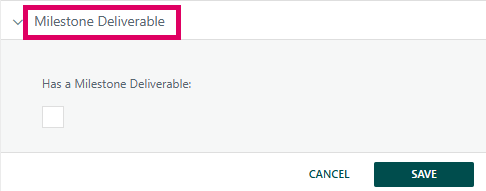
When you check the box and click Save, Cora creates a new milestone record linked to the task. Unchecking and saving deletes the milestone record. All changes are written to both the project history log and the task history log.
Prerequisites
- You must have Full Access to the project, access via a High-Level Deliverable, or be the task owner with edit rights. Without these, the Save button is hidden and fields become read-only.
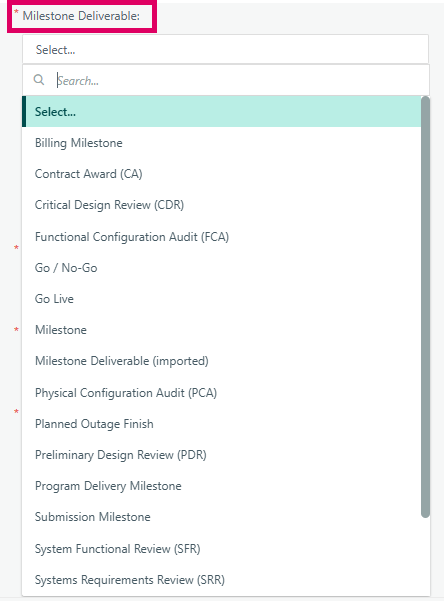
- The Milestone Deliverable types must be configured by an administrator (via the system configuration screen). Examples of Milestone deliverables below:
- Cost, Payment Terms, and Amount Paid fields only appear if the project's invoice model is set to Milestone Only, Milestone and Supplier Invoices, or Milestone Time and Supplier Invoices.
Step-by-Step: Adding a Milestone Deliverable
- Open the Task Manager for the relevant task (via the Gantt or WBS view).
- Navigate to the "Milestone" tab in the left-hand panel bar (collapsible accordion).
- Check "Has a Milestone Deliverable" — this triggers a postback and reveals all subordinate fields.
- Select a Milestone Deliverable type from the required dropdown (marked with *). This list shows all non-archived deliverable types. If the task already has a milestone type assigned, that type appears even if it is archived. eg: Financial Milsetone, Phase complete Milestone, Sign off Milestone.
- Optionally check At Risk or Key Milestone.
If the Cost section is visible:
- Enter a Cost value (required, numeric).
- Select Payment Terms (days) from the dropdown (options: 0, 10, 30, 60, 90).
- Enter Amount Paid (required, numeric).
- Optionally enter a Detail note (max 200 characters; character count is shown).
- Click SAVE. A success toast message confirms the update. The Gantt/WBS chart is refreshed.
Editing an Existing Milestone
- When the task already has a milestone, all fields are pre-populated on load.
- Modify any field and click SAVE. Only changed fields are logged in history (description, value, at-risk, key milestone, payment terms, amount paid).
- If no fields have changed, a warning toast "No changes made" appears instead.
Tips and Gotchas
- Milestone Deliverable dropdown is required: If you check "Has a Milestone Deliverable" but leave the dropdown on "Select...", saving will fail validation.
- Task duration restriction: If the system configuration has
AllowMilestoneDuration = false, a task with duration > 0 cannot be marked as a milestone. An error toast will appear. - Payment Scheduler lock: If the task originates from a Payment Scheduler, all fields are disabled and the label "These fields are controlled from Payment Schedule & can only be edited from there" is shown.
- Invoiced milestone lock: If the milestone has already been invoiced (Invoice_Id > 0), the Save button is disabled with a tooltip "Invoiced Milestone task cannot be updated!".
- Unsaved changes warning: Switching to another tab while changes are pending triggers a confirmation dialog ("You have unsaved changes in this section, do you want to save these changes?"). You can save, discard, or cancel.
- Cancel button: Clicking Cancel reloads the task's saved data, discarding all unsaved changes in the panel.
Was this article helpful?
That’s Great!
Thank you for your feedback
Sorry! We couldn't be helpful
Thank you for your feedback
Feedback sent
We appreciate your effort and will try to fix the article