You can put one or more Account Codes on a Task in Cora PPM, and the feature exists for a specific financial reason: to link tasks on the project schedule directly to financial account codes (also called "Finance Accounts" or "AGL Accounts") so that cost planning, cash-out forecasting, and cost book lines can be associated with specific work being done.
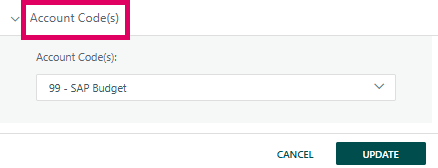
The feature is configurable — an administrator must enable it, and there is a further setting controlling whether a task can carry just one Account Code or multiple Account Codes at the same time.
Why would you put Account Codes on a Task?
- Financial tracking: It ties the work represented by a task to the financial accounts used in cost books, purchase orders, and direct costs. When an account code is linked to a task, the system can derive date ranges for cash-out forecasting directly from the task's start and finish dates.
- Cost book integration: When the Cost Book feature is active, account codes at task level are mandatory (the settings are automatically enabled and locked), because the cost book needs to know which tasks underpin each line of expenditure.
- Reporting: The "Account Codes" column appears in the standard Task List report and in the Gantt/Fast Tasks views, so planners can see at a glance which tasks carry which financial codes.
- Multi-code support: If a task spans several financial categories, multiple codes can be assigned (subject to configuration), and the system updates the cash-out forecast date ranges to reflect the earliest start and latest finish across all mapped tasks.
Prerequisites
- Financial Management must be enabled on the system licence.
- An administrator must enable "Enable Account Codes at Task Level" in the Task Configuration settings.
- Optionally, the administrator can also enable "Allow Multiple Codes Per Task" if more than one Account Code per task is needed.
- If the Cost Book feature is active, both settings are automatically enabled and cannot be changed.
Was this article helpful?
That’s Great!
Thank you for your feedback
Sorry! We couldn't be helpful
Thank you for your feedback
Feedback sent
We appreciate your effort and will try to fix the article