The Working Days functionality in Cora PPM is not a single "tab" but rather a concept that spans two related but distinct areas of the Admin section: the Calendars page and the Fiscal Calendar page. Together, they control how the system determines which days count as working days, which affects project scheduling, task durations, working hours calculations, and financial period data.
- Calendars (Admin > Business Planning > Calendars)
This is where administrators define and manage named calendar templates. Each calendar specifies which days of the week are regular non-working days (e.g. weekends), and also allows individual dates to be marked as exceptions — either as one-off holidays (non-working days) or as extra working days on dates that would normally be non-working. These calendars are then assigned to projects, so that scheduling and task finish-date calculations respect the correct working pattern for each project.
- Fiscal Calendar (Admin > Business Planning > Fiscal Calendar)
This is a read-only data view that shows the result of the system's calendar calculations broken down by fiscal period. For each fiscal period it displays the start and end dates, the number of working days, working hours, holidays, extra working days, calendar days, and any data issues detected. It reflects the combined effect of the fiscal period definitions, the company calendars, and any holiday/extra-day exceptions.
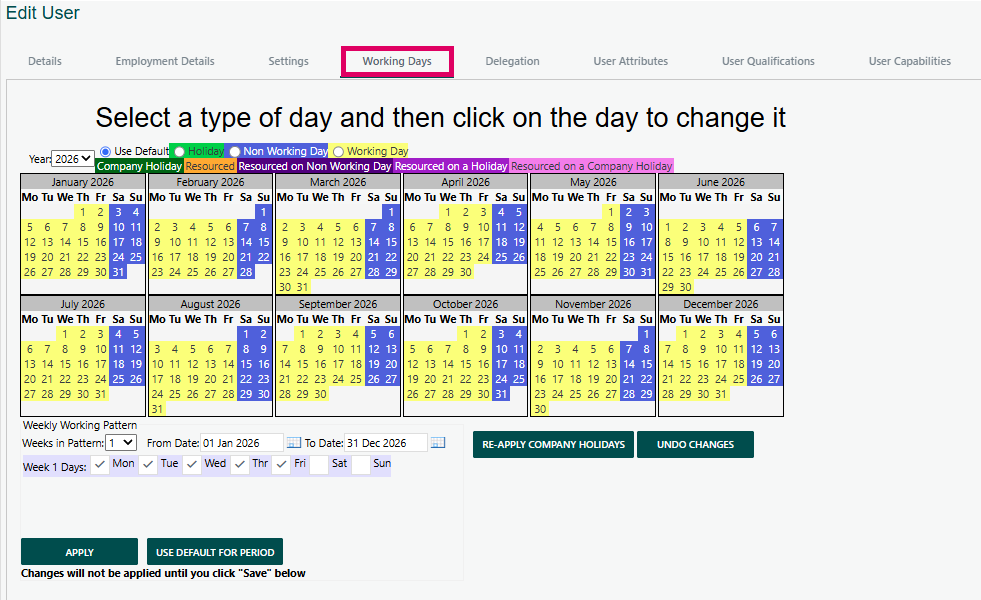
Where to find it:
Navigate to Admin > Business Planning > Calendars
What the customer sees:
- A tree list on the left showing all named calendars (e.g. "Standard UK Calendar", "Site Calendar").
A visual multi-month calendar view on the right showing the selected calendar's days, colour-coded:
- Normal Working Day – shown in a neutral/grey background
- Recurring Non-Working Day – shown in light green (these are the days of the week, like Saturday and Sunday, that are always non-working)
- Calendar Non-Working Day – shown in darker green (specific one-off dates, like bank holidays)
What a customer can do:
- Select a calendar from the left tree to view it.
- Click Settings to change which days of the week are recurring non-working days (e.g. switch from a 5-day week to a 6-day week).
- Click individual dates on the calendar to toggle them as exceptions — marking a normally-working date as a holiday, or marking a normally-non-working date as a working day.
- Click Save to apply changes. The system will automatically recalculate and reschedule all projects that use that calendar.
- Add or Edit Calendars using the "Edit Calendars" button, or Import Calendars from an external source.
Important tips for customers:
- A warning will appear before saving reminding them that changing a calendar may alter finish dates of any projects or tasks for the selected year.
- Each project can be assigned a specific calendar (set on the project's property page), allowing different working patterns per project.
- A project can also have a custom calendar — overrides applied at the project level only, without affecting the shared calendar.
Was this article helpful?
That’s Great!
Thank you for your feedback
Sorry! We couldn't be helpful
Thank you for your feedback
Feedback sent
We appreciate your effort and will try to fix the article