Project Registers: Options - Document Template
Value Statement
This functionality allows admins to upload predefined Microsoft Word templates to Project Registers. These templates can then be used to generate formatted documents from individual register records (e.g., Change Registers) using field-specific bookmarks.
Many organizations use Cora PPM to digitize traditional paper-based forms. This functionality allows users to view, download, or print register entries in a familiar Word document format.
This functionality is ideal for sharing information with vendors, suppliers, contractors, or external stakeholders who don’t need direct access to the system. With it, users can export register data into a structured document format based on a predefined template.
?️ Configuration (Admin)
Note: The Word template to be used with Register, must contain bookmarks. ? For instructions on using bookmarks in Word, refer to Microsoft’s guide: Add or delete bookmarks in a Word document
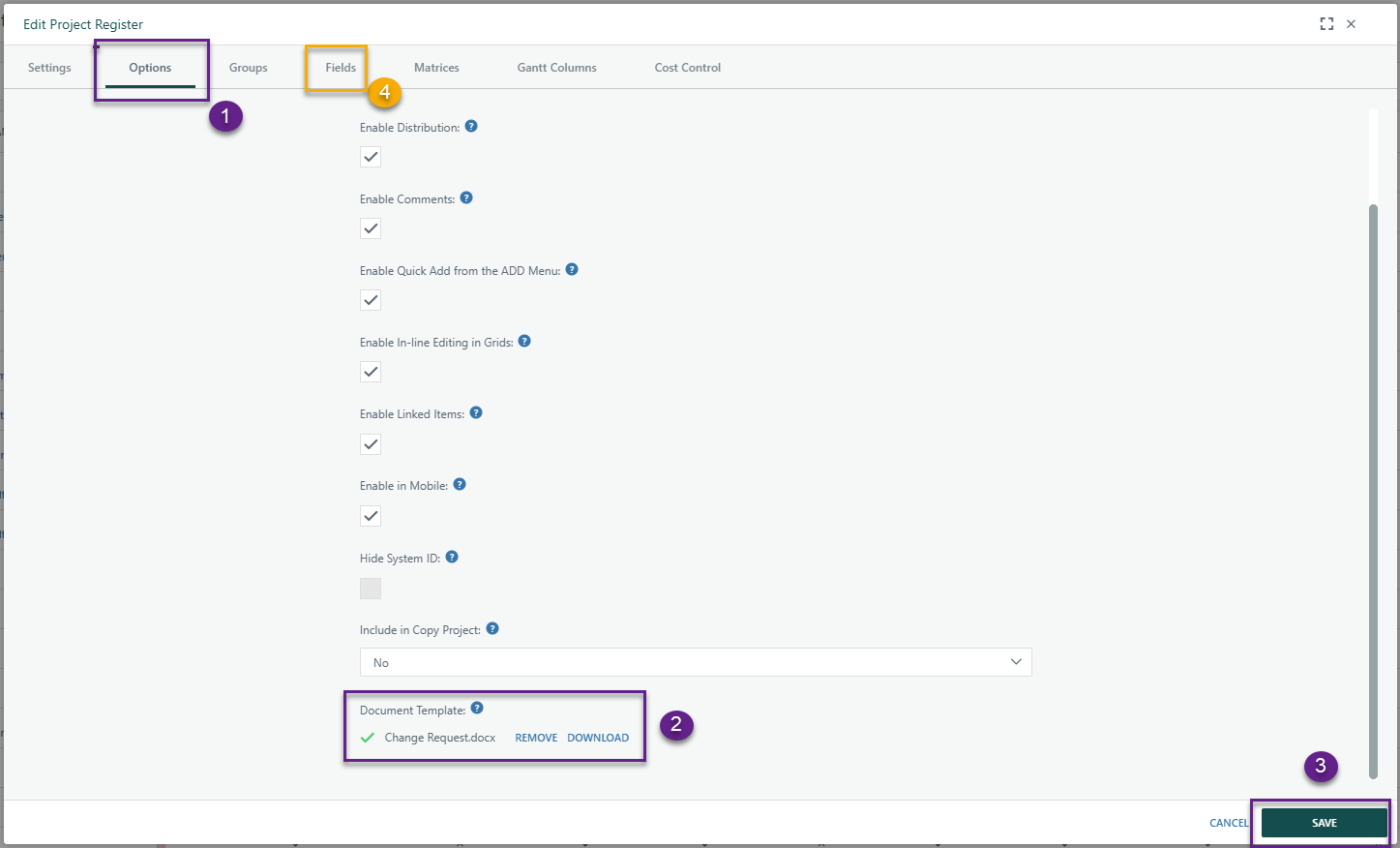
- Under Administration > Configuration > Project Registers, select the register you want to use a Word template.
- Under Options tab, upload the template under the Document Template field and click Save
- Navigate to the Fields tab
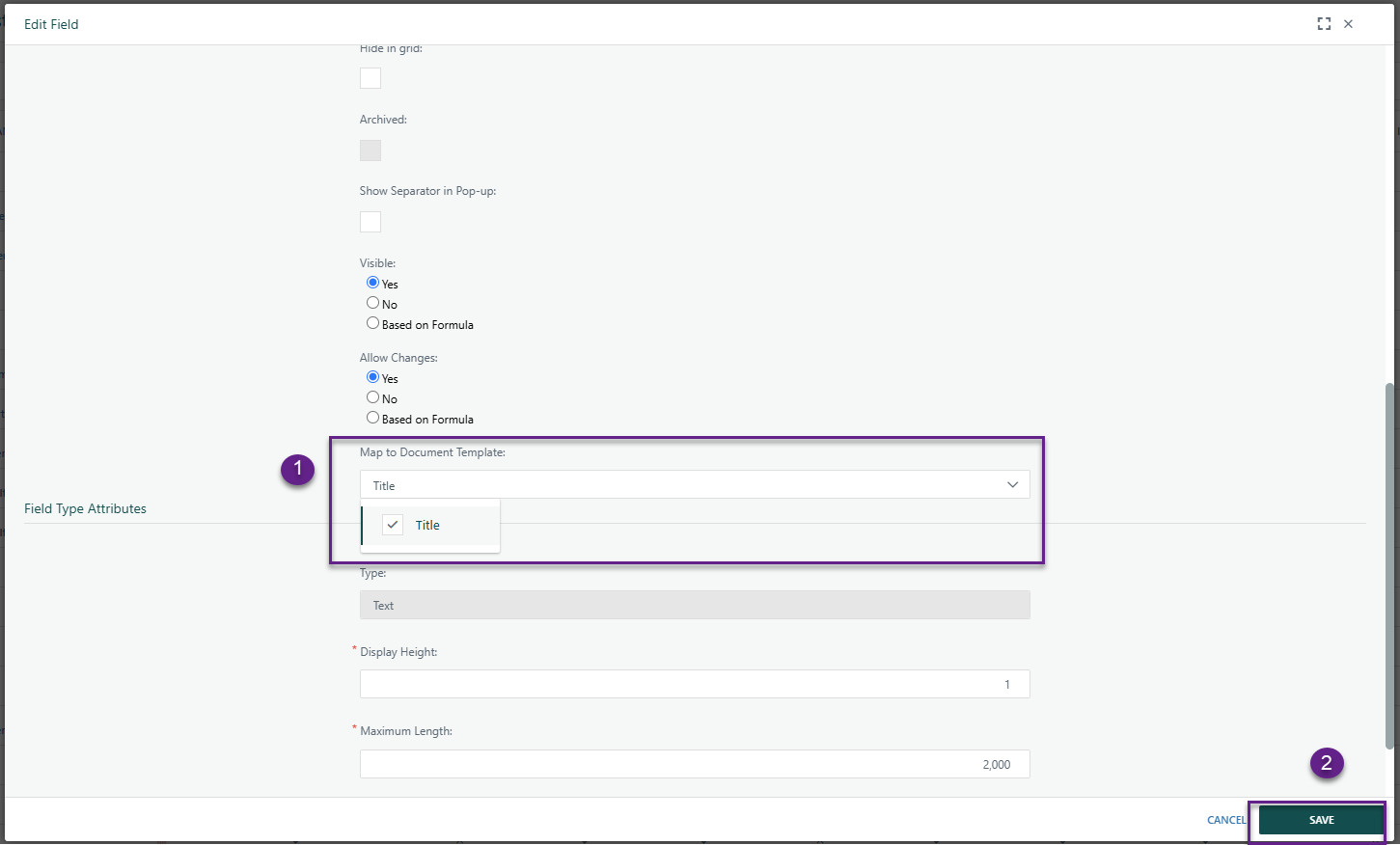
- Select each a field that will be used in the template. Under the Maptto Document Template, a dropdown will appear of all the bookmarks within the template. Select the bookmark for each field in your register until all bookmarks are connected to a field in register.
Cora dynamically converts the Word document to PDF for display. Some advanced Word features (e.g., checkbox form fields, continuous section breaks, formulas) may not render correctly. If you experience issues, we recommend simplifying the template layout.
How to Use This Function or Component (End User)
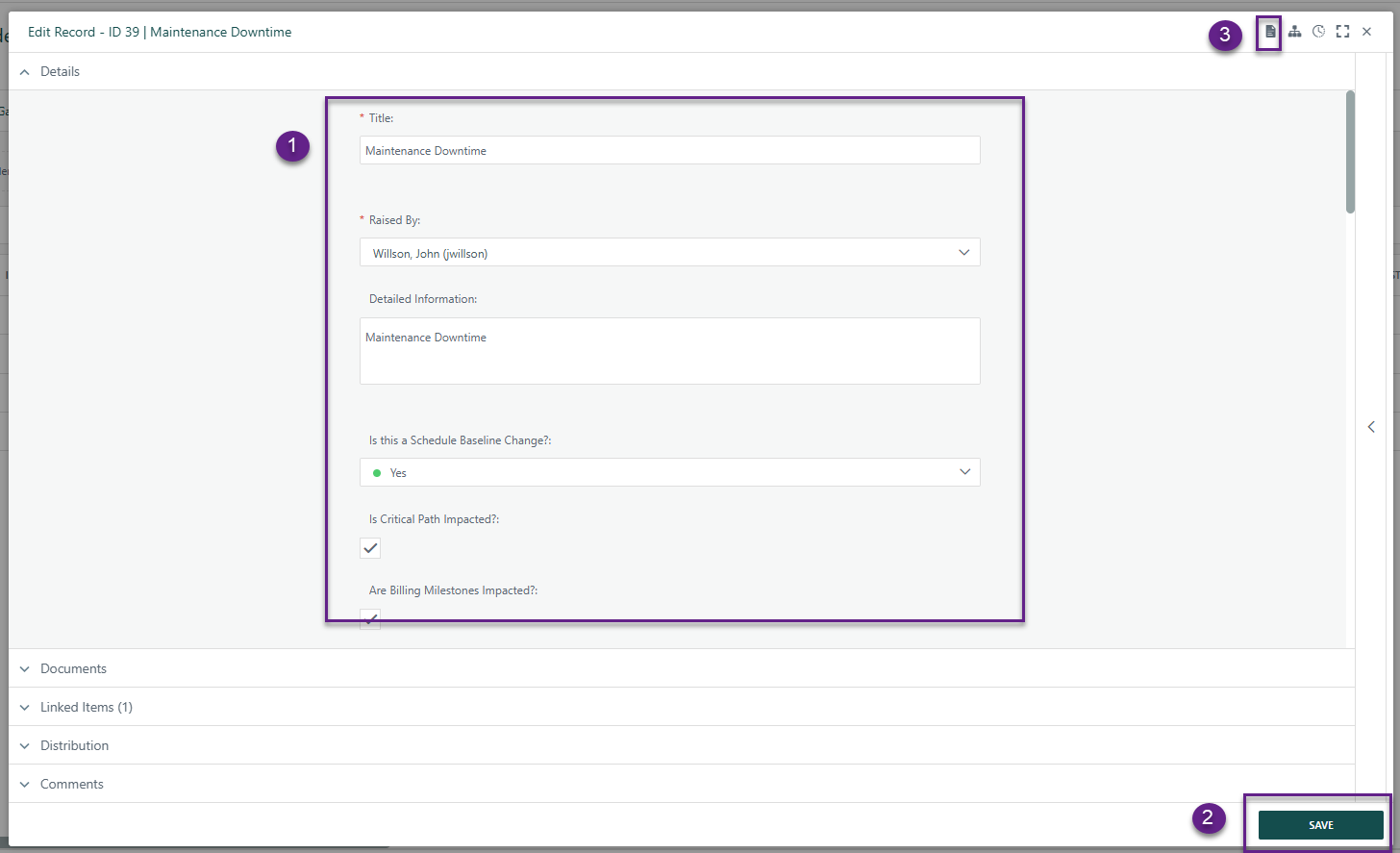
On a Register, when a template is available, a document icon will appear at the top of the register item. To generate the document:
- Complete all required fields in the register item and click Save.
Click the document icon to generate the template-based document.
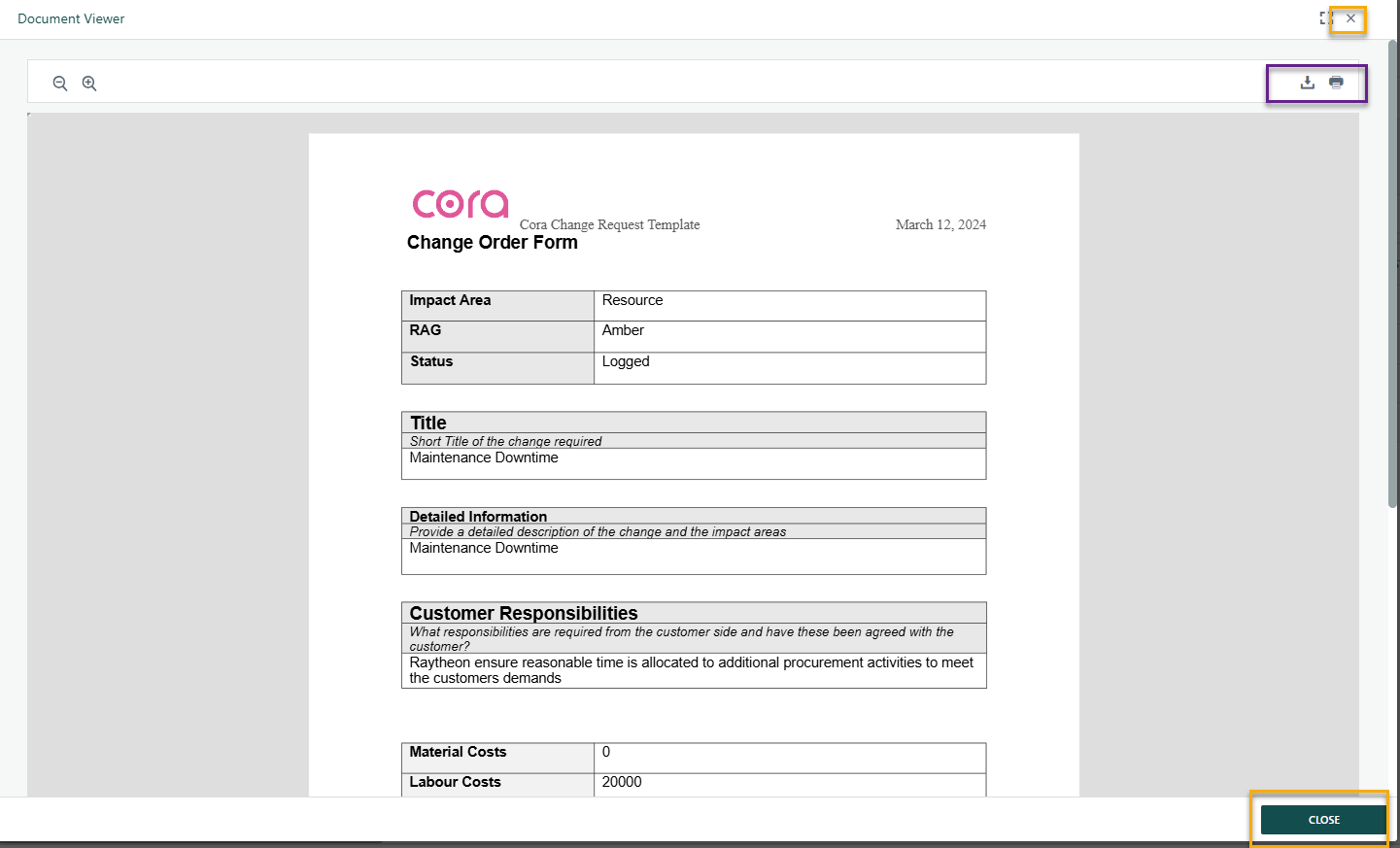
In the pop-up window, a preview will display the register fields populated within the template.
- If changes are needed, close the window by clicking the ‘X’ or Close button, update the fields, click Save, and then click the document icon again to regenerate the preview.
- If the preview is accurate, click the Download button to save a PDF copy to your device or click the Printer to print document.
Tip: We recommend attaching the PDF to the Documents section of the register to maintain a record of all generated template versions.
Was this article helpful?
That’s Great!
Thank you for your feedback
Sorry! We couldn't be helpful
Thank you for your feedback
Feedback sent
We appreciate your effort and will try to fix the article