Deprecated Functionality - Not fully compatable with Resource Management
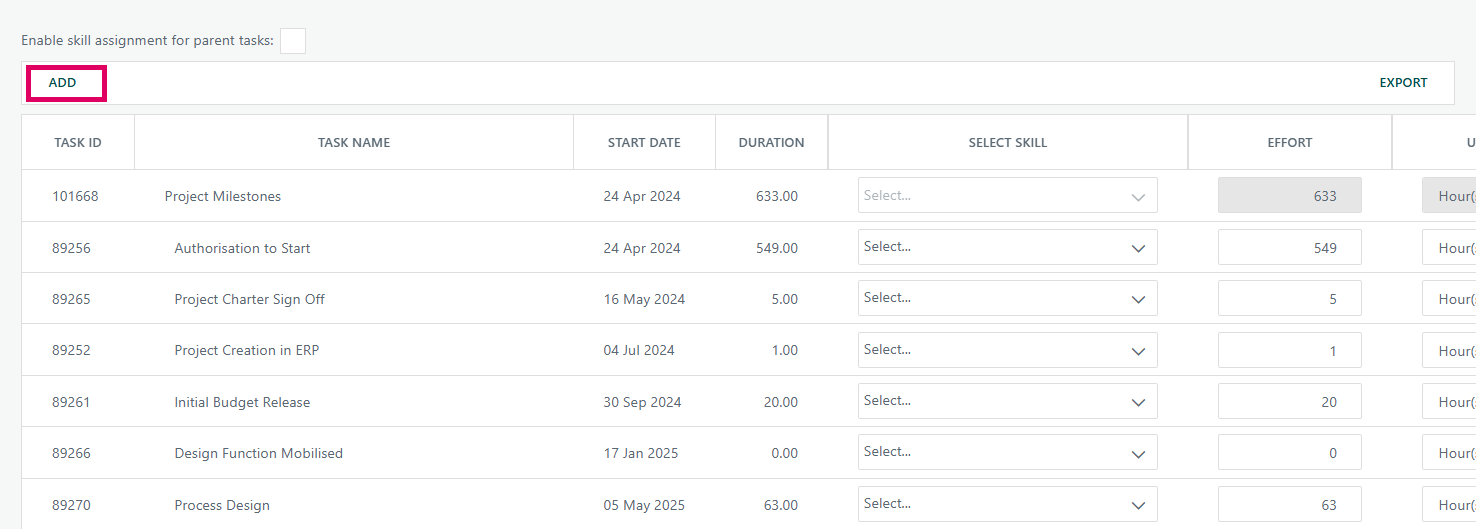
The Project Skills page in Cora PPM is a dedicated skill-demand assignment screen for a single project. Its purpose is to allow project managers (or users with appropriate task rights) to specify which skill type is needed for each task in the project, how much effort that skill requires, and in what unit (hours, days, or percentage). This feeds the resource-demand and cost-planning engine — once skills are saved, the system automatically recalculates planned labour costs and expenditure profiles for the project.
What the screen shows and does:
The grid lists every task that belongs to the project (excluding linked/summarised sub-project rows and inactive tasks), ordered by the project's WBS schedule order. For each row a planner sees: the task ID, task name (indented to reflect hierarchy level, bold for parent/summary tasks), start date, duration (in hours, matching the schedule), a Select Skill dropdown populated from the system-wide active skills catalogue, an Effort numeric field, and a Unit dropdown offering Hour(s), Day(s), or %.
When a user selects a skill and enters an effort value then clicks Save, the system:
- Converts the effort to hours if the unit is Days (using the skill's own hours-per-day rate, matched to the project's live date) or % (multiplied against the task duration then converted).
- Inserts a new
task_skillsdatabase record, or updates the existing one if the task already had that skill assigned. - Removes any skill records that have been cleared from the grid.
- Writes an audit entry to the project history for every add, update, or removal.
- Triggers an expenditure re-profiling for the affected tasks, recalculates the project's planned and actual labour totals, and marks the project dirty so all reporting views refresh.
Parent task (mother task) logic:
The checkbox labelled "Enable skill assignment for parent tasks" controls whether summary/parent tasks may have a skill assigned to them. When it is unchecked (the default, as shown in the screenshot), the Skill, Effort, and Unit controls for any row flagged as a parent task (is_mothertask = 1 in the database) are rendered as read-only. Checking the box and re-rendering the grid immediately makes those controls editable.
Effort unit conversion:
- Hour(s) — stored directly as-is.
- Day(s) — the system looks up the skill's
skill_hoursrate table and picks the rate whose entry date is on or before the project's live date, then multiplies the entered days by that rate. - % — the system multiplies the task's duration (hours) by the skill's hours-per-day by the percentage, using the same rate-table lookup.
Multiple skills per task:
When the system-wide "Multiple Skills on Task" flag (TaskConfiguration.MultipleSkills) is enabled, a single task can have more than one skill row. The DuplicateSkillsOnTasks feature toggle further controls whether the same skill can appear more than once on the same task; when that toggle is off, a server-side validator prevents saving two identical skills for the same task.
Custom attributes on skill assignments:
Skill assignments can carry configurable custom detail fields (text, number, date, dropdown, country, organisation, cost centre, user, hierarchical). These appear as additional columns in the grid (beyond Effort and Unit) for any assignment that already has a skill selected.
Export:
The Export button generates an Excel file via a hidden Telerik grid, containing columns for Task ID, Task Name, Duration, Skill, Effort, and Unit. Archived skills already assigned to tasks are still shown in the export.
Transfer to Resource Demand:
A "Transfer / Push Resource Demand" footer button (visible only when the ProjectSkillPlanning licence feature is enabled, and only to Portfolio Managers, Project Owners, or Resource Managers) opens a modal to the Resource Demand / SCM Forecasting screen, allowing approved skill demand to be converted into named-resource allocations.
ADD button:
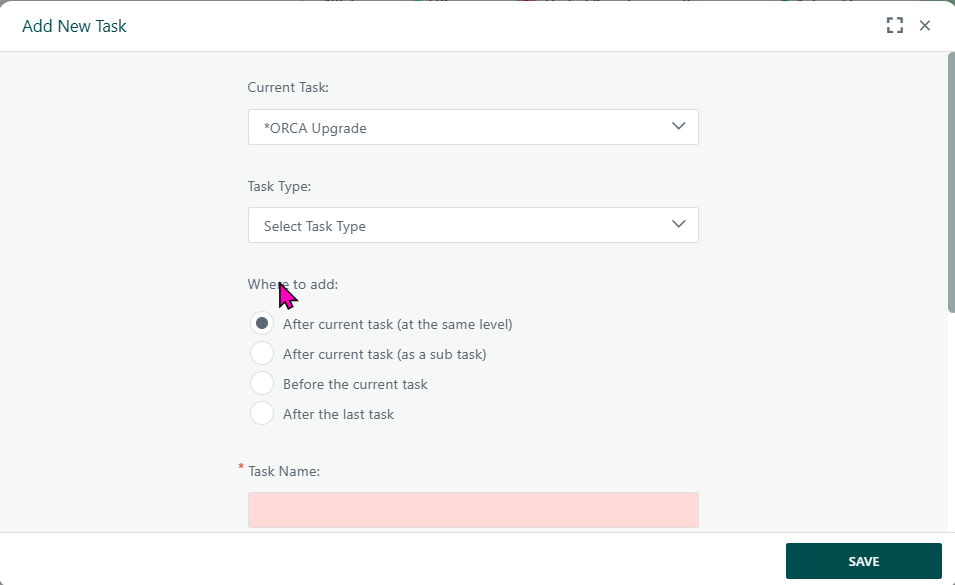
Clicking ADD opens the Popup_AddTask.aspx modal, allowing a new task to be created in the project directly from this screen. The grid then refreshes to include the new task row.
Where to find the Project Skills page
- Open a project in Cora PPM.
- From the project navigation menu or toolbar, select Skills (or the localised equivalent, e.g. "Project Skills"). The page opens as
ProjectSkills.aspx?ProjectID=<id>, or in a modal popup launched from the Gantt/WBS via the project toolbar.
Who can edit
You must be a Portfolio Manager, or have the Tasks – Full Rights (WBS/Gantt/Network Diagram) security right on the project, or have a project profile ID of 40. Read-only users see the grid but all controls (Save, Reset, Add, the skill dropdowns, and the Enable checkbox) are disabled and a warning banner appears.
Assigning a skill to a task
- Find the task row in the grid. Tasks appear in WBS/schedule order.
- Click the Select Skill dropdown in that row and choose a skill from the list. Skills are drawn from the system-wide active skills catalogue.
- The Effort field defaults to the task's full duration value. Adjust the numeric value as required.
- Select the unit:
Hour(s)(default),Day(s), or%. - If custom attribute columns are visible (e.g. Organisation, Cost Centre), fill those in.
- Repeat for other tasks as needed.
- Click Save (primary button in the footer). A green toast confirms success, or an information toast appears if nothing changed.
Assigning skills to parent/summary tasks
Parent tasks (shown in bold) have their skill controls disabled by default.
- Tick the "Enable skill assignment for parent tasks" checkbox at the top of the page.
- The page reloads automatically (AJAX postback) and the parent task rows become editable.
- Assign skills as above, then save.
Removing a skill from a task
- When a task already has a skill, a Remove (delete icon) button appears at the right of its row.
- Click Remove — the skill is immediately deleted and a toast confirms.
- Alternatively, you can clear a skill by clicking Reset to revert the entire form to its last-saved state.
Adding a new task
- Click the ADD button. A popup dialog opens where you enter the task details.
- On saving the new task (inside the popup), the grid refreshes to show the new task row.
Exporting the grid
- Click Export (top right). An Excel file downloads with columns: Task ID, Task Name, Duration, Skill, Effort, and Unit.
Transferring skill demand to Resource Demand (capacity planning)
If the "Push Resource Demand" / "Transfer to…" button appears in the footer:
- Click it to open the Resource Demand / SCM Forecasting screen in a modal.
- This is only visible to Portfolio Managers, Project Owners, and Resource Managers when the ProjectSkillPlanning licence feature is enabled.
Common Gotchas
Situation | Cause / Fix |
|---|---|
Skill dropdown is greyed out for a row | The task is a parent task and "Enable skill assignment for parent tasks" is unchecked. Tick the checkbox to unlock. |
Validation error: "Effort is required if a skill is selected" | A skill was chosen but the effort field is blank. Enter a numeric effort value. |
Validation error: "A task cannot have the same Skill repeated" | The |
Cannot delete a skill | Users are already assigned to the skill on that task via Task Manager. Detach the users first, then delete. |
Save button disabled | You do not have Full Rights on the project. Contact your administrator. |
"Push Resource Demand" button not visible | Either the ProjectSkillPlanning licence feature is not enabled for your instance, or your user role is not Portfolio Manager / Project Owner / Resource Manager. |
Was this article helpful?
That’s Great!
Thank you for your feedback
Sorry! We couldn't be helpful
Thank you for your feedback
Feedback sent
We appreciate your effort and will try to fix the article