Project Registers: Administration - Fields

When an administrator creates or configures a new Project Register in Cora PPM, there are two distinct layers of fields to understand: the System Fields that are automatically present on every register, and the optional Custom Field types that an administrator can add manually.
System Fields (always present on every register)
When an administrator creates a new register, the platform automatically seeds it with a set of system fields — fixed, built-in fields that every register must have to function correctly. These system fields cannot be deleted and are flagged distinctly from the custom fields an administrator adds later.
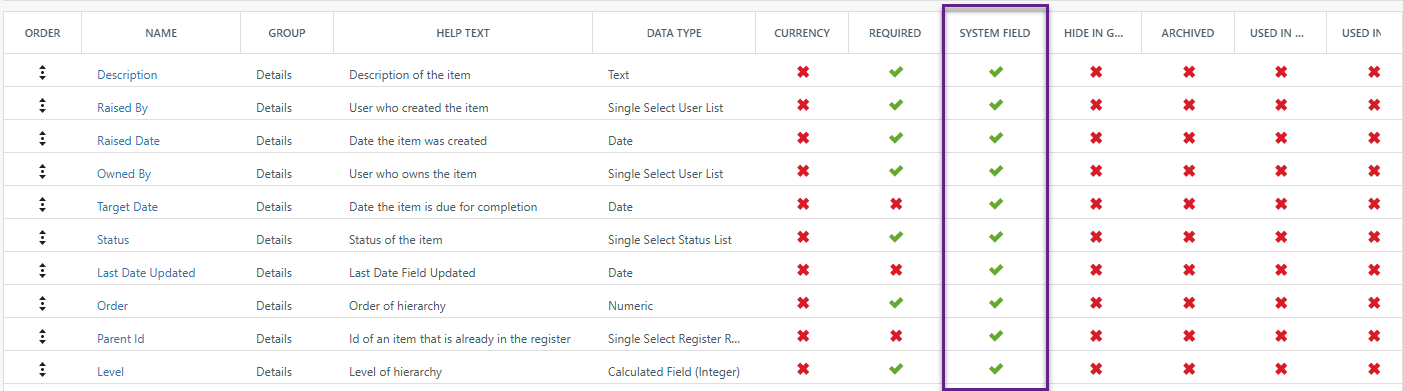
There are seven core system fields seeded into every new standard or hierarchy register. Two additional system field sets are seeded only for specific register types.
The seven universal system fields are:
- Description — A free-text, multi-line field (type: Text) that holds the name or title of the register record. It is mandatory and acts as the primary identifier for the record throughout the UI. Every register record must have a description.
- Raised By — A single-select user list that records which Cora PPM user created the record. It is mandatory and automatically pre-populated with the currently logged-in user when a new record is opened. It cannot be cleared.
- Raised Date — A date field capturing when the record was created. It is mandatory and — when not explicitly set — defaults to the current date/time. There is a special validation rule: the Target Date (see below) can never be set earlier than the Raised Date.
- Owned By — A single-select user list identifying the person responsible for the item. It is mandatory and, like Raised By, defaults to the currently logged-in user on new records. It represents ownership or accountability, as distinct from the person who raised the issue.
- Target Date — A date field representing the deadline or expected completion date. It is optional (not required) but carries built-in cross-field validation: it cannot be set to a date before the Raised Date. System-field status means it cannot be deleted, but it can be left blank.
- Status — A single-select status list that tracks the lifecycle state of the record. It is mandatory. Every register automatically receives four built-in (system) statuses: Logged, Closed, Pending, and Approved. New records default to the "Logged" status. An administrator can add further custom statuses, but these four cannot be removed.
- Last Date Updated — A read-only date field that is automatically set by the system whenever a record is saved. Users cannot edit this field directly — it is always rendered as a read-only label, not an editable date picker. On new records it is hidden until the record has been saved at least once.
For Hierarchy registers only
Register type = Alternative Hierarchy, three extra system fields are added:
- Order — A numeric field that controls the display order of records in the hierarchy tree. It must be a positive integer and is validated as unique.
- Parent Id — A special "Single Select Register Record" field that links a record to its parent item within the same register, enabling tree-level nesting.
- Level — A calculated numeric field automatically computed from the Parent Id chain; it represents the depth of the record in the hierarchy tree and cannot be changed manually.
For Baseline Change Control (BCC) registers
Register type = Baseline Change Control, a large set of additional system fields relating to baseline project data are seeded (Baseline Start/Finish/Duration/Cost/Hours, New Start/Finish/Duration/Cost/Hours, Delta Duration/Cost/Hours, Model Project Id, Baseline Id, Baseline Control Account Id, and Baseline Work Package Id). The Status and Last Date Updated fields in BCC registers are locked (Allow Changes = false) and cannot be edited by users.
Creating a New Register and Finding System Fields
- Click Add to open the register creation dialog.
- On the Settings tab, enter a Name and select a Type (Standard, Hierarchy, Baseline Change Control, or Cost Control). Click Save.
- Once the register is created, navigate to the Fields tab. The system fields are listed in the grid alongside any custom fields you add.
- System fields are identified by a green tick (✓) in the "System Field" column of the fields grid. A red cross (✗) in this column indicates a user-created custom field.
- System fields also display a disabled/greyed Delete button — they cannot be removed.
How System Fields Behave for End Users
System Field | Required? | Editable by User? | Default Value |
|---|---|---|---|
Description | Yes | Yes (text area) | Blank |
Raised By | Yes | Yes (user dropdown) | Current logged-in user |
Raised Date | Yes | Yes (date dropdown) | Today's date |
Owned By | Yes | Yes (user dropdown) | Current logged-in user |
Target Date | No | Yes (date picker, must be ≥ Raised Date) | Blank |
Status | Yes | Yes (dropdown) | "Logged" status |
Last Date Updated | No | No (read-only) | Set automatically on save |
Configuring System Field Display Names
- Although system fields cannot be deleted, administrators can rename them (e.g., renaming "Raised By" to "Reported By", or "Target Date" to "Due Date").
- Click the field name in the Fields grid to open the field configuration pop-up, and update the Display Name field.
Tips and Important Items to Know
- System fields cannot be archived, set as unique, or made unique-per-contract — those configuration options are disabled when editing a system field.
- Visibility formulas are also hidden for system fields in the field editor, except the Target Date field which uniquely allows the
Requiredcheckbox to be changed. - The "Last Date Updated" field cannot be edited by users — even if the Allow Changes formula is set to
true, the code explicitly overrides this and always renders it as read-only. - The "Hide System ID" option (in the Options tab) hides the auto-generated numeric record ID from the register grid — this is separate from the seven system fields and only applies to the record's primary key column.
Custom Field Types
When an administrator adds a custom field to a project register in Cora PPM, they choose from a rich set of Data Types (called "Type" in the UI). These types determine how the field captures and displays information, what validation is applied, and which additional configuration options appear.
Basic Input Types
Display Name | What it does |
|---|---|
Text | A free-text entry box. Supports multi-line display, maximum character length, and a character count indicator. Accepts a static default value. |
Date | A date picker. Optionally displays a time component, supports an offset date default (e.g. |
Numeric | A number field. Can be marked as a currency field (multi-currency environments), set with a number of decimal places, min/max value boundaries, and displayed as a percentage. |
Yes/No | A boolean checkbox-style field with a configurable Yes/No default. |
Selection / Dropdown Types
Display Name | What it does |
|---|---|
Single Select Custom List | A dropdown whose items come from a configured Admin custom dropdown list. Supports cascading (hierarchical) dropdowns and a default value. |
Multi Select Custom List | Same as above but allows multiple selections. Also supports cascading dropdowns. |
Single Select Multi Column Custom List | A dropdown backed by a multi-column custom list (displayed internally via the multi-column list selector). |
Multi Select Multi Column Custom List | Same as above for multi-selection from a multi-column list. |
Single Select User List | A dropdown of system users. Can optionally include resource-only users, restrict to users with project access, and accepts a default user. |
Multi Select User List | Same as above allowing multiple user selections. |
Single Select User Role List | A dropdown filtered to users belonging to a specific configured role. Can restrict to users with project access. |
Multi Select User Role List | Multi-select version of the user-role list (defined in code but noted as not yet fully exposed in the UI). |
Single Select Status List | A special field that drives the register's workflow status. Administrators define the status values (e.g. Open, Closed) directly on this field's configuration screen. |
Single Select Task List | A dropdown of tasks from the project schedule. Can be filtered to show only tasks of a specific task type. |
Multi Select Task List | Multi-select version of the task list, also supporting task type filtering. |
Single Select System Data | A dropdown sourced from a built-in system data set. The administrator chooses the source from: Organization, Payment Plans, Strategy, Skill, Account Code, Task Type, or Element of Cost. |
Multi Select System Data | Multi-select version of System Data (limited to Organization, Payment Plans, Strategy, and Skill sources). |
Project Dropdown | A dropdown of projects. Can be restricted to a specific project type, prefixed with Project ID or Internal Order, optionally includes an "Enable Select Current Project" shortcut, and supports applying selections to sub-programs. |
Single Select Register Record | Allows selecting a record from another register (similar to a foreign key relationship). |
Single Select Reference | A reference dropdown sourced from either another Register or an Admin Grid. When sourced from a register, supports an optional filter query and can display a data grid of register fields. |
Multi Select Reference | Multi-select version of the Reference field. |
Calculated & Derived Types
Display Name | What it does |
|---|---|
Calculated Field | A formula-driven field. The administrator builds a formula and selects a Calculation Type: Text, Decimal, Integer, Yes/No, Image, Date, or Custom List. Numeric calculated fields can be flagged as currency or percentage. |
Task Attribute | Reads a value directly from a linked task in the project schedule (e.g. Start Date, Finish Date, % Complete, Status, Notes, custom task fields). The field and data source are both selected. The field becomes read-only (Allow Changes = No). |
Register Attribute | Reads a value from a field in a related register record (via a Single Select Reference field). The administrator selects the reference field and then the specific register field to display. |
Linked Register Aggregate | Aggregates numeric values across linked records in another register. Configured with: which register to aggregate from, which column to aggregate, the function (Sum, Count, Average, Min, Max), a date filter, a status filter, a time phased option, and an include scope (All Linked Items, Child Items Only, Related Items Only, All Items). |
Linked Task Aggregate | Aggregates task data from the project schedule into the register field. Configured with a register field (to identify the task link), a task custom field, a Gantt field (e.g. Planned Cost, Actual Cost), and a function. Requires the "Enhanced links to Task Attributes" feature toggle to be enabled. |
Linked Cost Book Line Aggregate | Aggregates data from cost book lines into the register field. Configured with a Cost Book column, a function, an include scope, and optionally specific account codes. Only available on Work Package registers. |
Financial & Cost Types
Display Name | What it does |
|---|---|
Cost | A cost entry field, used with Cost Control registers. Can be designated as Source, Target, or Source/Target. |
Cost Sub-Total | Calculates a sub-total from the register's cost book, grouped by Account, Account Sub-Group, or Account Group. Can be set as Source or Target. Only available when the register is configured with the appropriate cost control enforcement type. |
Payment Scheduler | A payment scheduling field. Only one per register is permitted. Only available when the Services Projects feature is enabled. |
Identifier & Reference Types
Display Name | What it does |
|---|---|
Project Record ID | Generates an auto-incrementing record ID for each register entry, starting from a configurable number. Only one per register is permitted. Once created, the start number cannot be changed. |
Single Select Parent Register Id | Links a record to a parent record within the same register, enabling a hierarchical (parent-child) relationship. Used by hierarchy-type registers. |
Single Select Work Order | A dropdown that links the register record to a Work Order. |
Single Select Baseline Type | Links to a specific baseline type configuration. |
Hierarchy | A special field used to establish the register's hierarchical structure. Only available on registers configured as the "Alternative Hierarchy" register type, and only one can exist per register. |
Adding a new field
- Enter a Name (required, max 255 characters).
- Optionally enter Help Text that will appear as a tooltip or guidance on the field.
- Select a Group (the section of the register form the field will appear in).
- Select a Column and optionally set Span Columns.
- Select the Type from the dropdown — this is the key choice. All available types are listed in the Overview section above.
- Once a Type is selected, additional Field Type Attributes appear below (specific to that type).
- Set any optional flags: Required, Unique, Hide in Grid, Show Separator in Pop-up, Wrap Field Label.
- Configure Visible and Allow Changes rules (Yes / No / Based on Formula).
- Click Save.
Import Items to Know & Prerequisites by Field Type
- Text: Set Maximum Length (1–2000 characters) and Display Height (rows). Enable Show Character Count if users need to see how many characters remain.
- Numeric: Enter Min/Max values to enforce data ranges. Tick "Is Currency" in multi-currency environments to have the system track base-currency equivalents automatically.
- Date: Use
@todayor@today + n/@today - nsyntax for dynamic default dates. Tick "Offset Date on Project Copy" to shift the date when a project is duplicated. - Single/Multi Select Custom List: You must first create the custom dropdown list in the Admin → Dropdown Lists area before it will appear in the Custom Source picker. To use cascading (hierarchical) dropdowns, tick "Is a Cascading Dropdown" and select the hierarchy list.
- Single Select Status List: After saving this field, a grid of status values appears at the bottom — use Add Status to create the status options users will see.
- Calculated Field: Click the calculator icon (Update the formula) to open the formula builder. Choose the Calculation Type before building the formula, as it controls what variables are available.
- Linked Register Aggregate: The target register must already exist. The field to aggregate must be Numeric or a Numeric Calculated Field.
- Project Record ID: Only one is allowed per register. Once data exists, the Start No cannot be changed.
- Single Select Reference (from Register): After choosing the source register and field, you can optionally tick Show Data Grid and select up to 6 fields from the source register to display in a pop-up grid when the user clicks the field.
- Cost / Cost Sub-Total: Only available on registers with Cost Control enabled. The Source/Target designation controls which side of a budget transfer the cost sits on.
- Hierarchy: Only available on registers of type "Alternative Hierarchy".
- Payment Scheduler: Only one is permitted per register. Requires the Services Projects license feature.
Important: You cannot change the Type of an existing field — the Type dropdown is locked after creation.
Was this article helpful?
That’s Great!
Thank you for your feedback
Sorry! We couldn't be helpful
Thank you for your feedback
Feedback sent
We appreciate your effort and will try to fix the article