Registers: Calculated Fields
Calculated Fields enable the creation of formulaic columns on Registers using Conditions and Variables. The Condition window captures the administrator’s logic statement(s) and/or formulas necessary to perform data checks or aggregations and return results. Variables include Standard Fields, Register Fields, Custom Details, and System Variables via a Formula Editor.
Case Statement Function
Case Statement allows you to perform if-then-else evaluations as a part of a Calculated Field on a Register. The Cora PPM Case Statement function differs from the SQL Case Statement in syntax, structure, and complexity.
Syntax Rules
UNKNOWN ATTACHMENT
The Case Statement function consists of several segments:
- Function starts with the word Case and an open parenthesis.
When-Then clause(s) contains the following:
- Register Field: Selected from the Variables section of the Formula Editor and surrounded in square brackets.
- Conditions: Defined with an operator (>,<,=,>=,<=,<>,And,Or) and value - number or string (surrounded in single quotes)
- Results: The field value to return if the condition is found to be true.
- Else contains a result if the When-Then clause(s) conditions evaluate to True and ends with a closed parenthesis.
Numeric fields
Formula Editor example:
Case([Test Numeric]>=0 and [Test Numeric]<25,'Red',
[Test Numeric]>=25 and [Test Numeric]<50,'Orange',
[Test Numeric]>=50 and [Test Numeric]<75,'Yellow',
[Test Numeric]>=75 and [Test Numeric]<100,'Green',
[Test Numeric]>=100 and [Test Numeric]<125,'Indigo',
[Test Numeric]>=125 and [Test Numeric]<150,'Violet','Clear')
Custom Dropdown Lists
When using Custom List fields in a case statement the values from the CustomField and CustomField_List database tables need to be referenced in the when-then clauses rather than the item names.
SQL Query example:
Select
[Id],
[Description],
[Item],
[Value]
From [ppm_sparta_SPMPPMDev_current_dev].[dbo].[CustomField] field
join [ppm_sparta_SPMPPMDev_current_dev].[dbo].[CustomField_List] list
on field.[Id] = list.[CustomField_Id]
Where Description = 'Investment Type'
Results:
Id | Description | Item | Value |
|---|---|---|---|
109 | Investment Type | IRAD | 20376 |
109 | Investment Type | B&P | 20377 |
109 | Investment Type | M&S | 20408 |
109 | Investment Type | Capital Expense | 20409 |
109 | Investment Type | Capital | 20410 |
Formula Editor example:
Case([Investment Type] = '20376', 'Violet',
[Investment Type] = '20377', 'Indigo',
[Investment Type] = '20408', 'Blue',
[Investment Type] = '20409', 'Green',
[Investment Type] = '20410', 'Yellow',
'Clear')
Multiple Fields
The Case Statement function when-then clauses can be defined to evaluate conditions for multiple fields to return one result.
Formula Editor examples:
Case ([Red Count] >= 2, 'Red',
[Open Count] > 0 and [Red Count] <= 1 and [Yellow Count] >= 2, 'Yellow',
[Open Count] > 0 and [Red Count] <= 1 and [Yellow Count] >= 1 and Green > 0, 'Green',
[Open Count] > 0 and [Red Count] = 0 and [Yellow Count] <= 2 and Green > 0, 'Green',
[Open Count] = 0 and [Net Factored Cost] > 0, 'Gray',
[Draft Count] >= 1 and [Open Count] = 0, 'White',
'Clear')
Upper-Case and Lower-Case Considerations
To evaluate for a value with Upper-Case or Lower-Case specificity the ToUpper and ToLower Functions need to be added to the Case function in the Formula Editor.
Formula Editor examples:
ToUpper example:
Case(ToUpper([Class]) = 'A', 'Class A',
ToUpper([Class]) = 'B', 'Class B',
ToUpper([Class]) = 'C', 'Class C',
ToUpper([Class]) = 'D', 'Class D',
ToUpper([Class]) = 'E', 'Class E',
'Other')
ToLower example:
Case(ToLower([Class]) = 'a', 'Class A',
ToLower([Class]) = 'b', 'Class B',
ToLower([Class]) = 'c', 'Class C',
ToLower([Class]) = 'd', 'Class D',
ToLower([Class]) = 'e', 'Class E',
'Other')
Aggregate Functions
The following Aggregate functions can be utilized in a Register Calculated field:
Function | Description |
Avg | Returns the average of the values of specified columns |
Count | Returns the number of rows in a table, or the number of non-null values in a specified column that are equal to the identified Variable |
List | Returns all the values used within a specified column as a comma-separated list |
Sum | Returns the sum of the values of specified columns |
Syntax Rules
All Aggregate functions require the Function name and the field or fields to be aggregated.
Avg([Numeric Field1],[Numeric Field 2],[Numeric Field3])
Count([Dropdown Field],'Variable')
List([Field])
Sum([Numeric Field1],[Numeric Field 2],[Numeric Field3])
Formula Editor examples:
Sum example: Sum multiple risk cost fields into one Total Cost field.
Sum([Carrying Cost],[Labor Cost],[Material Cost])
Count example: Count the occurrences of a dropdown list value in Register dropdown column.
Count([Investment Type] = '20376')
Conversion Function
The Convert function converts a field data type from one data type from one data type to another data type. The Register column value remains the same, but the stored data format changes.
Syntax Rules
The Convert function requires the Function name, the field, and data type for conversion.
Convert([Numeric Field],decimal,#)
Convert([Numeric Field],int)
Formula Editor example:
Use the Convert function to transform the Risk Net Cost from a decimal format to an integer.
Convert([Net Cost (USD)],int)
Date Functions
The following Date functions can be used in a Register Calculated field:
Function | Description |
DateAdd | Returns date math results |
DatePart | Returns the date part specified in character format |
Format | Used to convert date output to a specified mask |
@DayDiff | Returns the number of days between 2 date fields |
Syntax Rules
All Date function types require the Function name and Date field type in the condition statement.
DateAdd([Date Field]),interval, number)
List of available intervals:
- Days
- Month
- Year
DatePart([Date Field],mmm)
List of available parts:
- Day: dd, ddd, dddd
- Month: mm, mmm, mmmm
- Year: yy, yyyy
Format([Date Field], mmm/yyyy)
List of available formats:
- dd/mm/yyyy
- mm/dd/yyyy
- dd-mm-yyyy
- mm-dd-yyyy
@DayDiff([Date Field],[Date Field])
Any Date Field or @Today can be used in a @DayDiff condition.
Formula Editor example:
DateAdd example: Add 30 days to the Risk Target Date for an adjusted worst-case Date.
DateAdd([Target Date], Days, 30)
DatePart example: Return the three-character Month abbreviation of the Target Date.
DatePart([Target Date],mmm)
Format example: Reformat the Target date to use dash separators instead of slash separators.
Format([Target Date],mm-dd-yyyy)
@DayDiff example: Define the Risk age by subtracting Today’s date by the Raised Date.
@DayDiff([@TODAY],[Risk Raised Date])
Rank Function
The Rank function returns a unique rank based on a distinct or unique row within a register.
Syntax Rules
Use of the Rank function requires the Function name, field, and sort order (asc for ascending and desc for descending).
Rank([Field],asc)
Formula Editor example:
Rank Risk score in descending order to identify top risks for filtering in widgets.
Rank([Score],desc)
String Functions
The following String functions can be employed in a Register Calculated field on existing string type Register fields to transform or parse the data held in a Register column:
Function | Description |
Left | Extracts a given number of characters from the left side of a supplied string |
Len | Returns the length of a string |
Ltrim | Removes leading spaces from a string |
Replace | Replaces all occurrences of a substring within a string, with a new substring |
Right | Extracts a given number of characters from the right side of a supplied string |
Rtrim | Removes trailing spaces from a string |
Substring | Extracts a portion of a specified string column |
Syntax Rules
All string functions require the use of the Function name and the field name to resolve. Additionally, Left, Right, and Substring functions require the identification of numeric values to define parsing rules. Note that string functions work best on text type fields.
Left([Field], 3) – Numeric value signifies number of characters
Right(Field, 3) – Numeric value signifies number of characters
Len([Field])
Ltrim([Field])
Rtrim([Field])
Replace([Field], 'text', 'text')
Substring([Field], 3, 6)
- 1st Numeric value signifies start character
- 2nd Numeric value indicates how many characters to include
Formula Editor examples:
Left example:
Left([Description], 5)
Len example:
Len([Response])
Ltrim example:
Left([Response], 6)
Replace example:
Replace([Description], 'workpackage', 'WP')
Substring example:
Substring([Description], 7, 25)
Operator Functions
Operator functions, expand on simple =,>,<,=>,=<, and <> operators available in the formula editor, to return logical (True/False) evaluation of register fields based on a condition statement.
Operator | Description |
All | TRUE if all of a set of comparisons are TRUE, True/False conditions separated by commas |
Any | TRUE if any one of a set of comparisons is TRUE, True/False conditions separated by commas |
Between | TRUE if the operand is within a range |
In | TRUE if the operand is equal to one of a list of expressions |
Like | TRUE if the operand matches a pattern |
% | Matches any string of zero or more characters, used within single quotes |
[] | Matches any single character within the specified range or set that is specified between brackets, used within single quotes |
^ | Matches any single character that is not within the range or set specified between the square brackets , used within single quotes |
Syntax Rules
Calculated fields which use Operator functions perform a logical evaluation of a register field that can be used other Register and Smartform aggregate functions.
- All([Numeric Field]=10,true,2<=6,[Description]=test)
- Any([Numeric Field]=15, 15<8, [Raised Date]<= #2023-06-10#)
- Between([Numeric Field], 10, 100)
- Between([Date Field],#2023-06-01#,#2023-09-30#)
- In([Description], 'test', 'red', 'something', 'blue', 'closed')
- Like([Description], 'Red')
- Like([Description], '%more%')
- Like([Country], '[IN][D-N]%')
- Like([Description], '[^st]%')
Formula Editor examples:
All example:
All([Score]>80,[Status]= 'Draft',[Risk Exposure End Date]<[@TODAY])
Between example: Identify if a risk occurred between June 10th and Today.
Between([Raised Date], #2023-06-10#, [@TODAY])
Like example: Determine if the Risk description field contains the letters NRE.
Like([Description], '%NRE%')
Merge List Formula
Use Case - Complex 6x5 Matrix
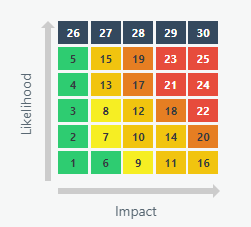
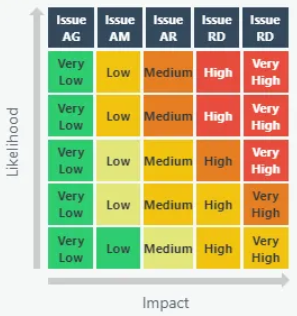
Example of the Matrix in Text Format
-----------------------------------------------------------------
L   |
I   |   26, 27, 28, 29, 30
k   |   05, 15, 19, 23, 25
E   |   04, 13, 17, 21, 24
L   |   03, 08, 12, 18, 22
I   |   02, 07, 10, 14, 20
H   |   01, 06, 09, 11, 16
O   |
O   -------------------------
D           IMPACT
The above turned into a MergeList formula (No IDs yet)
---------------------------------------------------------------
mergelist(
    [LIKELIHOOD],
    [IMPACT],
    [,1,2,3,4,5,6],
    [,1,2,3,4,5],
    [
        00, 00, 00, 00, 00, 00,,
        01, 06, 09, 11, 16, ,
        02, 07, 10, 14, 20, ,
        03, 08, 12, 18, 22, ,
        04, 13, 17, 21, 24, ,
        05, 15, 19, 23, 25, ,
        26, 27, 28, 29, 30, ,
    ]
)
Replaced raw scores with IDs
-----------------------------------------------------------------
mergelist(
[LIKELIHOOD],
[IMPACT],
[,2116,2117,2118,2119,2120,2121],
[,2111,2112,2113,2114,2115],
[
0, 0, 0, 0, 0, 0,,
2139, 2144, 2147, 2149, 2154, ,
2140, 2145, 2148, 2152, 2158, ,
2141, 2146, 2150, 2156, 2160, ,
2142, 2151, 2155, 2159, 2162, ,
2143, 2153, 2157, 2161, 2163, ,
2164, 2165, 2166, 2167, 2168, ,
]
)New Merge List - Use Case Statement instead:
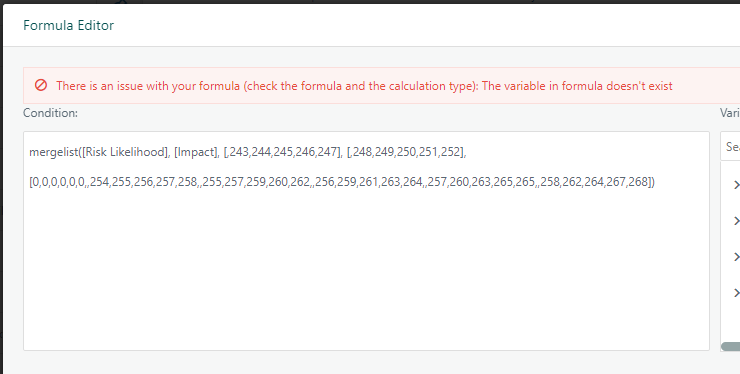
Merge Lists can also been as case statement and achieve the same results. Other cases, you might receive an error like below and need to leverage a case statement vs merge list.
Example:
Post Mitigating Impact (ddl= Registers - Risks/Issues - Impact)
ID Desc
541 1. Insignificant
542 2. Minor
543 3. Moderate
544 4. Major
545 5. Catastrophic
Post Mitigating Likelihood (ddl - Registers - Risks - Likelihood)
ID Desc
517 1. Rare
518 2. Unlikely
519 3. Possible
520 4. Likely
521 5. Almost Certain
RISK SCORE
ID Desc
550 01 (Low)
551 02 (Low)
552 03 (Low)
553 04 (Low)
554 05 (Medium)
555 06 (Medium)
556 08 (Medium)
557 09 (Medium)
558 10 (High)
559 12 (High)
560 15 (High)
561 16 (High)
562 20 (Extreme)
563 25 (Extreme)
1804 Not Set
Example - On the Risk Register create a new calculated Field of Type Custom List (chose the Risk Score as the ddl) with the Formula as follows:
Case(
        (([Post Mitigating Impact]) = 541) and (([Post Mitigating Likelihood]) = 517), 550,
        (([Post Mitigating Impact]) = 541) and (([Post Mitigating Likelihood]) = 518), 551,
        (([Post Mitigating Impact]) = 541) and (([Post Mitigating Likelihood]) = 519), 552,
        (([Post Mitigating Impact]) = 541) and (([Post Mitigating Likelihood]) = 520), 553,
        (([Post Mitigating Impact]) = 541) and (([Post Mitigating Likelihood]) = 521), 554,
        (([Post Mitigating Impact]) = 542) and (([Post Mitigating Likelihood]) = 517), 551,
        (([Post Mitigating Impact]) = 542) and (([Post Mitigating Likelihood]) = 518), 553,
        (([Post Mitigating Impact]) = 542) and (([Post Mitigating Likelihood]) = 519), 555,
        (([Post Mitigating Impact]) = 542) and (([Post Mitigating Likelihood]) = 520), 556,
        (([Post Mitigating Impact]) = 542) and (([Post Mitigating Likelihood]) = 521), 558,
        (([Post Mitigating Impact]) = 543) and (([Post Mitigating Likelihood]) = 517), 552,
        (([Post Mitigating Impact]) = 543) and (([Post Mitigating Likelihood]) = 518), 555,
        (([Post Mitigating Impact]) = 543) and (([Post Mitigating Likelihood]) = 519), 557,
        (([Post Mitigating Impact]) = 543) and (([Post Mitigating Likelihood]) = 520), 559,
        (([Post Mitigating Impact]) = 543) and (([Post Mitigating Likelihood]) = 521), 560,
        (([Post Mitigating Impact]) = 544) and (([Post Mitigating Likelihood]) = 517), 553,
        (([Post Mitigating Impact]) = 544) and (([Post Mitigating Likelihood]) = 518), 556,
        (([Post Mitigating Impact]) = 544) and (([Post Mitigating Likelihood]) = 519), 559,
        (([Post Mitigating Impact]) = 544) and (([Post Mitigating Likelihood]) = 520), 561,
        (([Post Mitigating Impact]) = 544) and (([Post Mitigating Likelihood]) = 521), 562,
        (([Post Mitigating Impact]) = 545) and (([Post Mitigating Likelihood]) = 517), 554,
        (([Post Mitigating Impact]) = 545) and (([Post Mitigating Likelihood]) = 518), 558,
        (([Post Mitigating Impact]) = 545) and (([Post Mitigating Likelihood]) = 519), 560,
        (([Post Mitigating Impact]) = 545) and (([Post Mitigating Likelihood]) = 520), 562,
        (([Post Mitigating Impact]) = 545) and (([Post Mitigating Likelihood]) = 521), 563, 1804)
Concatenating Fields
To join two fields together:
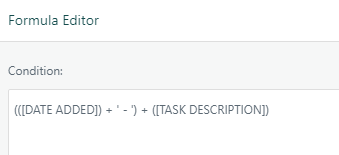
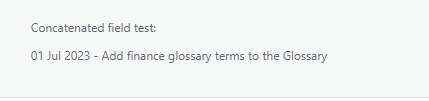
In this example, we’ll concatenate the Date Added and Task Description fields:

Formula:
End User View:
Was this article helpful?
That’s Great!
Thank you for your feedback
Sorry! We couldn't be helpful
Thank you for your feedback
Feedback sent
We appreciate your effort and will try to fix the article